# 在 Customer Journey 中发送 Telegram 消息
使用本指南在 [Customer Journey Builder](/zh/product/customer-journey/pushwoosh-journey-overview/) 中发送 Telegram 消息。
通过 Pushwoosh 使用 Telegram,可以帮助您在一个地方将 Telegram 作为全渠道旅程、细分和分析的一部分来运行。
## 开始之前
1. 在 **@BotFather** 中创建一个 Telegram 机器人,或使用现有的机器人。
2. 在 **设置 > 配置平台** 中配置 Telegram 并验证令牌。 [了解更多](/zh/product/first-steps/start-with-your-project/configure-platforms/telegram-configuration/)
## 创建 Journey
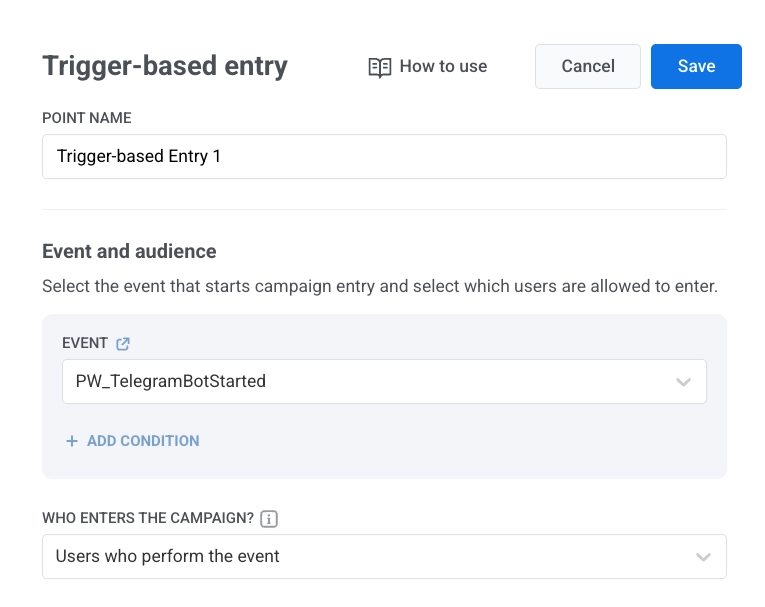
1. 添加 [**基于触发器进入 (Trigger-based entry)**](/zh/product/customer-journey/journey-elements/entry-elements/trigger-based-entry/) 元素。
2. 选择 **TelegramBotStarted** 作为事件。
 3. 将 **Telegram** 元素添加到画布中。
## 配置消息内容
在 Telegram 元素中:
1. 输入元素名称。
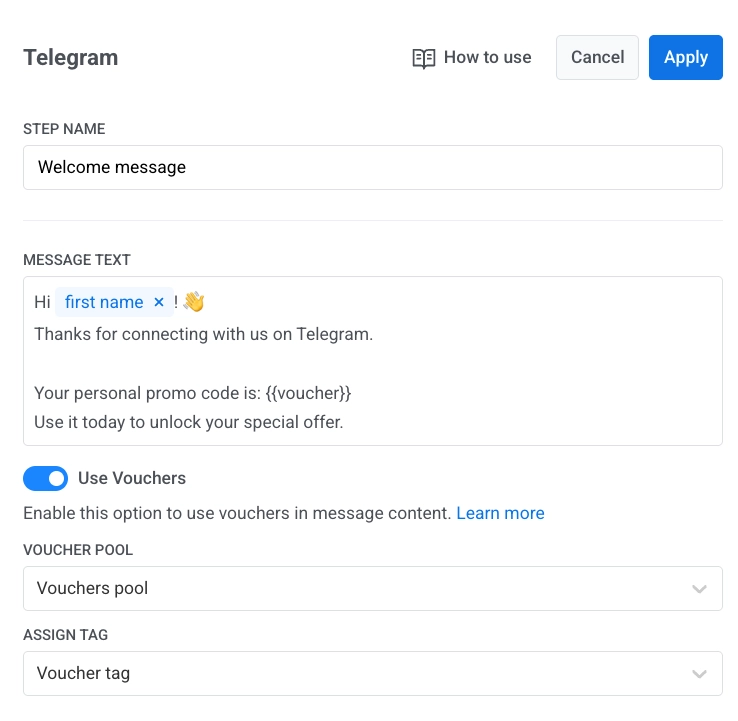
2. 在 **消息文本** 中输入您的消息。消息应仅为文本,且长度在 4096 个字符以内。
3. 可选。添加标签或 Liquid 占位符以个性化内容。 [Journey 中的动态内容和 Liquid 模板](/zh/product/customer-journey/journey-elements/dynamic-content-and-liquid-templates-in-journeys/)
4. 可选。开启 **使用优惠券**,选择 **优惠券池 (Voucher pool)**,并设置 **分配标签**。 [了解更多](/zh/product/content/vouchers/)
5. 点击 **应用**。
3. 将 **Telegram** 元素添加到画布中。
## 配置消息内容
在 Telegram 元素中:
1. 输入元素名称。
2. 在 **消息文本** 中输入您的消息。消息应仅为文本,且长度在 4096 个字符以内。
3. 可选。添加标签或 Liquid 占位符以个性化内容。 [Journey 中的动态内容和 Liquid 模板](/zh/product/customer-journey/journey-elements/dynamic-content-and-liquid-templates-in-journeys/)
4. 可选。开启 **使用优惠券**,选择 **优惠券池 (Voucher pool)**,并设置 **分配标签**。 [了解更多](/zh/product/content/vouchers/)
5. 点击 **应用**。
 ## 完成并启动 Journey
完成 Journey 并添加 [**退出元素 (Exit element)**](/zh/product/customer-journey/journey-elements#exit-from-journey)。
当营销活动准备就绪后,点击 **启动营销活动**。
## 可达性与统计数据
如果因临时网络问题导致发送失败,Pushwoosh 会自动重试。
如果 Telegram 返回 `bot blocked` 或 `chat not found`,Pushwoosh 会将该用户标记为 Telegram 不可达:
* `bot blocked` 在 **统计数据** 中显示为 **已跳过(屏蔽了机器人的用户)**。
* `chat not found` 在 **统计数据** 中显示为 **已跳过(聊天未找到的用户)**。
[了解有关 Telegram 统计数据的更多信息](/zh/product/statistics-and-analytics/journey-statistics/journey-element-statistics/#telegram)
## 在 User Explorer 中查看用户数据
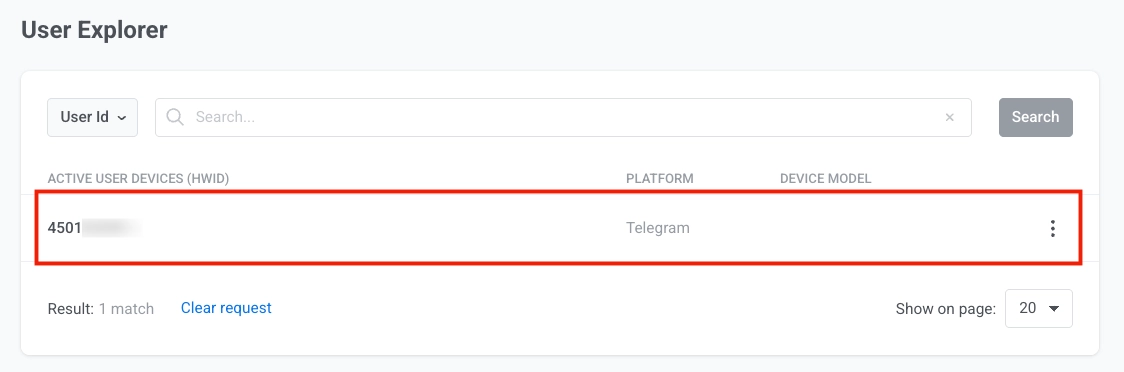
当用户与您的机器人开始对话时,Pushwoosh 会在 **User Explorer** 中创建一个用户档案,其中 **Telegram** 作为平台,并包含 Telegram 用户 ID。
## 完成并启动 Journey
完成 Journey 并添加 [**退出元素 (Exit element)**](/zh/product/customer-journey/journey-elements#exit-from-journey)。
当营销活动准备就绪后,点击 **启动营销活动**。
## 可达性与统计数据
如果因临时网络问题导致发送失败,Pushwoosh 会自动重试。
如果 Telegram 返回 `bot blocked` 或 `chat not found`,Pushwoosh 会将该用户标记为 Telegram 不可达:
* `bot blocked` 在 **统计数据** 中显示为 **已跳过(屏蔽了机器人的用户)**。
* `chat not found` 在 **统计数据** 中显示为 **已跳过(聊天未找到的用户)**。
[了解有关 Telegram 统计数据的更多信息](/zh/product/statistics-and-analytics/journey-statistics/journey-element-statistics/#telegram)
## 在 User Explorer 中查看用户数据
当用户与您的机器人开始对话时,Pushwoosh 会在 **User Explorer** 中创建一个用户档案,其中 **Telegram** 作为平台,并包含 Telegram 用户 ID。
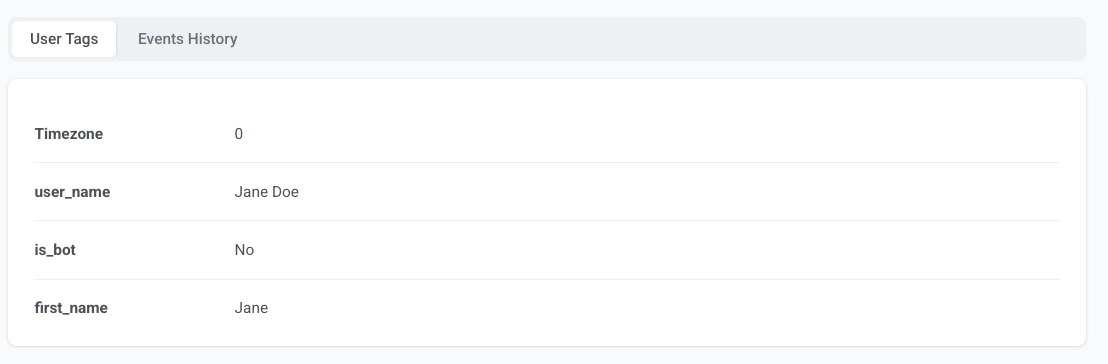
 该档案包括:
- 从 Telegram 收到的用户标签
- 事件,例如 `PW_TelegramBotStarted`。
该档案包括:
- 从 Telegram 收到的用户标签
- 事件,例如 `PW_TelegramBotStarted`。