# 通过 Customer Journey 发送一次性推送
您可以通过 Customer Journey Builder 发送一次性推送通知,而不是使用[一次性推送表单](/zh/product/messaging-channels/push-notifications/send-push-notifications/one-time-push/)。此过程对移动端和网页端同样适用。
## 构建 Journey
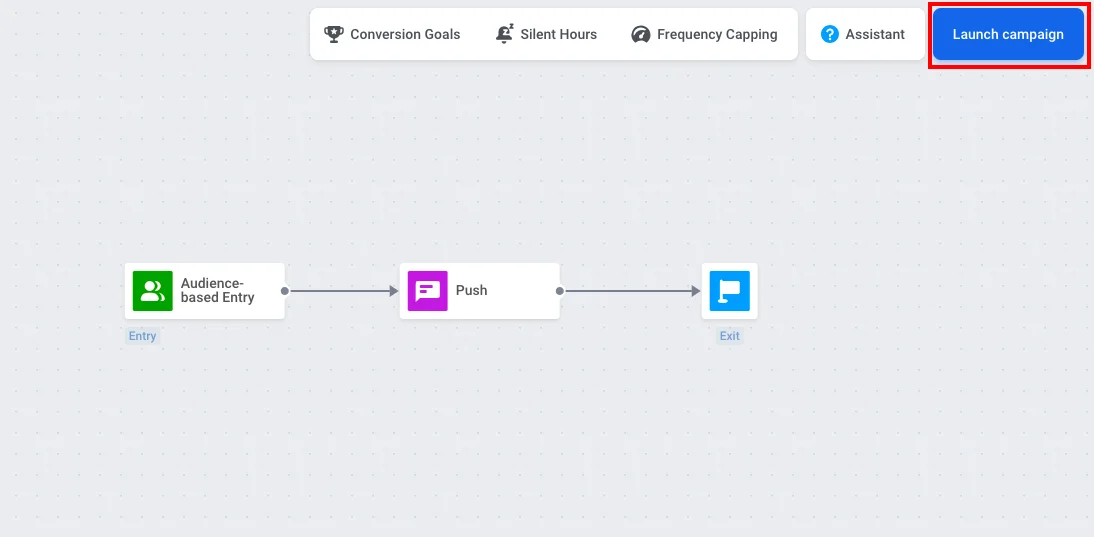
在 Customer Journey Builder 中创建推送营销活动时,请选择 **One-time campaign** 模板。它会自动将[基于受众的入口 (Audience-based Entry)](/zh/product/customer-journey/journey-elements/entry-elements/audience-based-entry/)、[推送 (Push)](/zh/product/customer-journey/journey-elements/channels/push/) 和[退出 (Exit)](/zh/product/customer-journey/journey-elements/flow-controls/exit/) 元素添加到画布上并为您连接好。
您也可以手动构建 Journey,方法是将这三个元素拖到画布上并按顺序连接它们。
## 设置受众
双击 **Audience-based Entry** 元素以选择接收推送的用户。在同一个元素中,您可以设置 **Scheduled Launch**,以便在特定日期和时间发送推送。[了解更多关于基于受众的入口 (Audience-based Entry)](/zh/product/customer-journey/journey-elements/entry-elements/audience-based-entry/) 的信息,包括[计划启动 (Scheduled launch)](/zh/product/customer-journey/journey-elements/entry-elements/audience-based-entry/#scheduled-launch)。
如果您已经有一个选择接收推送的用户细分(例如 Push Alerts Enabled),请在 **Audience Source** 中选择该细分。
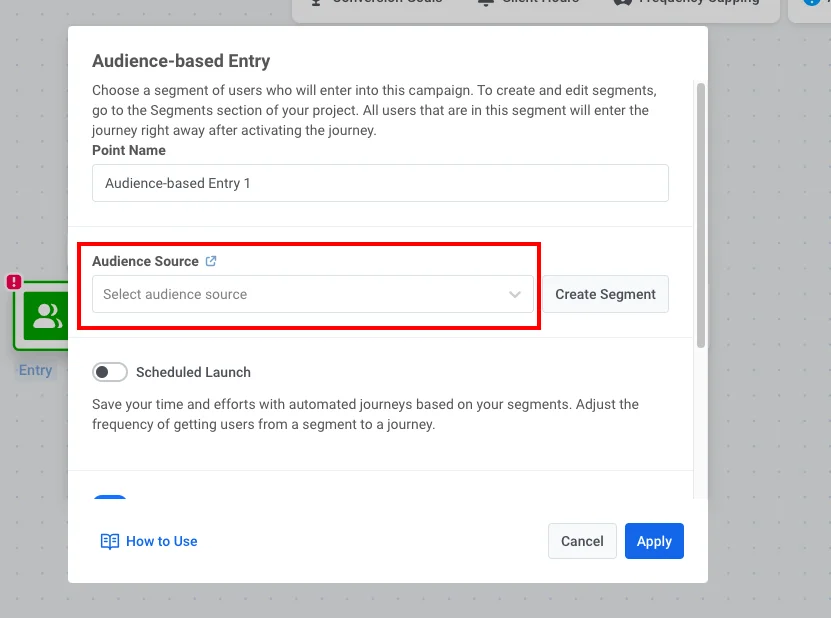 如果您需要创建细分:
1. 点击 **Create Segment**。
2. 在细分构建器中,添加一个筛选条件:标签 **Push Alerts Enabled** 为 true。
3. 点击 **Save segment**。
## 配置推送并启动
1. 双击 **Push** 元素,然后选择或[创建推送内容](/zh/product/content/push-presets/)。
[了解更多关于 Customer Journey 中的 Push 元素](/zh/product/customer-journey/journey-elements/channels/push/)
2. 当 Journey 准备就绪后,点击 **Launch campaign**。
如果您需要创建细分:
1. 点击 **Create Segment**。
2. 在细分构建器中,添加一个筛选条件:标签 **Push Alerts Enabled** 为 true。
3. 点击 **Save segment**。
## 配置推送并启动
1. 双击 **Push** 元素,然后选择或[创建推送内容](/zh/product/content/push-presets/)。
[了解更多关于 Customer Journey 中的 Push 元素](/zh/product/customer-journey/journey-elements/channels/push/)
2. 当 Journey 准备就绪后,点击 **Launch campaign**。