# 周期性推送
周期性推送 (Recurring push) 会在选定的时间间隔(例如每日、每周)或特定日期重复发送相同的推送通知。此流程同样适用于移动端和网页端推送。
**先决条件**
* 周期性计划仅适用于 [**基于受众的入口 (Audience-based entry)**](/zh/product/customer-journey/journey-elements/entry-elements/audience-based-entry/)。
* 构建一个包含 [**基于受众的入口 (Audience-based Entry)**](/zh/product/customer-journey/journey-elements/entry-elements/audience-based-entry/)、[**推送 (Push)**](/zh/product/customer-journey/journey-elements/channels/push/) 和 [**退出 (Exit)**](/zh/product/customer-journey/journey-elements#exit-from-journey) 的 Journey。有关基本流程,请参阅 [一次性推送 (One-time push)](/zh/product/messaging-channels/push-notifications/send-push-notifications/one-time-push/#how-to-send-a-one-time-push-notification-using-customer-journey-builder),然后配置下方的入口计划。
## 配置周期性入口
双击 [**基于受众的入口 (Audience-based entry)**](/zh/product/customer-journey/journey-elements/entry-elements/audience-based-entry/#recurring-entry) 元素。将 **入口计划 (Entry schedule)** 设置为 **周期性入口 (Recurring entry)**,然后选择:
* **在特定日期 (On specific dates):** 用户在您选择的日期进入(例如网络研讨会或活动日期)。
* **周期性 (Periodically):** 用户按固定的时间间隔进入(例如每 1 天、每 1 周)。
像设置一次性定时发送一样设置时间和时区。 [了解更多关于周期性入口的信息](/zh/product/customer-journey/journey-elements/entry-elements/audience-based-entry/#recurring-entry)。
### 在特定日期
安排 Journey,让用户在多个特定日期进入。
1. 选择 **在特定日期 (On specific dates)** 并在日历中选择日期。点击 **+ 添加日期 (+ Add Date)** 以添加更多日期。
2. 设置时间和时区。
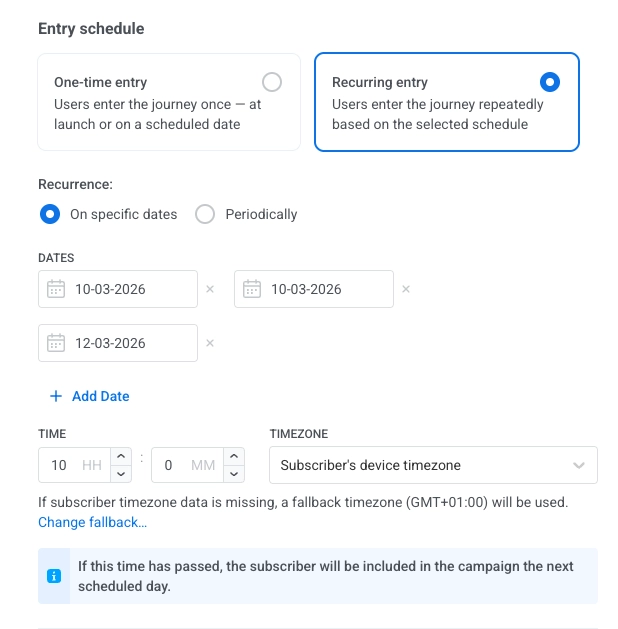 **时区选项:**
* **订阅者的设备时区(默认):** 入口使用每个订阅者的设备时区。如果时区缺失,将使用备用时区。点击 **更改备用时区 (Change fallback)** 进行更改。
* **特定时区:** 从下拉菜单中选择一个时区以固定入口时间。
### 周期性
设置一个按固定间隔运行的 Journey(例如,每周一上午 9:00)。
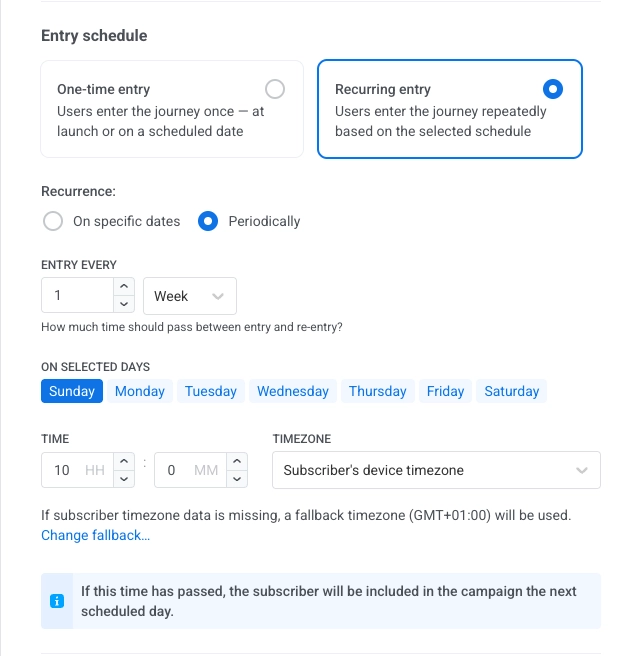
1. 选择 **周期性 (Periodically)**。
2. 在 **每隔...进入 (ENTRY EVERY)** 中,设置时间间隔(例如每 1 天、每 2 周)。
3. 选择日期(星期几或几号,取决于时间间隔)。
4. 按照 [在特定日期](#on-specific-dates) 的方式设置时间和时区。
**时区选项:**
* **订阅者的设备时区(默认):** 入口使用每个订阅者的设备时区。如果时区缺失,将使用备用时区。点击 **更改备用时区 (Change fallback)** 进行更改。
* **特定时区:** 从下拉菜单中选择一个时区以固定入口时间。
### 周期性
设置一个按固定间隔运行的 Journey(例如,每周一上午 9:00)。
1. 选择 **周期性 (Periodically)**。
2. 在 **每隔...进入 (ENTRY EVERY)** 中,设置时间间隔(例如每 1 天、每 2 周)。
3. 选择日期(星期几或几号,取决于时间间隔)。
4. 按照 [在特定日期](#on-specific-dates) 的方式设置时间和时区。
 ## 后续步骤
1. 配置 [**推送 (Push)**](/zh/product/customer-journey/journey-elements/channels/push/) 元素(消息内容)。
2. 配置您需要的任何其他 Journey 元素。
3. 添加 [**退出 (Exit)**](/zh/product/customer-journey/journey-elements#exit-from-journey) 元素。
[了解更多关于 Journey 元素的信息](/zh/product/customer-journey/journey-elements)。
## 示例:健身应用的每周提醒
每周一上午 9:00 在每个用户的本地时区发送相同的激励性推送。
1. **创建基本推送流程。** 将 [**基于受众的入口 (Audience-based Entry)**](/zh/product/customer-journey/journey-elements/entry-elements/audience-based-entry/) 添加到画布并选择一个 **受众来源 (Audience Source)**。
2. **设置周期性入口。** 在元素中,将 **入口计划 (Entry schedule)** 设置为 **周期性入口 (Recurring entry)** → **周期性 (Periodically)**,将 **每隔...进入 (ENTRY EVERY)** 设置为 **每 1 周**,日期为 **星期一**。
3. **设置时间和时区。** 将时间设置为 **上午 9:00** 和 **订阅者的设备时区 (Subscriber's device timezone)**。
4. **添加推送和退出。** 添加 [**推送 (Push)**](/zh/product/customer-journey/journey-elements/channels/push/)(创建消息)和 [**退出 (Exit)**](/zh/product/customer-journey/journey-elements#exit-from-journey)。检查并点击 **启动活动 (Launch campaign)**。
## 后续步骤
1. 配置 [**推送 (Push)**](/zh/product/customer-journey/journey-elements/channels/push/) 元素(消息内容)。
2. 配置您需要的任何其他 Journey 元素。
3. 添加 [**退出 (Exit)**](/zh/product/customer-journey/journey-elements#exit-from-journey) 元素。
[了解更多关于 Journey 元素的信息](/zh/product/customer-journey/journey-elements)。
## 示例:健身应用的每周提醒
每周一上午 9:00 在每个用户的本地时区发送相同的激励性推送。
1. **创建基本推送流程。** 将 [**基于受众的入口 (Audience-based Entry)**](/zh/product/customer-journey/journey-elements/entry-elements/audience-based-entry/) 添加到画布并选择一个 **受众来源 (Audience Source)**。
2. **设置周期性入口。** 在元素中,将 **入口计划 (Entry schedule)** 设置为 **周期性入口 (Recurring entry)** → **周期性 (Periodically)**,将 **每隔...进入 (ENTRY EVERY)** 设置为 **每 1 周**,日期为 **星期一**。
3. **设置时间和时区。** 将时间设置为 **上午 9:00** 和 **订阅者的设备时区 (Subscriber's device timezone)**。
4. **添加推送和退出。** 添加 [**推送 (Push)**](/zh/product/customer-journey/journey-elements/channels/push/)(创建消息)和 [**退出 (Exit)**](/zh/product/customer-journey/journey-elements#exit-from-journey)。检查并点击 **启动活动 (Launch campaign)**。