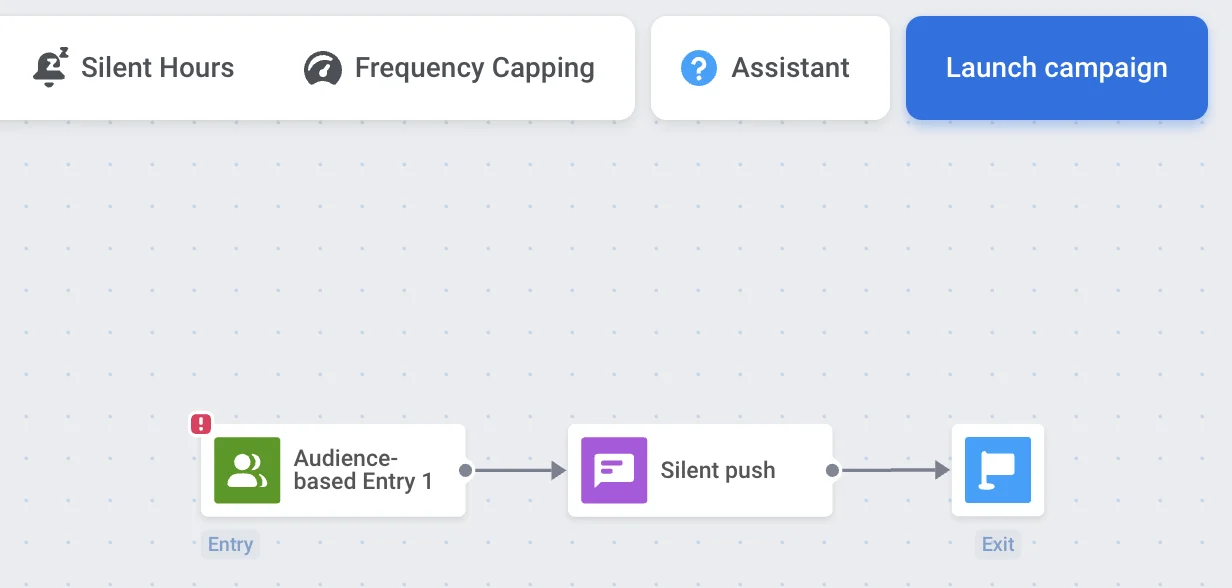
# 静默推送通知
在某些情况下,您可能需要在不通知用户或显示任何可见警报的情况下更新您的应用、传递数据或从服务器检索新内容。静默推送通知正是为此目的而设计的。
静默推送通知在发送到用户设备时,不会有任何警报、声音或图标角标。当静默推送到达时,应用会在后台被唤醒。用户不会察觉到任何警报,也看不到任何推送内容。
通过发送静默推送通知,您可以:
- 通知您的应用有新内容可供下载
- 在后台执行某些任务
- 从您的服务器获取新数据
- 向应用传递自定义数据
当您需要清理用户群时,静默推送通知也很有用。每次发送推送时,我们都会从数据库中删除所有无效或不存在的推送令牌。这就是为什么[卸载跟踪](https://help.pushwoosh.com/hc/en-us/articles/360033774692-Uninstalls-Tracking)会使用静默推送通知,这能让您的用户群保持有效和更新。
## 实现
### Customer Journey
您可以在 Customer Journey 中使用 [**Data to app**](/zh/product/customer-journey/journey-elements/channels/data-to-app/) 元素来发送静默推送通知。**Data to app** 元素会自动发送带有[自定义数据](/zh/product/messaging-channels/push-notifications/advanced-push-features/using-custom-data/)的静默推送通知,以在不惊扰用户的情况下触发应用内操作。
要发送静默推送通知:
1. 将 **Data to app** 元素添加到您的 [Journey 画布](/zh/product/customer-journey/pushwoosh-journey-overview/)中。
2. 将您的 JSON 代码粘贴到提供的字段中。该 JSON 负载包含您的应用在收到静默推送时将处理的自定义数据。
3. 点击 **Save** 以应用配置。
静默推送通知将在后台发送到用户设备,唤醒您的应用来处理自定义数据,而不会显示任何警报、声音或角标。
### API
您也可以在开发团队的协助下,通过 Pushwoosh API 发送静默推送通知。
### 旧版推送预设表单
要发送静默推送通知,请前往 **Content > Presets** 并添加一个新的预设。
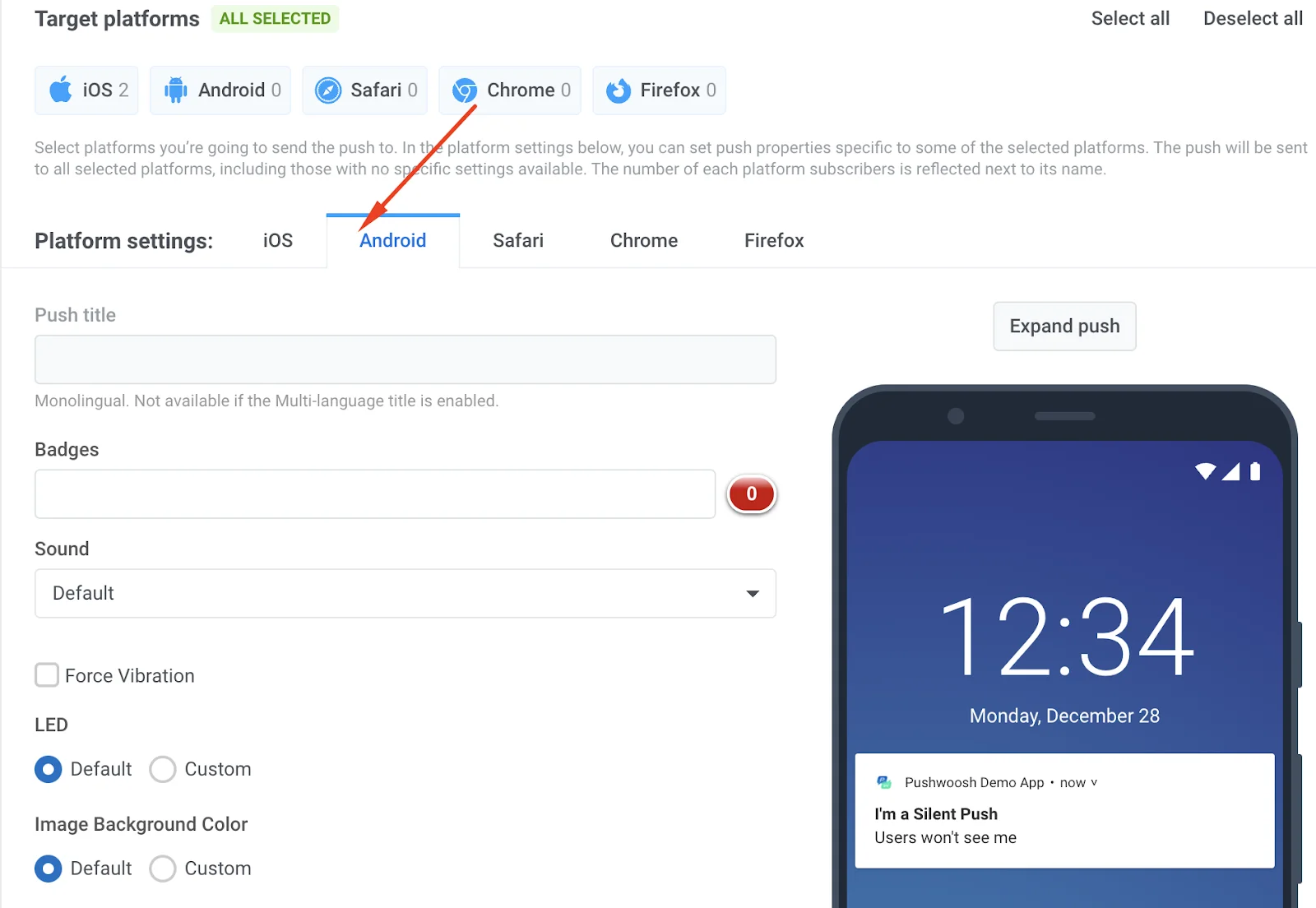
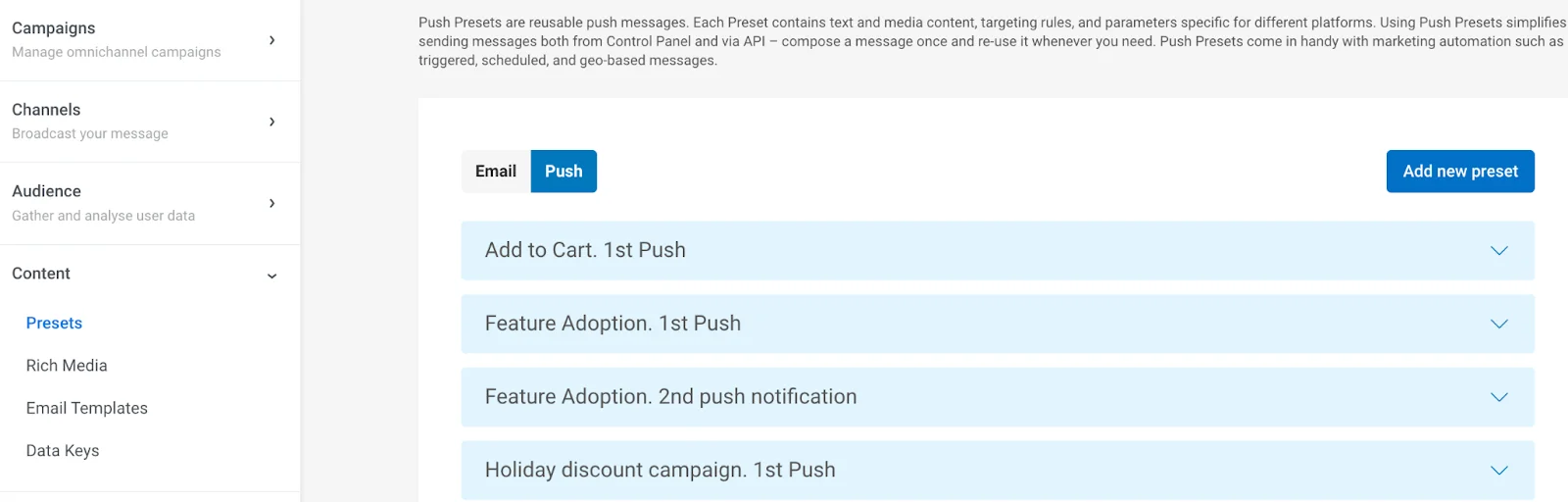 指定平台——iOS 或 Android。
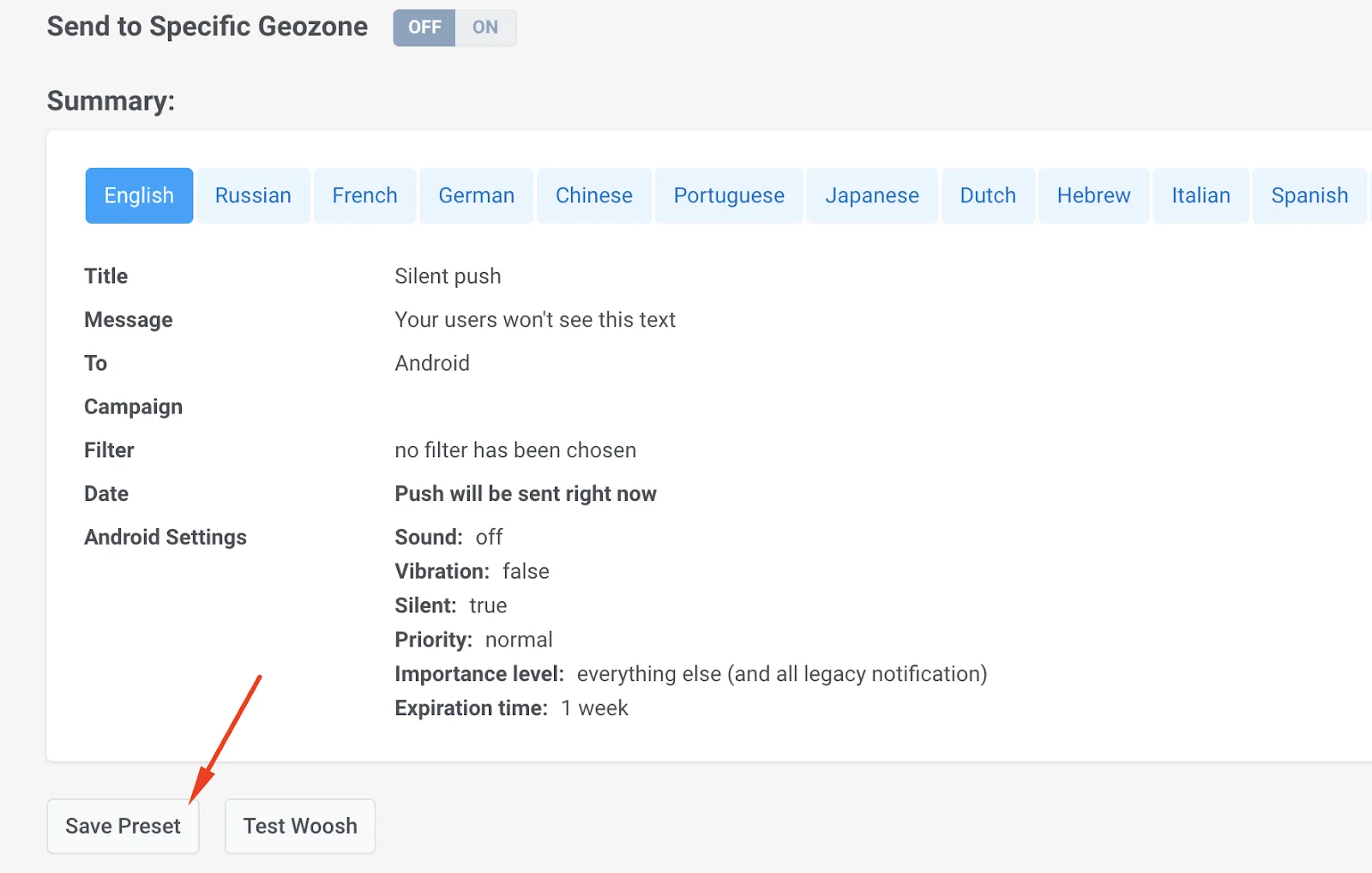
 添加标题和订阅(您的用户不会看到它,所以您可以使用任何测试文案)。然后勾选 **Silent Push** 复选框。
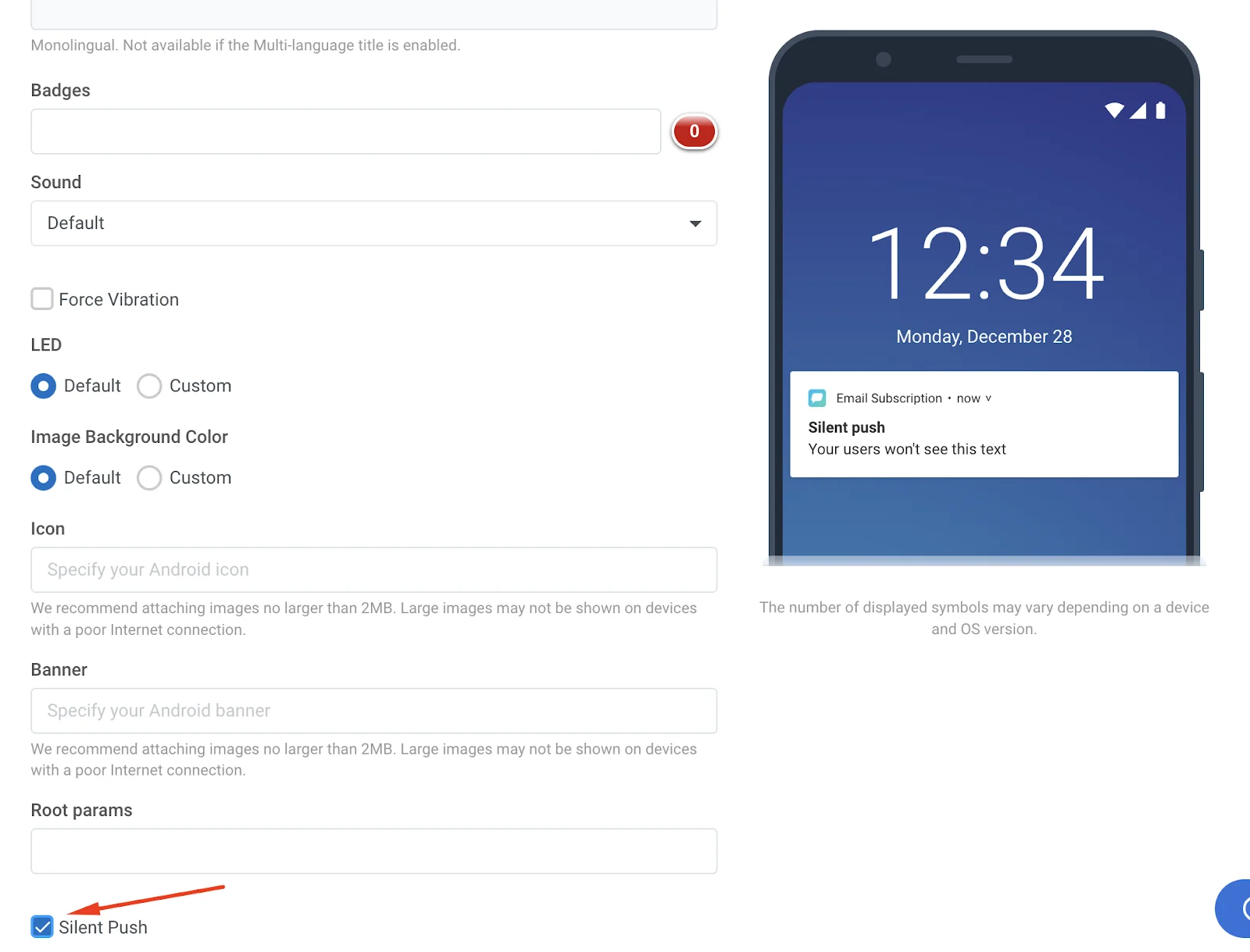 滚动到页面底部并保存此预设。
 前往 **Campaigns > Customer Journey Builder**,选择一个您已有的 Journey,或[创建一个新的](/zh/product/customer-journey/how-to-try-it-out)。然后,点击 Push 元素,选择带有静默推送的预设。
 当您的 Journey 全部设置好后,点击右侧的 **Launch campaign**。