# Journey 元素入门
Pushwoosh 中的客户旅程是使用模块化的 Journey 元素构建的。这些元素代表了入口点、沟通渠道和流程控制,它们定义了用户如何在您的旅程中移动。
## 使用 Journey 元素
###### 向旅程中添加元素
要向旅程中添加元素,可以将其从左侧面板拖到画布上,或者在现有元素上点击 **Connect this**,然后从列表中选择下一步。
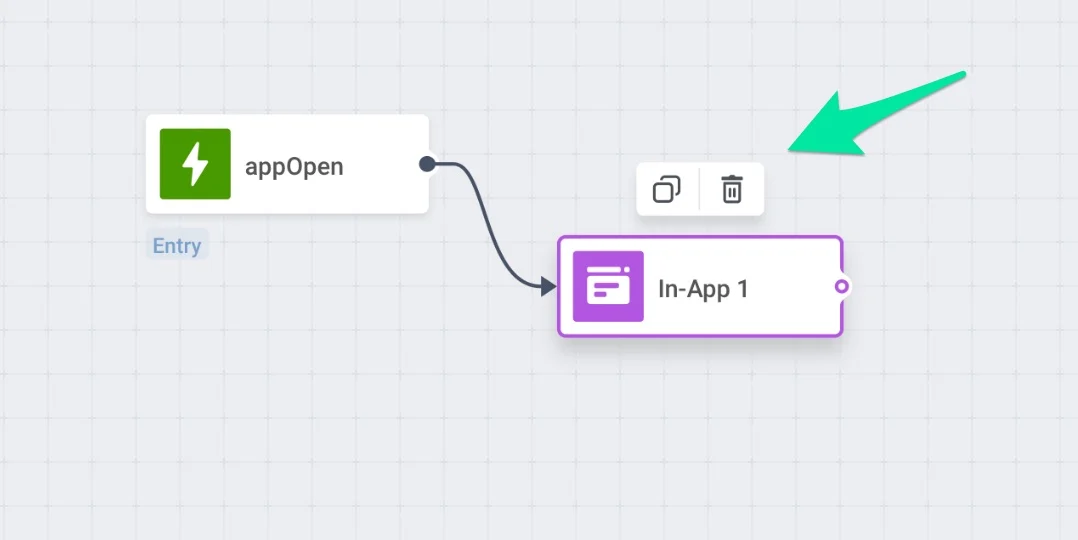
###### 删除元素
要**删除**一个元素,单击它一次,然后按顶部的**垃圾桶图标**。
 ###### 编辑元素
要**编辑**一个元素,双击它并在出现的弹出窗口中填写字段。
## Journey 元素
### 入口
#### 基于触发器的入口
当用户触发特定事件(如购买或注册)时开始一个旅程。
#### 基于受众的入口
为预定义的用户细分启动一个旅程。
#### 基于 API 的入口
当外部业务事件发生时,通过向 Pushwoosh API 发送请求来启动一个旅程。
### 渠道
#### 推送
在旅程的恰当时刻发送个性化推送通知,支持优惠券、收件箱存储、时间优化和频率上限。
#### Multi-Armed Bandit
在旅程中使用实时打开率自动发送表现最佳的推送变体,无需手动进行 A/B 测试。
#### 邮件
作为客户旅程的一部分发送个性化电子邮件。您可以测试主题行、包含优惠券代码、启用密送、设置频率限制,并根据邮件是否被打开来拆分旅程。
#### In-app
触发应用内消息,当用户打开应用时向他们展示个性化内容以进行互动。
#### SMS
使用可定制的预设或个性化文本发送及时的 SMS 消息,以推动即时用户互动。
#### WhatsApp
使用经批准的 Meta 模板或自定义文本发送量身定制的 WhatsApp 消息,以提供相关内容并提高转化率。
#### Telegram
在用户启动您的机器人后,发送纯文本的 Telegram 消息,支持个性化、优惠券和投递统计。
#### LINE
通过有针对性的 LINE 消息与用户互动。从格式化的预设或纯文本内容中选择,添加优惠券,并根据投递成功情况优化流程。
#### Kakao
使用带有动态变量和可选优惠券的 Kakao 模板发送经批准的 Kakao 消息。
#### Data to app
投递静默推送或 JSON 有效负载,以触发应用内行为、个性化内容或动态测试新功能。
#### Webhook
通过 HTTP 请求向第三方系统发送数据或触发操作。
### 流程控制
#### 条件拆分
根据用户细分或标签值拆分旅程。
#### 等待触发器
暂停旅程,直到用户触发指定的事件或属性。
#### A/B/n 拆分
拆分旅程以测试消息变体并根据性能进行优化。
#### 可达性检查
检查用户是否可以通过某个渠道触达,并相应地引导旅程。
#### 时间延迟
根据固定的时间间隔、特定时间、日期或标签/事件值,在下一步之前暂停用户。
#### 更新用户资料
根据旅程事件手动或动态地分配或更新用户标签。
#### 受众同步
将旅程步骤中的用户同步到 Meta 受众,用于广告定位或排除。
#### Webhook
通过 HTTP 请求向第三方系统发送数据或触发操作。
#### 退出旅程
标记用户旅程的终点,以结束所有逻辑和消息传递。
## 画布快捷键
为了简化您的旅程配置,请使用快捷键,无需点击即可即时管理旅程的各个部分:
* 选择一个 Journey 元素,并使用 **Ctrl+C/Ctrl+V** (Cmd+C/Cmd+V) 复制粘贴。
* 按住 Shift/Cmd 选择多个 Journey 元素,并使用 **Ctrl+C/Ctrl+V** 复制粘贴整个选区。
* 在不同旅程之间复制和粘贴元素(复制时请勿切换标签页)。
* 按系统的**删除**快捷键从画布中删除 Journey 元素。
###### 编辑元素
要**编辑**一个元素,双击它并在出现的弹出窗口中填写字段。
## Journey 元素
### 入口
#### 基于触发器的入口
当用户触发特定事件(如购买或注册)时开始一个旅程。
#### 基于受众的入口
为预定义的用户细分启动一个旅程。
#### 基于 API 的入口
当外部业务事件发生时,通过向 Pushwoosh API 发送请求来启动一个旅程。
### 渠道
#### 推送
在旅程的恰当时刻发送个性化推送通知,支持优惠券、收件箱存储、时间优化和频率上限。
#### Multi-Armed Bandit
在旅程中使用实时打开率自动发送表现最佳的推送变体,无需手动进行 A/B 测试。
#### 邮件
作为客户旅程的一部分发送个性化电子邮件。您可以测试主题行、包含优惠券代码、启用密送、设置频率限制,并根据邮件是否被打开来拆分旅程。
#### In-app
触发应用内消息,当用户打开应用时向他们展示个性化内容以进行互动。
#### SMS
使用可定制的预设或个性化文本发送及时的 SMS 消息,以推动即时用户互动。
#### WhatsApp
使用经批准的 Meta 模板或自定义文本发送量身定制的 WhatsApp 消息,以提供相关内容并提高转化率。
#### Telegram
在用户启动您的机器人后,发送纯文本的 Telegram 消息,支持个性化、优惠券和投递统计。
#### LINE
通过有针对性的 LINE 消息与用户互动。从格式化的预设或纯文本内容中选择,添加优惠券,并根据投递成功情况优化流程。
#### Kakao
使用带有动态变量和可选优惠券的 Kakao 模板发送经批准的 Kakao 消息。
#### Data to app
投递静默推送或 JSON 有效负载,以触发应用内行为、个性化内容或动态测试新功能。
#### Webhook
通过 HTTP 请求向第三方系统发送数据或触发操作。
### 流程控制
#### 条件拆分
根据用户细分或标签值拆分旅程。
#### 等待触发器
暂停旅程,直到用户触发指定的事件或属性。
#### A/B/n 拆分
拆分旅程以测试消息变体并根据性能进行优化。
#### 可达性检查
检查用户是否可以通过某个渠道触达,并相应地引导旅程。
#### 时间延迟
根据固定的时间间隔、特定时间、日期或标签/事件值,在下一步之前暂停用户。
#### 更新用户资料
根据旅程事件手动或动态地分配或更新用户标签。
#### 受众同步
将旅程步骤中的用户同步到 Meta 受众,用于广告定位或排除。
#### Webhook
通过 HTTP 请求向第三方系统发送数据或触发操作。
#### 退出旅程
标记用户旅程的终点,以结束所有逻辑和消息传递。
## 画布快捷键
为了简化您的旅程配置,请使用快捷键,无需点击即可即时管理旅程的各个部分:
* 选择一个 Journey 元素,并使用 **Ctrl+C/Ctrl+V** (Cmd+C/Cmd+V) 复制粘贴。
* 按住 Shift/Cmd 选择多个 Journey 元素,并使用 **Ctrl+C/Ctrl+V** 复制粘贴整个选区。
* 在不同旅程之间复制和粘贴元素(复制时请勿切换标签页)。
* 按系统的**删除**快捷键从画布中删除 Journey 元素。