# 创建选择加入和选择退出的弹窗
应用内消息对于获取用户同意以发送推送通知至关重要。您还可以使用它们来挽回因任何原因退订了推送通知的用户。重新吸引这些用户有助于提高整体用户留存率,并增加他们对您业务的终身价值。
[Pushwoosh In-App Editor](/zh/product/content/in-apps/no-code-in-app-editor/create-rich-media-in-the-built-in-editor/) 让您无需开发和设计技能即可轻松创建应用内消息。您可以将标题、文本、图片(包括 AI 生成的图片和库存照片)、按钮、表单和其他元素添加到画布中,只需点击几下即可进行自定义。您可以将应用内消息整合到全渠道客户旅程中,以最大限度地利用您的用户通信。
## 在 Pushwoosh In-App Editor 中构建选择加入和选择退出恢复模板
您可以自行决定是为选择加入和选择退出恢复请求创建单独的应用内消息,还是使用同一个。以下是一个弹窗示例,可以根据具体情况帮助您实现这两个目标:
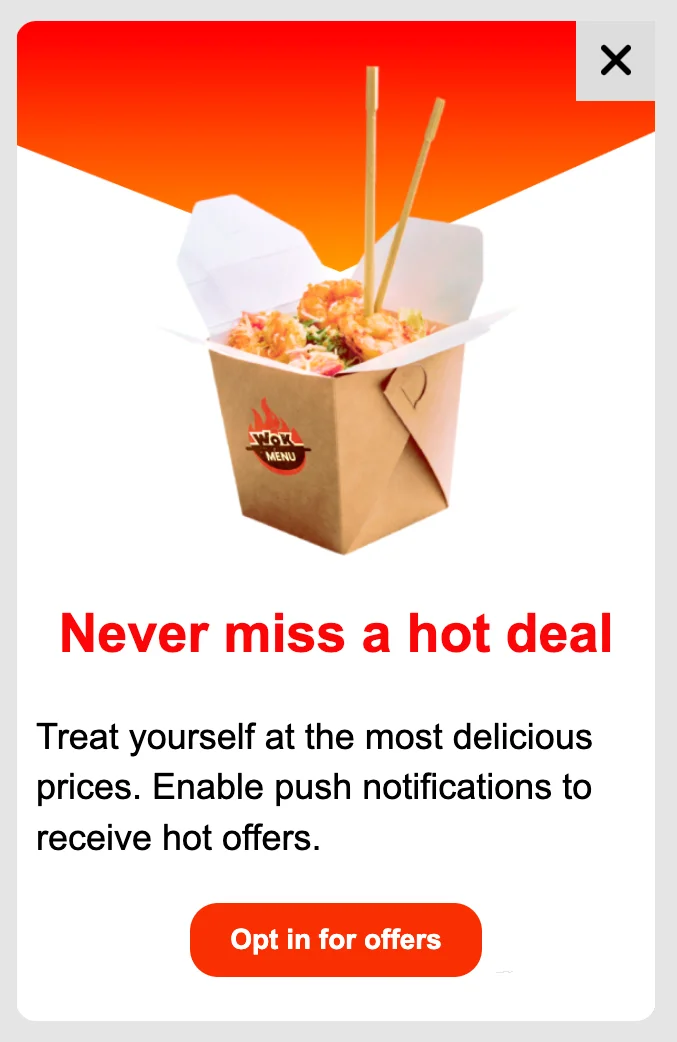 [在 In-App Editor 中创建一个部分屏幕弹窗](/zh/product/content/in-apps/no-code-in-app-editor/configure-in-app-template-settings/#configure-how-the-in-app-looks-on-device),然后返回此处以自动化其在您应用中的显示时机。
## 在 Customer Journey Builder 中自动化您的应用内消息显示
创建应用内消息后,您还必须配置其在应用中的显示方式,以便用户在适当的时候看到它。要设置**选择加入**和**选择退出恢复**弹窗,您需要在 Pushwoosh [Customer Journey Builder](/zh/product/customer-journey/journey-elements) 中创建两个独立的营销活动。
### 选择加入弹窗
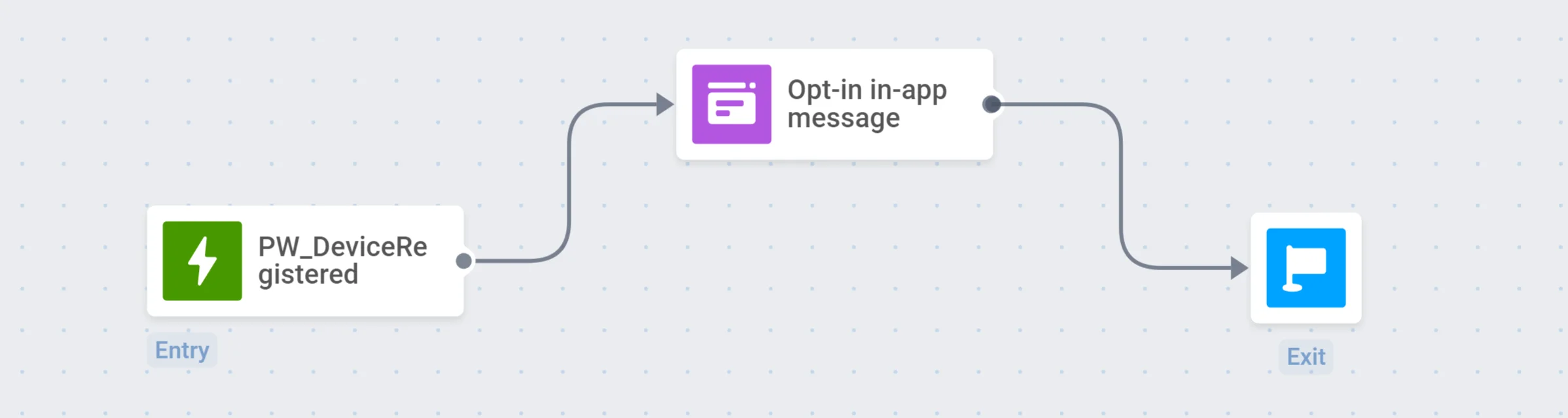
要自动显示选择加入弹窗,您可以构建一个以 [Trigger-based Entry](/zh/product/customer-journey/journey-elements/#trigger-based-entry) 开始的客户旅程。默认的 [PW_DeviceRegistered](/zh/product/audience-data-and-segmentation/events/default-events/#pw_deviceregistered) Event 非常适合设置选择加入营销活动,因为它在用户首次启动应用时触发。
在下面的示例中,用户将在首次启动应用后立即看到选择加入弹窗:
[在 In-App Editor 中创建一个部分屏幕弹窗](/zh/product/content/in-apps/no-code-in-app-editor/configure-in-app-template-settings/#configure-how-the-in-app-looks-on-device),然后返回此处以自动化其在您应用中的显示时机。
## 在 Customer Journey Builder 中自动化您的应用内消息显示
创建应用内消息后,您还必须配置其在应用中的显示方式,以便用户在适当的时候看到它。要设置**选择加入**和**选择退出恢复**弹窗,您需要在 Pushwoosh [Customer Journey Builder](/zh/product/customer-journey/journey-elements) 中创建两个独立的营销活动。
### 选择加入弹窗
要自动显示选择加入弹窗,您可以构建一个以 [Trigger-based Entry](/zh/product/customer-journey/journey-elements/#trigger-based-entry) 开始的客户旅程。默认的 [PW_DeviceRegistered](/zh/product/audience-data-and-segmentation/events/default-events/#pw_deviceregistered) Event 非常适合设置选择加入营销活动,因为它在用户首次启动应用时触发。
在下面的示例中,用户将在首次启动应用后立即看到选择加入弹窗:
 ### 选择退出恢复弹窗
至于选择退出恢复营销活动,我们建议为已禁用或从未在应用中启用通知的用户细分创建一个客户旅程。
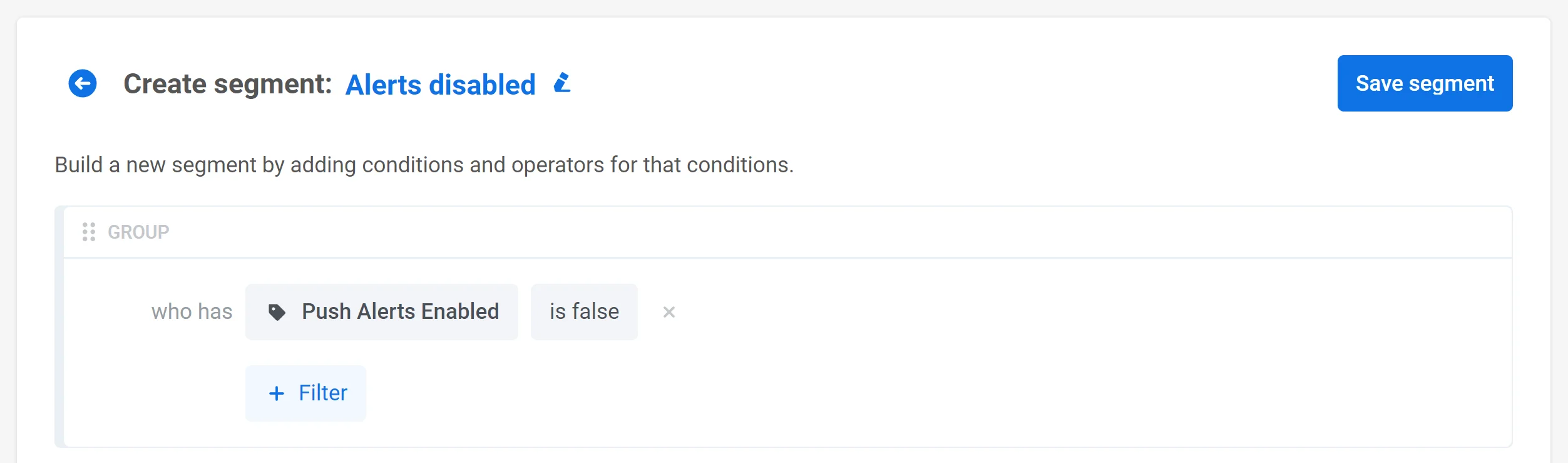
首先,您需要配置一个自定义的 _Push Alerts Enabled_ [Tag](/zh/product/audience-data-and-segmentation/user-data-tags/tags/),并构建一个已禁用提醒的用户 [Segment](/zh/product/audience-data-and-segmentation/segmentation/):
### 选择退出恢复弹窗
至于选择退出恢复营销活动,我们建议为已禁用或从未在应用中启用通知的用户细分创建一个客户旅程。
首先,您需要配置一个自定义的 _Push Alerts Enabled_ [Tag](/zh/product/audience-data-and-segmentation/user-data-tags/tags/),并构建一个已禁用提醒的用户 [Segment](/zh/product/audience-data-and-segmentation/segmentation/):
 之后,您可以构建一个以 [Audience-based Entry](/zh/product/customer-journey/journey-elements/#audience-based-entry) 开始的客户旅程。选择您创建的细分,并设置**进入计划** → **重复进入** → **定期**(例如,每月一次):
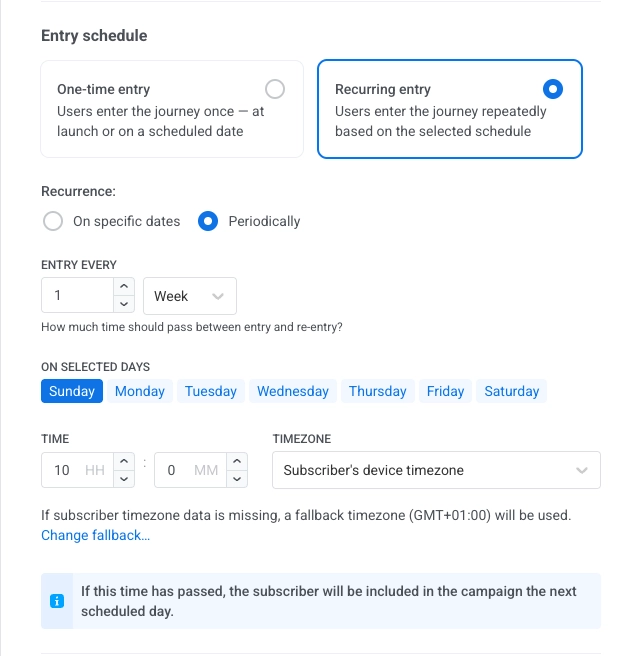 您还可以添加 [Wait for Trigger](/zh/product/customer-journey/journey-elements/#wait-for-trigger) 步骤,并使用默认的 [PW_ApplicationOpen](/zh/product/audience-data-and-segmentation/events/default-events/#pw_applicationopen) Event 作为触发器,这样弹窗就会在用户打开应用时出现。最终,该旅程将如下所示:
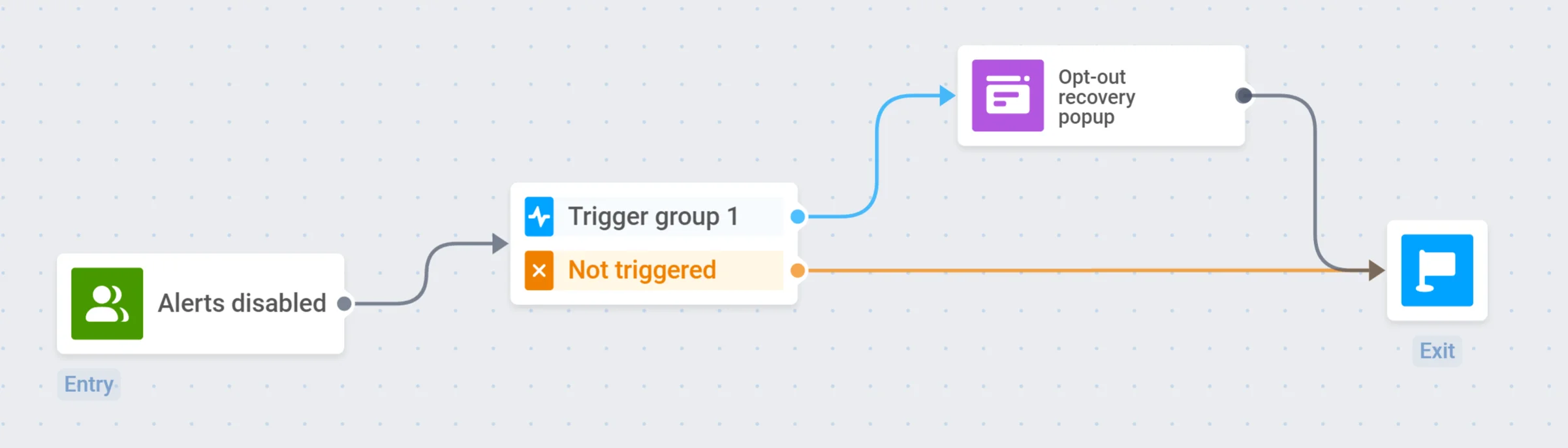 每个月,Pushwoosh 都会为已关闭通知的用户细分启动此旅程。
## 更多有用的文章和见解
* [Pushwoosh 博客中热门的应用内消息格式和最佳示例](https://blog.pushwoosh.com/blog/what-are-in-apps/)
* [在您的全渠道策略中使用应用内消息的技巧](https://blog.pushwoosh.com/blog/push-notifications-in-app-messaging/)
* [In-App (Rich Media) Editor 文档](/zh/product/content/in-apps/no-code-in-app-editor/create-rich-media-in-the-built-in-editor/)
每个月,Pushwoosh 都会为已关闭通知的用户细分启动此旅程。
## 更多有用的文章和见解
* [Pushwoosh 博客中热门的应用内消息格式和最佳示例](https://blog.pushwoosh.com/blog/what-are-in-apps/)
* [在您的全渠道策略中使用应用内消息的技巧](https://blog.pushwoosh.com/blog/push-notifications-in-app-messaging/)
* [In-App (Rich Media) Editor 文档](/zh/product/content/in-apps/no-code-in-app-editor/create-rich-media-in-the-built-in-editor/)