# 在拖放编辑器中使用 AI 工具
Pushwoosh 的拖放编辑器在整个电子邮件构建工作流程中都使用了 AI,从编辑内容的聊天助手到一键翻译和品牌匹配的样式。本页将每个 AI 工具映射到深入介绍它的指南。
## AI 选项卡
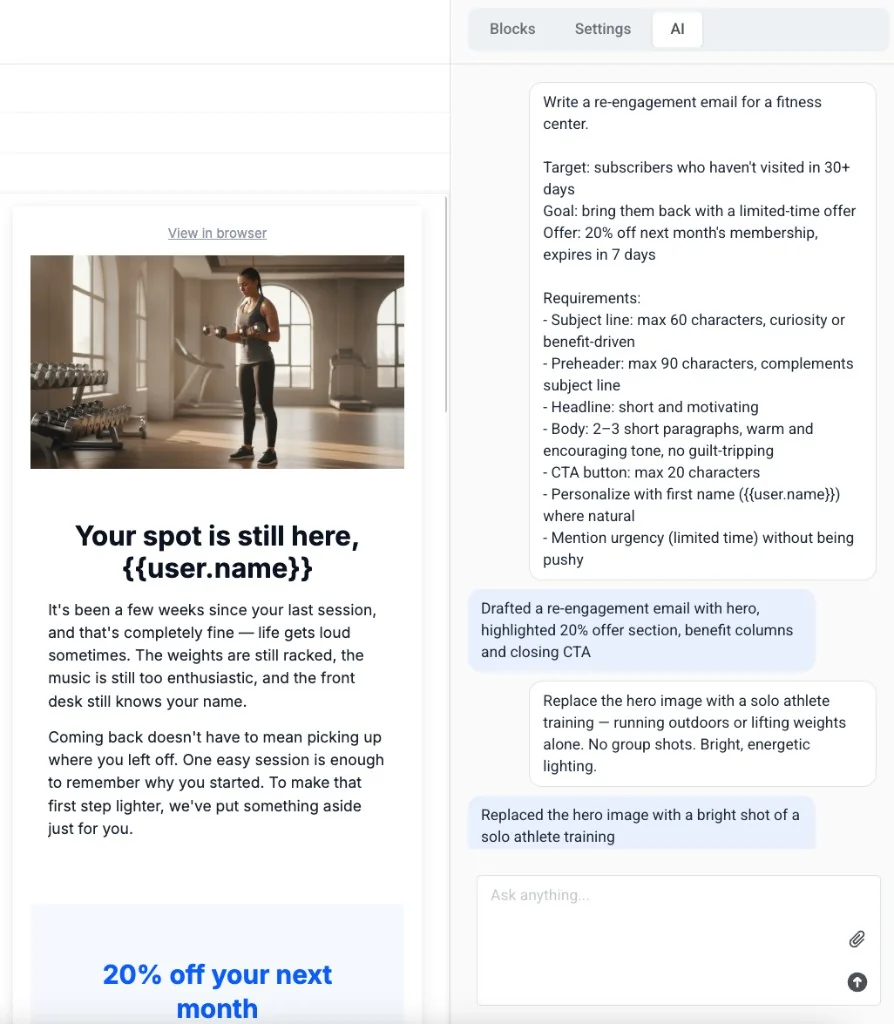
在右侧面板中打开 **AI** 选项卡,与 Pushwoosh 的 AI 助手聊天:在提示中描述您想要的内容,它会直接在电子邮件中为您生成或编辑内容。
 ## 生成图像和替代文本
在图像块中,使用 **使用 AI 生成** 通过文本提示创建图像,或使用 **使用 AI 生成替代文本** 根据图像本身编写可访问的替代文本。
## 撰写主题行和预标题
单击 **主题行** 或 **预标题** 字段旁边的 **AI** 图标,让 Pushwoosh 根据您已添加的电子邮件内容起草。
## 自动翻译内容
在语言栏中单击 **自动翻译**,使用 AI 填充缺失的翻译,而无需手动输入每种语言。
## 自动应用您的品牌
Brand book 中的 **派生品牌** 会生成一个初始调色板、字体和品牌声音——扫描您的网站 URL,或从简短描述、附加文件或您的徽标中派生它们。
## 生成图像和替代文本
在图像块中,使用 **使用 AI 生成** 通过文本提示创建图像,或使用 **使用 AI 生成替代文本** 根据图像本身编写可访问的替代文本。
## 撰写主题行和预标题
单击 **主题行** 或 **预标题** 字段旁边的 **AI** 图标,让 Pushwoosh 根据您已添加的电子邮件内容起草。
## 自动翻译内容
在语言栏中单击 **自动翻译**,使用 AI 填充缺失的翻译,而无需手动输入每种语言。
## 自动应用您的品牌
Brand book 中的 **派生品牌** 会生成一个初始调色板、字体和品牌声音——扫描您的网站 URL,或从简短描述、附加文件或您的徽标中派生它们。