# 通过 Swift Package Manager 设置 InboxUI
1. 在 Xcode 中打开您的项目,然后导航到项目设置 -> Package Dependencies,然后按“+”按钮。
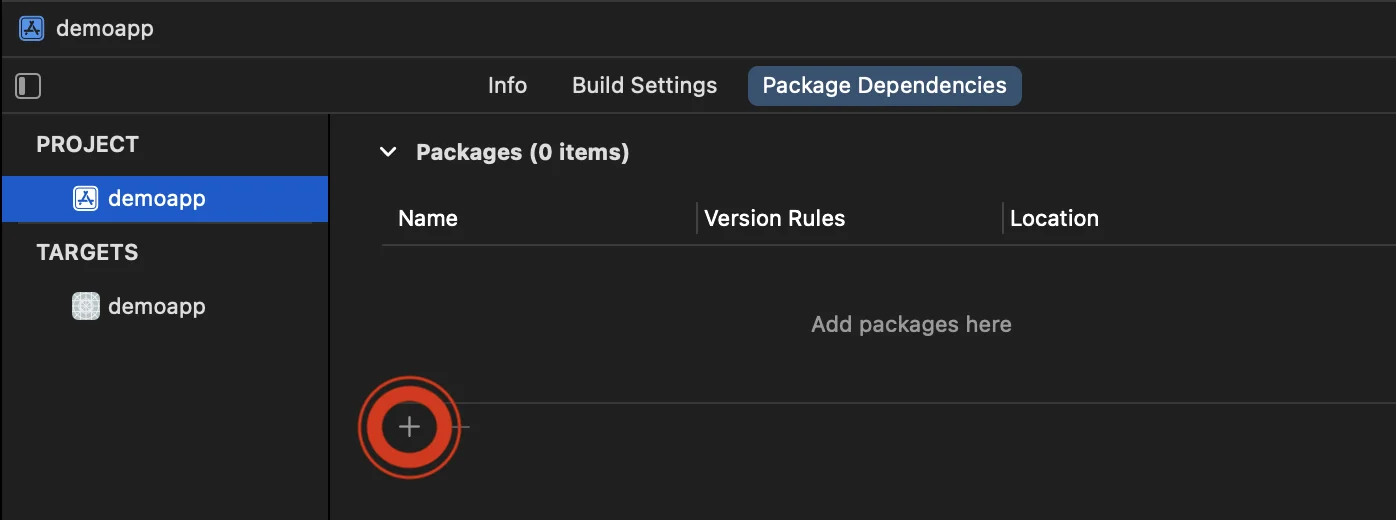 2. 输入以下 Package URL:
```bash
https://github.com/Pushwoosh/PushwooshInboxUI-XCFramework
```
3. 将“Dependency Rule”设置为 **Branch** 和 **main**。然后,单击“**Add Package**”按钮。
2. 输入以下 Package URL:
```bash
https://github.com/Pushwoosh/PushwooshInboxUI-XCFramework
```
3. 将“Dependency Rule”设置为 **Branch** 和 **main**。然后,单击“**Add Package**”按钮。
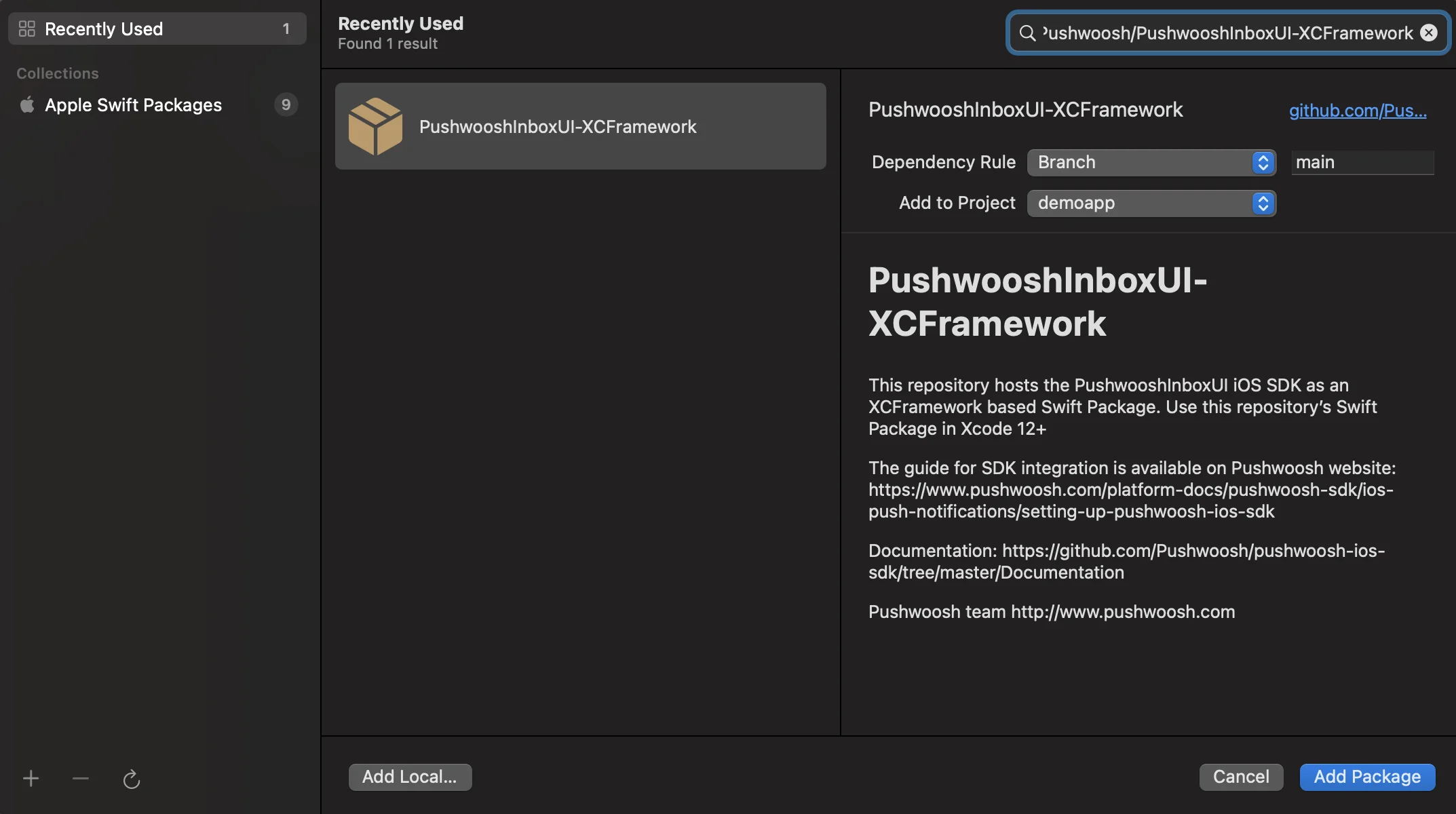 4. 在下一个选择 Package 的屏幕上,选择 Pushwoosh Package 并将 **Add Package** 到您的主应用 Target。
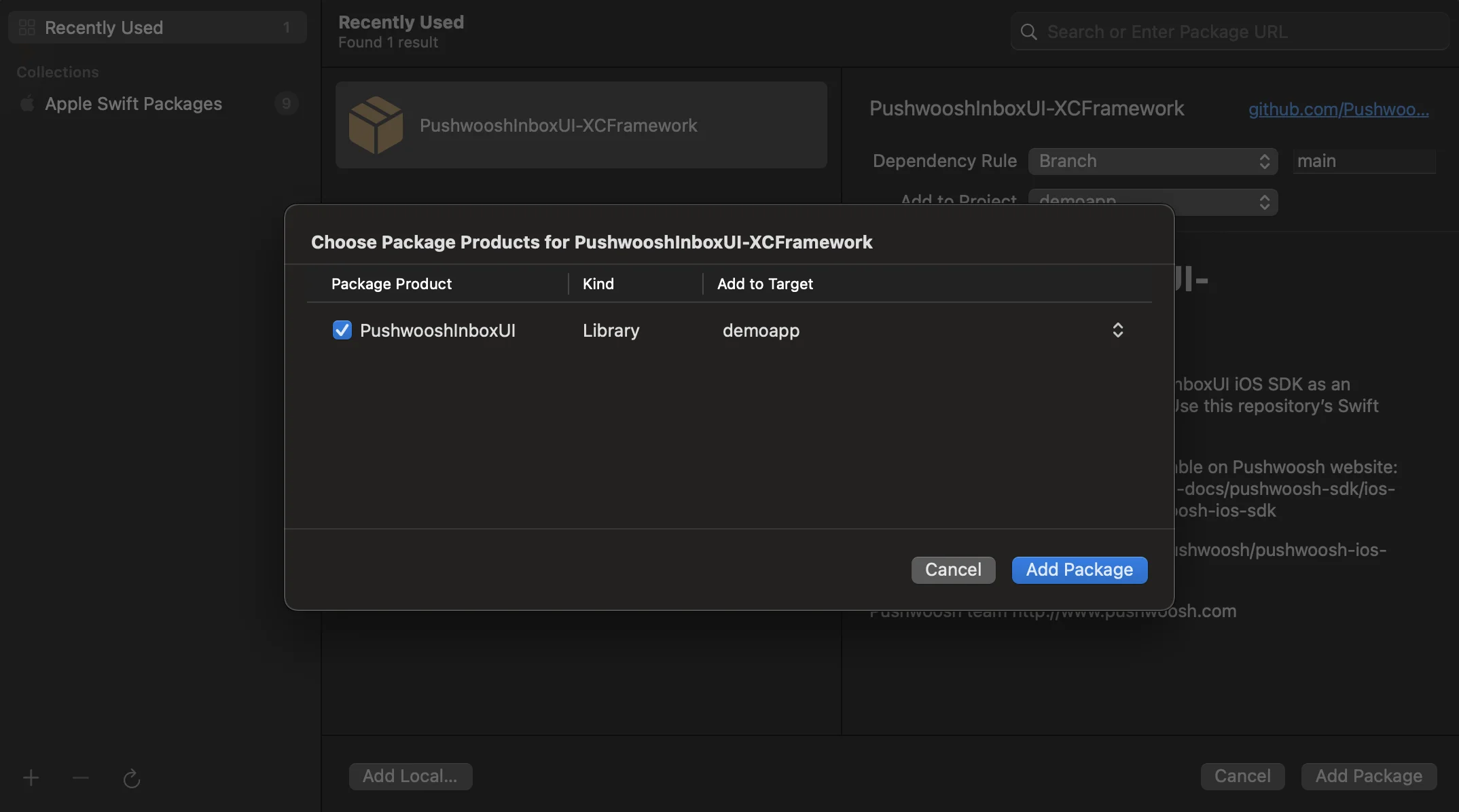 5. 打开您的主应用 Target,在“Frameworks, Libraries, and Embedded Content”下,确保已添加 PushwooshInboxUI。
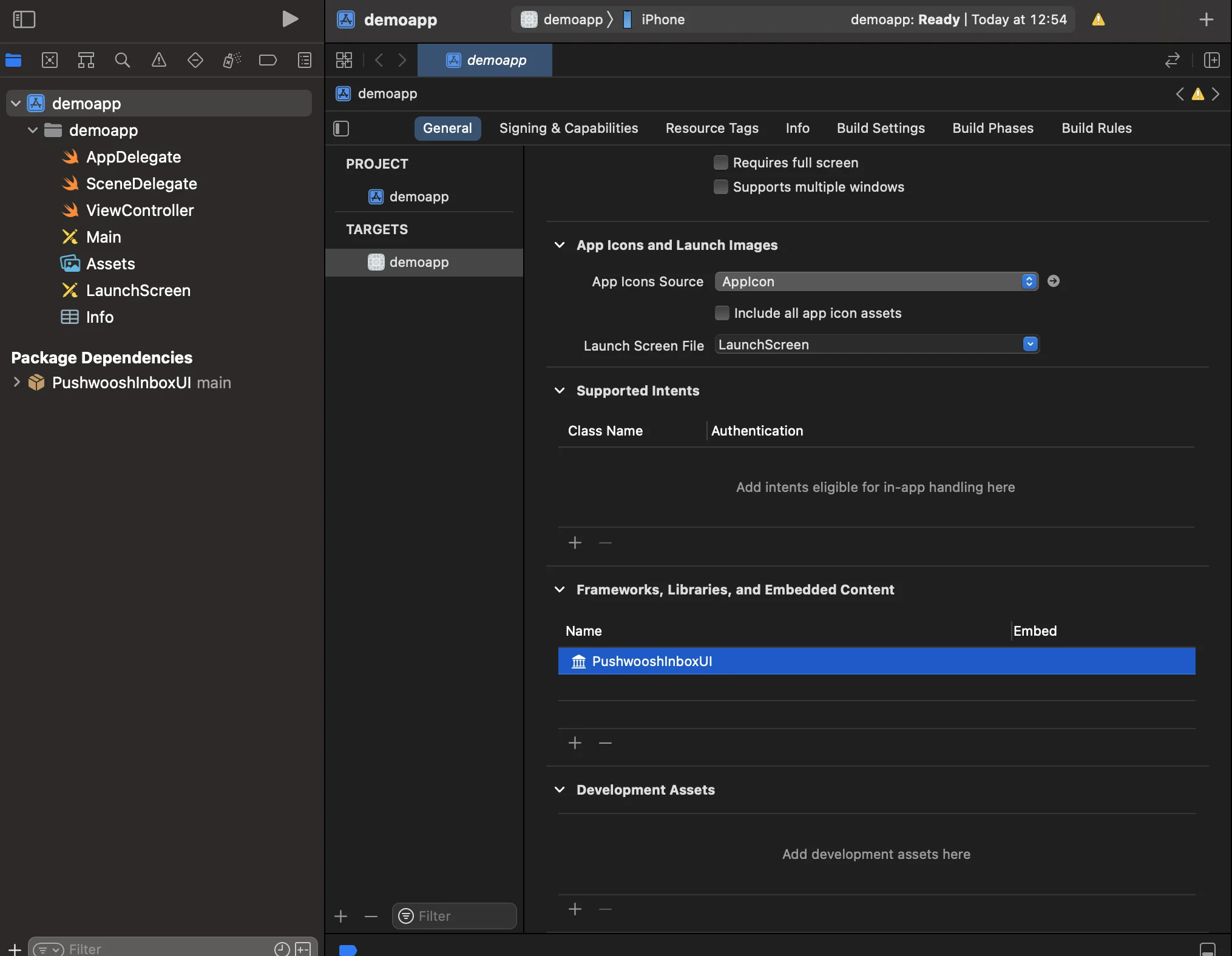 6. 就是这样!您已成功将 Pushwoosh InboxUI SDK 集成到您的项目中。
## 添加 Pushwoosh InboxUI 代码
要在您的应用中显示 Inbox UI,请添加 Inbox 视图控制器:
```swift
self.navigationController?.pushViewController(PWIInboxUI.createInboxController(with: PWIInboxStyle.default()), animated: true)
```
```objective-c
[self.navigationController pushViewController:[PWIInboxUI createInboxControllerWithStyle:[PWIInboxStyle defaultStyle]] animated:YES];
```
要使 Inbox 与您的应用外观匹配,请更改 `PWIInboxStyle` 的参数。您可以自定义字体、背景颜色等参数。
```swift
//creating a new Inbox style
let inboxStyle = PWIInboxStyle.customStyle(withDefaultImageIcon: UIImage.init(named: "custom_image"),
textColor: UIColor.darkText,
accentColor: UIColor.blue,
font: UIFont.systemFont(ofSize: 17))
inboxStyle?.backgroundColor = UIColor.init(white: 1, alpha: 1)
inboxStyle?.listErrorMessage = NSLocalizedString("Custom error message", comment: "Custom error message")
inboxStyle?.listEmptyMessage = NSLocalizedString("Custom empty message", comment: "Custom empty message")
PWIInboxStyle.setupDefaultStyle(inboxStyle)
```
```objective-c
//creating a new Inbox style
PWIInboxStyle *inboxStyle = [PWIInboxStyle customStyleWithDefaultImageIcon:[UIImage imageNamed:@"custom_image"]
textColor:UIColor.darkTextColor
accentColor:UIColor.blueColor
font:[UIFont systemFontOfSize:17]];
inboxStyle.backgroundColor = [UIColor colorWithWhite:1 alpha:1];
inboxStyle.listErrorMessage = NSLocalizedString(@"Custom error message", @"Custom error message");
inboxStyle.listEmptyMessage = NSLocalizedString(@"Custom empty message", @"Custom empty message");
[PWIInboxStyle setupDefaultStyle:inboxStyle];
```
## 自定义
要自定义 Inbox UI 样式,请参考:
更多详情,请查看 [Inbox Sample](https://github.com/Pushwoosh/pushwoosh-quickstart-ios/tree/main/inbox)。
6. 就是这样!您已成功将 Pushwoosh InboxUI SDK 集成到您的项目中。
## 添加 Pushwoosh InboxUI 代码
要在您的应用中显示 Inbox UI,请添加 Inbox 视图控制器:
```swift
self.navigationController?.pushViewController(PWIInboxUI.createInboxController(with: PWIInboxStyle.default()), animated: true)
```
```objective-c
[self.navigationController pushViewController:[PWIInboxUI createInboxControllerWithStyle:[PWIInboxStyle defaultStyle]] animated:YES];
```
要使 Inbox 与您的应用外观匹配,请更改 `PWIInboxStyle` 的参数。您可以自定义字体、背景颜色等参数。
```swift
//creating a new Inbox style
let inboxStyle = PWIInboxStyle.customStyle(withDefaultImageIcon: UIImage.init(named: "custom_image"),
textColor: UIColor.darkText,
accentColor: UIColor.blue,
font: UIFont.systemFont(ofSize: 17))
inboxStyle?.backgroundColor = UIColor.init(white: 1, alpha: 1)
inboxStyle?.listErrorMessage = NSLocalizedString("Custom error message", comment: "Custom error message")
inboxStyle?.listEmptyMessage = NSLocalizedString("Custom empty message", comment: "Custom empty message")
PWIInboxStyle.setupDefaultStyle(inboxStyle)
```
```objective-c
//creating a new Inbox style
PWIInboxStyle *inboxStyle = [PWIInboxStyle customStyleWithDefaultImageIcon:[UIImage imageNamed:@"custom_image"]
textColor:UIColor.darkTextColor
accentColor:UIColor.blueColor
font:[UIFont systemFontOfSize:17]];
inboxStyle.backgroundColor = [UIColor colorWithWhite:1 alpha:1];
inboxStyle.listErrorMessage = NSLocalizedString(@"Custom error message", @"Custom error message");
inboxStyle.listEmptyMessage = NSLocalizedString(@"Custom empty message", @"Custom empty message");
[PWIInboxStyle setupDefaultStyle:inboxStyle];
```
## 自定义
要自定义 Inbox UI 样式,请参考:
更多详情,请查看 [Inbox Sample](https://github.com/Pushwoosh/pushwoosh-quickstart-ios/tree/main/inbox)。