for an

. */}
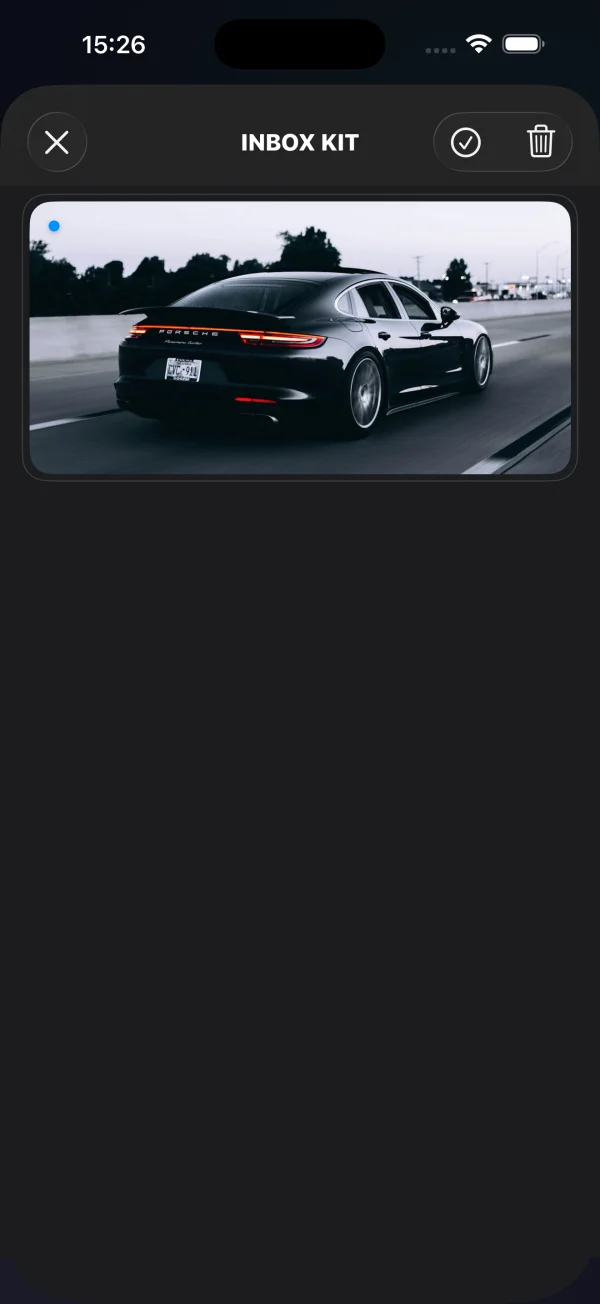 横幅卡片
横幅卡片
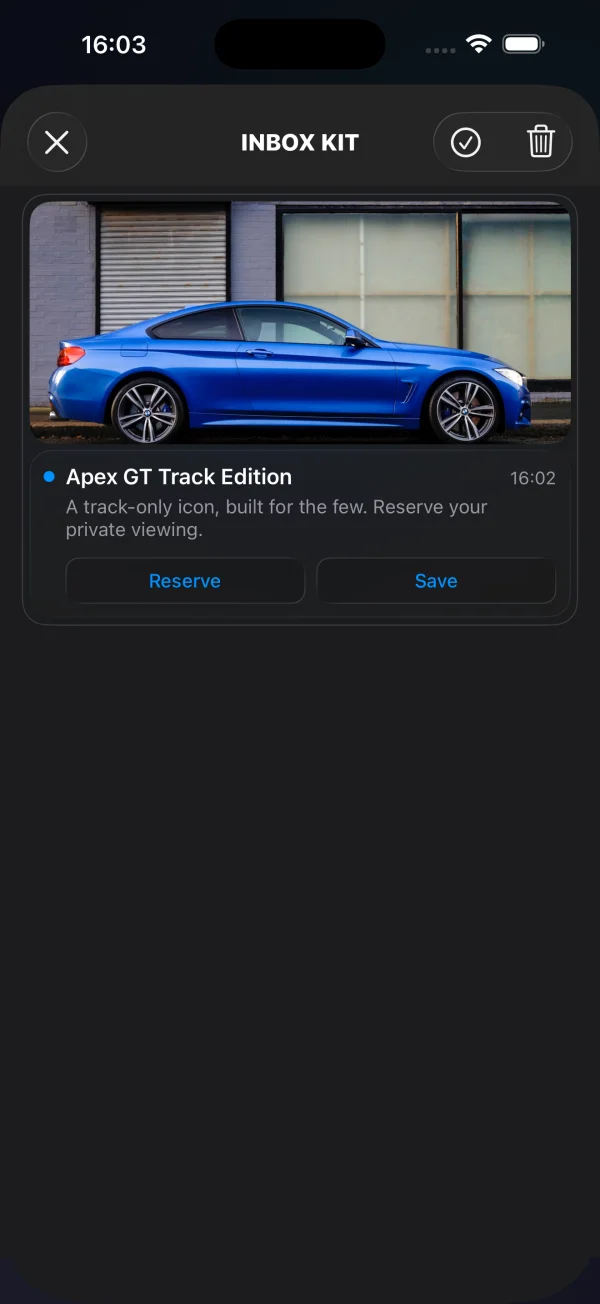 带标题卡片
带标题卡片
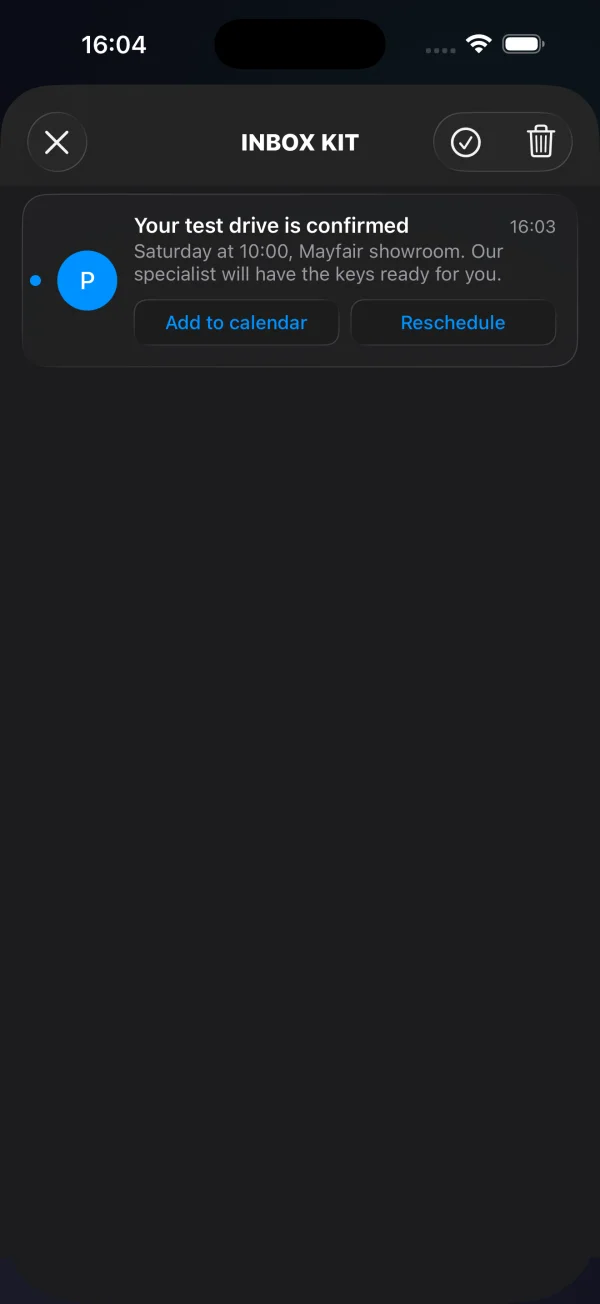 经典卡片
经典卡片
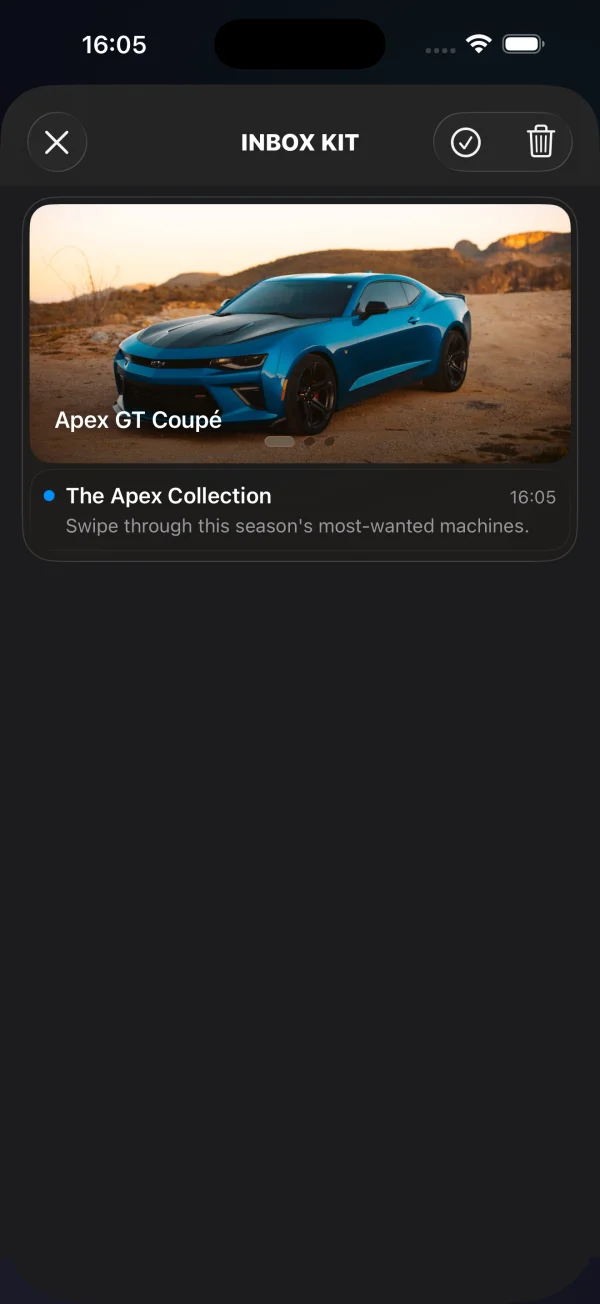 轮播卡片
轮播卡片
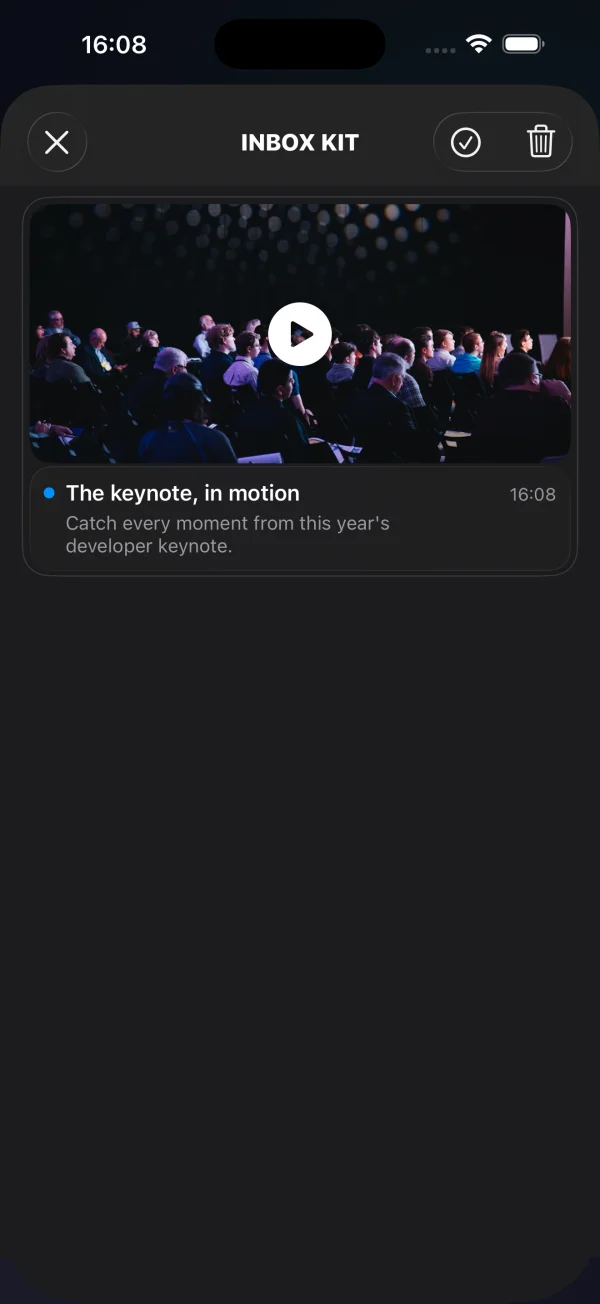 视频卡片
视频卡片
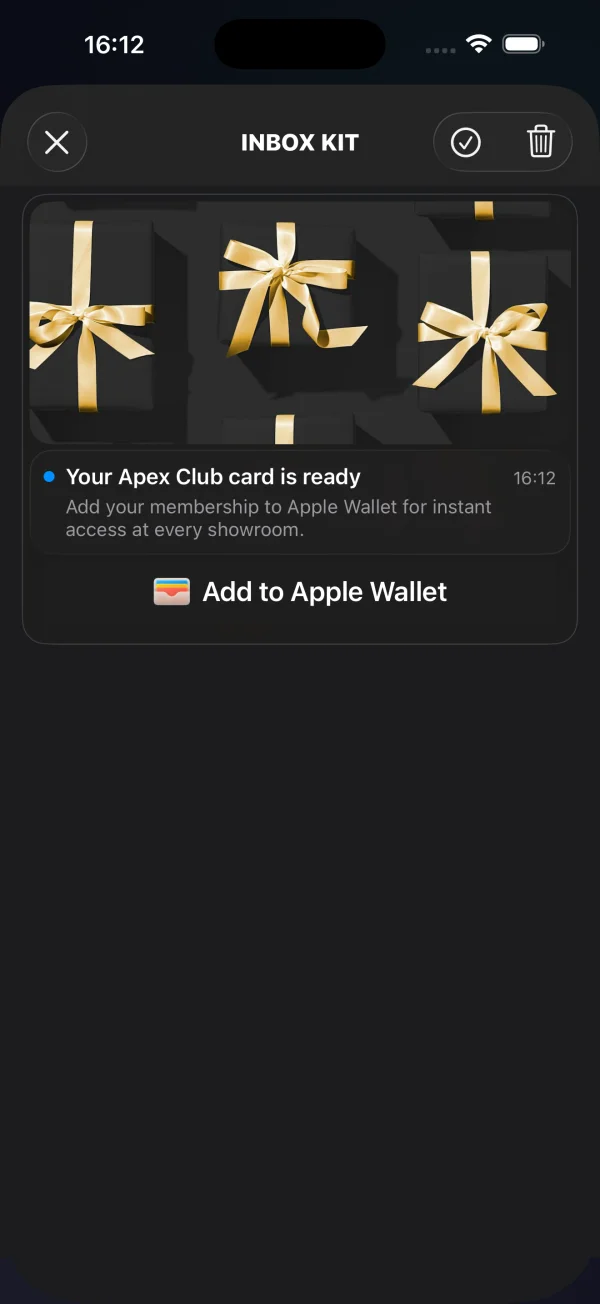 Apple Wallet 卡片
横幅、带标题和经典卡片由标准消息字段(图片、标题、正文)以及可选的 `buttons` 数组驱动——请参见[添加内联 CTA 按钮](#add-inline-cta-buttons)。轮播、视频和 Apple Wallet 卡片在 `data` 内部携带额外的结构化数据,具体如下所述。
### 轮播卡片
轮播卡片可从单条消息中渲染多张图片——一个可滑动的图库,带有可选的每张幻灯片标题和点击目标。幻灯片位于 `data.carousel` 中。每张幻灯片都需要一个 `image`;`title`(标题覆盖层)和 `url`(点击时打开的深层链接)是可选的。没有图片的幻灯片将被丢弃;点击没有 `url` 的幻灯片会回退到消息的默认行操作。
```json title="POST https://api.pushwoosh.com/json/1.3/createMessage"
{
"request": {
"application": "XXXXX-XXXXX",
"auth": "API_TOKEN",
"notifications": [{
"send_date": "now",
"ios_title": "New arrivals",
"content": "Swipe through this week's drops",
"inbox_days": 7,
"data": {
"displayType": "carousel",
"carousel": [
{ "image": "https://cdn.example.com/inbox/1.jpg", "title": "New in", "url": "myapp://product/1" },
{ "image": "https://cdn.example.com/inbox/2.jpg", "title": "On sale", "url": "myapp://product/2" },
{ "image": "https://cdn.example.com/inbox/3.jpg" }
]
},
"platforms": [1]
}]
}
}
```
### 视频卡片
视频卡片显示一张带有播放徽章的海报图片;点击它会打开一个全屏播放器(即使在静音开关打开的情况下也有声音)。描述符位于 `data.video` 中:`url` 是必需的,并且必须是 `http`/`https` 流或文件;`poster` 是一个可选的预览图片。
```json title="POST https://api.pushwoosh.com/json/1.3/createMessage"
{
"request": {
"application": "XXXXX-XXXXX",
"auth": "API_TOKEN",
"notifications": [{
"send_date": "now",
"ios_title": "Watch the reveal",
"content": "Tap to play",
"inbox_days": 7,
"data": {
"displayType": "video",
"video": {
"url": "https://cdn.example.com/inbox/clip.mp4",
"poster": "https://cdn.example.com/inbox/poster.jpg"
}
},
"platforms": [1]
}]
}
}
```
### Apple Wallet 卡片
Apple Wallet 卡片在官方的**添加到 Apple Wallet** 按钮上方显示可选的主图、标题和正文。点击按钮会下载 `.pkpass` 并呈现系统添加通行证的界面。用它来直接从收件箱发送优惠券、会员卡、门票或登机牌。该卡片仅适用于 iOS / Mac Catalyst——在其他平台上,消息会渲染为经典卡片。
通行证 URL 位于 `data.wallet` 中,可以是一个裸字符串,也可以是一个带有 `pass` 字段的对象。可选的 `data.image` 添加主图。当没有通行证 URL 或设备无法添加通行证时,按钮会自动隐藏。
```json title="POST https://api.pushwoosh.com/json/1.3/createMessage"
{
"request": {
"application": "XXXXX-XXXXX",
"auth": "API_TOKEN",
"notifications": [{
"send_date": "now",
"ios_title": "Your loyalty card is ready",
"content": "Add it to Apple Wallet in one tap",
"inbox_days": 7,
"data": {
"displayType": "wallet",
"image": "https://cdn.example.com/inbox/loyalty.png",
"wallet": "https://passes.example.com/v1/passes/pass.com.example.loyalty/abc123?token=…"
},
"platforms": [1]
}]
}
}
```
结果会报告给您的委托:
```swift
extension MyInboxHost: PushwooshInboxKitDelegate {
func inboxKit(_ vc: PushwooshInboxKitViewController,
didAddWalletPassFor message: PWInboxMessageProtocol) {
// 通行证现在在用户的 Wallet 中——如果需要,可以显示一个确认信息。
}
func inboxKit(_ vc: PushwooshInboxKitViewController,
didFailToAddWalletPassFor message: PWInboxMessageProtocol,
error: Error?) {
// 下载失败——提供重试、记录日志等。
}
}
```
两个回调都是可选的(它们带有默认的空实现)。用户取消系统界面既不是成功也不是失败,因此在这种情况下不会触发任何回调。
## 辅助功能
InboxKit 单元格开箱即支持 VoiceOver。横幅、带标题和经典卡片通过其底层的标签公开其标题、正文和日期,内联 CTA 按钮会读出自己的标题。富文本卡片添加了明确的语义:
- **视频** — 海报被公开为单个按钮元素,标记为“播放视频”(特征为 `.button` + `.startsMediaSession`),因此 VoiceOver 会将其作为媒体控件而不是普通图片来播报。
- **轮播** — 每个幻灯片都是一个按钮元素,其辅助功能标签是幻灯片的标题,如果没有标题则是“幻灯片”。页面指示器会播报当前位置为“第 *n* 页,共 *total* 页”。
- **Apple Wallet** — **添加到 Apple Wallet** 按钮是 Apple 的标准 `PKAddPassButton`,它带有自己的本地化 VoiceOver 标签。
对于 UI 测试和自动化,设置了两个稳定的 `accessibilityIdentifier`:视频海报上的 `inboxkit.video.play` 和 Wallet 按钮上的 `inboxkit.wallet.add`。
## 从消息中读取自定义数据
要使推送出现在收件箱中,[Messages API](/zh/developer/api-reference/messages-api/) 的 `createMessage` 请求必须包含 `inbox_image`、`inbox_date` 或 `inbox_days`——没有这些字段之一,推送将作为常规通知发送,永远不会到达收件箱信息流。自由格式的自定义数据放在 `data` 键下,SDK 会将其作为 `u` 参数传递给客户端:
```json title="POST https://api.pushwoosh.com/json/1.3/createMessage"
{
"request": {
"application": "XXXXX-XXXXX",
"auth": "API_TOKEN",
"notifications": [{
"send_date": "now",
"ios_title": "Summer sale",
"content": "30% off everything — limited time only",
"inbox_image": "https://cdn.example.com/inbox/summer.png",
"inbox_days": 7,
"data": {
"displayType": "captioned",
"promo_id": "SUMMER2026",
"screen": "promo_details"
},
"platforms": [1]
}]
}
}
```
SDK 通过 `actionParams` 在收件箱消息上公开该对象。当用户点击行或内联 CTA 时,从委托中读取它:
```swift
extension MyInboxHost: PushwooshInboxKitDelegate {
func inboxKit(_ vc: PushwooshInboxKitViewController,
didSelect message: PWInboxMessageProtocol) -> Bool {
guard let params = message.actionParams as? [String: Any] else { return true }
// 自定义 `data` 对象在 "u" 键下到达——
// 可以是嵌套的字典,也可以是 JSON 编码的字符串,
// 具体取决于 payload 在上游的构建方式。
let custom: [String: Any]? = {
if let dict = params["u"] as? [String: Any] { return dict }
if let raw = params["u"] as? String,
let bytes = raw.data(using: .utf8),
let parsed = try? JSONSerialization.jsonObject(with: bytes) as? [String: Any] {
return parsed
}
return nil
}()
if let promoId = custom?["promo_id"] as? String {
navigateToPromo(promoId)
return false // 我们处理了点击;SDK 不应运行默认操作
}
return true
}
}
```
对于内联 CTA 按钮,在 `inboxKit(_:didTapButton:onMessage:)` 内部使用相同的 `actionParams["u"]` 查找。对于类型化的 CTA 情况(`openURL`、`dismiss`、`markRead`),SDK 已经执行了默认操作——返回 `true` 以保留该行为,或返回 `false` 以禁止它并运行您自己的逻辑。
## 添加内联 CTA 按钮
一条消息最多可以携带三个内联的行动号召(call-to-action)按钮。按钮与其他自定义数据一起位于 `data` 内部,作为一个 `buttons` 数组。SDK 会在带标题和经典单元格内自动渲染它们:
```json title="POST https://api.pushwoosh.com/json/1.3/createMessage"
{
"request": {
"application": "XXXXX-XXXXX",
"auth": "API_TOKEN",
"notifications": [{
"send_date": "now",
"ios_title": "New promo card",
"content": "Tap a button to claim or save",
"inbox_image": "https://cdn.example.com/inbox/promo.png",
"inbox_days": 7,
"data": {
"displayType": "captioned",
"promo_id": "SUMMER2026",
"buttons": [
{ "title": "Claim", "url": "https://example.com/promo/SUMMER2026" },
{ "title": "Read", "action": "markRead" },
{ "title": "Save", "action": "custom", "tag": "save_promo" }
]
},
"platforms": [1]
}]
}
}
```
每个按钮对象都有以下字段:
| 字段 | 类型 | 时间 |
|---|---|---|
| `title` | string | 必需。可见的按钮标签。 |
| `url` | string | 一个非空的可解析 URL 会产生一个 `openURL` 操作。除非您的委托禁止,否则 SDK 会通过 `UIApplication.shared.open` 打开它。 |
| `action` | string | 显式操作令牌:`dismiss`(从信息流中移除消息)、`markRead`(将消息标记为已读)或 `custom`(由宿主处理)。不区分大小写。 |
| 其他任何字段 | any | 当 `action` 为 `custom` 时,按钮对象上除 `title` 和 `action` 之外的每个键都会作为自定义 payload 转发给您的委托——与营销人员商定一个键(例如 `tag`)并据此进行分派。 |
解析优先级:首先是显式的 `action` 令牌,然后如果 `url` 非空则使用 `url`,否则按钮会回退到 `custom`,并携带完整的 payload(减去 `title` 和 `action`)。
从您的委托中拦截点击。`button.action` 属性是类型化的 `PushwooshInboxButtonAction` 枚举:
```swift
extension MyInboxHost: PushwooshInboxKitDelegate {
func inboxKit(_ vc: PushwooshInboxKitViewController,
didTapButton button: PushwooshInboxButton,
onMessage message: PWInboxMessageProtocol) -> Bool {
switch button.action {
case .openURL(let url):
// 默认行为没问题——让 SDK 打开 URL。
return true
case .dismiss, .markRead:
// SDK 处理这两种情况。如果想覆盖,返回 false。
return true
case .custom(let payload):
// 营销人员定义的自定义按钮。根据你们商定的键进行分派。
if let tag = payload["tag"] as? String {
switch tag {
case "save_promo":
saveCurrentPromoLocally(message: message)
default:
break
}
}
return true // 对于 custom 会被忽略——SDK 在这里从不运行默认操作
}
}
}
```