# iOS 推送故事
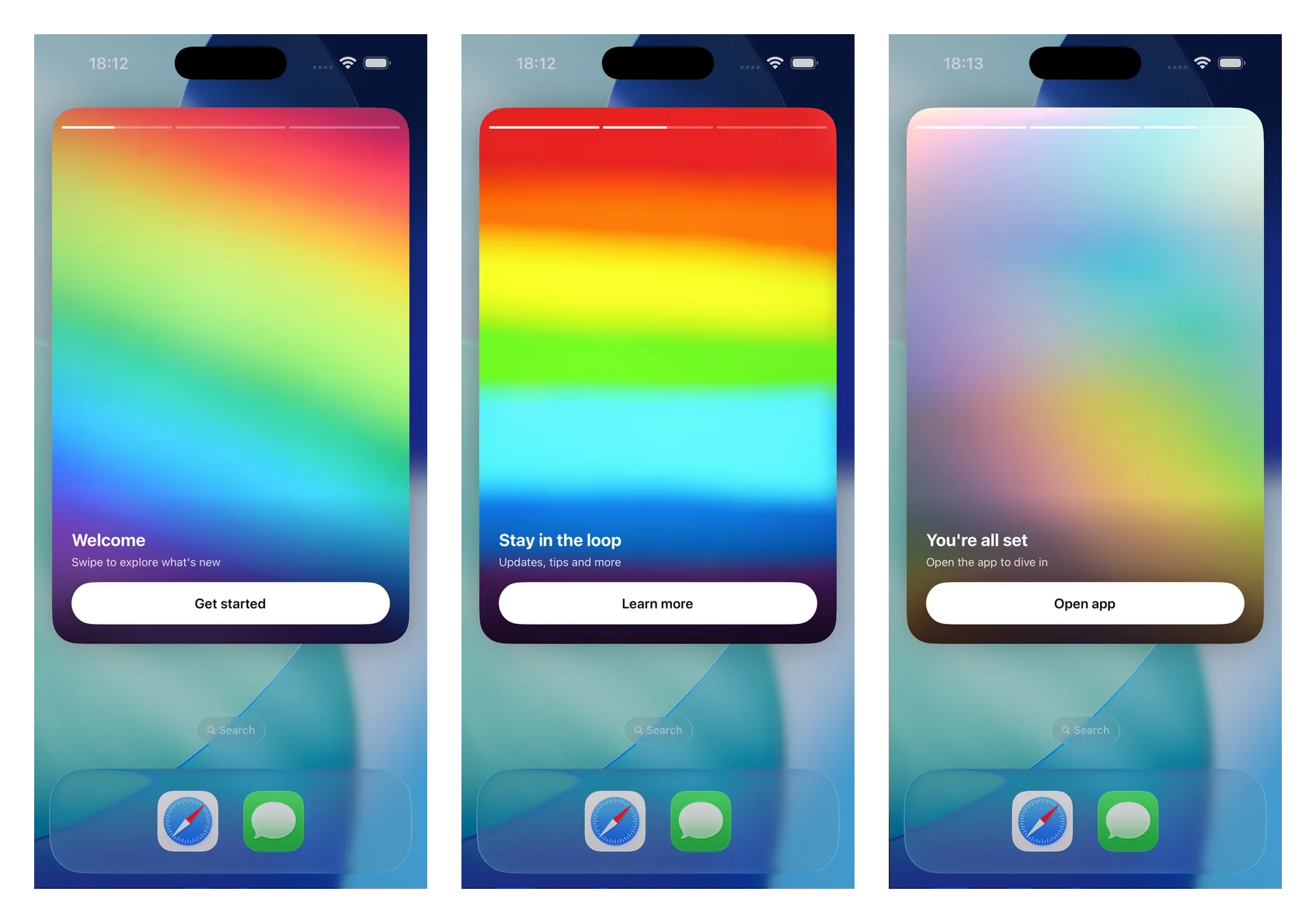
推送故事 (Push stories) 可将展开的推送通知转变为全屏、Instagram 风格的故事体验:全出血图像、顶部进度条、自动前进页面、点击导航以及带有深层链接的按钮。它们由通知内容扩展 (Notification Content Extension) 使用独立的 `PushwooshNotificationUI` 模块呈现——您只需子类化一个视图控制器,SDK 就会处理解析、图像加载、进度、计时、导航和深层链接。
自 7.0.46 版本起可用。
 ## 1. 添加通知内容扩展 (Notification Content Extension)
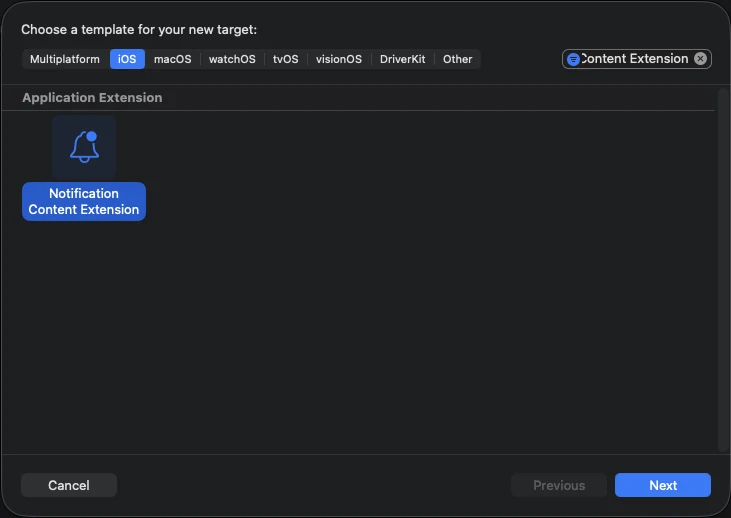
在 Xcode 中,选择 **File > New > Target…**,选择 **Notification Content Extension**,并为其命名(例如 **StoriesContentExtension**)。
## 1. 添加通知内容扩展 (Notification Content Extension)
在 Xcode 中,选择 **File > New > Target…**,选择 **Notification Content Extension**,并为其命名(例如 **StoriesContentExtension**)。
 ## 2. 添加 PushwooshNotificationUI 模块
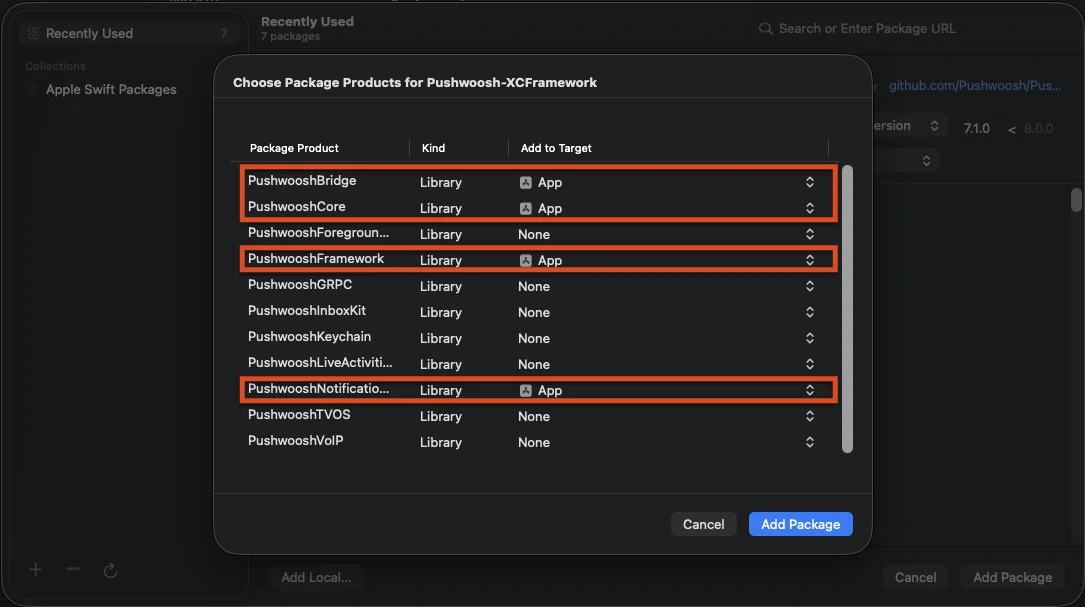
`PushwooshNotificationUI` 是一个独立的模块,没有其他 Pushwoosh 依赖项,因此在扩展进程中保持较小体积。请将其添加到**内容扩展目标**(而不是应用目标)。
**Swift Package Manager**
## 2. 添加 PushwooshNotificationUI 模块
`PushwooshNotificationUI` 是一个独立的模块,没有其他 Pushwoosh 依赖项,因此在扩展进程中保持较小体积。请将其添加到**内容扩展目标**(而不是应用目标)。
**Swift Package Manager**
 **CocoaPods**
```ruby
target 'StoriesContentExtension' do
use_frameworks!
pod 'PushwooshXCFramework/PushwooshNotificationUI'
end
```
## 3. 子类化故事视图控制器
将生成的 `NotificationViewController` 主体替换为 `PushwooshStoriesViewController` 的子类。这就是整个集成过程。
```swift
import PushwooshNotificationUI
class NotificationViewController: PushwooshStoriesViewController {}
```
## 4. 配置扩展的 Info.plist
在内容扩展的 **Info.plist** 中,在 `NSExtension > NSExtensionAttributes` 下设置以下键:
```xml
UNNotificationExtensionCategory
PW_STORIES
UNNotificationExtensionUserInteractionEnabled
UNNotificationExtensionDefaultContentHidden
UNNotificationExtensionInitialContentSizeRatio
1.5
```
## 5. 发送推送故事通知
发送一个类别为 `PW_STORIES` 且自定义数据中包含 `pw_stories` 块的通知。使用专用的 `ios_category_custom` 字段表示类别,使用 `data` 字段表示故事的有效负载。
```json
{
"request": {
"application": "APPLICATION_CODE",
"auth": "API_ACCESS_TOKEN",
"notifications": [
{
"send_date": "now",
"content": "Tap to explore",
"ios_title": "Push Stories",
"ios_category_custom": "PW_STORIES",
"ios_root_params": {
"aps": {
"mutable-content": 1
}
},
"data": {
"pw_stories": {
"pages": [
{
"image": "https://example.com/story-1.jpg",
"duration": 5.0,
"link": "yourapp://page1",
"button_title": "Get started",
"title": "Welcome",
"subtitle": "Swipe to explore what's new"
},
{
"image": "https://example.com/story-2.jpg",
"duration": 4.0,
"link": "yourapp://page2",
"button_title": "Learn more",
"title": "Stay in the loop",
"subtitle": "Updates, tips and more"
}
]
}
}
}
]
}
}
```
每个页面支持以下字段。只有 `image` 是必需的;其余都是可选的。
| 字段 | 描述 |
|-------|-------------|
| `image` | 页面的全屏图像 URL。 |
| `duration` | 页面在自动前进前在屏幕上停留的秒数。默认为约 5 秒。 |
| `link` | 点击页面按钮时打开的深层链接。 |
| `button_title` | 页面按钮的标题。 |
| `title` | 叠加在页面上的标题文本。 |
| `subtitle` | 叠加在页面上的副标题文本。 |
## 自定义
在您的子类上重写属性以调整体验。所有属性都有合理的默认值。
```swift
import PushwooshNotificationUI
class NotificationViewController: PushwooshStoriesViewController {
override var storyAspectRatio: CGFloat { 1.5 } // keep in sync with InitialContentSizeRatio
override var hapticsEnabled: Bool { true }
override var longPressToPauseEnabled: Bool { true }
override var crossfadesBetweenPages: Bool { true }
override var loopsAfterLastPage: Bool { false }
}
```
| 属性 | 默认值 | 描述 |
|----------|---------|-------------|
| `storyAspectRatio` | `1.5` | 故事区域的宽高比(高 ÷ 宽)。请使其与 `UNNotificationExtensionInitialContentSizeRatio` 保持同步。 |
| `hapticsEnabled` | `false` | 在点击区域导航时播放轻微的触觉反馈。 |
| `longPressToPauseEnabled` | `false` | 按住可暂停当前页面;松开则恢复。 |
| `crossfadesBetweenPages` | `false` | 在页面之间使用交叉溶解效果,而不是硬切换。当“减少动态效果”开启时,会回退到即时切换。 |
| `loopsAfterLastPage` | `false` | 在最后一页播放完毕后从第一页重新开始。 |
| `appGroupIdentifier` | `nil` | 与通知服务扩展 (Notification Service Extension) 共享的 App Group,用于媒体预缓存(见下文)。 |
您还可以重写 `showDefaultContent(for:)` 来自定义当有效负载缺失或格式错误时显示的回退内容(默认情况下显示警报正文)。
### 媒体预缓存
为了实现即时、离线的首帧加载,请在您的内容扩展 (Content Extension) 和通知服务扩展 (Notification Service Extension) 之间共享一个 App Group。在故事控制器上重写 `appGroupIdentifier`,然后从您的服务扩展的 `didReceive(_:withContentHandler:)` 中预下载媒体:
```swift
import PushwooshNotificationUI
PushwooshStoriesMediaPrefetcher.prefetch(
userInfo: request.content.userInfo,
appGroupIdentifier: "group.com.example.app"
) {
contentHandler(bestAttemptContent)
}
```
在两个扩展上启用 **App Groups** 功能并使用相同的组标识符,并发送 `mutable-content: 1` 以便服务扩展运行。如果没有 App Group,媒体将被缓存在扩展的 `tmp` 目录中。
### 生命周期和分析回调
设置 `storiesDelegate` 以观察故事事件——页面展示、按钮点击、完成和回退。遵循 `PushwooshStoriesDelegate` 协议;每个方法都是可选的,因此只需实现您需要的方法。
```swift
import PushwooshNotificationUI
class NotificationViewController: PushwooshStoriesViewController, PushwooshStoriesDelegate {
override func viewDidLoad() {
super.viewDidLoad()
storiesDelegate = self
}
func storiesViewController(_ controller: PushwooshStoriesViewController, didStartWithPageCount pageCount: Int) {}
func storiesViewController(_ controller: PushwooshStoriesViewController, didShow page: StoryPage, at index: Int) {}
func storiesViewController(_ controller: PushwooshStoriesViewController, didTapActionFor page: StoryPage, at index: Int) {}
func storiesViewControllerDidFinish(_ controller: PushwooshStoriesViewController) {}
func storiesViewControllerDidShowFallback(_ controller: PushwooshStoriesViewController) {}
}
```
| 回调 | 触发时机 |
|----------|----------------|
| `didStartWithPageCount:` | 解析了有效的故事有效负载,即将开始播放。 |
| `didShow:at:` | 一个页面变得可见。用它来统计每页的展示次数。 |
| `didTapActionFor:at:` | 用户点击了行为召唤按钮。 |
| `storiesViewControllerDidFinish:` | 最后一页播放完毕。 |
| `storiesViewControllerDidShowFallback:` | 有效负载缺失或格式错误,并显示了回退内容。 |
传递给回调的 `StoryPage` 对象公开了页面的 `imageURL`、`duration`、`link`、`buttonTitle`、`title` 和 `subtitle`。
### 导航
点击屏幕右侧三分之一区域可前往下一页,点击左侧三分之一区域可返回上一页。我们特意不使用水平滑动,因为它与系统的通知关闭手势冲突。点击页面按钮会打开其深层链接并关闭通知。
## 参考资料
**CocoaPods**
```ruby
target 'StoriesContentExtension' do
use_frameworks!
pod 'PushwooshXCFramework/PushwooshNotificationUI'
end
```
## 3. 子类化故事视图控制器
将生成的 `NotificationViewController` 主体替换为 `PushwooshStoriesViewController` 的子类。这就是整个集成过程。
```swift
import PushwooshNotificationUI
class NotificationViewController: PushwooshStoriesViewController {}
```
## 4. 配置扩展的 Info.plist
在内容扩展的 **Info.plist** 中,在 `NSExtension > NSExtensionAttributes` 下设置以下键:
```xml
UNNotificationExtensionCategory
PW_STORIES
UNNotificationExtensionUserInteractionEnabled
UNNotificationExtensionDefaultContentHidden
UNNotificationExtensionInitialContentSizeRatio
1.5
```
## 5. 发送推送故事通知
发送一个类别为 `PW_STORIES` 且自定义数据中包含 `pw_stories` 块的通知。使用专用的 `ios_category_custom` 字段表示类别,使用 `data` 字段表示故事的有效负载。
```json
{
"request": {
"application": "APPLICATION_CODE",
"auth": "API_ACCESS_TOKEN",
"notifications": [
{
"send_date": "now",
"content": "Tap to explore",
"ios_title": "Push Stories",
"ios_category_custom": "PW_STORIES",
"ios_root_params": {
"aps": {
"mutable-content": 1
}
},
"data": {
"pw_stories": {
"pages": [
{
"image": "https://example.com/story-1.jpg",
"duration": 5.0,
"link": "yourapp://page1",
"button_title": "Get started",
"title": "Welcome",
"subtitle": "Swipe to explore what's new"
},
{
"image": "https://example.com/story-2.jpg",
"duration": 4.0,
"link": "yourapp://page2",
"button_title": "Learn more",
"title": "Stay in the loop",
"subtitle": "Updates, tips and more"
}
]
}
}
}
]
}
}
```
每个页面支持以下字段。只有 `image` 是必需的;其余都是可选的。
| 字段 | 描述 |
|-------|-------------|
| `image` | 页面的全屏图像 URL。 |
| `duration` | 页面在自动前进前在屏幕上停留的秒数。默认为约 5 秒。 |
| `link` | 点击页面按钮时打开的深层链接。 |
| `button_title` | 页面按钮的标题。 |
| `title` | 叠加在页面上的标题文本。 |
| `subtitle` | 叠加在页面上的副标题文本。 |
## 自定义
在您的子类上重写属性以调整体验。所有属性都有合理的默认值。
```swift
import PushwooshNotificationUI
class NotificationViewController: PushwooshStoriesViewController {
override var storyAspectRatio: CGFloat { 1.5 } // keep in sync with InitialContentSizeRatio
override var hapticsEnabled: Bool { true }
override var longPressToPauseEnabled: Bool { true }
override var crossfadesBetweenPages: Bool { true }
override var loopsAfterLastPage: Bool { false }
}
```
| 属性 | 默认值 | 描述 |
|----------|---------|-------------|
| `storyAspectRatio` | `1.5` | 故事区域的宽高比(高 ÷ 宽)。请使其与 `UNNotificationExtensionInitialContentSizeRatio` 保持同步。 |
| `hapticsEnabled` | `false` | 在点击区域导航时播放轻微的触觉反馈。 |
| `longPressToPauseEnabled` | `false` | 按住可暂停当前页面;松开则恢复。 |
| `crossfadesBetweenPages` | `false` | 在页面之间使用交叉溶解效果,而不是硬切换。当“减少动态效果”开启时,会回退到即时切换。 |
| `loopsAfterLastPage` | `false` | 在最后一页播放完毕后从第一页重新开始。 |
| `appGroupIdentifier` | `nil` | 与通知服务扩展 (Notification Service Extension) 共享的 App Group,用于媒体预缓存(见下文)。 |
您还可以重写 `showDefaultContent(for:)` 来自定义当有效负载缺失或格式错误时显示的回退内容(默认情况下显示警报正文)。
### 媒体预缓存
为了实现即时、离线的首帧加载,请在您的内容扩展 (Content Extension) 和通知服务扩展 (Notification Service Extension) 之间共享一个 App Group。在故事控制器上重写 `appGroupIdentifier`,然后从您的服务扩展的 `didReceive(_:withContentHandler:)` 中预下载媒体:
```swift
import PushwooshNotificationUI
PushwooshStoriesMediaPrefetcher.prefetch(
userInfo: request.content.userInfo,
appGroupIdentifier: "group.com.example.app"
) {
contentHandler(bestAttemptContent)
}
```
在两个扩展上启用 **App Groups** 功能并使用相同的组标识符,并发送 `mutable-content: 1` 以便服务扩展运行。如果没有 App Group,媒体将被缓存在扩展的 `tmp` 目录中。
### 生命周期和分析回调
设置 `storiesDelegate` 以观察故事事件——页面展示、按钮点击、完成和回退。遵循 `PushwooshStoriesDelegate` 协议;每个方法都是可选的,因此只需实现您需要的方法。
```swift
import PushwooshNotificationUI
class NotificationViewController: PushwooshStoriesViewController, PushwooshStoriesDelegate {
override func viewDidLoad() {
super.viewDidLoad()
storiesDelegate = self
}
func storiesViewController(_ controller: PushwooshStoriesViewController, didStartWithPageCount pageCount: Int) {}
func storiesViewController(_ controller: PushwooshStoriesViewController, didShow page: StoryPage, at index: Int) {}
func storiesViewController(_ controller: PushwooshStoriesViewController, didTapActionFor page: StoryPage, at index: Int) {}
func storiesViewControllerDidFinish(_ controller: PushwooshStoriesViewController) {}
func storiesViewControllerDidShowFallback(_ controller: PushwooshStoriesViewController) {}
}
```
| 回调 | 触发时机 |
|----------|----------------|
| `didStartWithPageCount:` | 解析了有效的故事有效负载,即将开始播放。 |
| `didShow:at:` | 一个页面变得可见。用它来统计每页的展示次数。 |
| `didTapActionFor:at:` | 用户点击了行为召唤按钮。 |
| `storiesViewControllerDidFinish:` | 最后一页播放完毕。 |
| `storiesViewControllerDidShowFallback:` | 有效负载缺失或格式错误,并显示了回退内容。 |
传递给回调的 `StoryPage` 对象公开了页面的 `imageURL`、`duration`、`link`、`buttonTitle`、`title` 和 `subtitle`。
### 导航
点击屏幕右侧三分之一区域可前往下一页,点击左侧三分之一区域可返回上一页。我们特意不使用水平滑动,因为它与系统的通知关闭手势冲突。点击页面按钮会打开其深层链接并关闭通知。
## 参考资料