# iOS Live Activity 模式配置
Live Activity 模式描述了您的 iOS 应用声明的一种 `ActivityAttributes` 类型的 content-state 字段,这样 Journey 的 [Live Activity 元素](/zh/product/customer-journey/journey-elements/channels/live-activity/) 就可以从命名字段而不是原始 JSON 构建表单。在 Control Panel 中为每个小组件发布一个版本。
## 发布模式版本
1. 在 Pushwoosh 中打开您应用程序的 **Configure platforms** 页面。
2. 点击 iOS 平台旁边的 **Live Activity schemas**。

3. 点击 **Publish version**。
4. 输入 **Attributes type**:您应用中 `ActivityAttributes` 类型的确切名称,例如 `FlightAttributes`。
5. 在 **Content-state JSON Schema** 中,输入该类型的 `ContentState` 的 JSON Schema——即在活动运行时会发生变化的字段,例如航班的登机口或状态。此处不包括 `ActivityAttributes` 自身的固定字段。请参阅 [编写模式](/zh/developer/api-reference/live-activity-schemas-api/#writing-a-schema)。
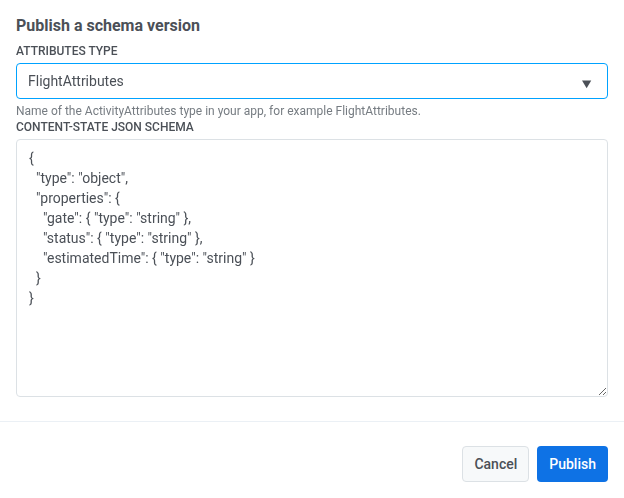
6. 点击 **Publish**。
## 管理现有模式
在同一个 **Live Activity schemas** 屏幕上:
* 点击版本旁边的 **View JSON** 查看其已发布的模式。
* 点击 **Delete** 删除一个版本。此操作无法撤销,任何仍设置为该版本的 Journey 元素将停止渲染其 content-state 字段。
## 在 Journey 中使用模式
发布后,在 Journey 的 [Live Activity 元素](/zh/product/customer-journey/journey-elements/channels/live-activity/#set-up-the-element) 的 **Widget** 下选择它——其 content-state 字段将显示在 **Card content** 下。