# How to notify wallet pass holders about a reward
Tell loyalty members that a reward is ready the moment they earn it, with a message that appears on their Apple Wallet or Google Wallet pass. In this guide, you build a Customer Journey that sends the message only to members who have added your pass.
## Create the reward event
An event is a signal that your system sends when something happens to a user. Here, it's sent when a member earns a reward, for example when they reach 100 loyalty points or collect the tenth stamp on a coffee card.
1. Go to **Audience → Events**, click **Create event**, and choose **Custom Event**.
2. Name it `RewardUnlocked`. The event needs no attributes, because the message text is the same for every member.
3. Ask development to send the event when a member earns a reward. [Learn more about creating events](/product/audience-data-and-segmentation/events/#implementation)
## Prepare the message
Create a [push preset](/product/content/push-presets/) with the reward message, for example:
* **Title:** `Riverside Café Rewards`
* **Text:** `Your free coffee is ready. Show your loyalty card at the counter.`
Always fill in the text. The pass shows it, and on Apple Wallet a push without text only refreshes the pass, so the holder sees nothing.
What the holder sees depends on the wallet:
* **Apple Wallet:** a notification from the pass with the iOS text of the push, under the push title. Pushwoosh removes the message from the pass after about an hour. Apple Wallet notifies only when the text changes, so a second push with the same text within that hour doesn't show a notification.
* **Google Wallet:** an Android notification with the push title and text, and the message on the pass. The pass keeps only the latest message. Google also limits how often a pass can notify its holder. See [Google Wallet notification](/product/messaging-channels/wallet-passes/manage-passes/#google-wallet-notification).
## Build the journey
Go to **Campaigns → Customer Journey Builder**, click **Create campaign**, and build everything below on one canvas.
### Set the entry
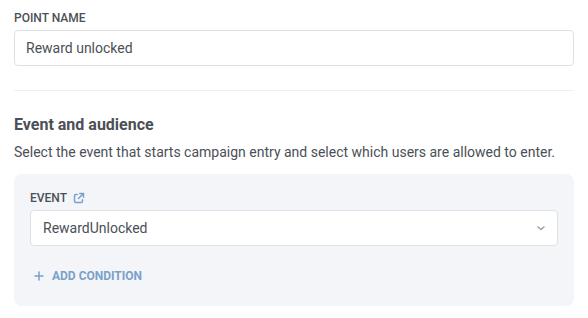
1. Add a [Trigger-based entry](/product/customer-journey/journey-elements/entry-elements/trigger-based-entry/) element to the canvas.
2. In **Point name**, enter `Reward unlocked`.
3. Under **Event**, select `RewardUnlocked`.
### Keep only members who hold the pass
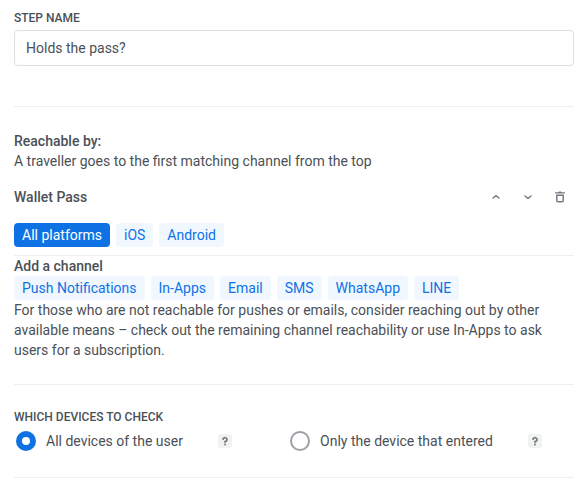
1. Add a [Reachability check](/product/customer-journey/journey-elements/flow-controls/reachability-check/) element after the entry and name it `Holds the pass?`.
2. Under **Reachable by**, click **Wallet Pass** in **Add a channel**, then delete the **Push Notifications** channel the element starts with.
3. Keep **All platforms** selected to check Apple Wallet and Google Wallet passes.
4. Under **Which devices to check**, select **All devices of the user**. The pass is registered as a separate device of the member, so checking only the device that sent the event would miss it.
The element gets two branches. Members who have added your pass go to **Wallet**, and everyone else goes to **All others**.
### Send the reward message
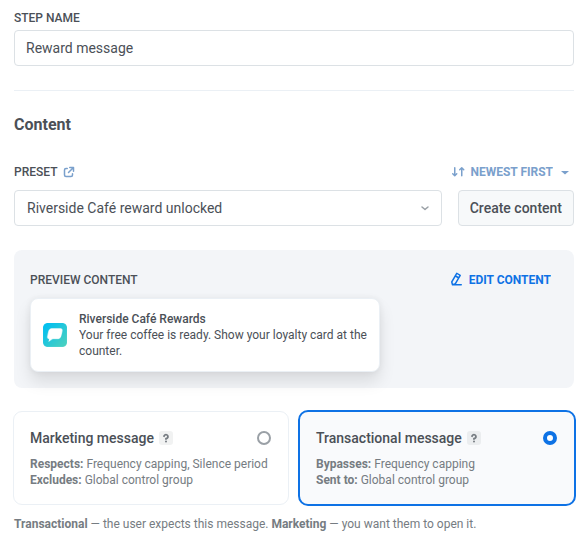
1. On the **Wallet** branch, add a [Push](/product/customer-journey/journey-elements/channels/push/) element and name it `Reward message`.
2. In **Preset**, select the preset you prepared.
3. Select **Transactional message**. The member earned the reward and expects to hear about it, so the message reaches everyone who holds the pass, including members in the global control group and those who hit the frequency limit. Learn more about [message types](/product/messaging-channels/marketing-vs-transactional/).
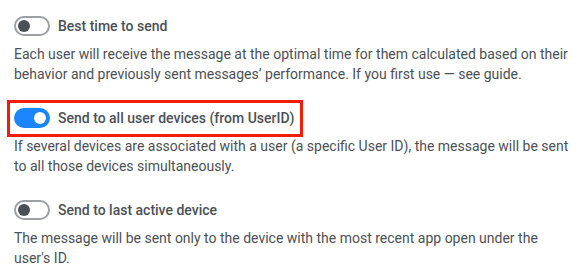
4. Keep **Send to all user devices (from UserID)** turned on. The push then goes to every device tied to the member's User ID, including the pass and, for example, the phone with your app. With the setting turned off, the push goes only to the device that sent the event, and the pass gets nothing.
5. Optionally, add an **Exit** element after **Reward message**, and connect the **All others** branch to another **Exit** element.
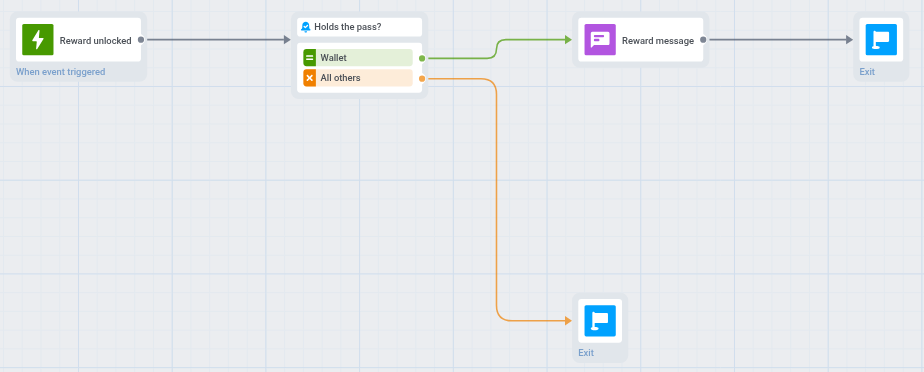
When `RewardUnlocked` fires, the member enters the journey. If they have added your pass, **Reward message** sends the push to all their devices, and the wallet shows it on the pass. Members who don't hold the pass leave the journey through **All others** and get no message. A member with no device at all in the application drops out at **Holds the pass?** with the [Device not found](/product/troubleshooting/drop-offs-in-customer-journey/#device-not-found) reason.
### Launch and check
1. Launch the journey when the canvas is ready.
2. Ask your developer to send a test `RewardUnlocked` event for a member who holds the pass.
3. On **Holds the pass?**, check how many users went to **Wallet** and **All others**.
4. On **Reward message**, check the stats.
## Update the pass content (optional)
The push doesn't change the fields of your pass design. On Apple Wallet, the push title shows in place of the pass's organization name until the message is removed. To show the reward on the card itself, for example a new points balance, update the pass separately:
* In the Control Panel, with **Edit** in [All passes](/product/messaging-channels/wallet-passes/manage-passes/#view-and-manage-existing-passes), or with a design change in the pass's [Wallet Pass Campaign](/product/messaging-channels/wallet-passes/wallet-pass-campaigns/manage-a-campaign/).
* Through the [Apple PassKit API](/developer/api-reference/apple-wallet-passkit-api/) or the [Google Wallet API](/developer/api-reference/google-wallet-api/).
## Other ways to start the journey
* **[Audience-based entry](/product/customer-journey/journey-elements/entry-elements/audience-based-entry/):** send the message to a whole segment once or on a schedule, for example a weekly offer to members of your loyalty program.
* **[API-based entry](/product/customer-journey/journey-elements/entry-elements/api-based-entry/):** start the journey from your own system, for example when an event's start time changes for everyone holding a ticket.
 ### Keep only members who hold the pass
1. Add a [Reachability check](/product/customer-journey/journey-elements/flow-controls/reachability-check/) element after the entry and name it `Holds the pass?`.
2. Under **Reachable by**, click **Wallet Pass** in **Add a channel**, then delete the **Push Notifications** channel the element starts with.
3. Keep **All platforms** selected to check Apple Wallet and Google Wallet passes.
4. Under **Which devices to check**, select **All devices of the user**. The pass is registered as a separate device of the member, so checking only the device that sent the event would miss it.
### Keep only members who hold the pass
1. Add a [Reachability check](/product/customer-journey/journey-elements/flow-controls/reachability-check/) element after the entry and name it `Holds the pass?`.
2. Under **Reachable by**, click **Wallet Pass** in **Add a channel**, then delete the **Push Notifications** channel the element starts with.
3. Keep **All platforms** selected to check Apple Wallet and Google Wallet passes.
4. Under **Which devices to check**, select **All devices of the user**. The pass is registered as a separate device of the member, so checking only the device that sent the event would miss it.
 The element gets two branches. Members who have added your pass go to **Wallet**, and everyone else goes to **All others**.
### Send the reward message
1. On the **Wallet** branch, add a [Push](/product/customer-journey/journey-elements/channels/push/) element and name it `Reward message`.
2. In **Preset**, select the preset you prepared.
3. Select **Transactional message**. The member earned the reward and expects to hear about it, so the message reaches everyone who holds the pass, including members in the global control group and those who hit the frequency limit. Learn more about [message types](/product/messaging-channels/marketing-vs-transactional/).
The element gets two branches. Members who have added your pass go to **Wallet**, and everyone else goes to **All others**.
### Send the reward message
1. On the **Wallet** branch, add a [Push](/product/customer-journey/journey-elements/channels/push/) element and name it `Reward message`.
2. In **Preset**, select the preset you prepared.
3. Select **Transactional message**. The member earned the reward and expects to hear about it, so the message reaches everyone who holds the pass, including members in the global control group and those who hit the frequency limit. Learn more about [message types](/product/messaging-channels/marketing-vs-transactional/).
 4. Keep **Send to all user devices (from UserID)** turned on. The push then goes to every device tied to the member's User ID, including the pass and, for example, the phone with your app. With the setting turned off, the push goes only to the device that sent the event, and the pass gets nothing.
 5. Optionally, add an **Exit** element after **Reward message**, and connect the **All others** branch to another **Exit** element.
When `RewardUnlocked` fires, the member enters the journey. If they have added your pass, **Reward message** sends the push to all their devices, and the wallet shows it on the pass. Members who don't hold the pass leave the journey through **All others** and get no message. A member with no device at all in the application drops out at **Holds the pass?** with the [Device not found](/product/troubleshooting/drop-offs-in-customer-journey/#device-not-found) reason.
5. Optionally, add an **Exit** element after **Reward message**, and connect the **All others** branch to another **Exit** element.
When `RewardUnlocked` fires, the member enters the journey. If they have added your pass, **Reward message** sends the push to all their devices, and the wallet shows it on the pass. Members who don't hold the pass leave the journey through **All others** and get no message. A member with no device at all in the application drops out at **Holds the pass?** with the [Device not found](/product/troubleshooting/drop-offs-in-customer-journey/#device-not-found) reason.
 ### Launch and check
1. Launch the journey when the canvas is ready.
2. Ask your developer to send a test `RewardUnlocked` event for a member who holds the pass.
3. On **Holds the pass?**, check how many users went to **Wallet** and **All others**.
4. On **Reward message**, check the stats.
## Update the pass content (optional)
The push doesn't change the fields of your pass design. On Apple Wallet, the push title shows in place of the pass's organization name until the message is removed. To show the reward on the card itself, for example a new points balance, update the pass separately:
* In the Control Panel, with **Edit** in [All passes](/product/messaging-channels/wallet-passes/manage-passes/#view-and-manage-existing-passes), or with a design change in the pass's [Wallet Pass Campaign](/product/messaging-channels/wallet-passes/wallet-pass-campaigns/manage-a-campaign/).
* Through the [Apple PassKit API](/developer/api-reference/apple-wallet-passkit-api/) or the [Google Wallet API](/developer/api-reference/google-wallet-api/).
## Other ways to start the journey
* **[Audience-based entry](/product/customer-journey/journey-elements/entry-elements/audience-based-entry/):** send the message to a whole segment once or on a schedule, for example a weekly offer to members of your loyalty program.
* **[API-based entry](/product/customer-journey/journey-elements/entry-elements/api-based-entry/):** start the journey from your own system, for example when an event's start time changes for everyone holding a ticket.
### Launch and check
1. Launch the journey when the canvas is ready.
2. Ask your developer to send a test `RewardUnlocked` event for a member who holds the pass.
3. On **Holds the pass?**, check how many users went to **Wallet** and **All others**.
4. On **Reward message**, check the stats.
## Update the pass content (optional)
The push doesn't change the fields of your pass design. On Apple Wallet, the push title shows in place of the pass's organization name until the message is removed. To show the reward on the card itself, for example a new points balance, update the pass separately:
* In the Control Panel, with **Edit** in [All passes](/product/messaging-channels/wallet-passes/manage-passes/#view-and-manage-existing-passes), or with a design change in the pass's [Wallet Pass Campaign](/product/messaging-channels/wallet-passes/wallet-pass-campaigns/manage-a-campaign/).
* Through the [Apple PassKit API](/developer/api-reference/apple-wallet-passkit-api/) or the [Google Wallet API](/developer/api-reference/google-wallet-api/).
## Other ways to start the journey
* **[Audience-based entry](/product/customer-journey/journey-elements/entry-elements/audience-based-entry/):** send the message to a whole segment once or on a schedule, for example a weekly offer to members of your loyalty program.
* **[API-based entry](/product/customer-journey/journey-elements/entry-elements/api-based-entry/):** start the journey from your own system, for example when an event's start time changes for everyone holding a ticket.