# How to send a rich message with a fallback channel
WhatsApp doesn't deliver every message. For example, until Meta approves the template of a rich message, it reaches only users who wrote to you in the last 24 hours. This guide builds a journey that sends a rich message on WhatsApp and sends the same message as RCS or SMS to users whose WhatsApp message the provider rejected.
The example is a delivery feedback request with three quick reply buttons: **Great**, **It was OK**, and **Not good**.
## Before you start
* Rich messages are turned on for your account. If you don't see the **RCS**, **WhatsApp**, and **Messenger** tabs in **Content > Messenger presets**, contact your Pushwoosh account manager.
* WhatsApp is [connected to the project](/product/first-steps/start-with-your-project/configure-platforms/whatsapp-configuration/).
* Twilio is connected with a Messaging Service, so the project can send RCS. See [RCS messages through Twilio](/product/messaging-channels/sms/rcs-messages/).
## Create the rich message
1. Go to **Content > Messenger presets** and open the **WhatsApp** tab.
2. Click **Create rich message** and name the message, for example `Delivery feedback`.
3. In **Type**, select **Quick reply**.
4. Enter the **Body** and add a button for each answer. See [Quick reply](/product/content/sms-and-messenger-presets/rich-messages/#quick-reply).
5. Select **RCS** in the **Channels** strip and enter **SMS text** in the **SMS fallback** block, for example `Your order has been delivered. How did it go? Reply GREAT, OK, or BAD.` Phones without RCS get this text. See [Set the SMS fallback](/product/content/sms-and-messenger-presets/rich-messages/#set-the-sms-fallback).
6. Check that the **RCS** and **WhatsApp** badges aren't red, then save the message.
Pushwoosh creates a copy of the message for each channel set up in the project: a WhatsApp copy and an SMS preset that carries the RCS copy. To reach users outside the 24-hour window on WhatsApp, [get the WhatsApp template approved](/product/content/sms-and-messenger-presets/rich-messages/#get-the-whatsapp-template-approved).
## Send the message on WhatsApp
1. Go to **Campaigns > Customer Journey Builder**, click **Create campaign**, and build the journey up to the step where the message goes out. For entry options, see [Campaign types](/tutorials/product-guides/how-to-create-campaigns-in-pushwoosh/).
2. Drag the **WhatsApp** element from the left panel onto the canvas and connect the previous step to it.
3. Double-click the element. Open the **Content** dropdown and select `Delivery feedback`. In the list, a rich message has a **Rich message** badge.
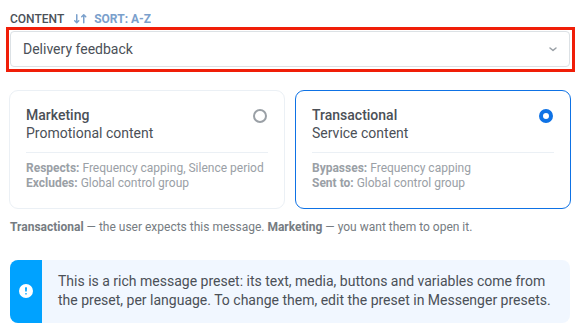 4. Turn on **Branch when the provider rejects the message**.
 5. Click **Apply**.
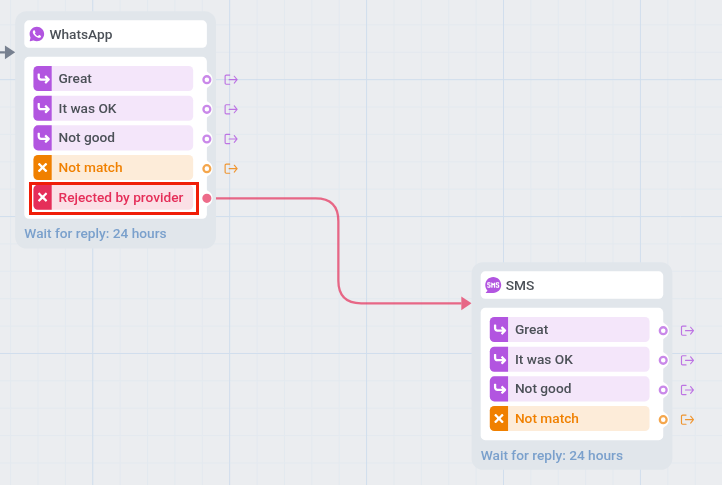
On the canvas, the element gets a branch for each button, **Not match** for users who don't tap a button within 24 hours, and **Rejected by provider**. A user goes to **Rejected by provider** when WhatsApp refuses the message at sending or when a later delivery report from Meta marks it as failed or undelivered. With quick reply buttons, a rejected user goes there at once, and the others wait for a tap.
## Send the fallback as RCS or SMS
1. Drag the **SMS** element onto the canvas.
2. Connect the **Rejected by provider** branch of the WhatsApp element to the SMS element.
3. Double-click the SMS element. In **Preset**, select `Delivery feedback`, the SMS preset that Pushwoosh created from the rich message.
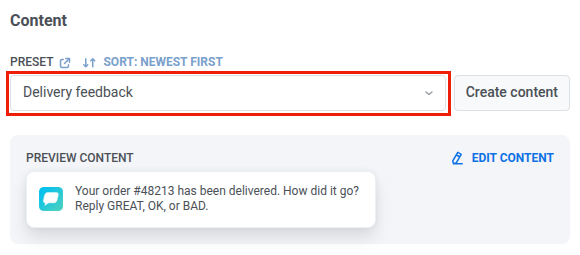 4. Click **Save**.
Phones with RCS get the message with its buttons. Other phones get the SMS text. The SMS element gets the same button branches: a user who doesn't tap a button within 24 hours, or whose phone has no RCS, goes to **Not match**.
 ## Finish the journey
1. Connect the button branches of both elements to the next steps, for example **Not good** to a message from your support team.
2. Connect **Not match** to the next step or to **Exit**.
3. Click **Launch campaign**.
For the details of each element, see [WhatsApp](/product/customer-journey/journey-elements/channels/whatsapp/) and [SMS](/product/customer-journey/journey-elements/channels/sms/).