# New and active players
These recipes cover the New and Playing stages: players who are learning the game and players who play every day. Before you build them, read the [best practices for every journey](/tutorials/industry-playbooks/mobile-games/build-the-journeys/#best-practices-for-every-journey).
## Onboarding for new players
* **Use it when:** new players install the game but do not finish the tutorial.
* **Starts when:** a player starts the tutorial (`Tutorial started`).
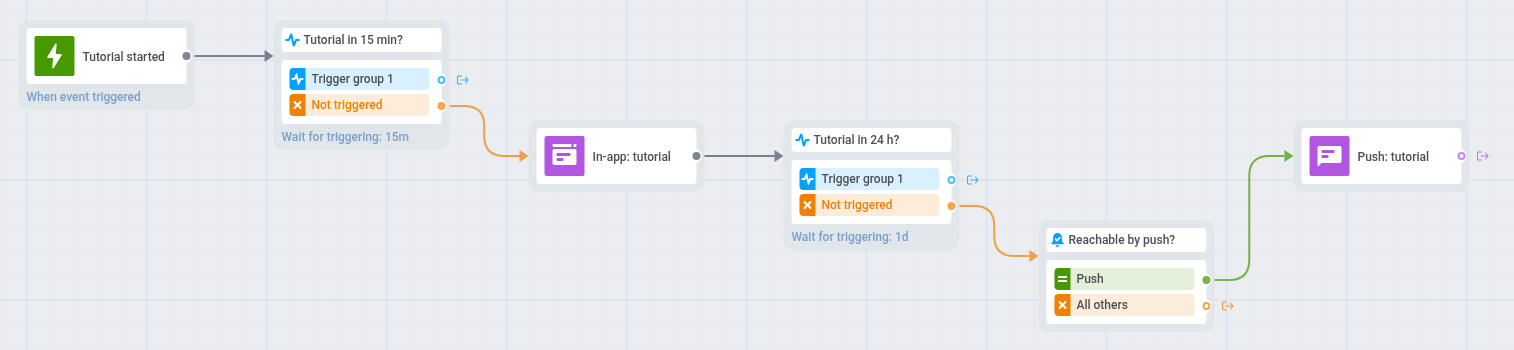
* **What it does:** sends an in-app nudge 15 minutes after the tutorial starts, then a push after 24 hours, until the player finishes the tutorial. The first nudge is an in-app message that comes early, while the player may still be in the game, because most players have not allowed notifications yet.
* **Content to prepare:** an in-app template and a push preset, both pointing the player back to the tutorial.
1. On the journey canvas, add a [Trigger-based entry](/product/customer-journey/journey-elements/entry-elements/trigger-based-entry/) on `Tutorial started`. Do not use `PW_DeviceRegistered` here: it fires when the game asks for push permission, which this playbook moves to after the tutorial.
2. Add a [Wait for Trigger](/product/customer-journey/journey-elements/flow-controls/wait-for-trigger/) step on `Tutorial completed` with the condition `completion` is true, and set the waiting period to 15 minutes.
3. Leave the **Trigger group 1** branch empty, because players who finish the tutorial need no further messages.
4. On the **Not triggered** branch, add an [In-app element](/product/customer-journey/journey-elements/channels/in-app/) with a message that points back to the tutorial, for example: "Your first reward is one step away. Finish the tutorial to claim it." The player sees it the next time they open or return to the game.
5. Add a second [Wait for Trigger](/product/customer-journey/journey-elements/flow-controls/wait-for-trigger/) step on `Tutorial completed` with the condition `completion` is true, and set the waiting period to 24 hours. Leave its **Trigger group 1** branch empty too.
6. On the **Not triggered** branch, add a [Reachability check](/product/customer-journey/journey-elements/flow-controls/reachability-check/).
7. For players reachable by push, add a [push](/product/customer-journey/journey-elements/channels/push/) that sends them back to the tutorial, for example: "Your adventure is waiting. Finish the tutorial to unlock your first reward."
8. Open **Settings** on the canvas, select [**Conversion goals**](/product/customer-journey/journey-settings/#conversion-goals), choose `Tutorial completed` with `completion` is true, and select **End journey after this event**.
9. Open **Settings**, select [**Campaign Entry Limit**](/product/customer-journey/journey-settings/#campaign-entry-limit), and choose once in a lifetime, so a player who restarts the tutorial does not get the nudges again.
The push in step 7 reaches only players whose devices already allow notifications. The others leave the journey, because a second in-app would repeat the first one.
This journey starts only for players who start the tutorial after you launch it. To reach players who started earlier, build a journey with a one-time Audience-based entry on the [Tutorial drop-off](/tutorials/industry-playbooks/mobile-games/build-the-segments/#tutorial-drop-off) segment. It takes in only players whose devices already have a push token, which the game gets when it asks for push permission.
For a longer walkthrough of onboarding journeys, see [Onboard users with Pushwoosh](/tutorials/product-guides/lifecycle-marketing-campaigns/how-to-onboard-users-with-pushwoosh/).
## Second session for new players
* **Use it when:** new players finish the tutorial but do not come back the next day.
* **Starts when:** a player finishes the tutorial (`Tutorial completed`).
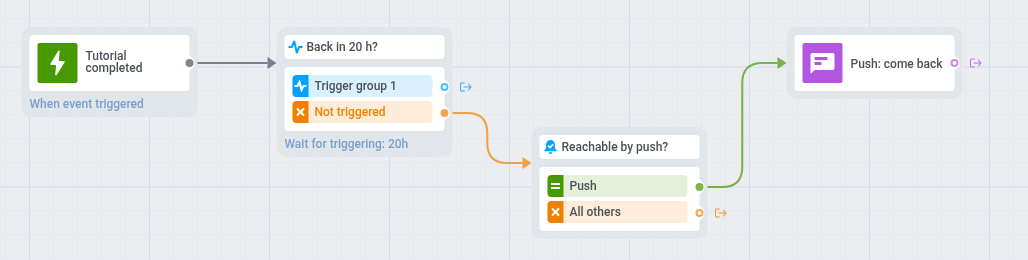
* **What it does:** waits about a day after the tutorial and, if the player has not opened the game again, sends a push that gives a reason to come back.
* **Content to prepare:** a push preset with a reason to return, such as a reward waiting in the game.
* **Needs:** players who allowed notifications during their first session. If the game asks for permission only at the next launch, this journey reaches few new players.
1. On the journey canvas, add a [Trigger-based entry](/product/customer-journey/journey-elements/entry-elements/trigger-based-entry/) on `Tutorial completed` with the condition `completion` is true.
2. Add a [Wait for Trigger](/product/customer-journey/journey-elements/flow-controls/wait-for-trigger/) step on `PW_ApplicationOpen` and set the waiting period to 20 hours. Leave its **Trigger group 1** branch empty, because players who came back need no message.
3. On the **Not triggered** branch, add a [Reachability check](/product/customer-journey/journey-elements/flow-controls/reachability-check/).
4. For players reachable by push, add a [push](/product/customer-journey/journey-elements/channels/push/), for example: "Your daily chest is ready. Come back and open it."
5. Open **Settings**, select [**Conversion goals**](/product/customer-journey/journey-settings/#conversion-goals), choose `PW_ApplicationOpen`, and select **End journey after this event**.
6. Open **Settings**, select [**Campaign Entry Limit**](/product/customer-journey/journey-settings/#campaign-entry-limit), and choose once in a lifetime.
## Help for stuck players
* **Use it when:** players keep failing levels and may quit the game.
* **Starts when:** a player enters the [Stuck players](/tutorials/industry-playbooks/mobile-games/build-the-segments/#stuck-players) segment. Pushwoosh checks the segment on a schedule you set, for example daily.
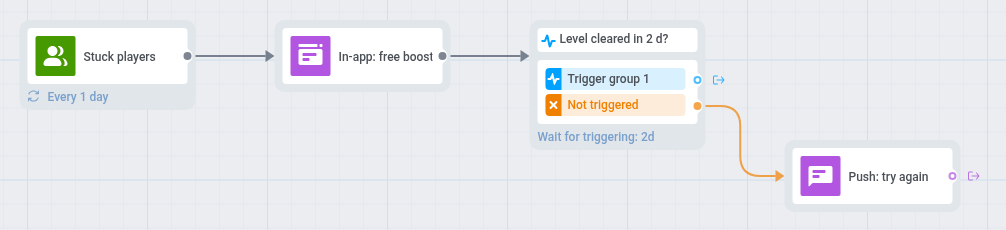
* **What it does:** shows an in-app hint or gift, then sends a push that offers help if the player does not complete the level within 2 days. The hint reaches the player before they quit, and the push is a second touch for players who have left the game.
* **Content to prepare:** an in-app template with a hint or a gift, and a push preset that offers help.
1. On the journey canvas, add an [Audience-based entry](/product/customer-journey/journey-elements/entry-elements/audience-based-entry/) with the [Stuck players](/tutorials/industry-playbooks/mobile-games/build-the-segments/#stuck-players) segment.
2. Set the entry schedule to **Recurring entry** and choose **Periodically**, for example daily.
3. Add an [In-app element](/product/customer-journey/journey-elements/channels/in-app/) with a hint or a gift for the level, for example: "Stuck on this one? Here is a free boost to get you through." The player sees it the next time they open or return to the game.
4. Add a [Wait for Trigger](/product/customer-journey/journey-elements/flow-controls/wait-for-trigger/) on `Level completed` for 2 days.
5. On the **Not triggered** branch, add a [push](/product/customer-journey/journey-elements/channels/push/) that offers help and sets a deep link to the level, for example: "Need a hand? Your boost is ready. Tap to try the level again."
6. Open **Settings**, select [**Campaign Entry Limit**](/product/customer-journey/journey-settings/#campaign-entry-limit), and choose once a week.
7. Open **Settings**, select [**Conversion goals**](/product/customer-journey/journey-settings/#conversion-goals), choose `Level completed`, and select **End journey after this event**.
Players without push get only the in-app message, because a second in-app would repeat the same boost.
## Daily reward reminder
* **Use it when:** your game has a daily reward and you want players to collect it every day.
* **Starts when:** a player claims the reward (`Daily reward claimed`).
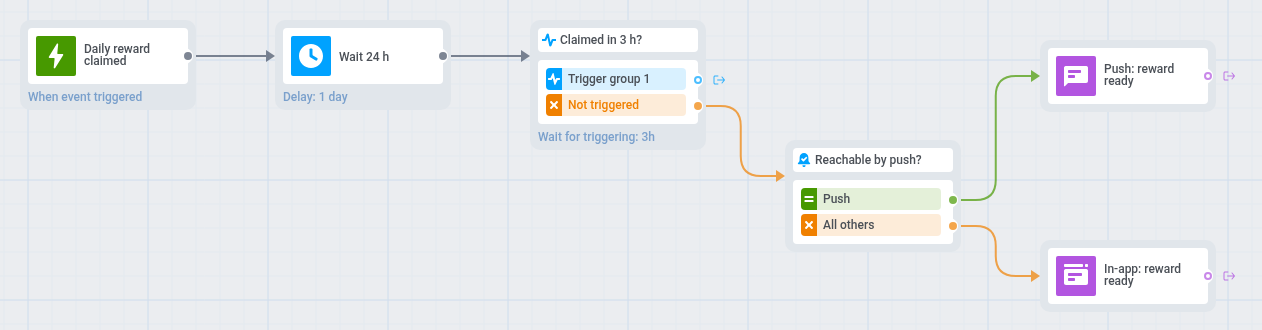
* **What it does:** waits for your reward cooldown after each claim, then reminds the player to collect the reward, unless the player has already claimed it. The reminder counts from the latest claim.
* **Content to prepare:** a push preset and an in-app template with the same reminder.
1. On the journey canvas, add a [Trigger-based entry](/product/customer-journey/journey-elements/entry-elements/trigger-based-entry/) on `Daily reward claimed` and set the entry to **Allow re-entry**. Each claim restarts the journey, so the reminder always counts from the latest claim.
2. Add a [Time Delay](/product/customer-journey/journey-elements/flow-controls/time-delay/) with a fixed duration equal to your reward cooldown, for example 24 hours.
3. Add a [Wait for Trigger](/product/customer-journey/journey-elements/flow-controls/wait-for-trigger/) step on `Daily reward claimed` and set the waiting period to a few hours. The reward can't be claimed before the cooldown ends, so the step catches every claim after the delay, and players who claim skip the reminder.
4. On the **Not triggered** branch, add a [Reachability check](/product/customer-journey/journey-elements/flow-controls/reachability-check/).
5. For players reachable by push, add a [push](/product/customer-journey/journey-elements/channels/push/) that tells the player the reward is ready, for example: "Your daily reward is waiting for you." Set a [deep link](/product/messaging-channels/push-notifications/advanced-push-features/deep-linking/) so the push opens the reward screen.
6. For the others, add an [In-app element](/product/customer-journey/journey-elements/channels/in-app/) with the same reminder and set **In-app expiration** to 1 day. The player sees it the next time they open or return to the game.
7. Set a [Silence period](/product/customer-journey/journey-settings/#silence-period) for push with the option to send the message after the period ends.
8. Open **Settings**, select [**Conversion goals**](/product/customer-journey/journey-settings/#conversion-goals), and choose `Daily reward claimed`.
 1. On the journey canvas, add a [Trigger-based entry](/product/customer-journey/journey-elements/entry-elements/trigger-based-entry/) on `Tutorial started`. Do not use `PW_DeviceRegistered` here: it fires when the game asks for push permission, which this playbook moves to after the tutorial.
2. Add a [Wait for Trigger](/product/customer-journey/journey-elements/flow-controls/wait-for-trigger/) step on `Tutorial completed` with the condition `completion` is true, and set the waiting period to 15 minutes.
3. Leave the **Trigger group 1** branch empty, because players who finish the tutorial need no further messages.
4. On the **Not triggered** branch, add an [In-app element](/product/customer-journey/journey-elements/channels/in-app/) with a message that points back to the tutorial, for example: "Your first reward is one step away. Finish the tutorial to claim it." The player sees it the next time they open or return to the game.
5. Add a second [Wait for Trigger](/product/customer-journey/journey-elements/flow-controls/wait-for-trigger/) step on `Tutorial completed` with the condition `completion` is true, and set the waiting period to 24 hours. Leave its **Trigger group 1** branch empty too.
6. On the **Not triggered** branch, add a [Reachability check](/product/customer-journey/journey-elements/flow-controls/reachability-check/).
7. For players reachable by push, add a [push](/product/customer-journey/journey-elements/channels/push/) that sends them back to the tutorial, for example: "Your adventure is waiting. Finish the tutorial to unlock your first reward."
8. Open **Settings** on the canvas, select [**Conversion goals**](/product/customer-journey/journey-settings/#conversion-goals), choose `Tutorial completed` with `completion` is true, and select **End journey after this event**.
9. Open **Settings**, select [**Campaign Entry Limit**](/product/customer-journey/journey-settings/#campaign-entry-limit), and choose once in a lifetime, so a player who restarts the tutorial does not get the nudges again.
The push in step 7 reaches only players whose devices already allow notifications. The others leave the journey, because a second in-app would repeat the first one.
This journey starts only for players who start the tutorial after you launch it. To reach players who started earlier, build a journey with a one-time Audience-based entry on the [Tutorial drop-off](/tutorials/industry-playbooks/mobile-games/build-the-segments/#tutorial-drop-off) segment. It takes in only players whose devices already have a push token, which the game gets when it asks for push permission.
For a longer walkthrough of onboarding journeys, see [Onboard users with Pushwoosh](/tutorials/product-guides/lifecycle-marketing-campaigns/how-to-onboard-users-with-pushwoosh/).
## Second session for new players
* **Use it when:** new players finish the tutorial but do not come back the next day.
* **Starts when:** a player finishes the tutorial (`Tutorial completed`).
* **What it does:** waits about a day after the tutorial and, if the player has not opened the game again, sends a push that gives a reason to come back.
* **Content to prepare:** a push preset with a reason to return, such as a reward waiting in the game.
* **Needs:** players who allowed notifications during their first session. If the game asks for permission only at the next launch, this journey reaches few new players.
1. On the journey canvas, add a [Trigger-based entry](/product/customer-journey/journey-elements/entry-elements/trigger-based-entry/) on `Tutorial started`. Do not use `PW_DeviceRegistered` here: it fires when the game asks for push permission, which this playbook moves to after the tutorial.
2. Add a [Wait for Trigger](/product/customer-journey/journey-elements/flow-controls/wait-for-trigger/) step on `Tutorial completed` with the condition `completion` is true, and set the waiting period to 15 minutes.
3. Leave the **Trigger group 1** branch empty, because players who finish the tutorial need no further messages.
4. On the **Not triggered** branch, add an [In-app element](/product/customer-journey/journey-elements/channels/in-app/) with a message that points back to the tutorial, for example: "Your first reward is one step away. Finish the tutorial to claim it." The player sees it the next time they open or return to the game.
5. Add a second [Wait for Trigger](/product/customer-journey/journey-elements/flow-controls/wait-for-trigger/) step on `Tutorial completed` with the condition `completion` is true, and set the waiting period to 24 hours. Leave its **Trigger group 1** branch empty too.
6. On the **Not triggered** branch, add a [Reachability check](/product/customer-journey/journey-elements/flow-controls/reachability-check/).
7. For players reachable by push, add a [push](/product/customer-journey/journey-elements/channels/push/) that sends them back to the tutorial, for example: "Your adventure is waiting. Finish the tutorial to unlock your first reward."
8. Open **Settings** on the canvas, select [**Conversion goals**](/product/customer-journey/journey-settings/#conversion-goals), choose `Tutorial completed` with `completion` is true, and select **End journey after this event**.
9. Open **Settings**, select [**Campaign Entry Limit**](/product/customer-journey/journey-settings/#campaign-entry-limit), and choose once in a lifetime, so a player who restarts the tutorial does not get the nudges again.
The push in step 7 reaches only players whose devices already allow notifications. The others leave the journey, because a second in-app would repeat the first one.
This journey starts only for players who start the tutorial after you launch it. To reach players who started earlier, build a journey with a one-time Audience-based entry on the [Tutorial drop-off](/tutorials/industry-playbooks/mobile-games/build-the-segments/#tutorial-drop-off) segment. It takes in only players whose devices already have a push token, which the game gets when it asks for push permission.
For a longer walkthrough of onboarding journeys, see [Onboard users with Pushwoosh](/tutorials/product-guides/lifecycle-marketing-campaigns/how-to-onboard-users-with-pushwoosh/).
## Second session for new players
* **Use it when:** new players finish the tutorial but do not come back the next day.
* **Starts when:** a player finishes the tutorial (`Tutorial completed`).
* **What it does:** waits about a day after the tutorial and, if the player has not opened the game again, sends a push that gives a reason to come back.
* **Content to prepare:** a push preset with a reason to return, such as a reward waiting in the game.
* **Needs:** players who allowed notifications during their first session. If the game asks for permission only at the next launch, this journey reaches few new players.
 1. On the journey canvas, add a [Trigger-based entry](/product/customer-journey/journey-elements/entry-elements/trigger-based-entry/) on `Tutorial completed` with the condition `completion` is true.
2. Add a [Wait for Trigger](/product/customer-journey/journey-elements/flow-controls/wait-for-trigger/) step on `PW_ApplicationOpen` and set the waiting period to 20 hours. Leave its **Trigger group 1** branch empty, because players who came back need no message.
3. On the **Not triggered** branch, add a [Reachability check](/product/customer-journey/journey-elements/flow-controls/reachability-check/).
4. For players reachable by push, add a [push](/product/customer-journey/journey-elements/channels/push/), for example: "Your daily chest is ready. Come back and open it."
5. Open **Settings**, select [**Conversion goals**](/product/customer-journey/journey-settings/#conversion-goals), choose `PW_ApplicationOpen`, and select **End journey after this event**.
6. Open **Settings**, select [**Campaign Entry Limit**](/product/customer-journey/journey-settings/#campaign-entry-limit), and choose once in a lifetime.
## Help for stuck players
* **Use it when:** players keep failing levels and may quit the game.
* **Starts when:** a player enters the [Stuck players](/tutorials/industry-playbooks/mobile-games/build-the-segments/#stuck-players) segment. Pushwoosh checks the segment on a schedule you set, for example daily.
* **What it does:** shows an in-app hint or gift, then sends a push that offers help if the player does not complete the level within 2 days. The hint reaches the player before they quit, and the push is a second touch for players who have left the game.
* **Content to prepare:** an in-app template with a hint or a gift, and a push preset that offers help.
1. On the journey canvas, add a [Trigger-based entry](/product/customer-journey/journey-elements/entry-elements/trigger-based-entry/) on `Tutorial completed` with the condition `completion` is true.
2. Add a [Wait for Trigger](/product/customer-journey/journey-elements/flow-controls/wait-for-trigger/) step on `PW_ApplicationOpen` and set the waiting period to 20 hours. Leave its **Trigger group 1** branch empty, because players who came back need no message.
3. On the **Not triggered** branch, add a [Reachability check](/product/customer-journey/journey-elements/flow-controls/reachability-check/).
4. For players reachable by push, add a [push](/product/customer-journey/journey-elements/channels/push/), for example: "Your daily chest is ready. Come back and open it."
5. Open **Settings**, select [**Conversion goals**](/product/customer-journey/journey-settings/#conversion-goals), choose `PW_ApplicationOpen`, and select **End journey after this event**.
6. Open **Settings**, select [**Campaign Entry Limit**](/product/customer-journey/journey-settings/#campaign-entry-limit), and choose once in a lifetime.
## Help for stuck players
* **Use it when:** players keep failing levels and may quit the game.
* **Starts when:** a player enters the [Stuck players](/tutorials/industry-playbooks/mobile-games/build-the-segments/#stuck-players) segment. Pushwoosh checks the segment on a schedule you set, for example daily.
* **What it does:** shows an in-app hint or gift, then sends a push that offers help if the player does not complete the level within 2 days. The hint reaches the player before they quit, and the push is a second touch for players who have left the game.
* **Content to prepare:** an in-app template with a hint or a gift, and a push preset that offers help.
 1. On the journey canvas, add an [Audience-based entry](/product/customer-journey/journey-elements/entry-elements/audience-based-entry/) with the [Stuck players](/tutorials/industry-playbooks/mobile-games/build-the-segments/#stuck-players) segment.
2. Set the entry schedule to **Recurring entry** and choose **Periodically**, for example daily.
3. Add an [In-app element](/product/customer-journey/journey-elements/channels/in-app/) with a hint or a gift for the level, for example: "Stuck on this one? Here is a free boost to get you through." The player sees it the next time they open or return to the game.
4. Add a [Wait for Trigger](/product/customer-journey/journey-elements/flow-controls/wait-for-trigger/) on `Level completed` for 2 days.
5. On the **Not triggered** branch, add a [push](/product/customer-journey/journey-elements/channels/push/) that offers help and sets a deep link to the level, for example: "Need a hand? Your boost is ready. Tap to try the level again."
6. Open **Settings**, select [**Campaign Entry Limit**](/product/customer-journey/journey-settings/#campaign-entry-limit), and choose once a week.
7. Open **Settings**, select [**Conversion goals**](/product/customer-journey/journey-settings/#conversion-goals), choose `Level completed`, and select **End journey after this event**.
Players without push get only the in-app message, because a second in-app would repeat the same boost.
## Daily reward reminder
* **Use it when:** your game has a daily reward and you want players to collect it every day.
* **Starts when:** a player claims the reward (`Daily reward claimed`).
* **What it does:** waits for your reward cooldown after each claim, then reminds the player to collect the reward, unless the player has already claimed it. The reminder counts from the latest claim.
* **Content to prepare:** a push preset and an in-app template with the same reminder.
1. On the journey canvas, add an [Audience-based entry](/product/customer-journey/journey-elements/entry-elements/audience-based-entry/) with the [Stuck players](/tutorials/industry-playbooks/mobile-games/build-the-segments/#stuck-players) segment.
2. Set the entry schedule to **Recurring entry** and choose **Periodically**, for example daily.
3. Add an [In-app element](/product/customer-journey/journey-elements/channels/in-app/) with a hint or a gift for the level, for example: "Stuck on this one? Here is a free boost to get you through." The player sees it the next time they open or return to the game.
4. Add a [Wait for Trigger](/product/customer-journey/journey-elements/flow-controls/wait-for-trigger/) on `Level completed` for 2 days.
5. On the **Not triggered** branch, add a [push](/product/customer-journey/journey-elements/channels/push/) that offers help and sets a deep link to the level, for example: "Need a hand? Your boost is ready. Tap to try the level again."
6. Open **Settings**, select [**Campaign Entry Limit**](/product/customer-journey/journey-settings/#campaign-entry-limit), and choose once a week.
7. Open **Settings**, select [**Conversion goals**](/product/customer-journey/journey-settings/#conversion-goals), choose `Level completed`, and select **End journey after this event**.
Players without push get only the in-app message, because a second in-app would repeat the same boost.
## Daily reward reminder
* **Use it when:** your game has a daily reward and you want players to collect it every day.
* **Starts when:** a player claims the reward (`Daily reward claimed`).
* **What it does:** waits for your reward cooldown after each claim, then reminds the player to collect the reward, unless the player has already claimed it. The reminder counts from the latest claim.
* **Content to prepare:** a push preset and an in-app template with the same reminder.
 1. On the journey canvas, add a [Trigger-based entry](/product/customer-journey/journey-elements/entry-elements/trigger-based-entry/) on `Daily reward claimed` and set the entry to **Allow re-entry**. Each claim restarts the journey, so the reminder always counts from the latest claim.
2. Add a [Time Delay](/product/customer-journey/journey-elements/flow-controls/time-delay/) with a fixed duration equal to your reward cooldown, for example 24 hours.
3. Add a [Wait for Trigger](/product/customer-journey/journey-elements/flow-controls/wait-for-trigger/) step on `Daily reward claimed` and set the waiting period to a few hours. The reward can't be claimed before the cooldown ends, so the step catches every claim after the delay, and players who claim skip the reminder.
4. On the **Not triggered** branch, add a [Reachability check](/product/customer-journey/journey-elements/flow-controls/reachability-check/).
5. For players reachable by push, add a [push](/product/customer-journey/journey-elements/channels/push/) that tells the player the reward is ready, for example: "Your daily reward is waiting for you." Set a [deep link](/product/messaging-channels/push-notifications/advanced-push-features/deep-linking/) so the push opens the reward screen.
6. For the others, add an [In-app element](/product/customer-journey/journey-elements/channels/in-app/) with the same reminder and set **In-app expiration** to 1 day. The player sees it the next time they open or return to the game.
7. Set a [Silence period](/product/customer-journey/journey-settings/#silence-period) for push with the option to send the message after the period ends.
8. Open **Settings**, select [**Conversion goals**](/product/customer-journey/journey-settings/#conversion-goals), and choose `Daily reward claimed`.
1. On the journey canvas, add a [Trigger-based entry](/product/customer-journey/journey-elements/entry-elements/trigger-based-entry/) on `Daily reward claimed` and set the entry to **Allow re-entry**. Each claim restarts the journey, so the reminder always counts from the latest claim.
2. Add a [Time Delay](/product/customer-journey/journey-elements/flow-controls/time-delay/) with a fixed duration equal to your reward cooldown, for example 24 hours.
3. Add a [Wait for Trigger](/product/customer-journey/journey-elements/flow-controls/wait-for-trigger/) step on `Daily reward claimed` and set the waiting period to a few hours. The reward can't be claimed before the cooldown ends, so the step catches every claim after the delay, and players who claim skip the reminder.
4. On the **Not triggered** branch, add a [Reachability check](/product/customer-journey/journey-elements/flow-controls/reachability-check/).
5. For players reachable by push, add a [push](/product/customer-journey/journey-elements/channels/push/) that tells the player the reward is ready, for example: "Your daily reward is waiting for you." Set a [deep link](/product/messaging-channels/push-notifications/advanced-push-features/deep-linking/) so the push opens the reward screen.
6. For the others, add an [In-app element](/product/customer-journey/journey-elements/channels/in-app/) with the same reminder and set **In-app expiration** to 1 day. The player sees it the next time they open or return to the game.
7. Set a [Silence period](/product/customer-journey/journey-settings/#silence-period) for push with the option to send the message after the period ends.
8. Open **Settings**, select [**Conversion goals**](/product/customer-journey/journey-settings/#conversion-goals), and choose `Daily reward claimed`.