# Loyalty and win-back
These recipes cover the Loyal and Leaving stages: players who stay for the long run and players who stopped opening the game. Before you build them, read the [best practices for every journey](/tutorials/industry-playbooks/mobile-games/build-the-journeys/#best-practices-for-every-journey).
## Live event and VIP announcements
* **Use it when:** you run a live event, such as a tournament, or give some players early access.
* **Starts when:** the date and time you set, for the segment you pick.
* **What it does:** announces the event in App Inbox and by push when it starts, then sends a reminder push shortly before it ends. The announcement goes to the players most likely to care.
* **Content to prepare:** an App Inbox preset with the announcement, and two push presets: one for the start and one for the reminder before the end.
* **Needs:** the Message Inbox SDK in the game for App Inbox. The Pushwoosh Unity plugin has no Message Inbox, so a Unity game can't show the App Inbox message.
1. On the journey canvas, add an [Audience-based entry](/product/customer-journey/journey-elements/entry-elements/audience-based-entry/) on the [Active players](/tutorials/industry-playbooks/mobile-games/build-the-segments/#active-players) segment. For an exclusive-content event, use [Achievement hunters](/tutorials/industry-playbooks/mobile-games/build-the-segments/#achievement-hunters). For early access, use [Frequent payers](/tutorials/industry-playbooks/mobile-games/build-the-segments/#frequent-payers).
2. Set the entry schedule to **One-time entry**, choose **Schedule for a specific day**, and set the launch date, time, and timezone.
3. Add an [App Inbox](/product/customer-journey/journey-elements/channels/app-inbox/) element with the event announcement. Set its expiration to match the event end.
4. Add a [push](/product/customer-journey/journey-elements/channels/push/) that links to the event screen, for example: "The weekend tournament has started. Join now."
5. Add a [Time Delay](/product/customer-journey/journey-elements/flow-controls/time-delay/), choose the **Date** type, and set a moment shortly before the event ends. The **Date** type counts in each player's own time zone. If the event ends at the same moment for everyone, choose **Fixed duration** from the start instead.
6. Add a push reminder, for example: "The tournament ends in 3 hours. Last chance to join."
7. Open **Settings**, select [**Conversion goals**](/product/customer-journey/journey-settings/#conversion-goals), choose `Live event joined`, and select **End journey after this event**, so players who already joined do not get the reminder.
## Anniversary reward
* **Use it when:** you want to celebrate how long a player has been with the game and give them a reason to come back.
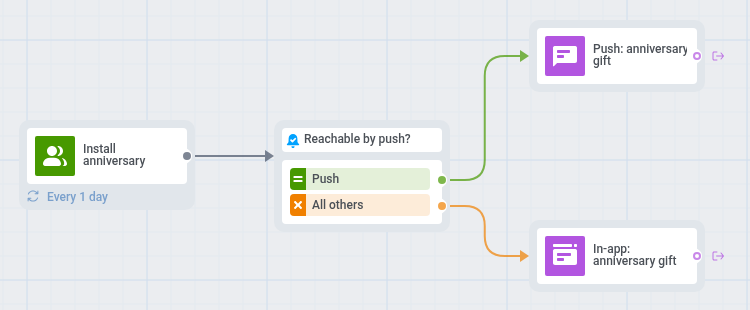
* **Starts when:** a player enters the [Install anniversary](/tutorials/industry-playbooks/mobile-games/build-the-segments/#install-anniversary) segment, on the anniversary of their install date. Pushwoosh checks the segment on a schedule you set, for example daily.
* **What it does:** sends a push with an anniversary gift, or an in-app message to players who can't get push.
* **Content to prepare:** a push preset and an in-app template with the anniversary gift.
* **Needs:** no extra setup. `First Install` is a default tag that Pushwoosh sets on every device.
1. On the journey canvas, add an [Audience-based entry](/product/customer-journey/journey-elements/entry-elements/audience-based-entry/) with the [Install anniversary](/tutorials/industry-playbooks/mobile-games/build-the-segments/#install-anniversary) segment.
2. Set the entry schedule to **Recurring entry**, choose **Periodically**, and set it to daily. The segment matches only on the anniversary day, so the journey must check it every day.
3. Add a [Reachability check](/product/customer-journey/journey-elements/flow-controls/reachability-check/).
4. For players reachable by push, add a [push](/product/customer-journey/journey-elements/channels/push/) with the gift, for example: "One year together! Your anniversary chest is waiting."
5. For the others, add an [In-app element](/product/customer-journey/journey-elements/channels/in-app/) with the same gift and set **In-app expiration** to a few days, so the player still sees it after the day itself.
6. Open **Settings**, select [**Campaign Entry Limit**](/product/customer-journey/journey-settings/#campaign-entry-limit), and choose once a month or once in 3 months, so a player gets one message per anniversary. Once in a lifetime would also block the next year's anniversary.
7. Open **Settings**, select [**Conversion goals**](/product/customer-journey/journey-settings/#conversion-goals), choose `PW_ApplicationOpen`, and select **End journey after this event**.
## Reactivation for inactive players
* **Use it when:** players stop opening the game.
* **Starts when:** a player enters the [At-risk players](/tutorials/industry-playbooks/mobile-games/build-the-segments/#at-risk-players) segment, after a week without a session.
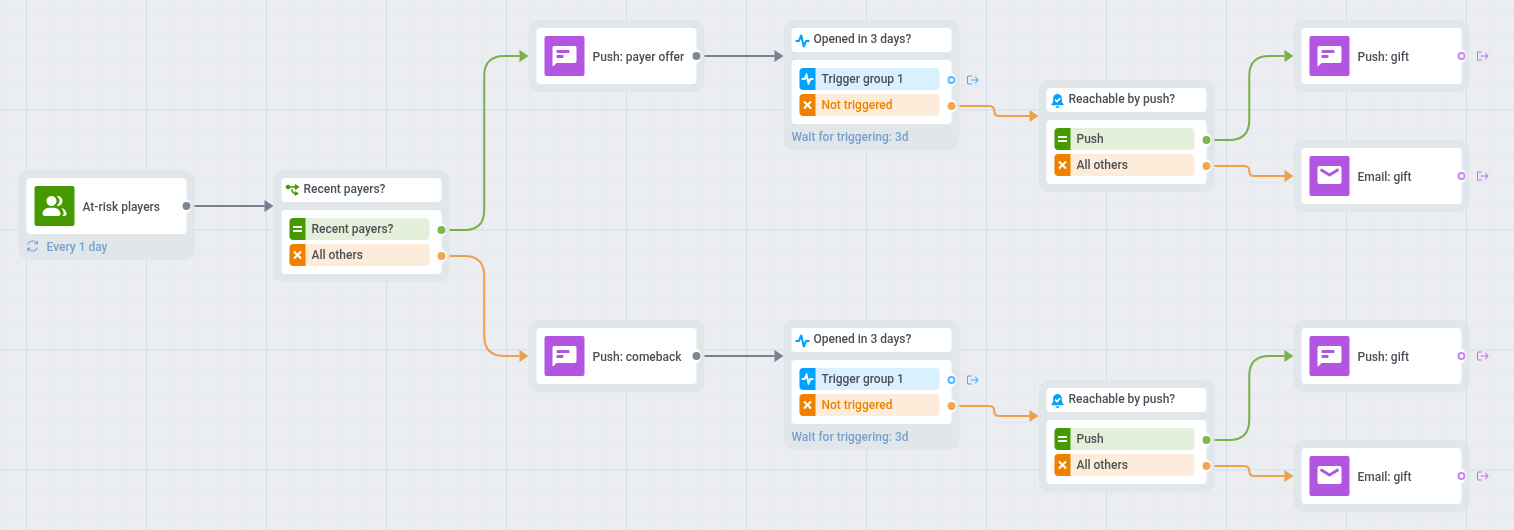
* **What it does:** sends a push with an offer, different for payers and for other players. If the player does not open the game within 3 days, a second push with a time-limited reward follows, or an email for players who cannot get push.
* **Content to prepare:** two push presets for the first message (one for payers, one for other players), a push preset with the comeback reward, and email content for players you cannot reach by push.
* **Needs:** for the email step, the email channel set up in your application and email addresses stored in your players' profiles.
1. On the journey canvas, add an [Audience-based entry](/product/customer-journey/journey-elements/entry-elements/audience-based-entry/) on the [At-risk players](/tutorials/industry-playbooks/mobile-games/build-the-segments/#at-risk-players) segment.
2. Set the entry schedule to **Recurring entry** and choose **Periodically**, for example daily. Pushwoosh recalculates the segment before each start, and players already in the journey do not enter again.
3. Add a [Condition split](/product/customer-journey/journey-elements/flow-controls/segment-split/), choose **Segment**, and select the [Recent payers](/tutorials/industry-playbooks/mobile-games/build-the-segments/#recent-payers) segment. If you do not track purchases yet, skip the split and send every player the push from step 5.
4. On the **Users in a segment** branch, add a [push](/product/customer-journey/journey-elements/channels/push/) with an offer tied to how the player spends, for example: "Your next pack comes with a bonus. It is waiting in the store."
5. On the **All other users** branch, add a push with a softer reason to return, such as new content or a comeback bonus, for example: "Your hero is waiting at level 12. Come back and keep going."
6. In each branch, add a [Wait for Trigger](/product/customer-journey/journey-elements/flow-controls/wait-for-trigger/) step on `PW_ApplicationOpen` and set the waiting period to 3 days.
7. On each **Not triggered** branch, add a [Reachability check](/product/customer-journey/journey-elements/flow-controls/reachability-check/).
8. For players reachable by push, send a second push with a time-limited comeback reward, for example: "We saved a gift for you. Claim it in the next 48 hours."
9. For the others, send an [email](/product/customer-journey/journey-elements/channels/email/). Only players with an email address in their profile receive it.
10. Open **Settings**, select [**Conversion goals**](/product/customer-journey/journey-settings/#conversion-goals), choose `PW_ApplicationOpen`, and select **End journey after this event**.
11. Open **Settings**, select [**Campaign Entry Limit**](/product/customer-journey/journey-settings/#campaign-entry-limit), and choose once a month. A player stays in At-risk players for up to 3 weeks, so without the limit the daily entry would send the same pushes again after each round.
 1. On the journey canvas, add an [Audience-based entry](/product/customer-journey/journey-elements/entry-elements/audience-based-entry/) on the [Active players](/tutorials/industry-playbooks/mobile-games/build-the-segments/#active-players) segment. For an exclusive-content event, use [Achievement hunters](/tutorials/industry-playbooks/mobile-games/build-the-segments/#achievement-hunters). For early access, use [Frequent payers](/tutorials/industry-playbooks/mobile-games/build-the-segments/#frequent-payers).
2. Set the entry schedule to **One-time entry**, choose **Schedule for a specific day**, and set the launch date, time, and timezone.
3. Add an [App Inbox](/product/customer-journey/journey-elements/channels/app-inbox/) element with the event announcement. Set its expiration to match the event end.
4. Add a [push](/product/customer-journey/journey-elements/channels/push/) that links to the event screen, for example: "The weekend tournament has started. Join now."
5. Add a [Time Delay](/product/customer-journey/journey-elements/flow-controls/time-delay/), choose the **Date** type, and set a moment shortly before the event ends. The **Date** type counts in each player's own time zone. If the event ends at the same moment for everyone, choose **Fixed duration** from the start instead.
6. Add a push reminder, for example: "The tournament ends in 3 hours. Last chance to join."
7. Open **Settings**, select [**Conversion goals**](/product/customer-journey/journey-settings/#conversion-goals), choose `Live event joined`, and select **End journey after this event**, so players who already joined do not get the reminder.
## Anniversary reward
* **Use it when:** you want to celebrate how long a player has been with the game and give them a reason to come back.
* **Starts when:** a player enters the [Install anniversary](/tutorials/industry-playbooks/mobile-games/build-the-segments/#install-anniversary) segment, on the anniversary of their install date. Pushwoosh checks the segment on a schedule you set, for example daily.
* **What it does:** sends a push with an anniversary gift, or an in-app message to players who can't get push.
* **Content to prepare:** a push preset and an in-app template with the anniversary gift.
* **Needs:** no extra setup. `First Install` is a default tag that Pushwoosh sets on every device.
1. On the journey canvas, add an [Audience-based entry](/product/customer-journey/journey-elements/entry-elements/audience-based-entry/) on the [Active players](/tutorials/industry-playbooks/mobile-games/build-the-segments/#active-players) segment. For an exclusive-content event, use [Achievement hunters](/tutorials/industry-playbooks/mobile-games/build-the-segments/#achievement-hunters). For early access, use [Frequent payers](/tutorials/industry-playbooks/mobile-games/build-the-segments/#frequent-payers).
2. Set the entry schedule to **One-time entry**, choose **Schedule for a specific day**, and set the launch date, time, and timezone.
3. Add an [App Inbox](/product/customer-journey/journey-elements/channels/app-inbox/) element with the event announcement. Set its expiration to match the event end.
4. Add a [push](/product/customer-journey/journey-elements/channels/push/) that links to the event screen, for example: "The weekend tournament has started. Join now."
5. Add a [Time Delay](/product/customer-journey/journey-elements/flow-controls/time-delay/), choose the **Date** type, and set a moment shortly before the event ends. The **Date** type counts in each player's own time zone. If the event ends at the same moment for everyone, choose **Fixed duration** from the start instead.
6. Add a push reminder, for example: "The tournament ends in 3 hours. Last chance to join."
7. Open **Settings**, select [**Conversion goals**](/product/customer-journey/journey-settings/#conversion-goals), choose `Live event joined`, and select **End journey after this event**, so players who already joined do not get the reminder.
## Anniversary reward
* **Use it when:** you want to celebrate how long a player has been with the game and give them a reason to come back.
* **Starts when:** a player enters the [Install anniversary](/tutorials/industry-playbooks/mobile-games/build-the-segments/#install-anniversary) segment, on the anniversary of their install date. Pushwoosh checks the segment on a schedule you set, for example daily.
* **What it does:** sends a push with an anniversary gift, or an in-app message to players who can't get push.
* **Content to prepare:** a push preset and an in-app template with the anniversary gift.
* **Needs:** no extra setup. `First Install` is a default tag that Pushwoosh sets on every device.
 1. On the journey canvas, add an [Audience-based entry](/product/customer-journey/journey-elements/entry-elements/audience-based-entry/) with the [Install anniversary](/tutorials/industry-playbooks/mobile-games/build-the-segments/#install-anniversary) segment.
2. Set the entry schedule to **Recurring entry**, choose **Periodically**, and set it to daily. The segment matches only on the anniversary day, so the journey must check it every day.
3. Add a [Reachability check](/product/customer-journey/journey-elements/flow-controls/reachability-check/).
4. For players reachable by push, add a [push](/product/customer-journey/journey-elements/channels/push/) with the gift, for example: "One year together! Your anniversary chest is waiting."
5. For the others, add an [In-app element](/product/customer-journey/journey-elements/channels/in-app/) with the same gift and set **In-app expiration** to a few days, so the player still sees it after the day itself.
6. Open **Settings**, select [**Campaign Entry Limit**](/product/customer-journey/journey-settings/#campaign-entry-limit), and choose once a month or once in 3 months, so a player gets one message per anniversary. Once in a lifetime would also block the next year's anniversary.
7. Open **Settings**, select [**Conversion goals**](/product/customer-journey/journey-settings/#conversion-goals), choose `PW_ApplicationOpen`, and select **End journey after this event**.
## Reactivation for inactive players
* **Use it when:** players stop opening the game.
* **Starts when:** a player enters the [At-risk players](/tutorials/industry-playbooks/mobile-games/build-the-segments/#at-risk-players) segment, after a week without a session.
* **What it does:** sends a push with an offer, different for payers and for other players. If the player does not open the game within 3 days, a second push with a time-limited reward follows, or an email for players who cannot get push.
* **Content to prepare:** two push presets for the first message (one for payers, one for other players), a push preset with the comeback reward, and email content for players you cannot reach by push.
* **Needs:** for the email step, the email channel set up in your application and email addresses stored in your players' profiles.
1. On the journey canvas, add an [Audience-based entry](/product/customer-journey/journey-elements/entry-elements/audience-based-entry/) with the [Install anniversary](/tutorials/industry-playbooks/mobile-games/build-the-segments/#install-anniversary) segment.
2. Set the entry schedule to **Recurring entry**, choose **Periodically**, and set it to daily. The segment matches only on the anniversary day, so the journey must check it every day.
3. Add a [Reachability check](/product/customer-journey/journey-elements/flow-controls/reachability-check/).
4. For players reachable by push, add a [push](/product/customer-journey/journey-elements/channels/push/) with the gift, for example: "One year together! Your anniversary chest is waiting."
5. For the others, add an [In-app element](/product/customer-journey/journey-elements/channels/in-app/) with the same gift and set **In-app expiration** to a few days, so the player still sees it after the day itself.
6. Open **Settings**, select [**Campaign Entry Limit**](/product/customer-journey/journey-settings/#campaign-entry-limit), and choose once a month or once in 3 months, so a player gets one message per anniversary. Once in a lifetime would also block the next year's anniversary.
7. Open **Settings**, select [**Conversion goals**](/product/customer-journey/journey-settings/#conversion-goals), choose `PW_ApplicationOpen`, and select **End journey after this event**.
## Reactivation for inactive players
* **Use it when:** players stop opening the game.
* **Starts when:** a player enters the [At-risk players](/tutorials/industry-playbooks/mobile-games/build-the-segments/#at-risk-players) segment, after a week without a session.
* **What it does:** sends a push with an offer, different for payers and for other players. If the player does not open the game within 3 days, a second push with a time-limited reward follows, or an email for players who cannot get push.
* **Content to prepare:** two push presets for the first message (one for payers, one for other players), a push preset with the comeback reward, and email content for players you cannot reach by push.
* **Needs:** for the email step, the email channel set up in your application and email addresses stored in your players' profiles.
 1. On the journey canvas, add an [Audience-based entry](/product/customer-journey/journey-elements/entry-elements/audience-based-entry/) on the [At-risk players](/tutorials/industry-playbooks/mobile-games/build-the-segments/#at-risk-players) segment.
2. Set the entry schedule to **Recurring entry** and choose **Periodically**, for example daily. Pushwoosh recalculates the segment before each start, and players already in the journey do not enter again.
3. Add a [Condition split](/product/customer-journey/journey-elements/flow-controls/segment-split/), choose **Segment**, and select the [Recent payers](/tutorials/industry-playbooks/mobile-games/build-the-segments/#recent-payers) segment. If you do not track purchases yet, skip the split and send every player the push from step 5.
4. On the **Users in a segment** branch, add a [push](/product/customer-journey/journey-elements/channels/push/) with an offer tied to how the player spends, for example: "Your next pack comes with a bonus. It is waiting in the store."
5. On the **All other users** branch, add a push with a softer reason to return, such as new content or a comeback bonus, for example: "Your hero is waiting at level 12. Come back and keep going."
6. In each branch, add a [Wait for Trigger](/product/customer-journey/journey-elements/flow-controls/wait-for-trigger/) step on `PW_ApplicationOpen` and set the waiting period to 3 days.
7. On each **Not triggered** branch, add a [Reachability check](/product/customer-journey/journey-elements/flow-controls/reachability-check/).
8. For players reachable by push, send a second push with a time-limited comeback reward, for example: "We saved a gift for you. Claim it in the next 48 hours."
9. For the others, send an [email](/product/customer-journey/journey-elements/channels/email/). Only players with an email address in their profile receive it.
10. Open **Settings**, select [**Conversion goals**](/product/customer-journey/journey-settings/#conversion-goals), choose `PW_ApplicationOpen`, and select **End journey after this event**.
11. Open **Settings**, select [**Campaign Entry Limit**](/product/customer-journey/journey-settings/#campaign-entry-limit), and choose once a month. A player stays in At-risk players for up to 3 weeks, so without the limit the daily entry would send the same pushes again after each round.
1. On the journey canvas, add an [Audience-based entry](/product/customer-journey/journey-elements/entry-elements/audience-based-entry/) on the [At-risk players](/tutorials/industry-playbooks/mobile-games/build-the-segments/#at-risk-players) segment.
2. Set the entry schedule to **Recurring entry** and choose **Periodically**, for example daily. Pushwoosh recalculates the segment before each start, and players already in the journey do not enter again.
3. Add a [Condition split](/product/customer-journey/journey-elements/flow-controls/segment-split/), choose **Segment**, and select the [Recent payers](/tutorials/industry-playbooks/mobile-games/build-the-segments/#recent-payers) segment. If you do not track purchases yet, skip the split and send every player the push from step 5.
4. On the **Users in a segment** branch, add a [push](/product/customer-journey/journey-elements/channels/push/) with an offer tied to how the player spends, for example: "Your next pack comes with a bonus. It is waiting in the store."
5. On the **All other users** branch, add a push with a softer reason to return, such as new content or a comeback bonus, for example: "Your hero is waiting at level 12. Come back and keep going."
6. In each branch, add a [Wait for Trigger](/product/customer-journey/journey-elements/flow-controls/wait-for-trigger/) step on `PW_ApplicationOpen` and set the waiting period to 3 days.
7. On each **Not triggered** branch, add a [Reachability check](/product/customer-journey/journey-elements/flow-controls/reachability-check/).
8. For players reachable by push, send a second push with a time-limited comeback reward, for example: "We saved a gift for you. Claim it in the next 48 hours."
9. For the others, send an [email](/product/customer-journey/journey-elements/channels/email/). Only players with an email address in their profile receive it.
10. Open **Settings**, select [**Conversion goals**](/product/customer-journey/journey-settings/#conversion-goals), choose `PW_ApplicationOpen`, and select **End journey after this event**.
11. Open **Settings**, select [**Campaign Entry Limit**](/product/customer-journey/journey-settings/#campaign-entry-limit), and choose once a month. A player stays in At-risk players for up to 3 weeks, so without the limit the daily entry would send the same pushes again after each round.