# Prepare for communication
These settings decide how readers experience your messages and whether you can tell what works. Set them up before your first news alert, so readers are not asked or messaged at the wrong time and you can measure the results from the first day.
## Start the SDK after the reader gives consent
Many publishers ask readers for consent to data processing before the app collects any data, for example with a consent banner on the first launch. If your app does, ask your developers to turn off the SDK's communication with Pushwoosh at startup and to turn it on when the reader gives consent.
Until the app turns communication on, the SDK sends nothing to Pushwoosh. The device is not registered, so the reader gets no push, does not appear in segments, and does not enter journeys. If the reader withdraws consent, the app turns communication off again.
Skip this section if your app has no consent step.
## Ask for push permission at the right moment
Ask for push permission when the reader has a reason to say yes, not on the first launch, when the reader has not read anything yet. A declined request is hard to undo:
* A reader who declines may never turn notifications on.
* On iOS, the system prompt appears only once per install: if the reader taps **Don't Allow**, the app can't show it again.
Ask in two steps instead:
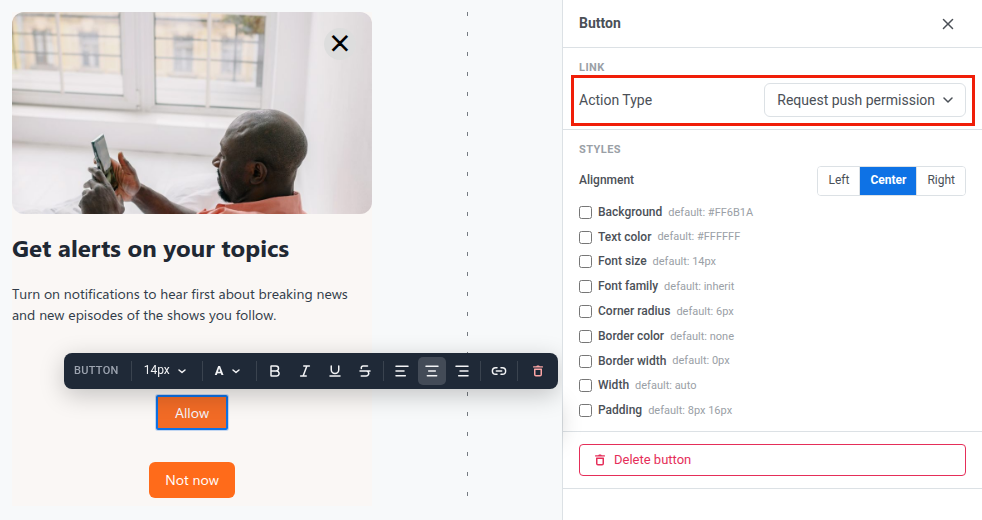
1. Show a custom in-app message that explains what notifications give the reader, for example alerts about the topics they follow or new episodes of a series.
2. Show the system prompt only when the reader taps **Allow** in that message.
### Choose the moment
Show the message when the reader already has a reason to say yes. Choose the event that marks that moment. For example:
* After the reader follows the first topic: the `Content preferences` event, because the reader can get alerts about it.
* After the reader finishes the first episode: the `Episode completed` event, because the reader can hear about the next one.
* After the reader reads an article: the `Content read` event.
### Set it up
First, build the message:
1. Build the in-app message. See [Build the in-app](/product/content/in-apps/show-in-app-before-push-permission-prompt/#build-the-in-app).
2. Skip readers who already allowed notifications. See [Skip the prompt for users who already opted in](/product/content/in-apps/show-in-app-before-push-permission-prompt/#skip-the-prompt-for-users-who-already-opted-in).
Then start it with a journey:
3. Create a journey that starts on the event you chose. See [Trigger the in-app before permission is requested](/product/content/in-apps/show-in-app-before-push-permission-prompt/#trigger-the-in-app-before-permission-is-requested).
The message appears the next time the reader opens the app after the event, as **Show in-app** on the In-app element is set to **On next app launch** by default.
4. On the In-app element, choose **Transactional** as the message type, so readers in the [control group](#set-up-a-control-group-before-you-launch) are asked too. [Transactional](/product/messaging-channels/marketing-vs-transactional/#choosing-the-right-message-type) is the type for service messages, which skip the control group and frequency capping.
5. On the canvas, click **Settings** and select **Campaign Entry Limit**.
6. Choose **Custom period** and set **Once in** to **a lifetime**. These events repeat, so this limit shows the message to the reader once.
### If the reader declines
A reader who declines gets no push, but you can still reach them in other ways:
* **Journeys:** a [Reachability check](/product/customer-journey/journey-elements/flow-controls/reachability-check/) sends readers who can get push down one branch and the others down another, for example to an in-app message or an email. See [Build the journeys](/tutorials/industry-playbooks/media-and-streaming/build-the-journeys/).
* **News alerts:** an alert can also go to the [App Inbox](/product/messaging-channels/message-inbox/), where readers find it the next time they open the app.
## Set delivery rules before you message readers
[Delivery rules](/product/messaging-channels/message-delivery-settings/) decide how many messages a reader gets, at what time, and how fast Pushwoosh sends them. Each rule has its own tab in **Settings** → **Message delivery settings**. Set them before the first journey goes live:
* **Frequency capping** limits how many messages a reader gets.
* **Silent hours** keep marketing messages away from night.
* **Send rate** sets how fast Pushwoosh sends messages.
### Limit how many messages readers get
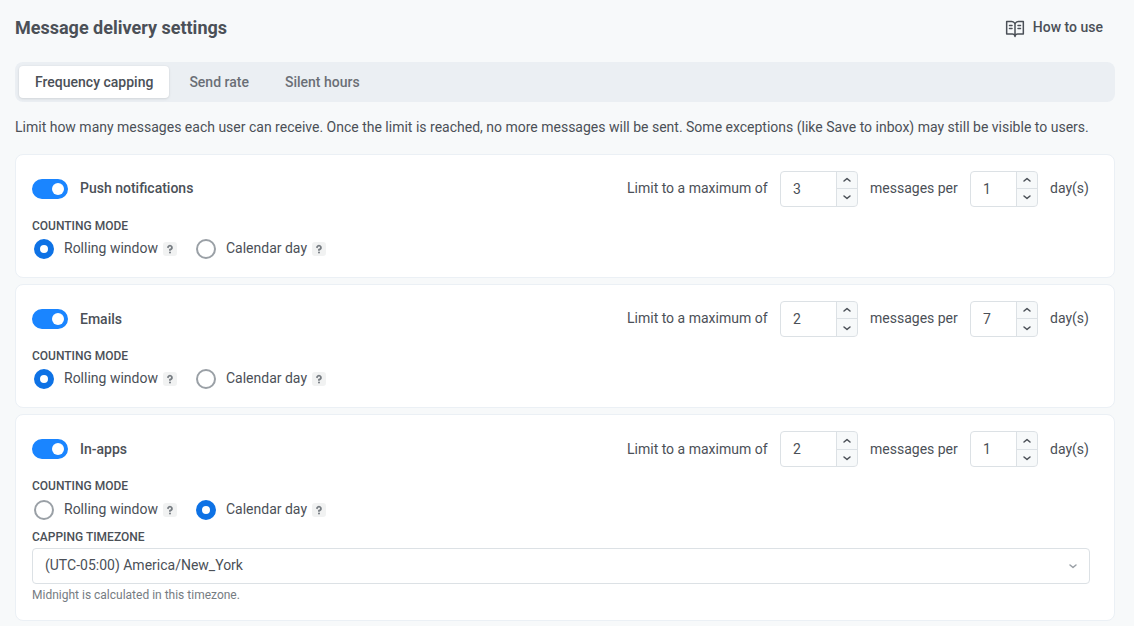
A newsroom sends alerts while journeys send reminders and offers, and without limits one reader can get a dozen pushes on a busy news day. Frequency capping sets the limit:
1. Go to **Settings** → **Message delivery settings** → [**Frequency capping**](/product/messaging-channels/message-delivery-settings/frequency-capping/).
2. Turn on the channels you use, such as push, in-app, and email.
3. Set the maximum number of messages and the period for each channel. Allowed values are 1 to 1,000 messages per period, and the period is 1 to 30 days.
4. Choose a counting mode for each channel: **Rolling window** or **Calendar day**. For **Calendar day**, also set **Capping timezone**, the timezone in which the day starts.
5. Click **Apply changes**, then **Confirm**.
Journey messages use the global limits by default. To set other limits for one message, use the **Frequency capping** field of its message element. To change it in a running journey, pause the journey first. See [Global frequency capping](/product/messaging-channels/message-delivery-settings/frequency-capping/).
### Set silent hours
To keep marketing messages from arriving at night, set silent hours on the **Silent hours** tab. The hours count in each reader's time zone. For each channel, choose in **Message behavior** what happens to a message that falls into them:
* **Send after the silence period ends** (the default).
* **Do not send**.
Silent hours apply to one-time campaigns, such as news alerts, and to API sends, not to journeys. For journey messages, set the silence period in each journey. See [Silent hours](/product/messaging-channels/message-delivery-settings/silent-hours/) and [Best practices for every journey](/tutorials/industry-playbooks/media-and-streaming/build-the-journeys/#best-practices-for-every-journey).
### Send large alerts at a steady pace
The **Send rate** tab limits how many messages per second Pushwoosh sends on each channel. A lower rate has two effects:
* An alert to your whole audience goes out at a steady pace instead of all at once.
* The visits to your servers spread out when readers open the alert.
Set it if your servers or your content delivery can't take all readers at the same moment. See [Send rate limits](/product/messaging-channels/message-delivery-settings/send-rate-limits/).
### Choose how news alerts follow the delivery rules
Decide before the first alert whether news alerts follow the same rules as your marketing messages. The message type you choose when you send an alert decides it:
* **Marketing message:** counts toward frequency capping and waits for or skips silent hours, as you set them. Readers in the [control group](#set-up-a-control-group-before-you-launch) don't get it.
* **Transactional message:** skips frequency capping, silent hours, and the control group, so every reader in the segment gets the alert right away.
To keep one alert of the Marketing type from being held back, change two fields in the sending step of the push form:
1. Set **Frequency capping** to **Send messages without global frequency capping**.
2. Set **Silent hours** to **Send messages without global silent hours**.
Both fields appear only after you set the global rules. See [Marketing vs transactional messages](/product/messaging-channels/marketing-vs-transactional/).
## Set up a control group before you launch
A [control group](/product/audience-data-and-segmentation/control-groups/) holds a share of readers out of all marketing messages in the application, or in the countries or tag you limit it to. Compare them with everyone else to see what your messaging changes. Create it before you launch the journeys, so the comparison covers them from the first day.
To create a control group, you need permission to modify the application.
1. Go to **Settings** → **Control groups** and click **Add control group**.
2. Enter a name for the group.
3. Set **Group size**: 3%, 5% (recommended), 10%, or **Custom** from 1% to 20%.
4. Choose a mode:
* **Permanent** keeps the same readers out until you turn the group off.
* **Auto-refresh** picks new readers every 1, 2, or 3 months and returns the previous ones to messaging.
* **Experiment with an end date** returns everyone to messaging on the date you set.
5. Click **Create**.
As soon as the control group is on, the readers in it stop receiving marketing messages in any channel, news alerts of the Marketing type included. Your journeys and alerts then reach fewer readers by that share.
Transactional messages still reach them. If every reader must get your news alerts, send them as Transactional. See [Choose how news alerts follow the delivery rules](#choose-how-news-alerts-follow-the-delivery-rules).
For all the settings, see [Create and manage a control group](/product/audience-data-and-segmentation/control-groups/create-and-manage-control-group/).
 2. Skip readers who already allowed notifications. See [Skip the prompt for users who already opted in](/product/content/in-apps/show-in-app-before-push-permission-prompt/#skip-the-prompt-for-users-who-already-opted-in).
Then start it with a journey:
3. Create a journey that starts on the event you chose. See [Trigger the in-app before permission is requested](/product/content/in-apps/show-in-app-before-push-permission-prompt/#trigger-the-in-app-before-permission-is-requested).
The message appears the next time the reader opens the app after the event, as **Show in-app** on the In-app element is set to **On next app launch** by default.
4. On the In-app element, choose **Transactional** as the message type, so readers in the [control group](#set-up-a-control-group-before-you-launch) are asked too. [Transactional](/product/messaging-channels/marketing-vs-transactional/#choosing-the-right-message-type) is the type for service messages, which skip the control group and frequency capping.
5. On the canvas, click **Settings** and select **Campaign Entry Limit**.
6. Choose **Custom period** and set **Once in** to **a lifetime**. These events repeat, so this limit shows the message to the reader once.
### If the reader declines
A reader who declines gets no push, but you can still reach them in other ways:
* **Journeys:** a [Reachability check](/product/customer-journey/journey-elements/flow-controls/reachability-check/) sends readers who can get push down one branch and the others down another, for example to an in-app message or an email. See [Build the journeys](/tutorials/industry-playbooks/media-and-streaming/build-the-journeys/).
* **News alerts:** an alert can also go to the [App Inbox](/product/messaging-channels/message-inbox/), where readers find it the next time they open the app.
## Set delivery rules before you message readers
[Delivery rules](/product/messaging-channels/message-delivery-settings/) decide how many messages a reader gets, at what time, and how fast Pushwoosh sends them. Each rule has its own tab in **Settings** → **Message delivery settings**. Set them before the first journey goes live:
* **Frequency capping** limits how many messages a reader gets.
* **Silent hours** keep marketing messages away from night.
* **Send rate** sets how fast Pushwoosh sends messages.
### Limit how many messages readers get
A newsroom sends alerts while journeys send reminders and offers, and without limits one reader can get a dozen pushes on a busy news day. Frequency capping sets the limit:
1. Go to **Settings** → **Message delivery settings** → [**Frequency capping**](/product/messaging-channels/message-delivery-settings/frequency-capping/).
2. Turn on the channels you use, such as push, in-app, and email.
3. Set the maximum number of messages and the period for each channel. Allowed values are 1 to 1,000 messages per period, and the period is 1 to 30 days.
4. Choose a counting mode for each channel: **Rolling window** or **Calendar day**. For **Calendar day**, also set **Capping timezone**, the timezone in which the day starts.
 5. Click **Apply changes**, then **Confirm**.
Journey messages use the global limits by default. To set other limits for one message, use the **Frequency capping** field of its message element. To change it in a running journey, pause the journey first. See [Global frequency capping](/product/messaging-channels/message-delivery-settings/frequency-capping/).
### Set silent hours
To keep marketing messages from arriving at night, set silent hours on the **Silent hours** tab. The hours count in each reader's time zone. For each channel, choose in **Message behavior** what happens to a message that falls into them:
* **Send after the silence period ends** (the default).
* **Do not send**.
Silent hours apply to one-time campaigns, such as news alerts, and to API sends, not to journeys. For journey messages, set the silence period in each journey. See [Silent hours](/product/messaging-channels/message-delivery-settings/silent-hours/) and [Best practices for every journey](/tutorials/industry-playbooks/media-and-streaming/build-the-journeys/#best-practices-for-every-journey).
### Send large alerts at a steady pace
The **Send rate** tab limits how many messages per second Pushwoosh sends on each channel. A lower rate has two effects:
* An alert to your whole audience goes out at a steady pace instead of all at once.
* The visits to your servers spread out when readers open the alert.
Set it if your servers or your content delivery can't take all readers at the same moment. See [Send rate limits](/product/messaging-channels/message-delivery-settings/send-rate-limits/).
### Choose how news alerts follow the delivery rules
Decide before the first alert whether news alerts follow the same rules as your marketing messages. The message type you choose when you send an alert decides it:
* **Marketing message:** counts toward frequency capping and waits for or skips silent hours, as you set them. Readers in the [control group](#set-up-a-control-group-before-you-launch) don't get it.
* **Transactional message:** skips frequency capping, silent hours, and the control group, so every reader in the segment gets the alert right away.
To keep one alert of the Marketing type from being held back, change two fields in the sending step of the push form:
1. Set **Frequency capping** to **Send messages without global frequency capping**.
2. Set **Silent hours** to **Send messages without global silent hours**.
Both fields appear only after you set the global rules. See [Marketing vs transactional messages](/product/messaging-channels/marketing-vs-transactional/).
## Set up a control group before you launch
A [control group](/product/audience-data-and-segmentation/control-groups/) holds a share of readers out of all marketing messages in the application, or in the countries or tag you limit it to. Compare them with everyone else to see what your messaging changes. Create it before you launch the journeys, so the comparison covers them from the first day.
To create a control group, you need permission to modify the application.
1. Go to **Settings** → **Control groups** and click **Add control group**.
2. Enter a name for the group.
3. Set **Group size**: 3%, 5% (recommended), 10%, or **Custom** from 1% to 20%.
4. Choose a mode:
* **Permanent** keeps the same readers out until you turn the group off.
* **Auto-refresh** picks new readers every 1, 2, or 3 months and returns the previous ones to messaging.
* **Experiment with an end date** returns everyone to messaging on the date you set.
5. Click **Create**.
As soon as the control group is on, the readers in it stop receiving marketing messages in any channel, news alerts of the Marketing type included. Your journeys and alerts then reach fewer readers by that share.
Transactional messages still reach them. If every reader must get your news alerts, send them as Transactional. See [Choose how news alerts follow the delivery rules](#choose-how-news-alerts-follow-the-delivery-rules).
For all the settings, see [Create and manage a control group](/product/audience-data-and-segmentation/control-groups/create-and-manage-control-group/).