# After the order
These recipes cover the shoppers who have ordered. Before you build them, read the [best practices for every journey](/tutorials/industry-playbooks/ecommerce/build-the-journeys/#best-practices-for-every-journey).
## Order status updates
Delivery updates are service messages. Send them with the **Transactional** message type, and keep marketing messages in the other recipes. See [Marketing vs transactional messages](/product/messaging-channels/marketing-vs-transactional/).
* **Use it when:** you want shoppers to know where their order is without opening the app.
* **Starts when:** your server sends `Order shipped`.
* **What it does:** sends one transactional push that the order is on its way and opens the order screen.
* **Content to prepare:** a push preset with the update and a deep link to the order screen.
* **Needs:** the `Order shipped` event, sent from your server with the shopper's `userId`.
1. On the journey canvas, add a [Trigger-based entry](/product/customer-journey/journey-elements/entry-elements/trigger-based-entry/) on `Order shipped`.
2. Add a [push](/product/customer-journey/journey-elements/channels/push/) with the preset that opens the order screen, for example: "Your order is on its way." Choose **Transactional** as its message type, so frequency capping and the control group do not hold it back.
The journey has no conversion goal, because it informs rather than sells. It has no Reachability check either, because a service update goes only to shoppers who get push, and the others follow the order in the app or in your store's emails. Copy the journey for other statuses, such as `Order delivered`.
## Review request after delivery
* **Use it when:** you want reviews from shoppers who received their order.
* **Starts when:** your server sends `Order delivered`.
* **What it does:** waits 3 days after delivery, then sends one push that asks for a review. Shoppers do not get a second reminder.
* **Content to prepare:** a push preset with the request and a deep link to the review screen.
* **Needs:** the `Order delivered` event, sent from your server with the shopper's `userId`.
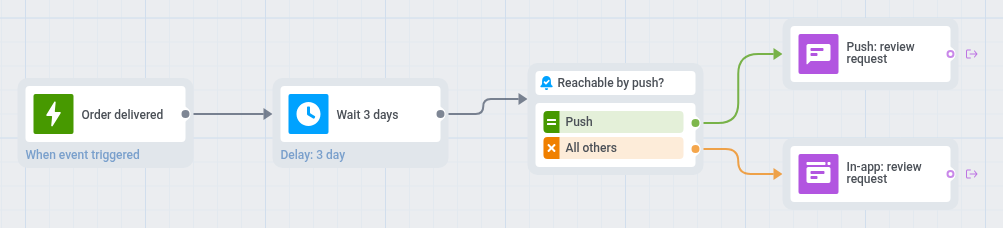 1. On the journey canvas, add a [Trigger-based entry](/product/customer-journey/journey-elements/entry-elements/trigger-based-entry/) on `Order delivered`.
2. Add a [Time Delay](/product/customer-journey/journey-elements/flow-controls/time-delay/) with a fixed duration of 3 days, so the shopper has time to try the product.
3. Add a [Reachability check](/product/customer-journey/journey-elements/flow-controls/reachability-check/). For shoppers [reachable by push](/product/first-steps/pushwoosh-glossary/#reachable-by-push), add a [push](/product/customer-journey/journey-elements/channels/push/) with the preset that opens the review screen, for example: "How is your order? Tell us in one minute."
4. For the others, add an [In-app element](/product/customer-journey/journey-elements/channels/in-app/) with the same request and set **In-app expiration** to 7 days.
5. On the canvas, click **Settings** and select [**Campaign Entry Limit**](/product/customer-journey/journey-settings/#campaign-entry-limit).
6. Choose **Custom period** and set **Once in** to **a month**, so a shopper with several deliveries in a month gets one request.
Reviews are not an event in this playbook, so the journey has no conversion goal. Measure it by the number of reviews your store collects.
## Second order offer
* **Use it when:** you want first-time buyers to order again.
* **Starts when:** a shopper places an order (`Order placed`).
* **What it does:** checks whether this is the shopper's first order. For first-time buyers, it shows a thank-you in-app message the next time the shopper opens the app after the order and a push with an offer 14 days later, unless they order again before that.
* **Content to prepare:** an in-app template with the thank-you and a push preset with the offer.
* **Needs:** the `Order placed` event and the [First-time buyers](/tutorials/industry-playbooks/ecommerce/build-the-segments/#first-time-buyers) segment.
 1. On the journey canvas, add a [Trigger-based entry](/product/customer-journey/journey-elements/entry-elements/trigger-based-entry/) on `Order placed`.
2. Add a [Time Delay](/product/customer-journey/journey-elements/flow-controls/time-delay/) with a fixed duration of 5 minutes. A segment can count a new event with a short delay, so without the delay the split can miss the first order.
3. Add a [Condition split](/product/customer-journey/journey-elements/flow-controls/segment-split/), choose **Segment**, and select the [First-time buyers](/tutorials/industry-playbooks/ecommerce/build-the-segments/#first-time-buyers) segment. On the canvas, the split gets a **First-time buyers** branch and an **All others** branch. Leave the **All others** branch empty, because repeat buyers need no message.
4. On the **First-time buyers** branch, add an [In-app element](/product/customer-journey/journey-elements/channels/in-app/) that thanks the shopper, for example: "Thanks for your order! Here is a code for the next one." Set **In-app expiration** to 1 day.
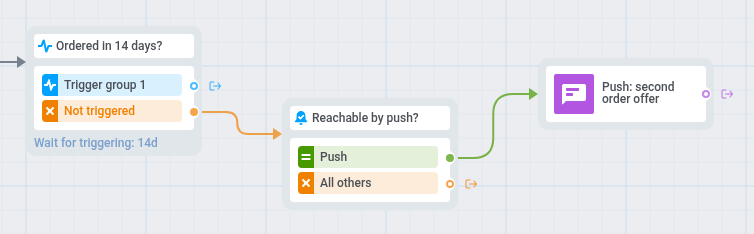 5. Add a [Wait for Trigger](/product/customer-journey/journey-elements/flow-controls/wait-for-trigger/) step on `Order placed` and set the waiting period to 14 days. The 14 days are an example. Choose a period close to how often your shoppers reorder, for example a week for groceries and two months for furniture.
6. Leave its **Trigger group 1** branch empty, so shoppers who ordered again leave the journey without the offer.
7. On the **Not triggered** branch, add a [Reachability check](/product/customer-journey/journey-elements/flow-controls/reachability-check/), and for shoppers reachable by push, add a [push](/product/customer-journey/journey-elements/channels/push/) with the offer, for example: "Free shipping on your next order, this week only."
8. On the canvas, click **Settings** and select [**Conversion goals**](/product/customer-journey/journey-settings/#conversion-goals).
9. In the goal, choose `Order placed`. Leave **End journey after this event** off.
The order that starts the journey is also an `Order placed` event, so the goal can count it as a conversion. Read the goal as orders from shoppers in the journey, not as second orders only. The Wait for Trigger step already holds the offer back from shoppers who order again.