# Web push สำหรับเว็บไซต์ HTTP บน Chrome และ Firefox
## การกำหนดค่า
1. เลือกตัวเลือก Web push ขณะสร้างโปรเจกต์
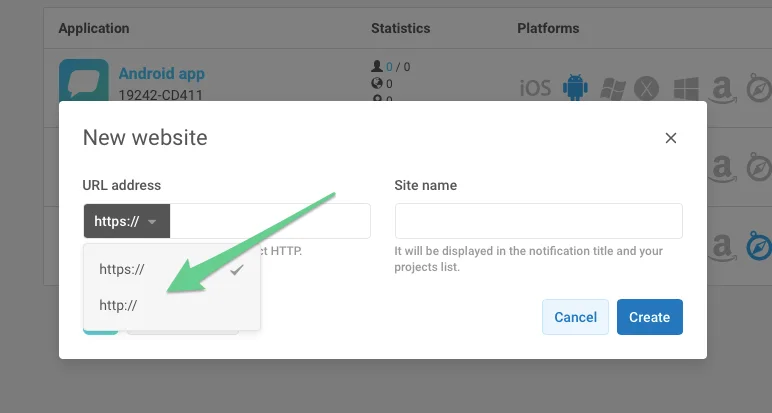
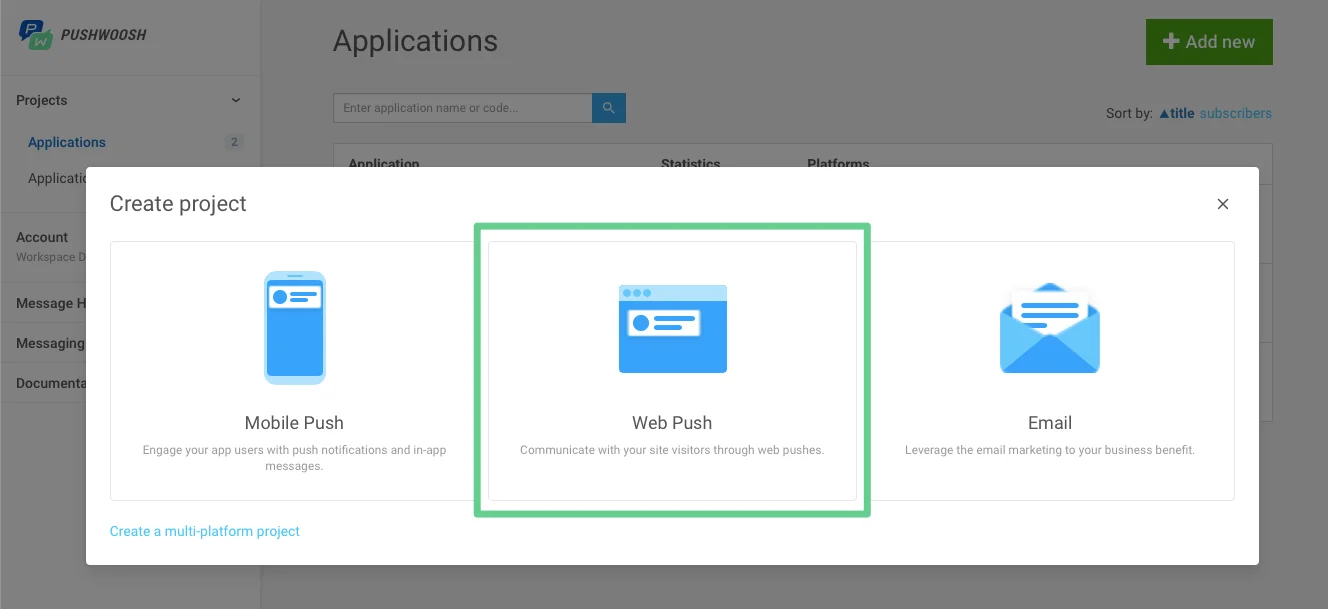 2. เลือก http ป้อน URL เว็บไซต์และชื่อโปรเจกต์ของคุณ
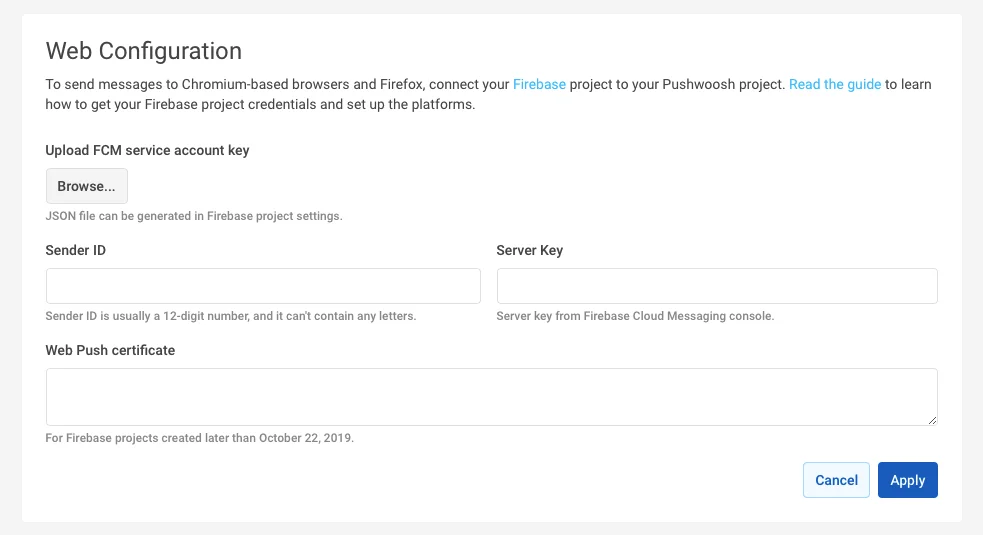
 3. กำหนดค่าทั้ง Chrome และ Firefox ด้วยข้อมูลรับรองโปรเจกต์ FCM ของคุณ
 ## การผสานรวม
**1.** สร้างไฟล์ **pushwoosh-web-pushes-http-sdk.js** ในไดเรกทอรีรากของเว็บไซต์ของคุณด้วยเนื้อหาต่อไปนี้:
```javascript
var pushwoosh = {
PUSHWOOSH_APPLICATION_CODE: 'XXXX-XXXX',
PUSHWOOSH_APPLICATION_CODE_GET_PARAMETER: 'pw_application_code',
init: function (applicationCode) {
this.PUSHWOOSH_APPLICATION_CODE = applicationCode;
window.addEventListener('message', this.pwReceiveMessage, false);
},
tryInitUsingGetParameter: function () {
var applicationCode = this.getQueryVariable(this.PUSHWOOSH_APPLICATION_CODE_GET_PARAMETER);
console.log(applicationCode);
if (applicationCode) {
this.init(applicationCode);
}
},
pwReceiveMessage: function (event) {
if (event.data == 'allowPushNotifications') {
localStorage.setItem('pwAllowPushNotifications', true);
}
},
isBrowserChrome: function () {
return navigator.userAgent.toLowerCase().indexOf('chrome') > -1;
},
isBrowserFirefox: function () {
return navigator.userAgent.toLowerCase().indexOf('firefox') > -1;
},
isBrowserSafari: function () {
return navigator.userAgent.toLowerCase().indexOf('safari') > -1 && !this.isBrowserChrome();
},
isBrowserSupported: function () {
return this.isBrowserChrome() || this.isBrowserFirefox();
},
subscribeAtStart: function () {
if (this.isBrowserSupported()) {
if (null === localStorage.getItem('pwAllowPushNotifications')) {
this.showSubscriptionWindow();
}
}
},
isSubscribedForPushNotifications: function () {
return true == localStorage.getItem('pwAllowPushNotifications');
},
showSubscriptionWindow: function () {
if (this.isBrowserSupported()) {
var windowWidth = screen.width / 2;
var windowHeight = screen.height / 2;
var windowLeft = screen.width / 2 - windowWidth / 2;
var windowRight = screen.height / 2 - windowHeight / 2;
var URL = 'https://' + this.PUSHWOOSH_APPLICATION_CODE + '.chrome.pushwoosh.com/';
var pwSubscribeWindow = window.open(URL, '_blank', 'width=' + windowWidth + ',height=' + windowHeight + ',resizable=yes,scrollbars=yes,status=yes,left=' + windowLeft + ',top=' + windowRight);
}
},
getQueryVariable: function (variable) {
// document.currentScript won't work if this code is called from function in event lister
if (document.currentScript) {
var urlParts = document.currentScript.src.split('?');
if (typeof urlParts[1] !== 'undefined') {
var vars = urlParts[1].split('&');
for (var i = 0; i < vars.length; i++) {
var pair = vars[i].split('=');
if (pair[0] == variable) {
return pair[1];
}
}
}
}
else {
console.error('Cannot get current script address');
}
return null;
}
};
pushwoosh.tryInitUsingGetParameter();
```
**2.** รวมไฟล์ก่อนหน้านี้เข้ากับเว็บไซต์ของคุณและเริ่มต้นใช้งานโดยใช้ **application code** แทนที่ XXXXX-XXXXX
```javascript
```
**3.** หากต้องการสร้างปุ่มสมัครรับ Push ให้ใช้โค้ดต่อไปนี้:
```txt
```
**4.** หรืออีกทางหนึ่ง หากคุณต้องการให้การสมัครรับการแจ้งเตือนปรากฏขึ้นโดยอัตโนมัติ (ตรงข้ามกับข้อ 3 ข้างต้น) ให้ใช้โค้ดต่อไปนี้:
```javascript
```
## การผสานรวม
**1.** สร้างไฟล์ **pushwoosh-web-pushes-http-sdk.js** ในไดเรกทอรีรากของเว็บไซต์ของคุณด้วยเนื้อหาต่อไปนี้:
```javascript
var pushwoosh = {
PUSHWOOSH_APPLICATION_CODE: 'XXXX-XXXX',
PUSHWOOSH_APPLICATION_CODE_GET_PARAMETER: 'pw_application_code',
init: function (applicationCode) {
this.PUSHWOOSH_APPLICATION_CODE = applicationCode;
window.addEventListener('message', this.pwReceiveMessage, false);
},
tryInitUsingGetParameter: function () {
var applicationCode = this.getQueryVariable(this.PUSHWOOSH_APPLICATION_CODE_GET_PARAMETER);
console.log(applicationCode);
if (applicationCode) {
this.init(applicationCode);
}
},
pwReceiveMessage: function (event) {
if (event.data == 'allowPushNotifications') {
localStorage.setItem('pwAllowPushNotifications', true);
}
},
isBrowserChrome: function () {
return navigator.userAgent.toLowerCase().indexOf('chrome') > -1;
},
isBrowserFirefox: function () {
return navigator.userAgent.toLowerCase().indexOf('firefox') > -1;
},
isBrowserSafari: function () {
return navigator.userAgent.toLowerCase().indexOf('safari') > -1 && !this.isBrowserChrome();
},
isBrowserSupported: function () {
return this.isBrowserChrome() || this.isBrowserFirefox();
},
subscribeAtStart: function () {
if (this.isBrowserSupported()) {
if (null === localStorage.getItem('pwAllowPushNotifications')) {
this.showSubscriptionWindow();
}
}
},
isSubscribedForPushNotifications: function () {
return true == localStorage.getItem('pwAllowPushNotifications');
},
showSubscriptionWindow: function () {
if (this.isBrowserSupported()) {
var windowWidth = screen.width / 2;
var windowHeight = screen.height / 2;
var windowLeft = screen.width / 2 - windowWidth / 2;
var windowRight = screen.height / 2 - windowHeight / 2;
var URL = 'https://' + this.PUSHWOOSH_APPLICATION_CODE + '.chrome.pushwoosh.com/';
var pwSubscribeWindow = window.open(URL, '_blank', 'width=' + windowWidth + ',height=' + windowHeight + ',resizable=yes,scrollbars=yes,status=yes,left=' + windowLeft + ',top=' + windowRight);
}
},
getQueryVariable: function (variable) {
// document.currentScript won't work if this code is called from function in event lister
if (document.currentScript) {
var urlParts = document.currentScript.src.split('?');
if (typeof urlParts[1] !== 'undefined') {
var vars = urlParts[1].split('&');
for (var i = 0; i < vars.length; i++) {
var pair = vars[i].split('=');
if (pair[0] == variable) {
return pair[1];
}
}
}
}
else {
console.error('Cannot get current script address');
}
return null;
}
};
pushwoosh.tryInitUsingGetParameter();
```
**2.** รวมไฟล์ก่อนหน้านี้เข้ากับเว็บไซต์ของคุณและเริ่มต้นใช้งานโดยใช้ **application code** แทนที่ XXXXX-XXXXX
```javascript
```
**3.** หากต้องการสร้างปุ่มสมัครรับ Push ให้ใช้โค้ดต่อไปนี้:
```txt
```
**4.** หรืออีกทางหนึ่ง หากคุณต้องการให้การสมัครรับการแจ้งเตือนปรากฏขึ้นโดยอัตโนมัติ (ตรงข้ามกับข้อ 3 ข้างต้น) ให้ใช้โค้ดต่อไปนี้:
```javascript
```
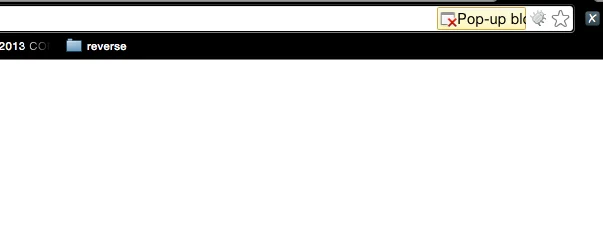
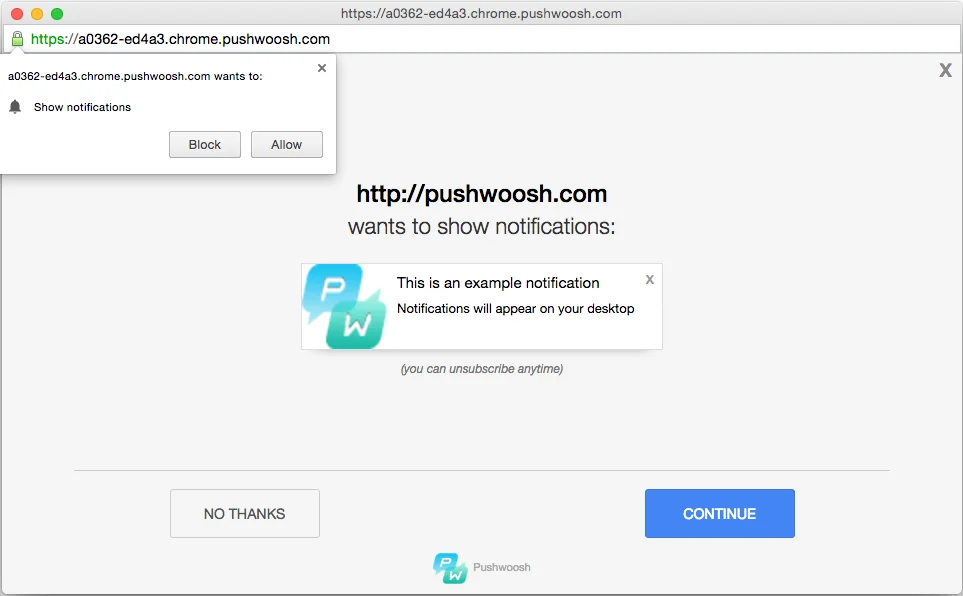
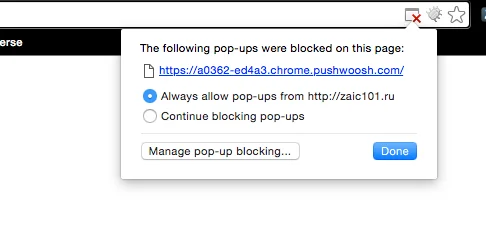 ผลลัพธ์ที่ได้คือ ผู้ใช้จะได้รับแจ้งให้สมัครรับ push notifications จากเว็บไซต์: