การส่งข้อมูลแบบกำหนดเอง
คู่มือนี้จะช่วยให้คุณเข้าใจวิธีส่งข้อมูลแบบกำหนดเองไปยังแอปของคุณใน payload ของการแจ้งเตือนแบบพุชได้ดียิ่งขึ้น เพื่อให้แอปของคุณสามารถตอบสนองต่อพุชดังกล่าวและดำเนินการต่างๆ ได้ตามนั้น
วิธีที่คุณจัดการข้อมูลแบบกำหนดเองอาจแตกต่างกันไปตามวัตถุประสงค์ทางธุรกิจของคุณ ในบทความนี้ เราจะแสดงตัวอย่างพื้นฐานของการแยกวิเคราะห์ข้อมูลแบบกำหนดเองและการดำเนินการง่ายๆ:
- การเปลี่ยนสีพื้นหลังของแอป
- การเปิดหน้าแบบกำหนดเองในแอปของคุณ
ข้อกำหนดเบื้องต้น
Anchor link toคู่มือนี้ครอบคลุมการพัฒนา iOS Native โดยสมมติว่าคุณมีแอปพลิเคชันตัวอย่าง iOS ที่กำหนดค่าและรับการแจ้งเตือนแบบพุชตาม คู่มือเริ่มต้นใช้งาน iOS แล้ว
ใน AppDelegate ในฟังก์ชัน didFinishLaunchingWithOptions เราจะใช้ self.viewController เป็น delegate สำหรับการประมวลผลการแจ้งเตือนแบบพุช:
func application(_ application: UIApplication, didFinishLaunchingWithOptions launchOptions: [UIApplication.LaunchOptionsKey: Any]?) -> Bool {   Pushwoosh.sharedInstance().delegate = self.viewController   Pushwoosh.sharedInstance().registerForPushNotifications()
   if let launchOptions = launchOptions {       Pushwoosh.sharedInstance().handlePushReceived(launchOptions)   }   return true}
ViewController ของเรา implement โปรโตคอล PWMessagingDelegate:
extension ViewController: PWMessagingDelegateและดังนั้นจึงมีฟังก์ชัน onMessageOpened ที่จัดการการแจ้งเตือนแบบพุชที่ได้รับ:
// User pressed on the push notificationfunc pushwoosh(_ pushwoosh: Pushwoosh, onMessageOpened message: PWMessage) {}การเปิด ViewController อื่นและเปลี่ยนสีพื้นหลัง
Anchor link toตอนนี้เรากำลังรับ customData จาก payload ของพุช ตัวอย่างเช่น เราจะเปลี่ยนสีพื้นหลังของ view และเปอร์เซ็นต์ส่วนลด เราสมมติว่าข้อมูลแบบกำหนดเองจะประกอบด้วยรายการ “r”, “g”, “b”, และ "d" ในรูปแบบอ็อบเจกต์ JSON ดังนี้:
guard let customDataJson = message.customData, let redString = customDataJson["r"] as? String, let greenString = customDataJson["g"] as? String, let blueString = customDataJson["b"] as? String, let discount = customDataJson["d"] as? String else { return}setViewBackgroundColor(red: redString, green: greenString, blue: blueString, discount: discount)เราจะใช้ฟังก์ชันต่อไปนี้เพื่อเปิด ViewController ใหม่และตั้งค่าสีพื้นหลังและเปอร์เซ็นต์ส่วนลด:
func setViewBackgroundColor(red: String, green: String, blue: String, discount: String) {    let red = CGFloat((red as NSString).floatValue)    let green = CGFloat((green as NSString).floatValue)    let blue = CGFloat((blue as NSString).floatValue)
    let color = UIColor(red: red / 255.0, green: green / 255.0, blue: blue / 255.0, alpha: 1)
    if let topController = UIApplication.shared.topMostController() {        let storyboard = UIStoryboard(name: "Main", bundle: nil)        if let customViewController = storyboard.instantiateViewController(withIdentifier: "custom_page") as? CustomPageViewController {            customViewController.discount = discount            customViewController.bgColor = color            topController.present(customViewController, animated: true, completion: nil)        }    }}
มาทดสอบตัวอย่างของเรากัน ไปที่ Pushwoosh Journey และเพิ่ม Push element ลงใน canvas จากนั้นคลิกที่ Create new content ในฟอร์มเนื้อหาพุชที่เปิดขึ้นมา ให้ป้อนข้อความการแจ้งเตือนแบบพุชใดก็ได้
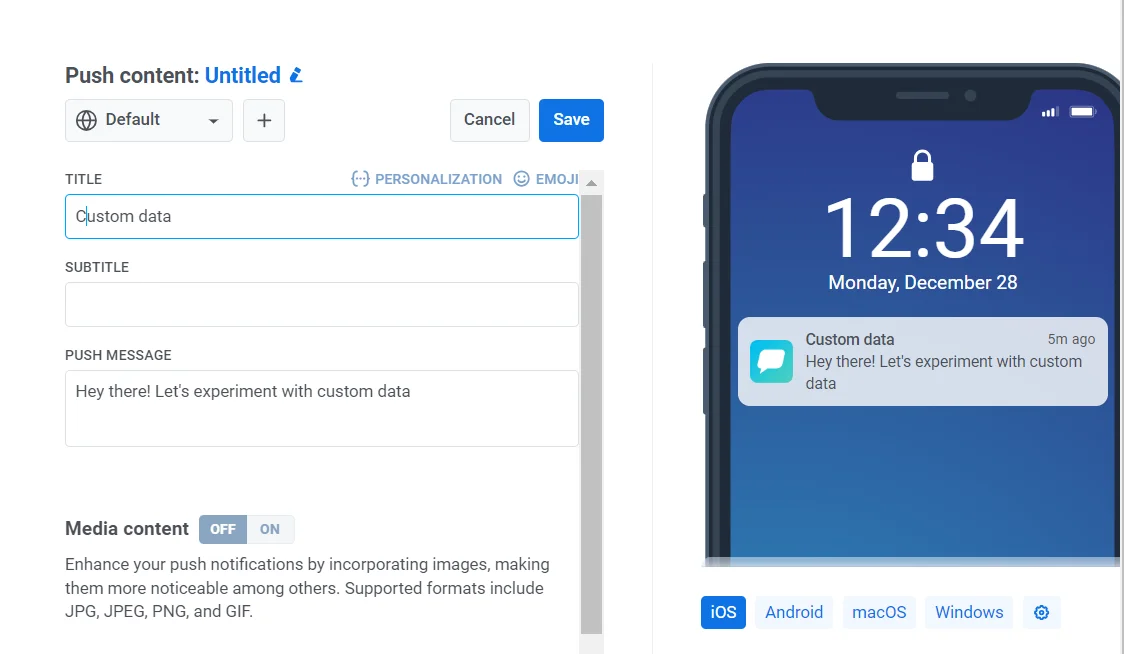
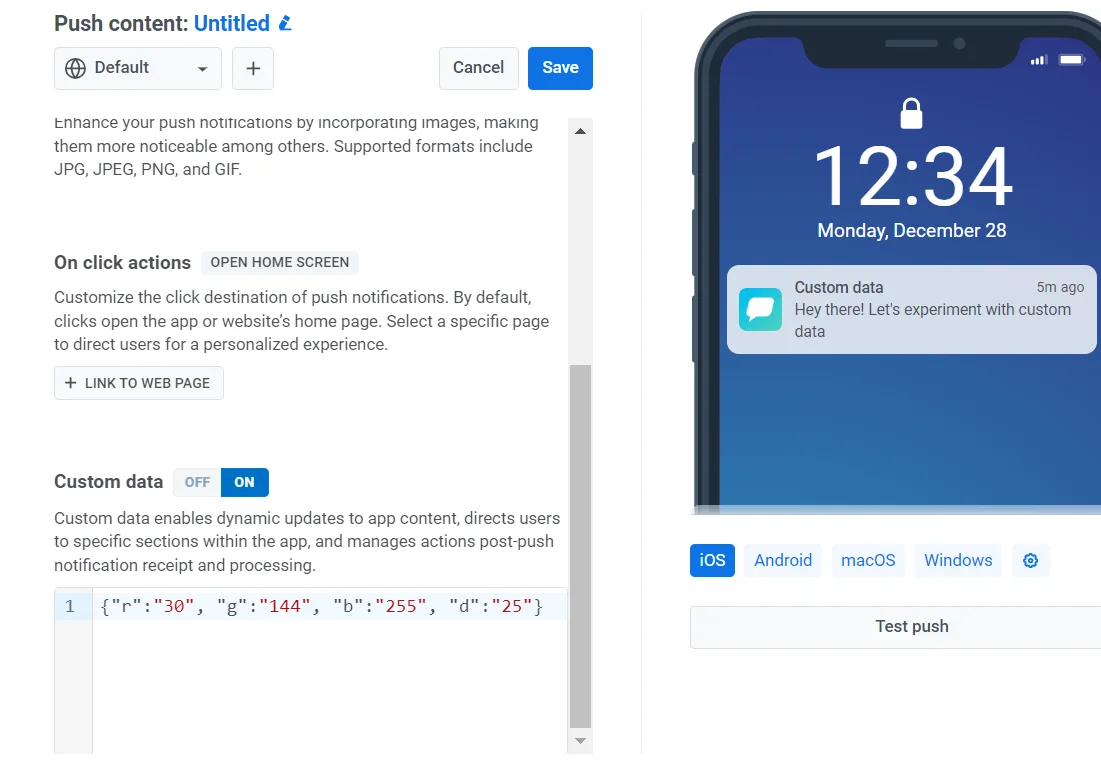
จากนั้นเปิดสวิตช์ Send custom data ใส่ JSON ลงในฟิลด์ Custom data
เนื่องจากเราได้ตัดสินใจแล้วว่ารูปแบบข้อมูลแบบกำหนดเองของเราจะเป็นอ็อบเจกต์ JSON ที่มีค่า “r”, “g”, “b” อยู่ในนั้น เราจึงต้องใช้ฟิลด์ “custom data” ใน Control Panel และใส่ข้อมูลด้วยอ็อบเจกต์ JSON {"r":"30", "g":"144", "b":"255", "d":"25"}:
เมื่อแตะที่การแจ้งเตือนแบบพุช CustomPageViewController จะเปิดขึ้น สีพื้นหลังจะถูกตั้งค่า และส่วนลดจะถูกนำไปใช้:

โค้ด CustomPageViewController:
class CustomPageViewController: UIViewController {
    var bgColor: UIColor?    var discount: String?
    @IBOutlet weak var titleLabel: UILabel!
    override func viewDidLoad() {        super.viewDidLoad()
        self.view.backgroundColor = self.bgColor
        if self.discount != nil {            self.titleLabel?.text = "ONLY TODAY GET \(self.discount!)% DISCOUNT!"        }    }
    func showPromoPage(discount: String) {        let vc = CustomPageViewController()        vc.bgColor = self.view.backgroundColor        vc.discount = discount        vc.modalTransitionStyle = UIModalTransitionStyle.crossDissolve
        if self.presentedViewController != nil {            self.dismiss(animated: true, completion: {                self.present(vc, animated: true, completion: nil)            })        } else {            self.present(vc, animated: true, completion: nil)        }    }
    @IBAction func closeButtonAction(_ sender: Any) {        self.dismiss(animated: true)    }}
เราสมมติว่าค่าส่วนลดจะมาในพารามิเตอร์ "d" ใน JSON ของ payload การแจ้งเตือนแบบพุช เนื่องจาก payload ของการแจ้งเตือนแบบพุชมีขนาดจำกัด คุณควรใช้ชื่อสั้นๆ สำหรับพารามิเตอร์
guard let customDataJson = message.customData, let redString = customDataJson["r"] as? String, let greenString = customDataJson["g"] as? String, let blueString = customDataJson["b"] as? String, let discount = customDataJson["d"] as? String else { return}คุณสามารถเขียนโค้ดเพื่อเริ่มต้นและเปิด View Controllers ที่แตกต่างกันได้ ขึ้นอยู่กับพารามิเตอร์ที่คุณส่งใน payload ของการแจ้งเตือนแบบพุช
การเปิด view controller สำหรับการทดสอบ A/B
Anchor link toลองพิจารณากรณีการใช้งานอื่นสำหรับข้อมูลแบบกำหนดเองในการแจ้งเตือนแบบพุช ตัวอย่างเช่น เราต้องการเปิด view controller หนึ่งสำหรับกลุ่มผู้ใช้หนึ่ง และอีก view controller หนึ่งสำหรับกลุ่มผู้ใช้ที่แตกต่างกัน พูดง่ายๆ คือ เราสามารถใช้ข้อมูลแบบกำหนดเองสำหรับการทดสอบ A/B ในแอปพลิเคชันของคุณได้
มาสร้าง view controller สองตัวกัน controller หนึ่ง (A) จะเปิดขึ้นพร้อมกับค่าส่วนลด และ controller ที่สอง (B) จะเปิดขึ้นพร้อมกับพารามิเตอร์ส่วนลดที่แตกต่างกัน
ตอนนี้มาเขียนโค้ดที่จะเปิด view controller ที่เหมาะสมตาม payload ของการแจ้งเตือนแบบพุชกัน:
func pushwoosh(_ pushwoosh: Pushwoosh, onMessageOpened message: PWMessage) {    // MARK: - A/B Testing via Custom Data    guard let customDataJson = message.customData,          let viewController = customDataJson["vc"] as? String else {        return    }
    if viewController == "A" {        setControllerA()    } else if viewController == "B" {        setControllerB()    }}
func setControllerA() {    if let topController = UIApplication.shared.topMostController() {        let storyboard = UIStoryboard(name: "Main", bundle: nil)        if let customViewController = storyboard.instantiateViewController(withIdentifier: "a_vc") as? AViewController {            customViewController.discountA = "50"            topController.present(customViewController, animated: true, completion: nil)        }    }}
func setControllerB() {    if let topController = UIApplication.shared.topMostController() {        let storyboard = UIStoryboard(name: "Main", bundle: nil)        if let customViewController = storyboard.instantiateViewController(withIdentifier: "b_vc") as? BViewController {            customViewController.discountB = "100"            topController.present(customViewController, animated: true, completion: nil)        }    }}
เพิ่ม JSON ของคุณลงในฟิลด์ Custom data
{  "vc": "A"}
// Choose your Custom Data (A or B)
{  "vc": "B"}
ขึ้นอยู่กับข้อมูลแบบกำหนดเองที่คุณส่งใน payload ของพุช ไม่ว่าจะเป็น 'vc': 'A' หรือ 'vc': 'B' กลุ่มผู้ใช้หนึ่งจะเปิด controller หนึ่ง ในขณะที่ผู้ใช้อีกกลุ่มหนึ่งจะเปิด controller ที่แตกต่างกัน
View Controller “A”
Anchor link to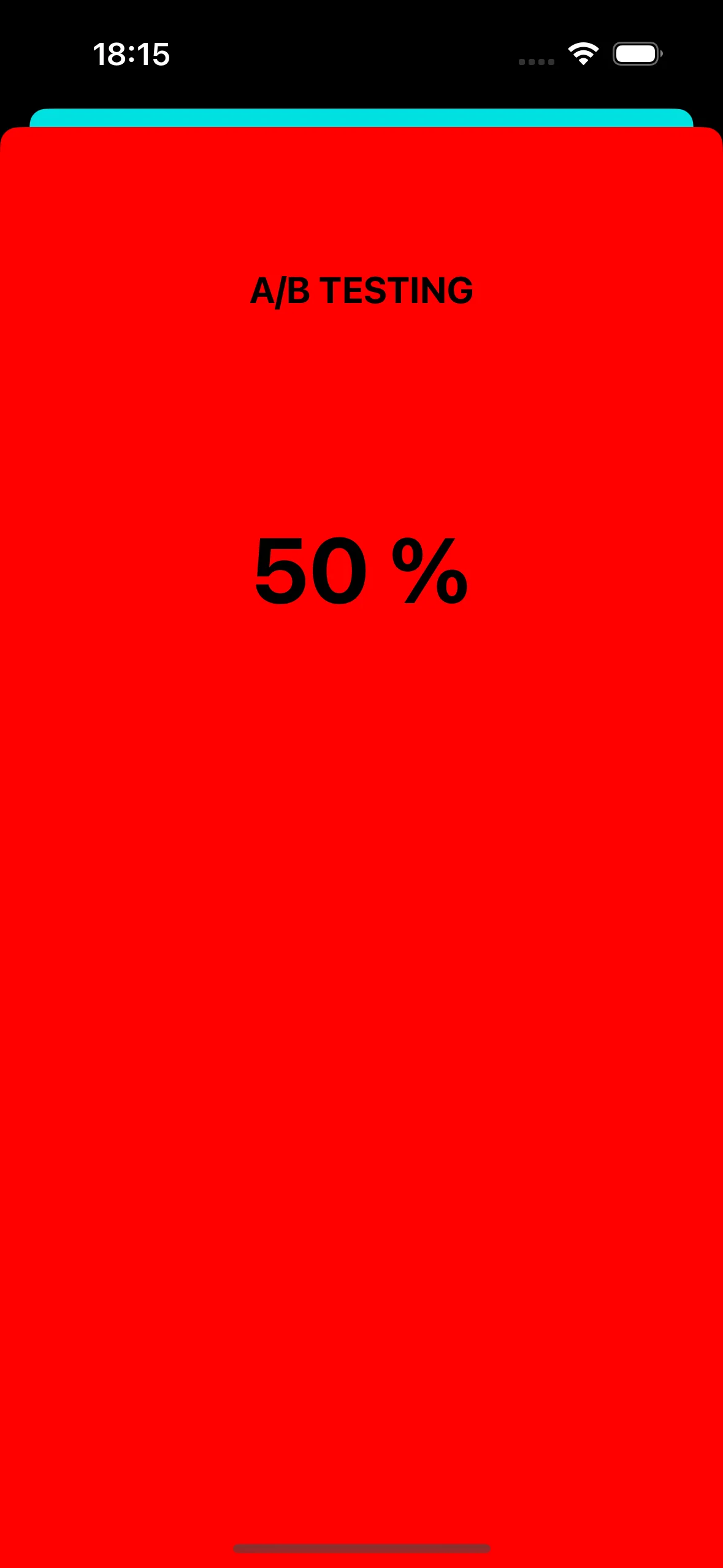
View Controller “B”
Anchor link to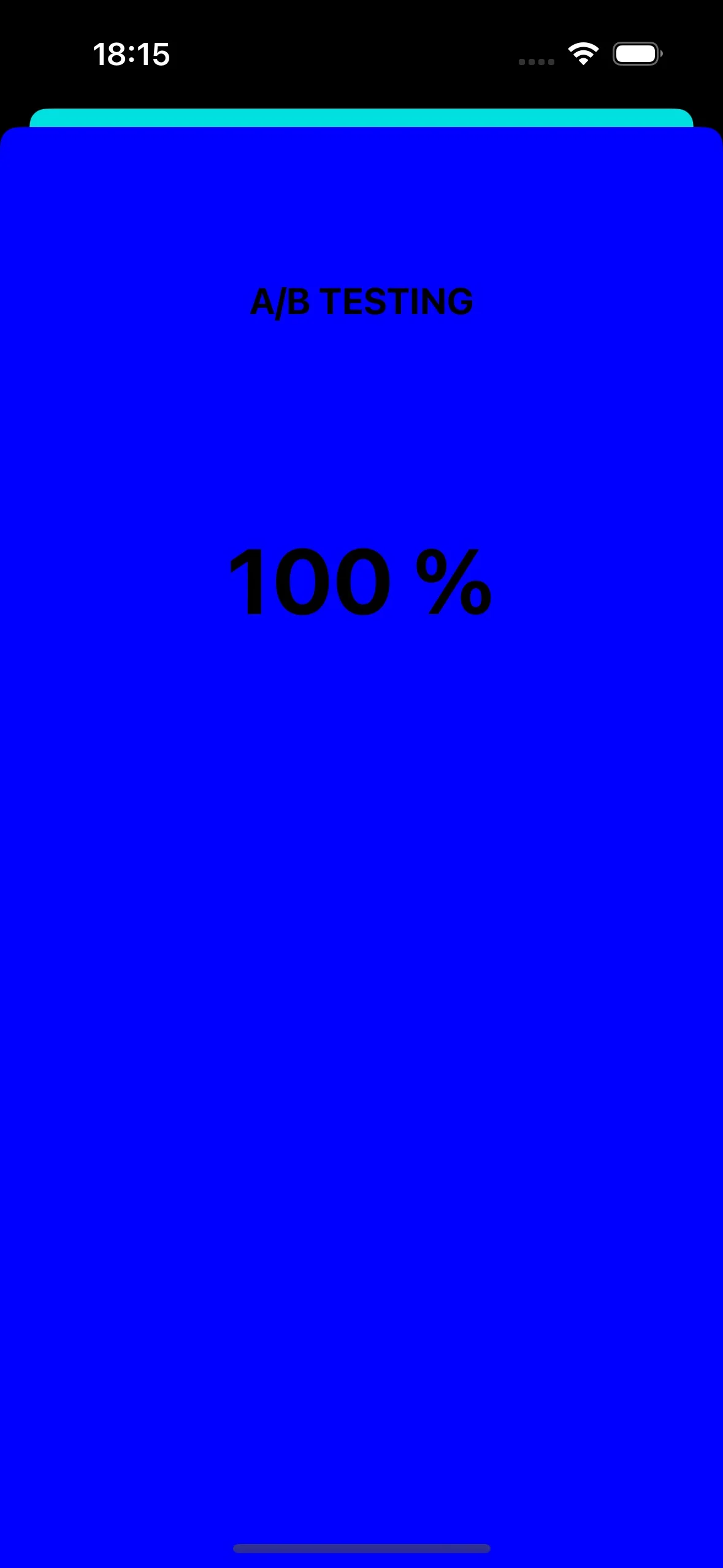
การเปลี่ยนไอคอนแอปผ่านการแจ้งเตือนแบบพุช
Anchor link toอีกตัวอย่างหนึ่งของวิธีที่เราสามารถใช้การแจ้งเตือนแบบพุชใน iOS คือการเปลี่ยนไอคอนแอป
ขั้นแรก ให้เราเพิ่มไอคอนที่แตกต่างกันสามไอคอนลงใน assets ไอคอนหนึ่งจะถูกใช้เป็นไอคอนแอปเริ่มต้น ในขณะที่อีกสองไอคอนจะเปลี่ยนไปตามข้อมูลแบบกำหนดเองในการแจ้งเตือนแบบพุช

หากต้องการเปิดใช้งานไอคอนแอปสำรองในแอปพลิเคชัน iOS ของคุณ คุณต้องเพิ่มการกำหนดค่าที่จำเป็นในไฟล์ Info.plist นี่คือขั้นตอนในการทำ:
<key>CFBundleIcons</key><dict> <key>CFBundleAlternateIcons</key> <dict> <key>AppIcon-2</key> <dict> <key>CFBundleIconFiles</key> <array> <string>Icon-2</string> </array> <key>UIPrerenderedIcon</key> <true/> </dict> <key>AppIcon-3</key> <dict> <key>CFBundleIconFiles</key> <array> <string>Icon-3</string> </array> <key>UIPrerenderedIcon</key> <true/> </dict> </dict> <key>CFBundlePrimaryIcon</key> <dict> <key>CFBundleIconFiles</key> <array> <string>Icon-1</string> </array> <key>UIPrerenderedIcon</key> <true/> </dict></dict>ใน callback pushwoosh(_ pushwoosh: Pushwoosh, onMessageOpened message: PWMessage) คุณสามารถเพิ่มโค้ดเพื่อเปลี่ยนไอคอนแอปตามข้อมูลแบบกำหนดเองที่ได้รับในการแจ้งเตือนแบบพุช นี่คือวิธีที่คุณสามารถ implement สิ่งนี้ได้:
func pushwoosh(_ pushwoosh: Pushwoosh, onMessageOpened message: PWMessage) {    // MARK: - Change the app icon dynamically    guard let customDataJson = message.customData,          let appIcon = customDataJson["i"] as? String else {              return          }
    UIApplication.shared.setAlternateIconName(appIcon) { error in        if let error = error {            print(error.localizedDescription)        } else {            print("Success!")        }    }}
เพิ่มโค้ด JSON:
{ "i": "AppIcon-2"}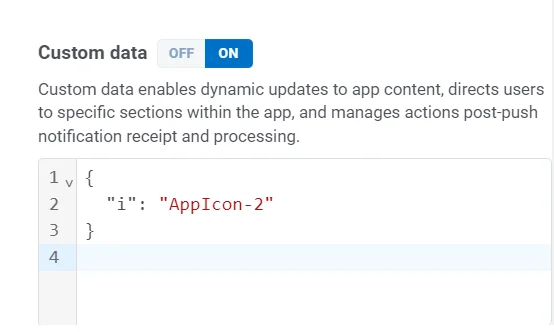
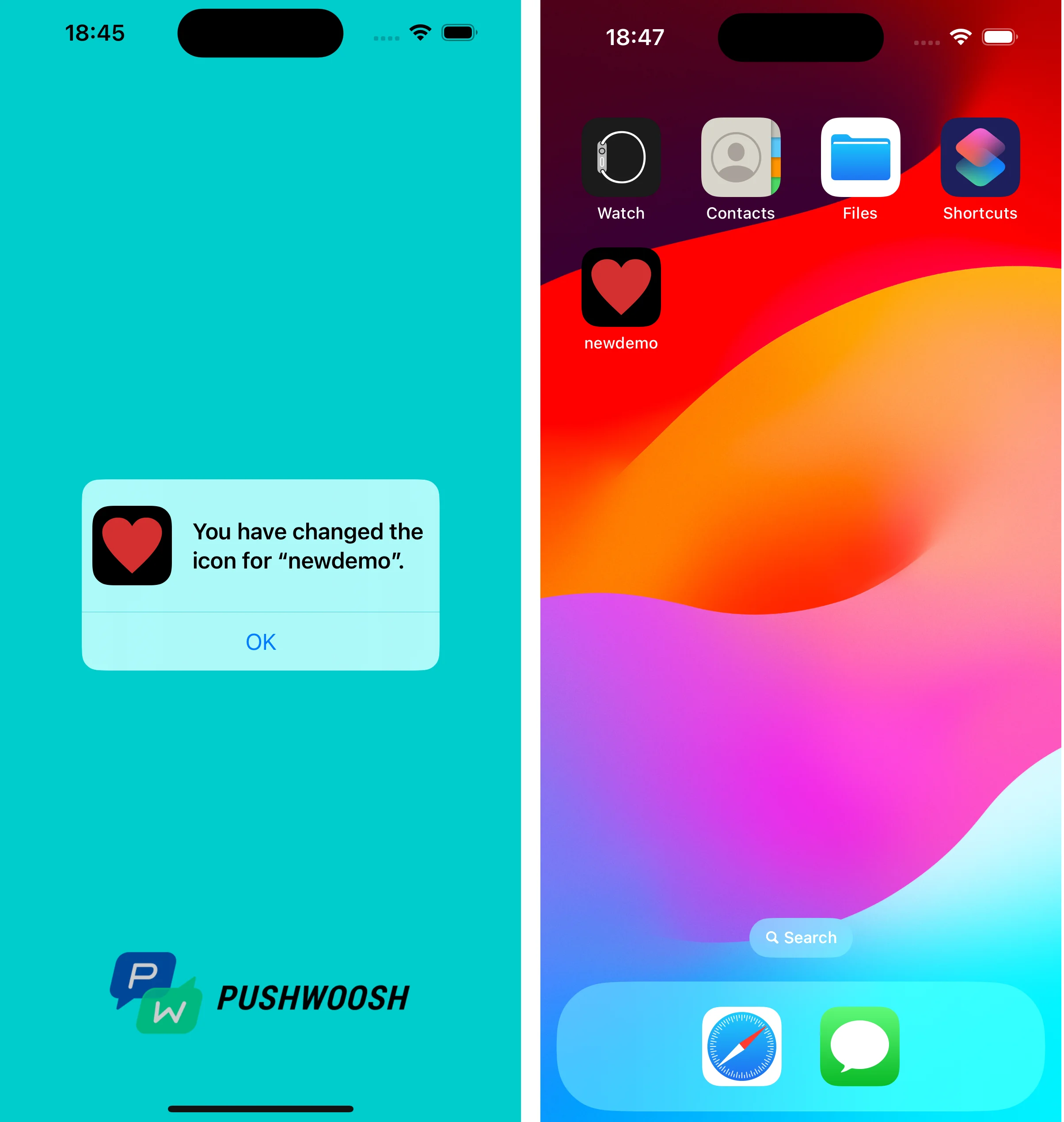
เมื่อแตะที่การแจ้งเตือนแบบพุช ระบบจะแจ้งให้คุณเปลี่ยนไอคอนแอปบนอุปกรณ์
คุณสามารถค้นหาโปรเจกต์ที่ใช้ข้อมูลแบบกำหนดเองได้ที่ GitHub