การปรับแต่งลักษณะที่ปรากฏของ Rich Media
ภาพรวม
Anchor link toปรับแต่งลักษณะที่ปรากฏของหน้า Rich Media เพื่อให้เข้ากับสไตล์แอปของคุณได้อย่างสมบูรณ์แบบ เปลี่ยนสีพื้นหลังของข้อความในแอปของคุณ เพิ่มแอนิเมชัน หรือปรับมุมมองการโหลดให้เข้ากับเลย์เอาต์ของแอป ปรับปรุงประสบการณ์ผู้ใช้ด้วย in-app ที่ดูเหมือนเป็นส่วนประกอบดั้งเดิมของแอป
การนำไปใช้
Anchor link toขั้นแรก รับอินสแตนซ์ของคลาส RichMediaStyle:
PWRichMediaStyle *style = [PWRichMediaManager sharedManager].richMediaStyle;Android
Anchor link toRichMediaStyle style = RichMediaManager.getRichMediaStyle();สีพื้นหลัง
Anchor link toทำให้ข้อความในแอปดูเหมือนเป็นส่วนหนึ่งของแอปของคุณโดย การเปลี่ยนสีพื้นหลัง ของหน้า Rich Media ที่แสดงต่อผู้ใช้แอป
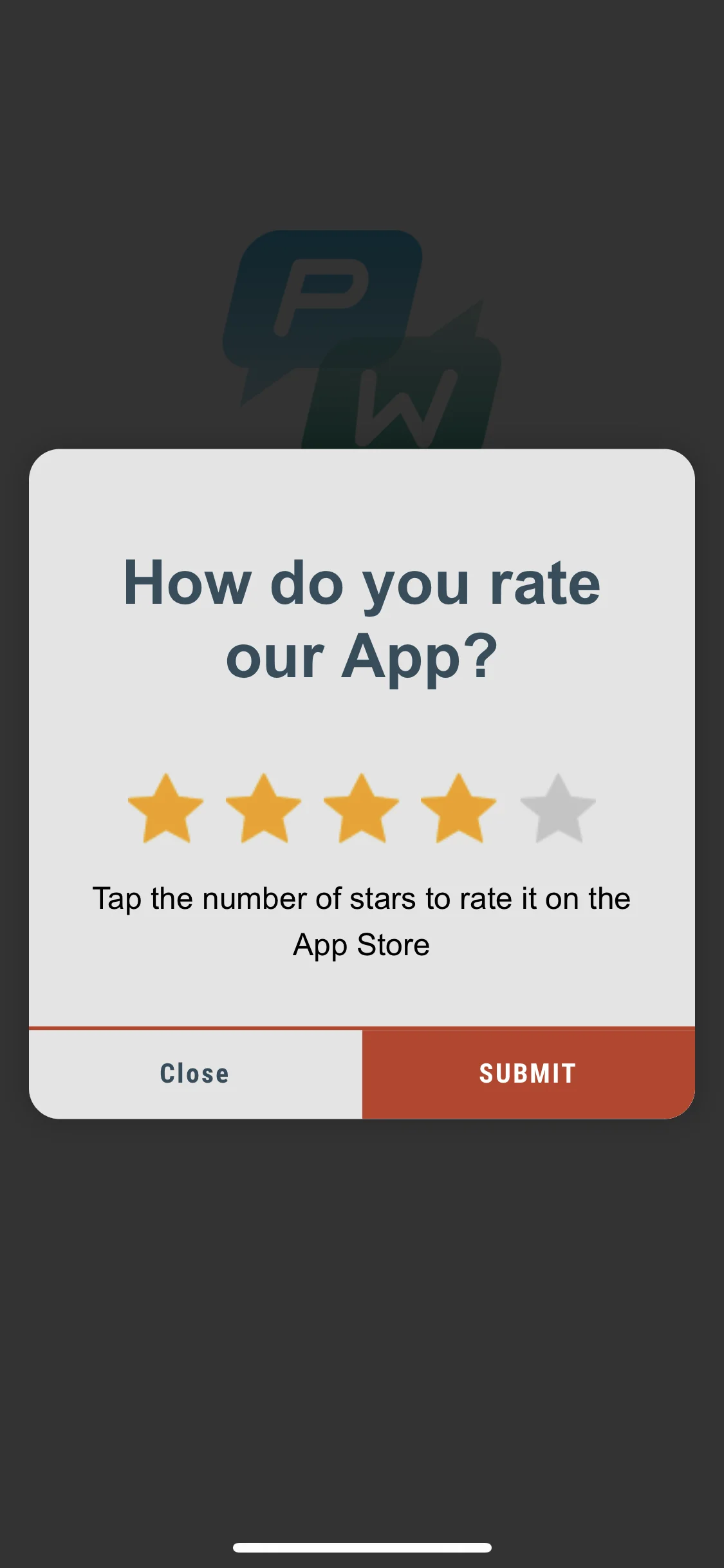
style.backgroundColor = [[UIColor blackColor] colorWithAlphaComponent:0.2f];Android
Anchor link tostyle.setBackgroundColor(ContextCompat.getColor(getApplication(), R.color.black));เพียงเท่านี้!
แอนิเมชัน
Anchor link toเพิ่มประสิทธิภาพของข้อความในแอปของคุณโดย การสร้างแอนิเมชันให้กับลักษณะที่ปรากฏของ Rich Media
ตั้งค่า animation delegate เป็นหนึ่งในคลาสเริ่มต้น:
PWRichMediaStyleSlideLeftAnimation,PWRichMediaStyleSlideRightAnimation,PWRichMediaStyleSlideTopAnimation,PWRichMediaStyleSlideBottomAnimation,PWRichMediaStyleCrossFadeAnimation.
style.animationDelegate = [PWRichMediaStyleCrossFadeAnimation new];Android
Anchor link toตั้งค่า animation delegate เป็นหนึ่งในคลาสเริ่มต้น:
RichMediaAnimationSlideTop,RichMediaAnimationSlideBottom,RichMediaAnimationSlideRight,RichMediaAnimationSlideLeft,RichMediaAnimationCrossFade.
richMediaStyle.setRichMediaAnimationType(new RichMediaAnimationSlideTop());เพื่อตั้งค่า แอนิเมชันแบบกำหนดเอง ให้ใช้งานเมธอด PWRichMediaStyleAnimationDelegate สำหรับ iOS หรือ RichMediaAnimation สำหรับ Android ดังนี้:
- ตั้งค่า animation delegate:
style.animationDelegate = self;- ใช้งานเมธอด
PWRichMediaStyleAnimationDelegate(อย่าลืมเรียก completion block):
- (void)runPresentingAnimationWithContentView:(UIView *)contentView parentView:(UIView *)parentView completion:(dispatch_block_t)completion {    contentView.transform = CGAffineTransformMakeTranslation(0, parentView.bounds.size.height);
    [UIView animateWithDuration:0.6                          delay:0         usingSpringWithDamping:0.4          initialSpringVelocity:0                        options:0                     animations:^{                         contentView.transform = CGAffineTransformIdentity;                     } completion:^(BOOL finished) {                         completion();                     }];}
- (void)runDismissingAnimationWithContentView:(UIView *)contentView parentView:(UIView *)parentView completion:(dispatch_block_t)completion {    [UIView animateWithDuration:0.3                     animations:^{                         contentView.alpha = 0.0f;                         contentView.transform = CGAffineTransformMakeScale(2, 2);                     } completion:^(BOOL finished) {                         completion();                     }];}
Android
Anchor link toใช้งานอินเทอร์เฟซ RichMediaAnimation และตั้งค่าสำหรับแอนิเมชันการเปิดและปิด Rich Media แบบกำหนดเอง:
richMediaStyle.setRichMediaAnimation(new RichMediaAnimation() {    //Allows to set rules and behavior for custom Rich Media open animation    @Override    public void openAnimation(View contentView, View parentView) {        AnimationSet fadeInAnimation = new AnimationSet(true);        fadeInAnimation.addAnimation(new TranslateAnimation(0.15f * parentView.getWidth(), 0, parentView.getHeight() / 2.5f, 0));        fadeInAnimation.addAnimation(new AlphaAnimation(0, 1));        fadeInAnimation.addAnimation(new ScaleAnimation(0.7f, 1.0f, 0.7f, 1.0f));        fadeInAnimation.setDuration(2000);        fadeInAnimation.setInterpolator(new DecelerateInterpolator(1f));
        contentView.startAnimation(fadeInAnimation);    }
    //Allows to set rules and behavior for custom Rich Media close animation    @Override    public void closeAnimation(View contentView, View parentView, Animation.AnimationListener endAnimationListener) {        // !IMPORTANT!        // endAnimationListener has to be added to your custom animation to let Pushwoosh SDK handle animation end event        AlphaAnimation alphaAnimation = new AlphaAnimation(1, 0);        alphaAnimation.setDuration(2000);        alphaAnimation.setAnimationListener(endAnimationListener);        alphaAnimation.setFillEnabled(true);        alphaAnimation.setFillAfter(true);
        contentView.animate().translationY(parentView.getHeight() / 5).setDuration(250).start();
        parentView.startAnimation(alphaAnimation);    }});
มุมมองการโหลดแบบกำหนดเอง
Anchor link toดึงดูดความสนใจของผู้ใช้ตั้งแต่แรกเห็นด้วย มุมมองการโหลดที่ปรับแต่งเอง ของข้อความในแอปของคุณ
- ใช้
loadingViewBlockดังนี้:
style.loadingViewBlock = ^PWLoadingView *{ return [[[NSBundle mainBundle] loadNibNamed:@"LoadingView" owner:self options:nil] lastObject];};- “LoadingView” ที่นี่ต้องสืบทอดจาก PWLoadingView (กำหนดใน PWRichMediaStyle.h):
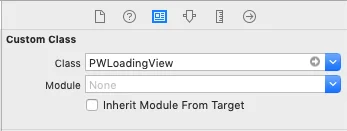
- ตั้งค่า outlets:
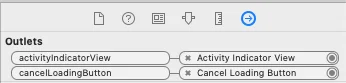
Android
Anchor link toRichMediaStyle.LoadingViewCreatorInterface ใช้งานเมธอดที่ส่งคืน View ที่จะใช้เป็นหน้าจอการโหลดสำหรับ Rich Media:
richMediaStyle.setLoadingViewCreator(() -> { View screenView = createYourScreenView(); return screenView;});การหน่วงเวลาเปิดใช้งานปุ่มปิด
Anchor link toตรวจสอบให้แน่ใจว่าข้อความในแอปแสดงต่อผู้ใช้โดย การปิดใช้งานปุ่มปิด จนกว่า Rich Media จะโหลดเสร็จ
style.closeButtonPresentingDelay = 3;Android
Anchor link to// ตั้งค่าเป็นมิลลิวินาทีrichMediaStyle.setTimeOutBackButtonEnable(3000);