# SMS and messenger statistics
Pushwoosh tracks SMS, WhatsApp, Viber, and Telegram sends the same way it tracks push and email: as a **Message stats** page you open for one sent message.
Open it from **Campaigns → [One-time messages](/product/statistics-and-analytics/message-history/)**, or from **Detailed statistics** on the message element in a Journey. Click the message name to open its stats.
## Detailed SMS and messenger statistics
Use **Message stats** to check how a specific SMS or messenger send performed.
The page has three tabs: **Overview**, **Timeline**, and **Errors**.
If the same send also went to other channels, channel tabs appear above **Overview** / **Timeline** / **Errors**, labeled by channel (for example **SMS** or **WhatsApp**). A single-channel message shows no channel tabs.
### Overview tab
Use the **Overview** tab to check reach, delivery, and opens (when the platform reports them) for this send.
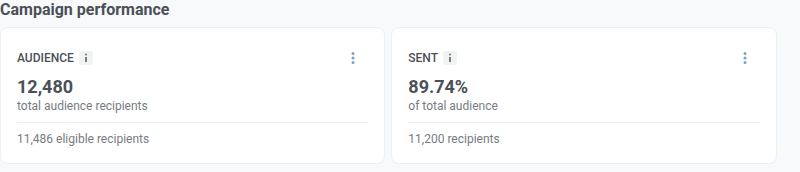
#### Campaign performance
Which cards you see depends on the channel:
* **Always:** **Audience** and **Sent**
* **Opened:** only when the platform reports opens. Today that is WhatsApp. Viber and Telegram do not show it. SMS never shows it: SMS has no open event to track.
Hover the ⓘ on any card for the exact formula.
| Card | What it shows |
| :---- | :---- |
| **Audience** | How many people you targeted for this send, and how many stayed eligible after exclusions. |
| **Sent** | Of everyone you targeted, what share the messaging provider accepted for sending. Accepted means the provider took the send into work, not that the message already arrived. |
| **Opened** | Of sent recipients, what share opened the message. Only when the platform reports opens. |
#### Campaigns distribution
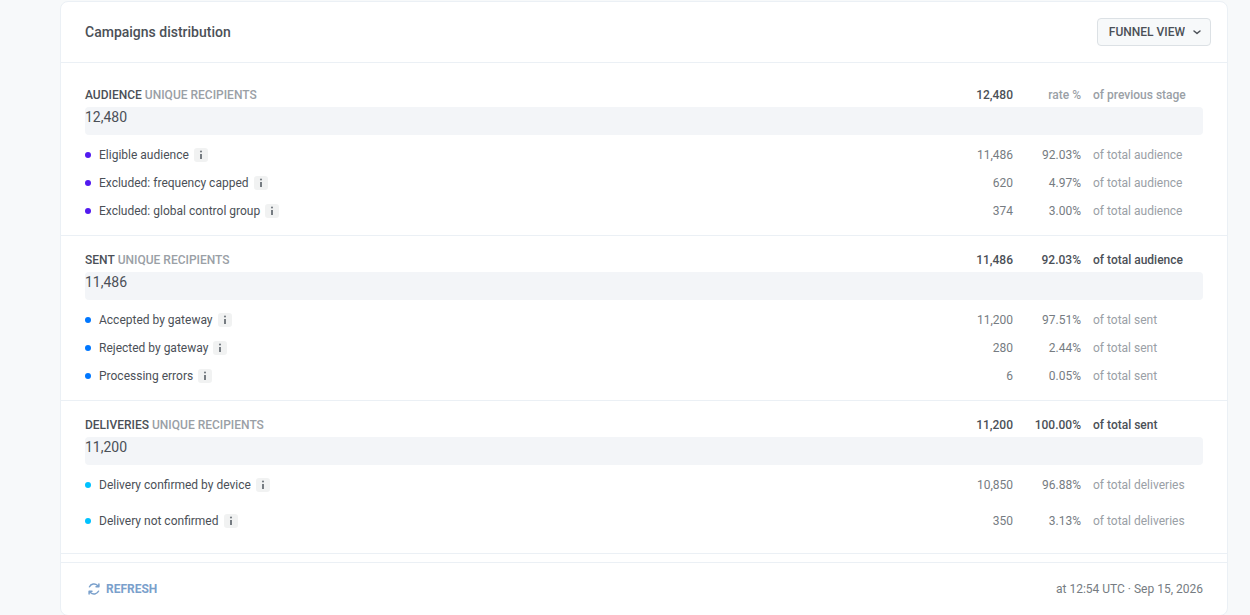
**Campaigns distribution** breaks this send into steps:
* **Audience:** who you targeted
* **Sent:** who was accepted for sending
* **Deliveries:** who got a delivery confirmation
* **Opened:** who opened (only when the platform reports opens, currently WhatsApp)
Otherwise, including for SMS, the funnel stops at **Audience → Sent → Deliveries**.
You can view the same breakdown in two ways: as a funnel (default), or as a table. Click **Table view** to open the table. Click **Funnel view** to switch back.
Click **Refresh** to reload the numbers. The "Updated at …" line next to it shows when stats last loaded (always UTC).
##### How to read the funnel
* Follow the path down along the steps that appear for this channel.
* The big percentage on a step is the share that reached it from the step above.
* The list under a step shows how those people split (for example accepted vs rejected).
* If a row is missing, nobody fell into that group on this send.
* The **Sent** card and the **Sent** funnel step can disagree: the card counts everyone you targeted, the funnel step counts only eligible people.
##### What each step includes
Who stayed eligible, and who was left out (for example frequency capping or a [global control group](/product/messaging-channels/global-frequency-capping)).
Eligible people split into:
* **Accepted by gateway:** the provider started processing the send, not that it arrived.
* **Rejected by gateway:** a provider-side problem. Details are on the **Errors** tab.
* **Processing errors:** a Pushwoosh-side failure. [Learn more](/product/troubleshooting/sending-errors/)
Who got a delivery confirmation (not an open).
* Usually: confirmed, and not confirmed.
* SMS and WhatsApp typically show delivery detail.
* Viber and Telegram often do not send delivery confirmations, so empty delivery rows there usually mean “no confirmation data”, not a failed send.
Who opened, when this step is shown (currently WhatsApp).
### Timeline tab
Use the **Timeline** tab to see how this send performed hour by hour (or day by day), not only the totals on Overview. For example, you can spot when delivery confirmations came in after you sent, or when rejects piled up. The chart has four lines:
* **Accepted by gateway:** the provider took the send into work.
* **Rejected by gateway:** the provider rejected the send.
* **Delivery confirmations:** the provider or device reported delivery. This is not an open.
* **Opens:** someone opened the message (when the platform reports opens).
A summary table under the chart totals each metric for the selected window.
To configure the chart:
1. Set the **time range**. Times are UTC. For a short range the chart shows points by the hour. For a longer range it groups points by day (or a larger step).
2. Choose **Compare metrics** to plot the four lines together, or **Compare platforms** to compare platforms for one metric.
These controls apply only to the chart and the summary table. They do not change the Overview cards or funnel.
### Errors tab
Use the **Errors** tab to see why sends were rejected, with wording for that channel (for example an undeliverable SMS may read **Phone Number Not Found**). The red badge is rejected sends plus **Processing errors** (Pushwoosh-side failures). If nothing failed, you see an empty state.
See [Message stats error categories](/product/troubleshooting/sending-errors/message-stats-error-categories/) and [Sending errors](/product/troubleshooting/sending-errors/).
### Content panel
The right-hand **Content** panel shows the message as recipients saw it. WhatsApp uses a chat bubble. SMS and Viber use a simple card preview for now.
**Delivery and settings** below the preview shows how this send was configured. For SMS, these values come from when you [created the one-time SMS](/product/messaging-channels/sms/send-sms/send-one-time-sms/):
* **Status:** whether this send finished (**Done**) or is still processing
* **Sent date:** when this message actually went out
* **Scheduling:** [immediate](/product/messaging-channels/sms/send-sms/send-one-time-sms/#send-immediately) or [selected time](/product/messaging-channels/sms/send-sms/send-one-time-sms/#selected-time)
* **Target segment:** the [audience](/product/messaging-channels/sms/send-sms/send-one-time-sms/#send-to-segment) you set
* **Target platforms:** the platforms you selected for this channel
For WhatsApp setup, see [Send a one-time WhatsApp message](/product/messaging-channels/whatsapp-messages/send-whatsapp-messages/send-one-time-whatsapp/). For Viber, see [Send Viber messages](/product/messaging-channels/viber/send-viber-messages/).
Click **Show all properties** only if you need technical details. [**Request ID**](/developer/api-reference/api-identifiers/#request-id) is for Support or your developers when tracing this exact send. Journey and some automated sends often have no Request ID. Skip it when you are only checking performance.
### Copy the message code
To get an ID for Support or your developers when tracing this send:
1. At the top of the page, click **Message code**.
2. The ID is copied to your clipboard.
You usually do not need it to read the stats.
### Export recipients and create a segment
#### Export recipients
To download recipients as CSV from the top of the page:
1. Click **Export stats**.
2. Confirm the download.
You can also click **Export list** from:
* A card's three-dot menu (⋮) on **Overview**
* An error row on the **Errors** tab
**Export list** includes only recipients from the last **30 days**. Older recipients are not in the file. The confirmation dialog states this limit before the download starts.
#### Create a segment from Sent
Use this when you want to message the same people again, for example everyone the provider accepted for sending.
1. On **Overview**, find the **Sent** card.
2. Click the three-dot menu (⋮) on that card.
3. Click **Create segment**.
4. In the **Create segment** dialog, enter a name in **Segment name**.
5. Click **Create**.
The new [segment](/product/audience-data-and-segmentation/segmentation/) includes the people on that card.
## SMS and messenger analytics FAQ
### What SMS and messenger analytics does Pushwoosh provide?
Pushwoosh tracks SMS, WhatsApp, Viber, and Telegram sends individually as a Message stats page. It shows audience reach, delivery confirmations, opens when the platform supports them, and a per-platform breakdown of send errors.
### Why doesn't SMS show an Opened metric?
SMS has no open event to track. Today only WhatsApp reports opens. Viber and Telegram do not.
### How long do SMS and messenger statistics stay available?
The main funnel and card numbers stay for up to one year. Delivery and open counts can keep updating for up to 60 days after you send.
### Can I export SMS and messenger recipient data?
Yes. Use **Export stats** at the top of the page for the full recipient list, or **Export list** from a card or an error row for that specific group (last 30 days only).
## Additional resources
- [Message stats error categories](/product/troubleshooting/sending-errors/message-stats-error-categories/)
- [Sending errors](/product/troubleshooting/sending-errors/)
- [Message history](/product/statistics-and-analytics/message-history/)
 | Card | What it shows |
| :---- | :---- |
| **Audience** | How many people you targeted for this send, and how many stayed eligible after exclusions. |
| **Sent** | Of everyone you targeted, what share the messaging provider accepted for sending. Accepted means the provider took the send into work, not that the message already arrived. |
| **Opened** | Of sent recipients, what share opened the message. Only when the platform reports opens. |
#### Campaigns distribution
**Campaigns distribution** breaks this send into steps:
* **Audience:** who you targeted
* **Sent:** who was accepted for sending
* **Deliveries:** who got a delivery confirmation
* **Opened:** who opened (only when the platform reports opens, currently WhatsApp)
Otherwise, including for SMS, the funnel stops at **Audience → Sent → Deliveries**.
You can view the same breakdown in two ways: as a funnel (default), or as a table. Click **Table view** to open the table. Click **Funnel view** to switch back.
Click **Refresh** to reload the numbers. The "Updated at …" line next to it shows when stats last loaded (always UTC).
| Card | What it shows |
| :---- | :---- |
| **Audience** | How many people you targeted for this send, and how many stayed eligible after exclusions. |
| **Sent** | Of everyone you targeted, what share the messaging provider accepted for sending. Accepted means the provider took the send into work, not that the message already arrived. |
| **Opened** | Of sent recipients, what share opened the message. Only when the platform reports opens. |
#### Campaigns distribution
**Campaigns distribution** breaks this send into steps:
* **Audience:** who you targeted
* **Sent:** who was accepted for sending
* **Deliveries:** who got a delivery confirmation
* **Opened:** who opened (only when the platform reports opens, currently WhatsApp)
Otherwise, including for SMS, the funnel stops at **Audience → Sent → Deliveries**.
You can view the same breakdown in two ways: as a funnel (default), or as a table. Click **Table view** to open the table. Click **Funnel view** to switch back.
Click **Refresh** to reload the numbers. The "Updated at …" line next to it shows when stats last loaded (always UTC).
 ##### How to read the funnel
* Follow the path down along the steps that appear for this channel.
* The big percentage on a step is the share that reached it from the step above.
* The list under a step shows how those people split (for example accepted vs rejected).
* If a row is missing, nobody fell into that group on this send.
* The **Sent** card and the **Sent** funnel step can disagree: the card counts everyone you targeted, the funnel step counts only eligible people.
##### What each step includes
##### How to read the funnel
* Follow the path down along the steps that appear for this channel.
* The big percentage on a step is the share that reached it from the step above.
* The list under a step shows how those people split (for example accepted vs rejected).
* If a row is missing, nobody fell into that group on this send.
* The **Sent** card and the **Sent** funnel step can disagree: the card counts everyone you targeted, the funnel step counts only eligible people.
##### What each step includes