# App Inbox statistics
App Inbox statistics show how many people actually got the message, how many opened it, and how many tapped it, plus where you lose the rest along the way.
## Open App Inbox statistics
1. Double-click the **App Inbox** element on a journey canvas.
2. Check the panel's metrics for this element. See [Metrics on the canvas](#metrics-on-the-canvas) below.
3. Click **Detail statistics** to open the full **Message stats** page, with an **Overview** tab and an **Errors** tab.
### Metrics on the canvas
Double-click the **App Inbox** element on a journey canvas to open this panel. It counts people, not messages, giving you a quick read on delivery and engagement before you open [Detailed statistics](#detailed-statistics) below.
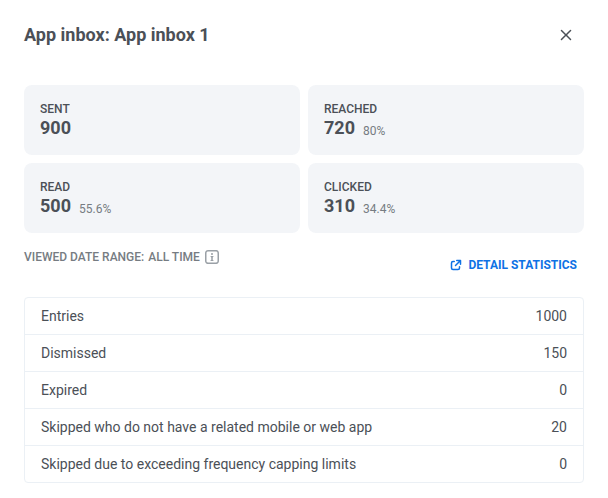
| Metric | What it means |
| :---- | :---- |
| **Entries** | Everyone this element tried to reach. |
| **Sent** | People who got the message in their inbox. |
| **Reached** | People who have the message in their inbox. It appears when they open the app, even if they haven't looked at it yet. |
| **Read** | People who opened and looked at the message. |
| **Clicked** | People who tapped the message. |
| **Dismissed** | People who deleted the message, whether or not they'd read it first. |
| **Expired** | People whose message disappeared before they read it. A high number means people need more time. Try a longer expiration. |
| **Skipped (no app)** | People with no mobile or web app set up to show an inbox, so the message had nowhere to go. |
| **Frequency capping skipped** | People who'd already hit their App Inbox limit, so this message wasn't delivered. |
## Detailed statistics
Use **Message stats** to check how this App Inbox element performed, from audience to clicks.
### Overview tab
Use the **Overview** tab to check delivery and engagement for this element.
#### Campaign performance
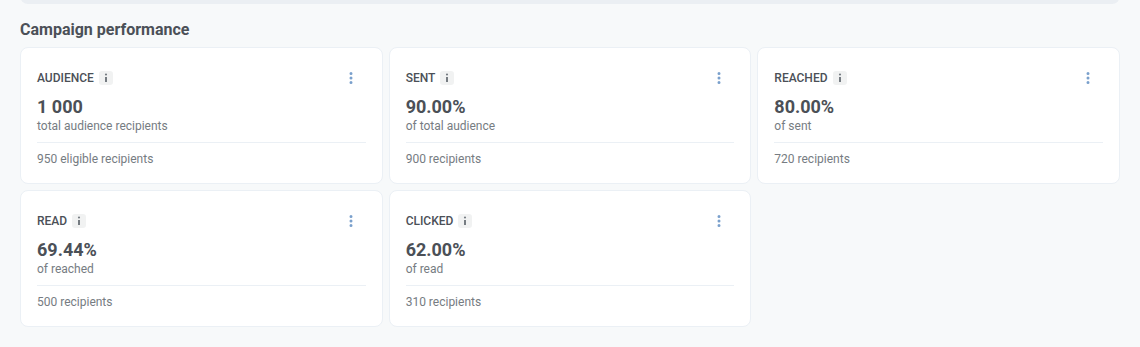
These cards summarize how this App Inbox element performed.
| Card | What it shows | Formula |
| :---- | :---- | :---- |
| **Audience** | Total audience users for this element, and how many stayed eligible after exclusions (frequency capping or a control group). | Eligible users + excluded users |
| **Sent** | Share **of total audience** who got the message in their inbox. | Placed into inboxes ÷ total audience |
| **Reached** | Share **of sent** users whose app picked up the message at least once. It's on their device, but they may not have looked at it yet. | Reached ÷ sent |
| **Read** | Share **of reached** users who opened the message, whether or not they later deleted it. | Read ÷ reached |
| **Clicked** | Share **of read** users who tapped the message. Repeat taps count once. | Clicked ÷ read |
#### Campaigns distribution
**Campaigns distribution** shows how users move through the funnel. Switch between **Funnel view** and **Table view** with the dropdown in the block header.
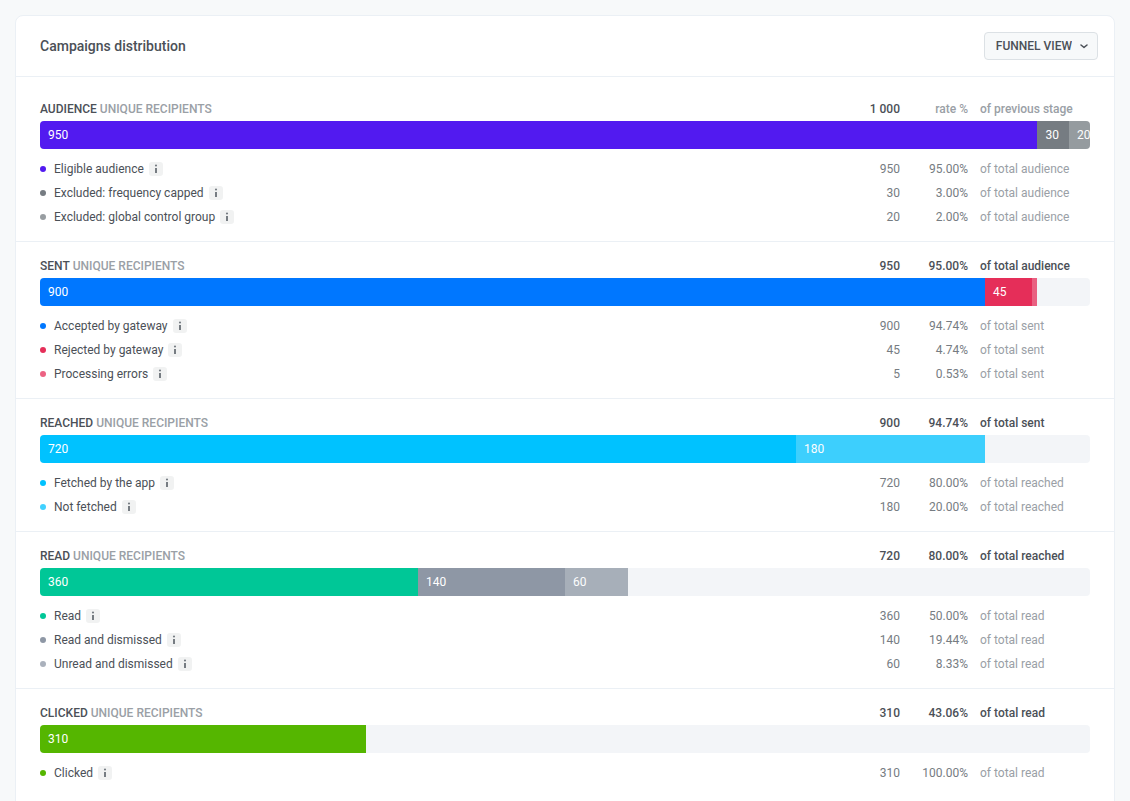
Each row shows how many people reached that stage, and why some didn't move to the next one:
| Stage | What it means |
| :---- | :---- |
| **Audience** | Everyone this element targeted. Some are excluded before anything sends: they already hit their [frequency capping](/product/messaging-channels/global-frequency-capping/#app-inbox) limit, or they're in a global control group. |
| **Sent** | Almost everyone eligible gets the message in their inbox. A few don't, usually a bad device or token, or a delivery error. Check the **Errors** tab for the reason. |
| **Reached** | Most sent messages get picked up the moment the user opens the app. The rest are just waiting: their app hasn't fetched the message yet, which isn't a delivery failure. |
| **Read** | Most reached messages get opened. Some people delete a message without reading it, and some read it and then delete it. Either way, once it's deleted it won't count as unread. |
| **Clicked** | Some people who read the message go on to tap it. Repeat taps count once, the same way **Read** counts repeat opens once. |
### Errors tab
**Errors** lists every delivery error for this element, grouped by platform, with the sender's own error name and share of that platform's sends.
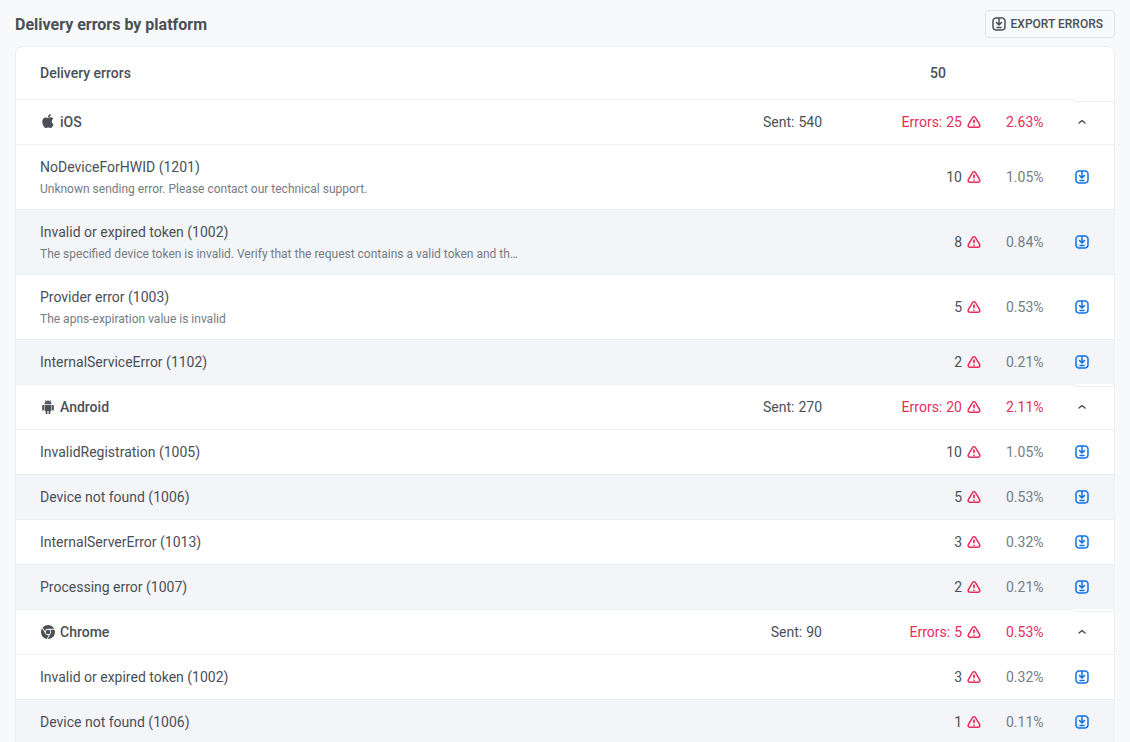
Click **Export errors** to download the full list.