# Message history
Pushwoosh provides a convenient way to monitor your past push notifications and emails for one year.
From Message History you can search and filter the list, edit or cancel scheduled one-time messages, and open detailed statistics for any message.
## Message list
To access Message History, go to **Campaigns → One-time messages.** Use the search bar to filter messages by campaign name, text, notification ID or code. You can enter the full value or a part of it.
### Filter by message type
Above the list, use the **message type** dropdown to quickly narrow the messages shown:
* **All:** shows both marketing and transactional messages (default).
* **Marketing:** shows only marketing messages (campaigns and promos).
* **Transactional:** shows only transactional messages (operational or service messages).
[Learn more about marketing and transactional messages](/product/messaging-channels/marketing-vs-transactional/)
### Filter by date range
Use the date range filter in the table header to show only messages from a specific period.
1. Open the **Sent / Created** dropdown and choose which date the range applies to:
* **Sent:** filter by send date.
* **Created:** filter by creation date.
2. Use the calendar to select the start and end dates.
By default, Message History shows messages from the **last 30 days**. You can set any range of up to **90 days** within your data retention window (typically one year).
### Sort the list
In the toolbar above the table, to the right of the date range filter, click the sort dropdown to order the list. The button label shows the active sort field (for example, **Last modified**).
* **Last modified:** sort by last edit date (default).
* **Created:** sort by creation date.
* **Send date:** sort by send date.
* **Recipients:** sort by recipient count.
* **Opened:** sort by unique opens.
* **Open rate:** sort by open rate.
* **Errors:** sort by error count.
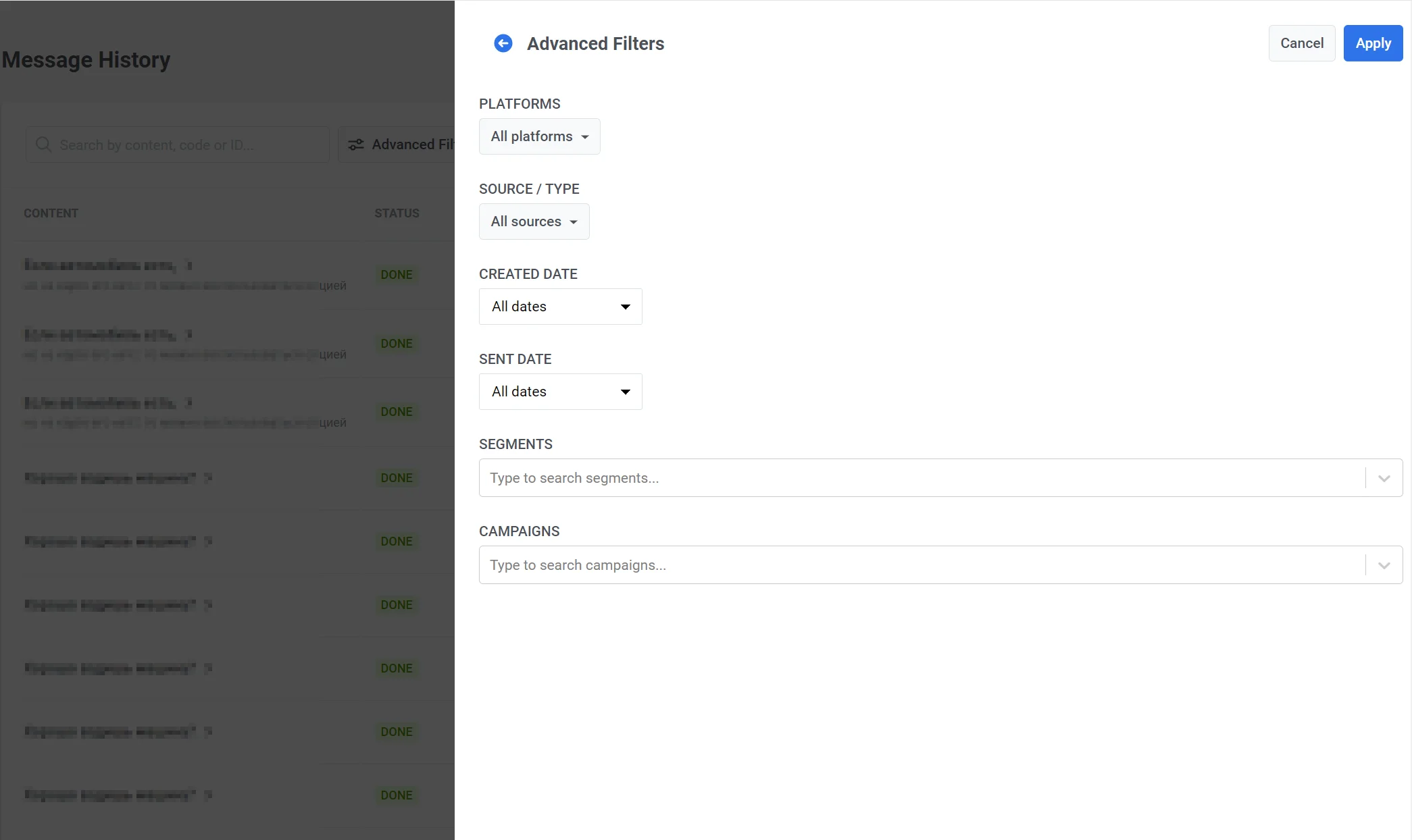
### Advanced Filters
Use **Advanced Filters** to specify platforms, message source (API, Control Panel, AutoPush, Geozone, and others), segments, and campaigns.
## Message statuses
The **Status** column shows the current state of each message:
| Status | Description |
|--------|-------------|
| **CREATING** | Message was just created and is being prepared.|
| **SCHEDULED** | Send is scheduled for the future: the send date and time haven't arrived yet. This includes delayed messages and timezone-based or Best time sends that haven't started. You can edit or cancel the message. |
| **PENDING** | The message is queued to send now (the send time has already arrived), or sending has just started. This is a short, transient state that is rarely visible. |
| **WAITING** | The message is being delivered in subscribers' local timezones — Pushwoosh sends it hour by hour as each timezone reaches the scheduled time, and the status stays **Waiting** until all timezones are covered. |
| **PROCESSING** | Message is being sent. |
| **DONE** | Sending completed successfully. |
| **FAIL** | Sending failed. |
| **CANCELED** | Scheduled message was canceled before send (e.g. via **Delete message**). |
## Edit or cancel scheduled one-time messages
Only messages with status **Scheduled** (the send time hasn't been reached yet) can be edited or canceled. You can do this from Message History or from **Campaigns** → **One-time messages**.
Open the actions menu (⋮) for the message:
* **Delete message:** cancels the scheduled delivery. Status becomes **Canceled**.
* **Edit message:** opens the campaign form so you can change the message. At the top of the form, below the step indicator, **Last edit** shows the date, time, and user who last changed the message.
* **Copy message code:** copies the message code to your clipboard. Available for any message in the list.
## View detailed statistics
Click the message name in the **Content** column to open detailed statistics for that message.
## Export message history
To export message history data, click the **Export** button in the top-right corner of the Message History page. In the export dialog, select which fields to include. Once the export is ready, you will receive a notification with a **Download CSV** link.
### Message details
| Field | Description |
|-------|-------------|
| **ID** | Unique numeric identifier of the message. |
| **Send date** | Date and time when the message was sent. |
| **Content** | Notification title and body text. |
| **Applications** | Application or application group the message was sent from. |
| **Status** | Final delivery status. |
| **Platforms** | List of platforms the message was targeted to (e.g. iOS, Android). |
| **Source** | How the message was created: API, Control Panel, Customer Journey, etc. |
| **Filter code** | Code of the audience filter used for targeting. |
| **Filter conditions** | Conditions expression of the audience filter. |
| **Filter name** | Name of the audience filter. |
| **Subscription segments** | Subscription-based segments included in the send. |
### Delivery and engagement metrics
| Field | Description |
|-------|-------------|
| **Total sent** | Total number of send attempts dispatched to the provider. |
| **Total recipients** | Number of sent messages that could be displayed on the recipient's device (total sent minus sends to devices that could not receive the message). |
| **Total delivered unique** | Number of unique delivery confirmations — each device counted once even if it received retries. |
| **Total delivered** | Total delivery confirmations including retries and repeated deliveries to the same device. |
| **Total opened unique** | Number of unique users who opened the message. *(previously `Total opened`)* |
| **Total opened** | Total open events, including repeated opens by the same user. *(previously `Total all opened`)* |
| **Total errors** | Number of send-time errors returned by the provider (e.g. invalid token, message rejected). |
| **Total clicked unique** | Number of unique users who clicked at least one link in the message. Requires link tracking to be enabled. *(previously `Total clicks`)* |
| **Total clicked** | Total link click events across all users, counting repeated clicks. Requires link tracking to be enabled. *(previously `Total all clicks`)* |
| **Total unsubscribed** | Number of unsubscribe actions triggered in response to this message. |
Learn more about:
 ## Message statuses
The **Status** column shows the current state of each message:
| Status | Description |
|--------|-------------|
| **CREATING** | Message was just created and is being prepared.|
| **SCHEDULED** | Send is scheduled for the future: the send date and time haven't arrived yet. This includes delayed messages and timezone-based or Best time sends that haven't started. You can edit or cancel the message. |
| **PENDING** | The message is queued to send now (the send time has already arrived), or sending has just started. This is a short, transient state that is rarely visible. |
| **WAITING** | The message is being delivered in subscribers' local timezones — Pushwoosh sends it hour by hour as each timezone reaches the scheduled time, and the status stays **Waiting** until all timezones are covered. |
| **PROCESSING** | Message is being sent. |
| **DONE** | Sending completed successfully. |
| **FAIL** | Sending failed. |
| **CANCELED** | Scheduled message was canceled before send (e.g. via **Delete message**). |
## Edit or cancel scheduled one-time messages
Only messages with status **Scheduled** (the send time hasn't been reached yet) can be edited or canceled. You can do this from Message History or from **Campaigns** → **One-time messages**.
Open the actions menu (⋮) for the message:
* **Delete message:** cancels the scheduled delivery. Status becomes **Canceled**.
* **Edit message:** opens the campaign form so you can change the message. At the top of the form, below the step indicator, **Last edit** shows the date, time, and user who last changed the message.
* **Copy message code:** copies the message code to your clipboard. Available for any message in the list.
## View detailed statistics
Click the message name in the **Content** column to open detailed statistics for that message.
## Export message history
To export message history data, click the **Export** button in the top-right corner of the Message History page. In the export dialog, select which fields to include. Once the export is ready, you will receive a notification with a **Download CSV** link.
### Message details
| Field | Description |
|-------|-------------|
| **ID** | Unique numeric identifier of the message. |
| **Send date** | Date and time when the message was sent. |
| **Content** | Notification title and body text. |
| **Applications** | Application or application group the message was sent from. |
| **Status** | Final delivery status. |
| **Platforms** | List of platforms the message was targeted to (e.g. iOS, Android). |
| **Source** | How the message was created: API, Control Panel, Customer Journey, etc. |
| **Filter code** | Code of the audience filter used for targeting. |
| **Filter conditions** | Conditions expression of the audience filter. |
| **Filter name** | Name of the audience filter. |
| **Subscription segments** | Subscription-based segments included in the send. |
### Delivery and engagement metrics
| Field | Description |
|-------|-------------|
| **Total sent** | Total number of send attempts dispatched to the provider. |
| **Total recipients** | Number of sent messages that could be displayed on the recipient's device (total sent minus sends to devices that could not receive the message). |
| **Total delivered unique** | Number of unique delivery confirmations — each device counted once even if it received retries. |
| **Total delivered** | Total delivery confirmations including retries and repeated deliveries to the same device. |
| **Total opened unique** | Number of unique users who opened the message. *(previously `Total opened`)* |
| **Total opened** | Total open events, including repeated opens by the same user. *(previously `Total all opened`)* |
| **Total errors** | Number of send-time errors returned by the provider (e.g. invalid token, message rejected). |
| **Total clicked unique** | Number of unique users who clicked at least one link in the message. Requires link tracking to be enabled. *(previously `Total clicks`)* |
| **Total clicked** | Total link click events across all users, counting repeated clicks. Requires link tracking to be enabled. *(previously `Total all clicks`)* |
| **Total unsubscribed** | Number of unsubscribe actions triggered in response to this message. |
Learn more about:
## Message statuses
The **Status** column shows the current state of each message:
| Status | Description |
|--------|-------------|
| **CREATING** | Message was just created and is being prepared.|
| **SCHEDULED** | Send is scheduled for the future: the send date and time haven't arrived yet. This includes delayed messages and timezone-based or Best time sends that haven't started. You can edit or cancel the message. |
| **PENDING** | The message is queued to send now (the send time has already arrived), or sending has just started. This is a short, transient state that is rarely visible. |
| **WAITING** | The message is being delivered in subscribers' local timezones — Pushwoosh sends it hour by hour as each timezone reaches the scheduled time, and the status stays **Waiting** until all timezones are covered. |
| **PROCESSING** | Message is being sent. |
| **DONE** | Sending completed successfully. |
| **FAIL** | Sending failed. |
| **CANCELED** | Scheduled message was canceled before send (e.g. via **Delete message**). |
## Edit or cancel scheduled one-time messages
Only messages with status **Scheduled** (the send time hasn't been reached yet) can be edited or canceled. You can do this from Message History or from **Campaigns** → **One-time messages**.
Open the actions menu (⋮) for the message:
* **Delete message:** cancels the scheduled delivery. Status becomes **Canceled**.
* **Edit message:** opens the campaign form so you can change the message. At the top of the form, below the step indicator, **Last edit** shows the date, time, and user who last changed the message.
* **Copy message code:** copies the message code to your clipboard. Available for any message in the list.
## View detailed statistics
Click the message name in the **Content** column to open detailed statistics for that message.
## Export message history
To export message history data, click the **Export** button in the top-right corner of the Message History page. In the export dialog, select which fields to include. Once the export is ready, you will receive a notification with a **Download CSV** link.
### Message details
| Field | Description |
|-------|-------------|
| **ID** | Unique numeric identifier of the message. |
| **Send date** | Date and time when the message was sent. |
| **Content** | Notification title and body text. |
| **Applications** | Application or application group the message was sent from. |
| **Status** | Final delivery status. |
| **Platforms** | List of platforms the message was targeted to (e.g. iOS, Android). |
| **Source** | How the message was created: API, Control Panel, Customer Journey, etc. |
| **Filter code** | Code of the audience filter used for targeting. |
| **Filter conditions** | Conditions expression of the audience filter. |
| **Filter name** | Name of the audience filter. |
| **Subscription segments** | Subscription-based segments included in the send. |
### Delivery and engagement metrics
| Field | Description |
|-------|-------------|
| **Total sent** | Total number of send attempts dispatched to the provider. |
| **Total recipients** | Number of sent messages that could be displayed on the recipient's device (total sent minus sends to devices that could not receive the message). |
| **Total delivered unique** | Number of unique delivery confirmations — each device counted once even if it received retries. |
| **Total delivered** | Total delivery confirmations including retries and repeated deliveries to the same device. |
| **Total opened unique** | Number of unique users who opened the message. *(previously `Total opened`)* |
| **Total opened** | Total open events, including repeated opens by the same user. *(previously `Total all opened`)* |
| **Total errors** | Number of send-time errors returned by the provider (e.g. invalid token, message rejected). |
| **Total clicked unique** | Number of unique users who clicked at least one link in the message. Requires link tracking to be enabled. *(previously `Total clicks`)* |
| **Total clicked** | Total link click events across all users, counting repeated clicks. Requires link tracking to be enabled. *(previously `Total all clicks`)* |
| **Total unsubscribed** | Number of unsubscribe actions triggered in response to this message. |
Learn more about: