# Analyze user path in a customer journey
Pushwoosh allows you to track a specific user's journey within a campaign by highlighting their steps. By analyzing user paths, you can gain a deeper understanding of how users interact with your campaigns and make data-driven decisions to enhance their overall experience.
To track a user's path:
1. **Navigate to the campaign** you want to analyze.
2. Click **Find user path** at the bottom right of the Journey canvas.
3. **Enter a user identifier.** You can search by [User ID](/product/pushwoosh-knowledge-hub/users-userids/), HWID, email, phone, or token — any identifier associated with the user whose path you want to examine. Ensure the value you entered is accurate and relevant to the campaign being analyzed.
Pushwoosh will visualize the user's journey on the canvas, highlighting the steps and messages they have completed.
If a user has engaged with the campaign multiple times, you can explore different paths they've taken using the path switcher at the bottom of the screen.
A user's path can have several statuses based on user interaction and the journey's changes.
* If the user successfully completed the journey and exited, no special marking is shown in the list.
* If the user dropped off, the flow can still be viewed, and the user's path will be marked with an exclamation mark.
* If the journey was modified, the path will remain in the list, but it cannot be displayed for viewing.
If the user has not interacted with the campaign, you will receive a notification indicating that the user was not found.
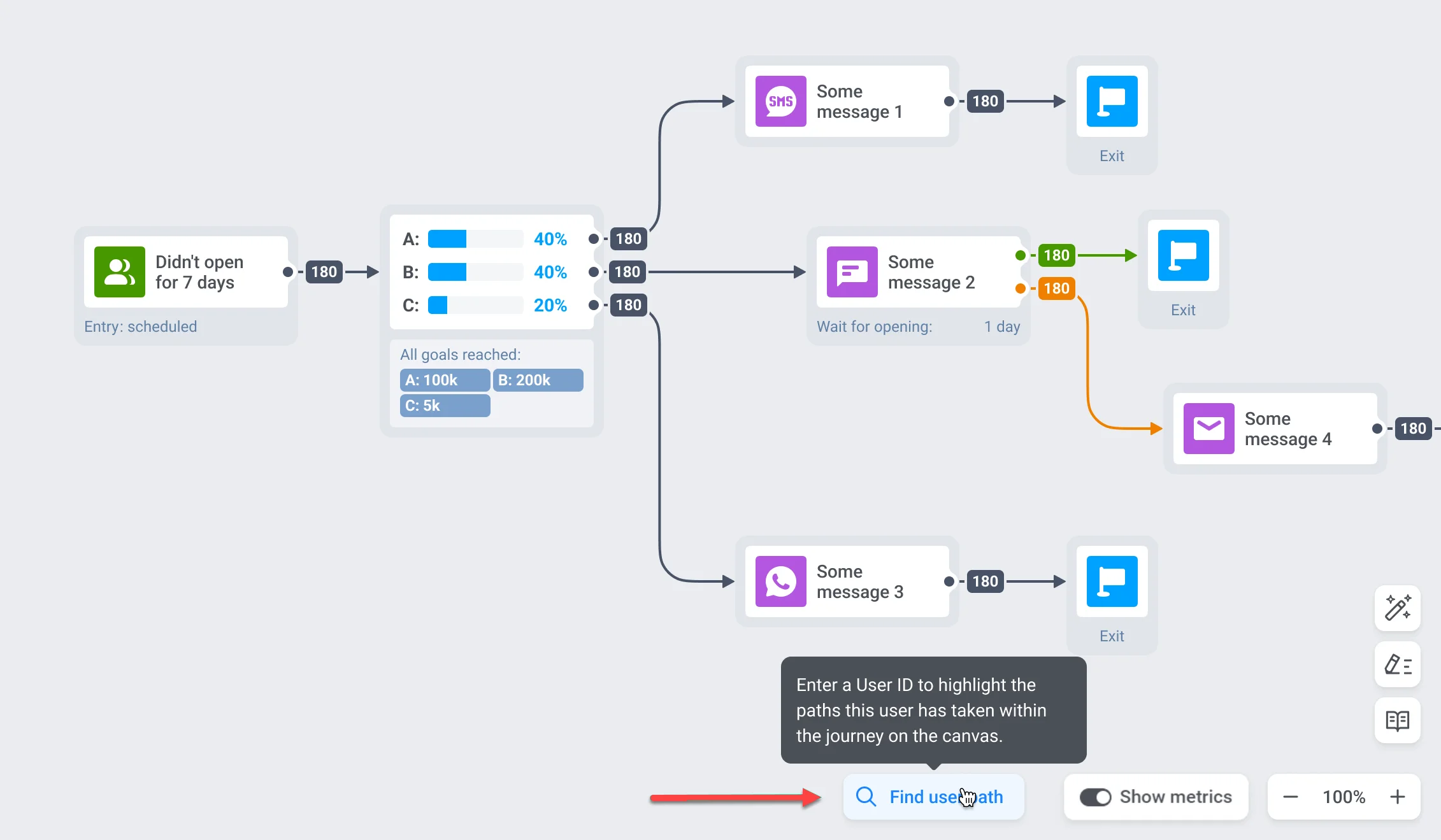 Pushwoosh will visualize the user's journey on the canvas, highlighting the steps and messages they have completed.
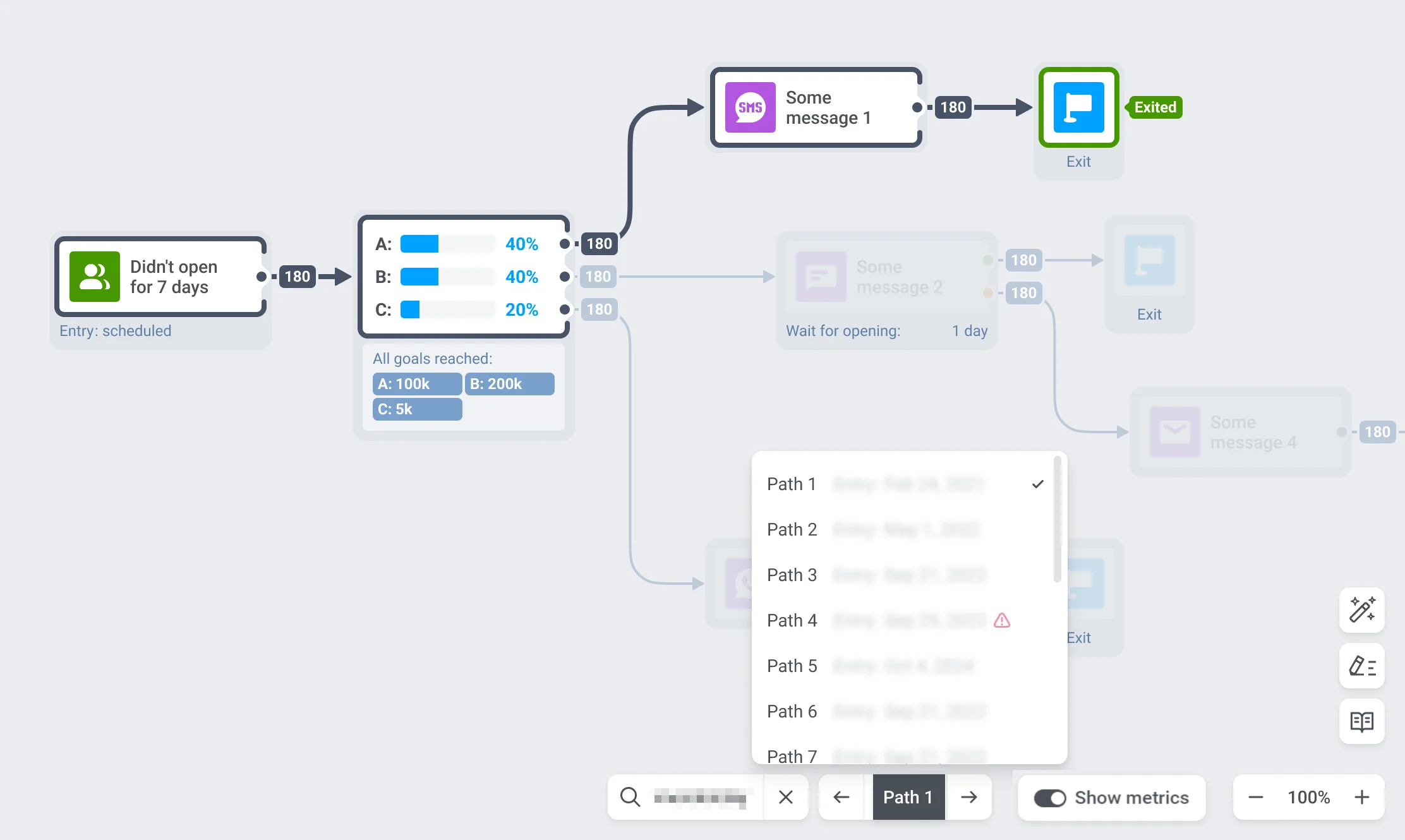 If a user has engaged with the campaign multiple times, you can explore different paths they've taken using the path switcher at the bottom of the screen.
A user's path can have several statuses based on user interaction and the journey's changes.
* If the user successfully completed the journey and exited, no special marking is shown in the list.
* If the user dropped off, the flow can still be viewed, and the user's path will be marked with an exclamation mark.
* If the journey was modified, the path will remain in the list, but it cannot be displayed for viewing.
If the user has not interacted with the campaign, you will receive a notification indicating that the user was not found.
If a user has engaged with the campaign multiple times, you can explore different paths they've taken using the path switcher at the bottom of the screen.
A user's path can have several statuses based on user interaction and the journey's changes.
* If the user successfully completed the journey and exited, no special marking is shown in the list.
* If the user dropped off, the flow can still be viewed, and the user's path will be marked with an exclamation mark.
* If the journey was modified, the path will remain in the list, but it cannot be displayed for viewing.
If the user has not interacted with the campaign, you will receive a notification indicating that the user was not found.