# Users (User IDs)
User ID is a unique identifier that is assigned to each user to maintain consistent user data across all their devices. This allows you to provide your audience with a seamless user experience across their devices.
## How are users and devices related?
Each user is assigned a unique identifier called User ID. User IDs can be linked to multiple devices, allowing businesses to stay connected with users even when they switch devices. This ensures that targeted messages reach the intended user on whichever device they are using.
A user (User ID) is not a standalone entity; it relies on the presence of associated devices. If the last associated device is removed or linked to another user, the user will be automatically deleted from the system.
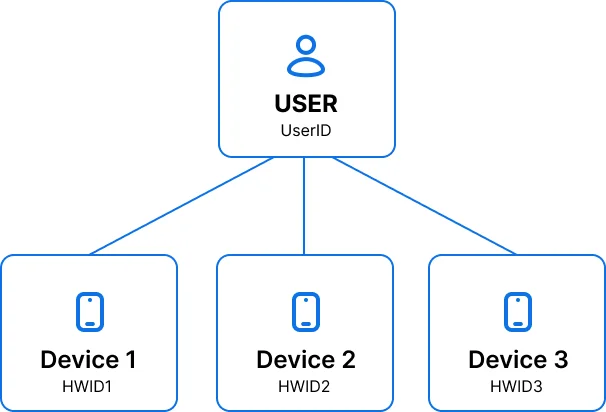
A user (User ID) also functions as an entity under which several devices can be grouped, each with its own unique Hardware ID (HWID).
### Device limit per user
Each user can have a maximum of 20 devices linked to their User ID. When a 21st device is registered, the system automatically removes one of the existing devices to make room.
**How the device for removal is selected**
1. If all linked devices are email-only, a random email device is removed.
2. Otherwise, the system finds the oldest non-email device based on the last app open time and removes it.
3. If there's no activity data to compare (e.g., devices were added via API without actual app usage), a random non-email device is removed.
This ensures that your most recently active devices stay linked to your account while older, inactive devices are automatically cleaned up.
## Types of users
There are two types of users: anonymous and known users. An anonymous user has their User ID equal to the device HWID, which can be replaced with the actual User ID later on.
A known user has a distinct User ID. You can specify a User ID when registering a new device through the [`/registerDevice`](/developer/api-reference/device-api/#registerdevice) API call.
## Obtaining and managing User IDs
Pushwoosh provides several ways to access and manage Users:
### Creating users
By default, when an app with the integrated Pushwoosh SDK is launched for the first time, it sets a device HWID as a User ID. You can call the [`setUserID`](/developer/first-steps/collecting-user-ids/#setuserid-sdk-method) method from the Pushwoosh SDK on login to set any required value to associate a device with a particular user. When a user logs out, you can reset this value to a default one with another [`setUserID`](/developer/first-steps/collecting-user-ids/#setuserid-sdk-method) call, e.g. to an initial HWID value.
### Importing users
You can easily import User IDs from a CSV file for a specific user segment. Please find our detailed instructions in the [Segments guide](/product/audience-data-and-segmentation/segmentation/create-segments/by-import).
### Exporting users
To export User IDs, you can utilize the [`/exportSegment`](/developer/api-reference/segmentation-filters-api/#exportsegment) API request, which provides the option to export data in CSV or JSON format.
### Accessing User IDs from device logs
User IDs can also be directly accessed from device logs. For step-by-step instructions, please refer to the article [How to Obtain Console Logs and Device Tokens](https://help.pushwoosh.com/hc/en-us/articles/360000292586-How-to-obtain-console-logs-and-device-token?source=search\&auth\_token=eyJhbGciOiJIUzI1NiJ9.eyJhY2NvdW50X2lkIjoyOTA5MjksInVzZXJfaWQiOjEyNDkzMTI5MDkwMzMzLCJ0aWNrZXRfaWQiOjc4MzMyLCJjaGFubmVsX2lkIjo2MywidHlwZSI6IlNFQVJDSCIsImV4cCI6MTY5MzExNDk5Mn0.SpeS-IJ\_j3mB6Elf2ObMjev2MZSmDOLu4DYQdEcZvS8).
## User and device tags
Just like devices, users (User IDs) can have their own sets of [tags](/product/audience-data-and-segmentation/user-data-tags/) that will serve as labels to categorize and identify users or devices based on their characteristics.
### How to create user-specific tags
When you set a user-specific tag, it automatically applies to both users and all their associated devices. This means the tag will be linked to the user's profile and will be reflected on all their devices.
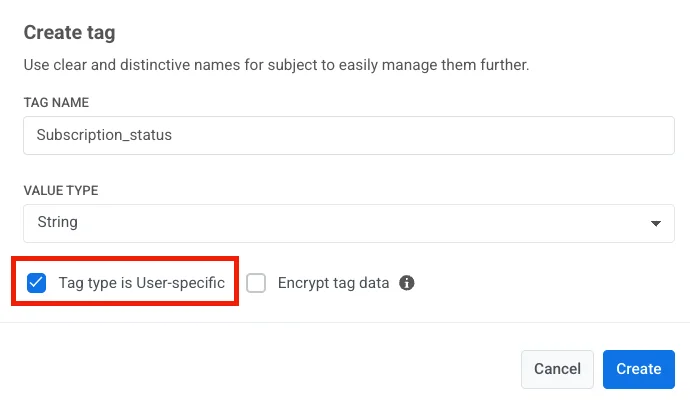
To create a user-specific tag from the Pushwoosh Control Panel, check the **User-specific** checkbox when adding a new tag. If you don't mark the tag as user-specific, it will be associated with the device only.
## Managing user transitions
Within Pushwoosh, managing user transitions involves two primary scenarios:
### Transition from Anonymous to Known user
When an anonymous user becomes a known user, the device they are using becomes associated with their new user profile. During this transition, all device attributes remain intact. However, it's important to note that all user-specific attributes are reset to known user values or default if it does not exist.
For instance, let's consider a scenario where a guest user has been using a fitness tracking application with default settings. When they create an account, their device data remains unchanged. Still, any user-specific details, like their name, email, and customized goals, will be reset to known user values.
### Transition from one Known user to another
If the User associated with a device is changed using [`setUserID`](/developer/first-steps/collecting-user-ids/#setuserid-sdk-method) from Pushwoosh SDK, the device is associated with the new user profile.
> Learn more about setting User IDs for [Android](/developer/pushwoosh-sdk/android-sdk/android-faq#how-do-i-set-a-userid) and [iOS](/developer/pushwoosh-sdk/ios-sdk/ios-faq#how-do-i-set-a-userid).
You can also use the [**`/registerUser`**](/developer/api-reference/user-centric-api#registeruser) API call.
Just like in the previous scenario, the device attributes remain the same, ensuring a smooth transition. However, the user-specific tags will now be assigned to the values of the new user. This is to ensure that the user’s tags reflect the new user's profile accurately.
As an example, consider a scenario in a video streaming service. If a registered user logs out and a different registered user logs in on the same device, the device settings, such as preferred language and video quality settings, are retained. Yet, any user-specific information, such as viewing history and recommendations, will be changed for the new user.
## API methods for managing users
Pushwoosh provides several API methods to manage users within your application. You'll need assistance from your development team to work with these methods. For more details, share [this link](/developer/pushwoosh-knowledge-hub/users-userids/#api-methods-for-managing-users) with your development team.
## If a user is associated with multiple devices, which one will receive the message during a Customer Journey?
When a user has multiple devices associated with their account, how messages are delivered across them depends on the journey type:
### Audience-based entry and Webhook-based entry journeys
By default, in these journeys, messages are sent to the most recently active device associated with the user. This ensures the message reaches the user who is most likely to engage with it.
### Trigger-based entry journeys
By default, the message is sent to the device where the triggering action was last fired. This maintains context and relevance by delivering the message on the device where the relevant user activity occurred.
### All devices delivery
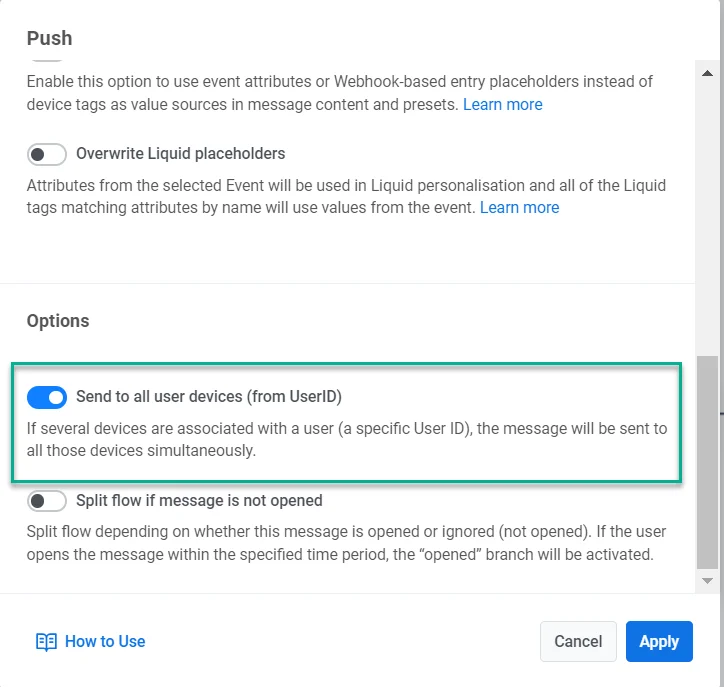
However, you can choose to override these default settings and send the message to all devices associated with the User ID simultaneously. For this, in the message settings, scroll down to **Options**, and toggle on **Send to all user devices**.
This option might be useful for broadcasts or urgent notifications that need to reach the user regardless of which device they're currently using.
 ### Device limit per user
Each user can have a maximum of 20 devices linked to their User ID. When a 21st device is registered, the system automatically removes one of the existing devices to make room.
**How the device for removal is selected**
1. If all linked devices are email-only, a random email device is removed.
2. Otherwise, the system finds the oldest non-email device based on the last app open time and removes it.
3. If there's no activity data to compare (e.g., devices were added via API without actual app usage), a random non-email device is removed.
This ensures that your most recently active devices stay linked to your account while older, inactive devices are automatically cleaned up.
## Types of users
There are two types of users: anonymous and known users. An anonymous user has their User ID equal to the device HWID, which can be replaced with the actual User ID later on.
A known user has a distinct User ID. You can specify a User ID when registering a new device through the [`/registerDevice`](/developer/api-reference/device-api/#registerdevice) API call.
## Obtaining and managing User IDs
Pushwoosh provides several ways to access and manage Users:
### Creating users
By default, when an app with the integrated Pushwoosh SDK is launched for the first time, it sets a device HWID as a User ID. You can call the [`setUserID`](/developer/first-steps/collecting-user-ids/#setuserid-sdk-method) method from the Pushwoosh SDK on login to set any required value to associate a device with a particular user. When a user logs out, you can reset this value to a default one with another [`setUserID`](/developer/first-steps/collecting-user-ids/#setuserid-sdk-method) call, e.g. to an initial HWID value.
### Importing users
You can easily import User IDs from a CSV file for a specific user segment. Please find our detailed instructions in the [Segments guide](/product/audience-data-and-segmentation/segmentation/create-segments/by-import).
### Exporting users
To export User IDs, you can utilize the [`/exportSegment`](/developer/api-reference/segmentation-filters-api/#exportsegment) API request, which provides the option to export data in CSV or JSON format.
### Accessing User IDs from device logs
User IDs can also be directly accessed from device logs. For step-by-step instructions, please refer to the article [How to Obtain Console Logs and Device Tokens](https://help.pushwoosh.com/hc/en-us/articles/360000292586-How-to-obtain-console-logs-and-device-token?source=search\&auth\_token=eyJhbGciOiJIUzI1NiJ9.eyJhY2NvdW50X2lkIjoyOTA5MjksInVzZXJfaWQiOjEyNDkzMTI5MDkwMzMzLCJ0aWNrZXRfaWQiOjc4MzMyLCJjaGFubmVsX2lkIjo2MywidHlwZSI6IlNFQVJDSCIsImV4cCI6MTY5MzExNDk5Mn0.SpeS-IJ\_j3mB6Elf2ObMjev2MZSmDOLu4DYQdEcZvS8).
## User and device tags
Just like devices, users (User IDs) can have their own sets of [tags](/product/audience-data-and-segmentation/user-data-tags/) that will serve as labels to categorize and identify users or devices based on their characteristics.
### How to create user-specific tags
When you set a user-specific tag, it automatically applies to both users and all their associated devices. This means the tag will be linked to the user's profile and will be reflected on all their devices.
To create a user-specific tag from the Pushwoosh Control Panel, check the **User-specific** checkbox when adding a new tag. If you don't mark the tag as user-specific, it will be associated with the device only.
### Device limit per user
Each user can have a maximum of 20 devices linked to their User ID. When a 21st device is registered, the system automatically removes one of the existing devices to make room.
**How the device for removal is selected**
1. If all linked devices are email-only, a random email device is removed.
2. Otherwise, the system finds the oldest non-email device based on the last app open time and removes it.
3. If there's no activity data to compare (e.g., devices were added via API without actual app usage), a random non-email device is removed.
This ensures that your most recently active devices stay linked to your account while older, inactive devices are automatically cleaned up.
## Types of users
There are two types of users: anonymous and known users. An anonymous user has their User ID equal to the device HWID, which can be replaced with the actual User ID later on.
A known user has a distinct User ID. You can specify a User ID when registering a new device through the [`/registerDevice`](/developer/api-reference/device-api/#registerdevice) API call.
## Obtaining and managing User IDs
Pushwoosh provides several ways to access and manage Users:
### Creating users
By default, when an app with the integrated Pushwoosh SDK is launched for the first time, it sets a device HWID as a User ID. You can call the [`setUserID`](/developer/first-steps/collecting-user-ids/#setuserid-sdk-method) method from the Pushwoosh SDK on login to set any required value to associate a device with a particular user. When a user logs out, you can reset this value to a default one with another [`setUserID`](/developer/first-steps/collecting-user-ids/#setuserid-sdk-method) call, e.g. to an initial HWID value.
### Importing users
You can easily import User IDs from a CSV file for a specific user segment. Please find our detailed instructions in the [Segments guide](/product/audience-data-and-segmentation/segmentation/create-segments/by-import).
### Exporting users
To export User IDs, you can utilize the [`/exportSegment`](/developer/api-reference/segmentation-filters-api/#exportsegment) API request, which provides the option to export data in CSV or JSON format.
### Accessing User IDs from device logs
User IDs can also be directly accessed from device logs. For step-by-step instructions, please refer to the article [How to Obtain Console Logs and Device Tokens](https://help.pushwoosh.com/hc/en-us/articles/360000292586-How-to-obtain-console-logs-and-device-token?source=search\&auth\_token=eyJhbGciOiJIUzI1NiJ9.eyJhY2NvdW50X2lkIjoyOTA5MjksInVzZXJfaWQiOjEyNDkzMTI5MDkwMzMzLCJ0aWNrZXRfaWQiOjc4MzMyLCJjaGFubmVsX2lkIjo2MywidHlwZSI6IlNFQVJDSCIsImV4cCI6MTY5MzExNDk5Mn0.SpeS-IJ\_j3mB6Elf2ObMjev2MZSmDOLu4DYQdEcZvS8).
## User and device tags
Just like devices, users (User IDs) can have their own sets of [tags](/product/audience-data-and-segmentation/user-data-tags/) that will serve as labels to categorize and identify users or devices based on their characteristics.
### How to create user-specific tags
When you set a user-specific tag, it automatically applies to both users and all their associated devices. This means the tag will be linked to the user's profile and will be reflected on all their devices.
To create a user-specific tag from the Pushwoosh Control Panel, check the **User-specific** checkbox when adding a new tag. If you don't mark the tag as user-specific, it will be associated with the device only.
 ## Managing user transitions
Within Pushwoosh, managing user transitions involves two primary scenarios:
### Transition from Anonymous to Known user
When an anonymous user becomes a known user, the device they are using becomes associated with their new user profile. During this transition, all device attributes remain intact. However, it's important to note that all user-specific attributes are reset to known user values or default if it does not exist.
For instance, let's consider a scenario where a guest user has been using a fitness tracking application with default settings. When they create an account, their device data remains unchanged. Still, any user-specific details, like their name, email, and customized goals, will be reset to known user values.
### Transition from one Known user to another
If the User associated with a device is changed using [`setUserID`](/developer/first-steps/collecting-user-ids/#setuserid-sdk-method) from Pushwoosh SDK, the device is associated with the new user profile.
> Learn more about setting User IDs for [Android](/developer/pushwoosh-sdk/android-sdk/android-faq#how-do-i-set-a-userid) and [iOS](/developer/pushwoosh-sdk/ios-sdk/ios-faq#how-do-i-set-a-userid).
You can also use the [**`/registerUser`**](/developer/api-reference/user-centric-api#registeruser) API call.
Just like in the previous scenario, the device attributes remain the same, ensuring a smooth transition. However, the user-specific tags will now be assigned to the values of the new user. This is to ensure that the user’s tags reflect the new user's profile accurately.
As an example, consider a scenario in a video streaming service. If a registered user logs out and a different registered user logs in on the same device, the device settings, such as preferred language and video quality settings, are retained. Yet, any user-specific information, such as viewing history and recommendations, will be changed for the new user.
## API methods for managing users
Pushwoosh provides several API methods to manage users within your application. You'll need assistance from your development team to work with these methods. For more details, share [this link](/developer/pushwoosh-knowledge-hub/users-userids/#api-methods-for-managing-users) with your development team.
## If a user is associated with multiple devices, which one will receive the message during a Customer Journey?
When a user has multiple devices associated with their account, how messages are delivered across them depends on the journey type:
### Audience-based entry and Webhook-based entry journeys
By default, in these journeys, messages are sent to the most recently active device associated with the user. This ensures the message reaches the user who is most likely to engage with it.
### Trigger-based entry journeys
By default, the message is sent to the device where the triggering action was last fired. This maintains context and relevance by delivering the message on the device where the relevant user activity occurred.
### All devices delivery
However, you can choose to override these default settings and send the message to all devices associated with the User ID simultaneously. For this, in the message settings, scroll down to **Options**, and toggle on **Send to all user devices**.
## Managing user transitions
Within Pushwoosh, managing user transitions involves two primary scenarios:
### Transition from Anonymous to Known user
When an anonymous user becomes a known user, the device they are using becomes associated with their new user profile. During this transition, all device attributes remain intact. However, it's important to note that all user-specific attributes are reset to known user values or default if it does not exist.
For instance, let's consider a scenario where a guest user has been using a fitness tracking application with default settings. When they create an account, their device data remains unchanged. Still, any user-specific details, like their name, email, and customized goals, will be reset to known user values.
### Transition from one Known user to another
If the User associated with a device is changed using [`setUserID`](/developer/first-steps/collecting-user-ids/#setuserid-sdk-method) from Pushwoosh SDK, the device is associated with the new user profile.
> Learn more about setting User IDs for [Android](/developer/pushwoosh-sdk/android-sdk/android-faq#how-do-i-set-a-userid) and [iOS](/developer/pushwoosh-sdk/ios-sdk/ios-faq#how-do-i-set-a-userid).
You can also use the [**`/registerUser`**](/developer/api-reference/user-centric-api#registeruser) API call.
Just like in the previous scenario, the device attributes remain the same, ensuring a smooth transition. However, the user-specific tags will now be assigned to the values of the new user. This is to ensure that the user’s tags reflect the new user's profile accurately.
As an example, consider a scenario in a video streaming service. If a registered user logs out and a different registered user logs in on the same device, the device settings, such as preferred language and video quality settings, are retained. Yet, any user-specific information, such as viewing history and recommendations, will be changed for the new user.
## API methods for managing users
Pushwoosh provides several API methods to manage users within your application. You'll need assistance from your development team to work with these methods. For more details, share [this link](/developer/pushwoosh-knowledge-hub/users-userids/#api-methods-for-managing-users) with your development team.
## If a user is associated with multiple devices, which one will receive the message during a Customer Journey?
When a user has multiple devices associated with their account, how messages are delivered across them depends on the journey type:
### Audience-based entry and Webhook-based entry journeys
By default, in these journeys, messages are sent to the most recently active device associated with the user. This ensures the message reaches the user who is most likely to engage with it.
### Trigger-based entry journeys
By default, the message is sent to the device where the triggering action was last fired. This maintains context and relevance by delivering the message on the device where the relevant user activity occurred.
### All devices delivery
However, you can choose to override these default settings and send the message to all devices associated with the User ID simultaneously. For this, in the message settings, scroll down to **Options**, and toggle on **Send to all user devices**.
 This option might be useful for broadcasts or urgent notifications that need to reach the user regardless of which device they're currently using.