# Send promo codes via WhatsApp
In Pushwoosh, you can send promo codes using WhatsApp message templates that include placeholders. These placeholders can be filled with coupon codes either dynamically (based on [user data or events](/product/audience-data-and-segmentation/)) or statically (with a fixed value).
Learn how to configure such templates and insert the correct variable to deliver promo codes via WhatsApp.
## Before you begin
Before you send promo codes via WhatsApp through Pushwoosh, make sure you have:
* **Connected your WhatsApp Business Account to Pushwoosh:** [Learn how to configure WhatsApp integration](/product/first-steps/start-with-your-project/configure-platforms/whatsapp-configuration)
* **Added a payment method to WhatsApp:** Meta requires an active payment method for sending WhatsApp messages.
* **Imported your WhatsApp contacts into Pushwoosh:** [See instructions](/product/messaging-channels/whatsapp-messages/register-phone-numbers-for-whatsapp#how-to-import-whatsapp-contacts-from-a-csv-file).
## Create a template in WhatsApp Manager
First, [create a WhatsApp message template](https://www.facebook.com/business/help/2055875911147364?id=2129163877102343) and submit it to Meta for approval.
**Example template text**
*Hi, your promo code `{{coupon code}}` is ready to use. Apply it at checkout and enjoy your discount!*

When creating a message template in Meta, you can add a **Copy offer code** button that allows users to copy the promo code with a single tap.
To configure it:
1. In the Meta template editor, open the **Buttons** section.
2. Click **Add button → Copy offer code**.
3. In the **Offer code** field, enter a sample static value (for example, `WINTER20`). This value is required only for Meta’s template review.
During Journey execution, Pushwoosh automatically replaces this sample value with the actual promo code, either dynamically (from an event or user property) or statically (from custom text).

## Create a WhatsApp campaign in Pushwoosh
1. Go to **Customer Journey Builder**.
2. Click **Create Campaign** and select **WhatsApp** as the channel.
3. Choose the campaign type (for example, a one-time or triggered campaign).
4. On the Journey canvas, add and configure an [Entry element](/product/customer-journey/journey-elements/entry-elements/).
## Set up the WhatsApp element
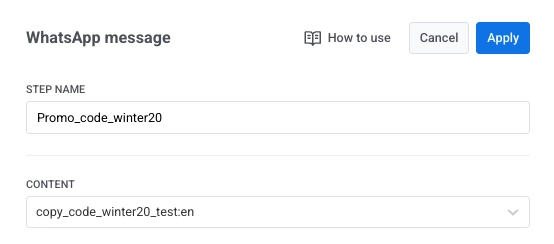
In the **WhatsApp message** element, assign a clear step name (for example, `Promo_code_winter2025`).
Under **Content**, select the approved Meta template you want to use.
### Configure placeholders
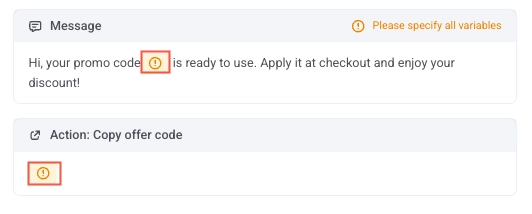
When you select the template, all placeholders defined in it will appear in the **Message** and **Action** fields of the WhatsApp element.
Click on a placeholder to open the configuration panel, where you can choose the Variable type. This setting determines how the placeholder value will be populated, dynamically (from an event or user property) or statically (as custom text).
#### Configure the placeholders using Event property (recommended for dynamic codes)
Use this option when the promo or coupon code is passed dynamically through an [event](/product/audience-data-and-segmentation/events/) sent from your system, for example, a triggered event after a user action.
To insert a promo code dynamically into your WhatsApp message template:
1. Click the variable placeholder (for example, `{{coupon code}}`) in the message configuration.
2. In the **Variable type** dropdown, select **Event property**.
3. Under **Event**, choose the event that delivers the promo code. You can select any event used in the Journey, but make sure this event contains the promo code attribute (for example, `coupon_code`).
4. In the **Attribute** field, select the attribute that contains the promo code (for example, `coupon_code`).
5. In the **Fallback text** field, enter a default value (for example, `DISCOUNT10`).
Pushwoosh retrieves the value of the selected attribute from the event and inserts it into the message template.
##### Example use case: rewarding high-value purchases
Send a reward offer to users who complete a purchase worth more than $100. When a qualifying purchase is made, your backend sends a `high_value_purchase_completed` event to Pushwoosh. The event should include both the order value and a personalized promo code for the user’s next purchase.
Example event:
```json
{
"request": {
"application": "YOUR_APP_CODE",
"userId": "user987",
"event": "high_value_purchase_completed",
"attributes": {
"order_value": 125.50,
"coupon_code": "THANKYOU20-FT9R"
}
}
}
```
In your WhatsApp message template, configure the placeholder as follows:
* **Variable type:** Event property
* **Event:** high_value_purchase_completed
* **Attribute:** promo_code
* **Fallback text (optional):** SHOPMORE10
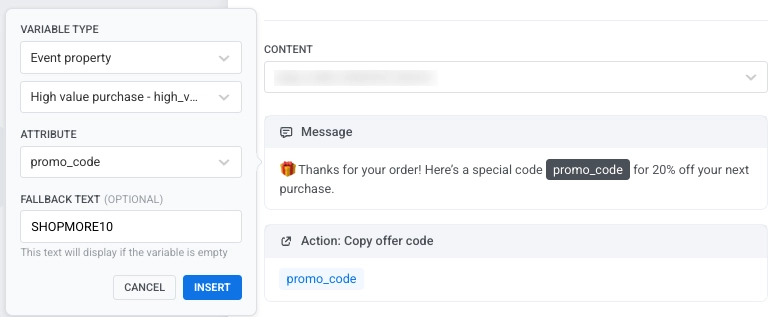
Pushwoosh receives the event and triggers the corresponding Journey and inserts the value of the `promo_code` attribute into the message when the event is received.
> **Message example**
>
> 🎁 Thanks for your order! Here’s a special code **THANKYOU20-FT9R** for 20% off your next purchase.
This event-driven setup automatically rewards high-value customers right after checkout, encouraging repeat purchases with a personalized offer.
#### Configure the placeholders using a user property
Use this option if the promo or referral code is already stored in the user's profile in Pushwoosh, for example, a unique referral, loyalty, or region-specific code assigned to the user in advance. [Learn more about tags](/product/audience-data-and-segmentation/user-data-tags/).
In your WhatsApp message template:
1. Click the variable placeholder (for example, `{{coupon code}}`).
2. Set **Variable type** to **User property**.
3. In the **Property name** field, enter the key where the code is stored (for example, `coupon_code` or `Referral code`).
4. Add a **Fallback text** value to display if the property is missing for a user.
Pushwoosh will automatically retrieve the value of this user property and insert it into the WhatsApp message when it is sent.
##### Example use case: sending personalized referral codes
Send each user a personalized referral code stored in their Pushwoosh profile. This is useful when every user has a unique code assigned in advance, such as for referral, loyalty, or membership programs. When the campaign runs, Pushwoosh automatically retrieves the code from each user's profile and inserts it into the WhatsApp message, allowing users to share their personal code with others to invite them or earn rewards.
In your WhatsApp message template, configure the placeholder as follows:
* **Variable type:** User property
* **Property name:** Referral code
* **Fallback text (optional):** JOIN2025
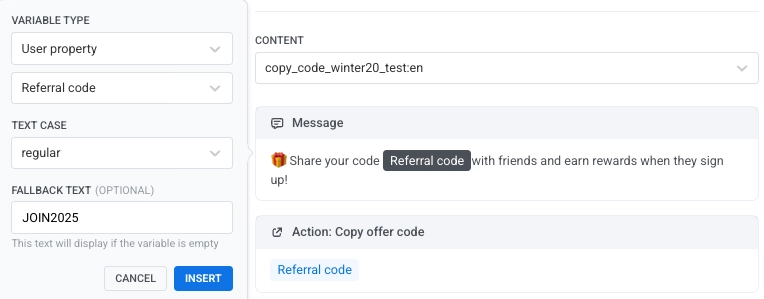
When the message is sent, Pushwoosh replaces the placeholder with the user’s individual referral code stored in their profile.
> **Message example**
>
> 🎁 Share your code **REF-A8F7Z** with friends and earn rewards when they sign up!
#### Configure placeholders using Custom text (for static codes)
Use **Custom text** when you want to send the same promo code to all users in your campaign. This option is best for large-scale promotions or limited-time offers that do not require personalization.
To configure it:
* Set **Variable type** to **Custom text**
* Enter the static promo code
All users will receive the same promo code when the message is sent.
##### Example use case: sending the same promo code to all users
Send all users the same promo code for a seasonal winter sale. Because the code is the same for everyone, use the **Custom text** option to insert a fixed value directly into the WhatsApp message template.
In your WhatsApp message template, configure the placeholder as follows:
* **Variable type:** Custom text
* **Value:** WINTER20
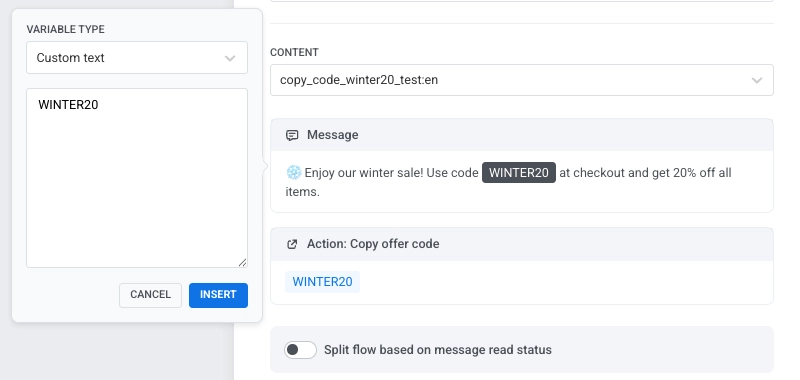
When the message is sent, all users will receive the same promo code.
> **Message example**
>
> ❄️ Enjoy our winter sale! Use code **WINTER20** at checkout and get 20% off all items.
### Set frequency capping
To limit how often users receive this WhatsApp message, use [frequency capping](/product/messaging-channels/global-frequency-capping/) in the element's delivery settings. You can use global limits, send without capping, or set a custom limit. [Learn more](/product/customer-journey/journey-elements/channels/whatsapp/#set-frequency-capping)
### Split flow based on read status (optional)
You can branch the Journey based on whether the user reads the WhatsApp message. Enable **Split flow based on message read status** in the WhatsApp element and set a waiting time (up to 7 days).
After the waiting period:
* **Read path:** send a follow-up message, promotion, or connect to **Exit**.
* **Unread path:** send a reminder or retry message, then connect to **Exit**.
This setup helps re-engage users who haven’t read your message and continue the flow for those who have.
After you’ve finished configuring the WhatsApp element, click **Apply** to save your changes.
### Finish configuring the Journey and add conversion goals
Complete the Journey setup by defining **conversion goals**, adding **Exit** elements, and configuring any additional follow-up logic.
Review each step to make sure the correct message template, variable type, and trigger conditions are applied before activating the campaign.