# How to send WhatsApp messages
Before you send WhatsApp messages, ensure you have [configured WhatsApp](/product/first-steps/start-with-your-project/configure-platforms/whatsapp-configuration/) and [uploaded contacts](/product/messaging-channels/whatsapp-messages/register-phone-numbers-for-whatsapp/).
Pushwoosh offers two ways to send WhatsApp messages:
#### One-time WhatsApp messages
Send a single WhatsApp message to a segment, list of phone numbers, or all subscribers. Schedule it for now or a specific date and time.
#### WhatsApp element in Customer Journey
Add a WhatsApp step to a journey and combine it with push, email, in-app, or SMS. Trigger delivery by audience or events.
#### Specialized journey use cases
## Send free-form messages and view your WhatsApp conversations
To send free-form messages and view your WhatsApp conversations, navigate to the **WhatsApp Messages** section in Pushwoosh.
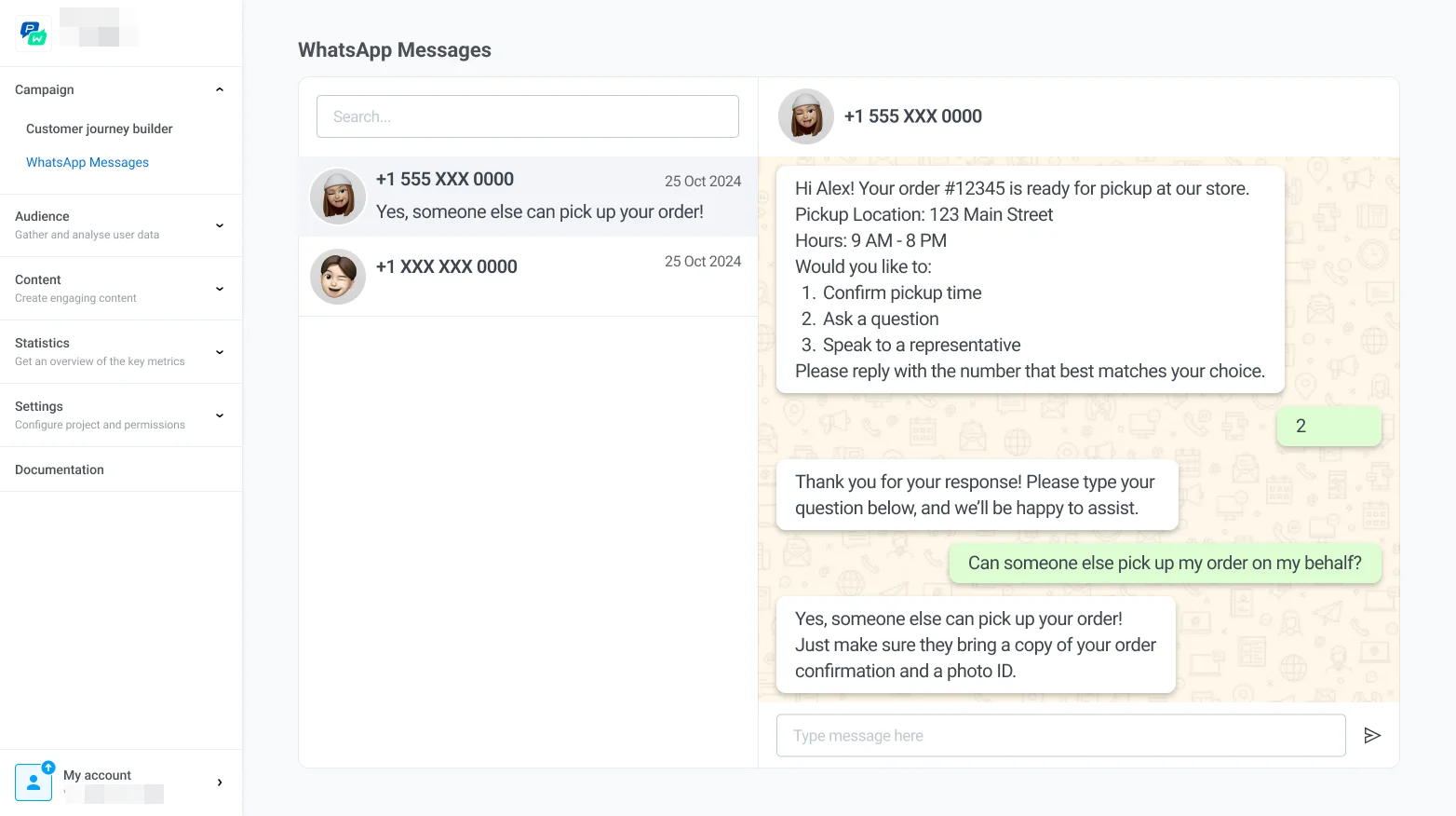
Here, you can:
* **View all active and past conversations** with customers to review message history and engagement details.
* **Send messages directly** to customers by typing your message and clicking **Send**.