# Manage a Wallet Pass Campaign
After you create a campaign, you manage it from its own page: change the design and push it to issued passes, track every pass the campaign issued, and review past revisions. To open it, go to **Campaigns → Wallet Passes** and click the campaign on the **Campaigns** tab. The page has three tabs: **Design**, **Passes**, and **History**.
## Change the campaign status
Use status to track where each campaign stands: still being designed, actively issuing passes, or done and archived.
To change the status, select an option from the **Status** dropdown at the top of the **Design** tab. The change saves immediately without a separate confirmation step and counts as a new revision:
* **Draft** or **Active:** you can issue new passes, attach existing ones, and push design updates. [Tag sync](/product/messaging-channels/wallet-passes/wallet-pass-campaigns/sync-pass-fields-from-tags/#when-tag-sync-runs) runs only in **Active**.
* **Archived:** you can't issue or attach passes. Previously issued passes keep working and receiving shared updates.
## Design tab
On the **Design** tab, you can update the pass template, change colors, modify shared and personal fields, upload new campaign images, or change [tag sync settings](/product/messaging-channels/wallet-passes/wallet-pass-campaigns/sync-pass-fields-from-tags/).
### Update design and push changes to passes
1. On the **Design** tab, edit basic information, colors, barcode type, expiration, locations, a shared field, or a campaign image.
2. Click **Save changes**.
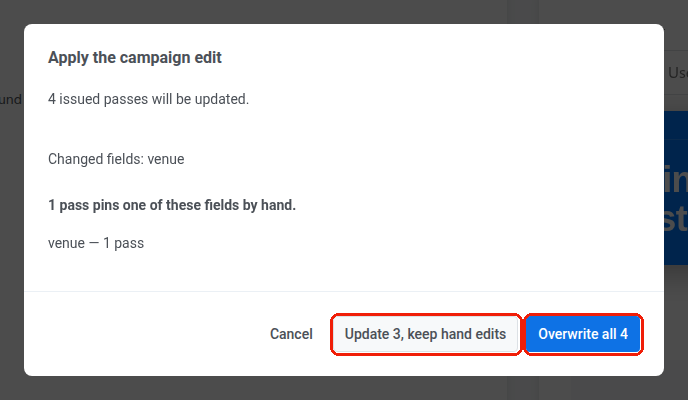
3. In the **Apply the campaign edit** dialog, confirm the update:
* **No pass overrides the changed field:** click **Update N, keep manual edits** to push the edit to all N passes.
* **Some passes override the changed field:** the dialog names the field and how many passes override it. Click **Update N, keep manual edits** to push the edit to every pass except those, or **Overwrite all N** to push it to all N passes, including the overridden ones. Overwriting erases the override.
* **Every affected pass overrides the changed field:** only **Overwrite all N** is available.
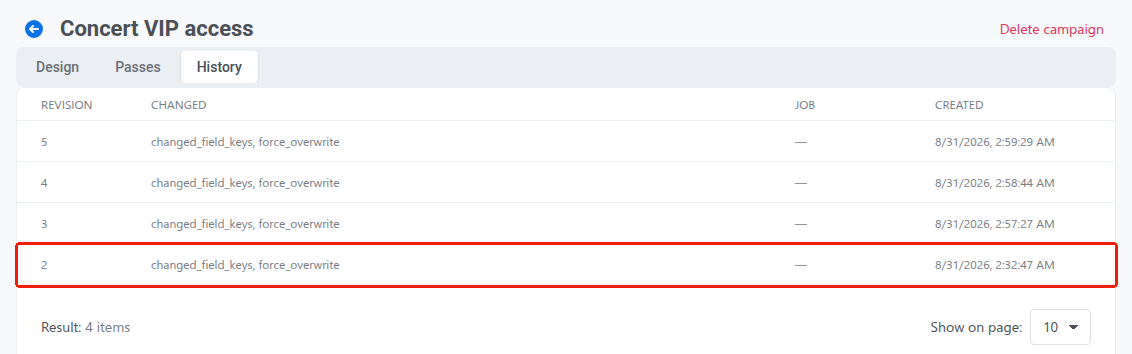
Whichever button you click, the update saves as a new revision (for example, **Revision 2**), so you can check when it changed on the [**History** tab](#history-tab).
While an update is being delivered to issued passes, an **Update in progress** panel shows its progress below the tabs on every tab of the campaign page. To stop the update, click **Cancel the run**. Passes it has not reached yet stay on their previous revision.
Pushwoosh marks a pass as failed after 5 unsuccessful delivery attempts. A failed pass stays on its previous revision, so it appears under the **Behind the revision** filter on the [**Passes** tab](#passes-tab).
### Override a shared field on an individual pass
A field changed by hand on one pass is called an override. The **Pinned fields** column on the **Passes** tab lists the overrides of each pass.
If you need to customize a shared field for a specific user, edit that field directly on their individual pass (from the **Passes** tab or **All passes**):
* **Create an override:** saving a custom value on an individual pass detaches that field from campaign-wide updates. Future updates to the campaign, including a scheduled [tag sync](/product/messaging-channels/wallet-passes/wallet-pass-campaigns/sync-pass-fields-from-tags/) refresh, will skip this pass for that specific field.
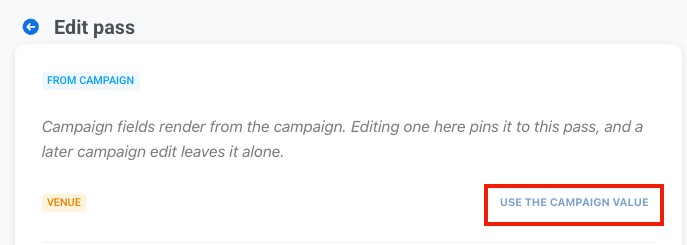
* **Remove an override:** on an Apple Wallet pass, edit the pass and click **Use the campaign value** next to the overridden field to restore campaign control. Google Wallet passes have no such button, so an override on a Google Wallet pass stays until you click **Overwrite all N** in a campaign edit.
To see which passes have overrides, open the [**Passes** tab](#passes-tab) and check the **Pinned fields** column.
## Passes tab
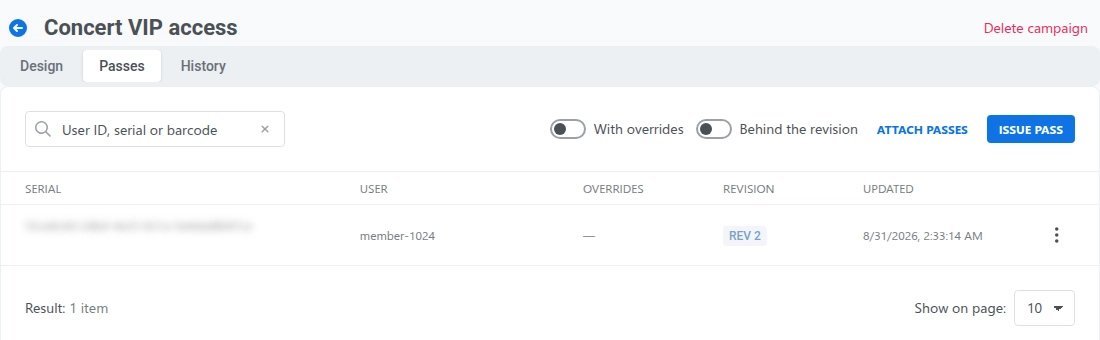
Use the **Passes** tab to check every pass the campaign issued. For each pass, the table shows the serial number, recipient User ID, active pinned fields, current revision, and last update date.
If [tag sync](/product/messaging-channels/wallet-passes/wallet-pass-campaigns/sync-pass-fields-from-tags/) is on, the tab also shows a **Tags synced** line above the table with the date and time of the last scheduled run, or **not yet** before the first one.
Use table filters to find specific passes:
* **With pinned fields:** shows passes that have at least one override.
* **Behind the revision:** shows passes that are not on the campaign's latest revision. A change of status, name, description, or tag sync settings also creates a revision without updating any pass, so after such a change every pass shows as behind.
To issue new passes or attach existing ones, see [Issue passes to users](/product/messaging-channels/wallet-passes/wallet-pass-campaigns/issue-passes/).
Open a row's actions menu (⋮) to manage that pass:
* **Edit:** open the pass on its platform's edit page to change personal fields or override a shared one.
* **Download**, **Send message**, **QR code**, and **Copy install link:** work as they do in **All passes**. See [View and manage existing passes](/product/messaging-channels/wallet-passes/manage-passes/#view-and-manage-existing-passes). **Download** appears on Apple Wallet campaigns only, because Google Wallet has no downloadable pass file.
* **Delete:** remove the pass. This can't be undone. On Apple Wallet, already-installed copies stop receiving updates and become invalid on their next refresh. On Google Wallet, Google doesn't allow force-removing a pass already saved on a device, so it becomes invalid and moves to the user's **Expired passes** while Pushwoosh removes its record. Deleting a pass here doesn't delete the campaign or any other issued pass.
## History tab
The **History** tab lists all revisions of the campaign, newest first. For each revision, it shows the revision number and when the revision was created.
## Delete a campaign
Open the campaign, click **Delete campaign** at the top right of the page, and confirm in the **Delete this campaign?** dialog.
Deleting a campaign does not delete or invalidate already issued passes. Issued passes retain their current content and images, but stop receiving shared updates. Any future changes must be made on each pass individually.
 ## Change the campaign status
Use status to track where each campaign stands: still being designed, actively issuing passes, or done and archived.
To change the status, select an option from the **Status** dropdown at the top of the **Design** tab. The change saves immediately without a separate confirmation step and counts as a new revision:
* **Draft** or **Active:** you can issue new passes, attach existing ones, and push design updates. [Tag sync](/product/messaging-channels/wallet-passes/wallet-pass-campaigns/sync-pass-fields-from-tags/#when-tag-sync-runs) runs only in **Active**.
* **Archived:** you can't issue or attach passes. Previously issued passes keep working and receiving shared updates.
## Design tab
On the **Design** tab, you can update the pass template, change colors, modify shared and personal fields, upload new campaign images, or change [tag sync settings](/product/messaging-channels/wallet-passes/wallet-pass-campaigns/sync-pass-fields-from-tags/).
### Update design and push changes to passes
1. On the **Design** tab, edit basic information, colors, barcode type, expiration, locations, a shared field, or a campaign image.
2. Click **Save changes**.
3. In the **Apply the campaign edit** dialog, confirm the update:
* **No pass overrides the changed field:** click **Update N, keep manual edits** to push the edit to all N passes.
* **Some passes override the changed field:** the dialog names the field and how many passes override it. Click **Update N, keep manual edits** to push the edit to every pass except those, or **Overwrite all N** to push it to all N passes, including the overridden ones. Overwriting erases the override.
* **Every affected pass overrides the changed field:** only **Overwrite all N** is available.
## Change the campaign status
Use status to track where each campaign stands: still being designed, actively issuing passes, or done and archived.
To change the status, select an option from the **Status** dropdown at the top of the **Design** tab. The change saves immediately without a separate confirmation step and counts as a new revision:
* **Draft** or **Active:** you can issue new passes, attach existing ones, and push design updates. [Tag sync](/product/messaging-channels/wallet-passes/wallet-pass-campaigns/sync-pass-fields-from-tags/#when-tag-sync-runs) runs only in **Active**.
* **Archived:** you can't issue or attach passes. Previously issued passes keep working and receiving shared updates.
## Design tab
On the **Design** tab, you can update the pass template, change colors, modify shared and personal fields, upload new campaign images, or change [tag sync settings](/product/messaging-channels/wallet-passes/wallet-pass-campaigns/sync-pass-fields-from-tags/).
### Update design and push changes to passes
1. On the **Design** tab, edit basic information, colors, barcode type, expiration, locations, a shared field, or a campaign image.
2. Click **Save changes**.
3. In the **Apply the campaign edit** dialog, confirm the update:
* **No pass overrides the changed field:** click **Update N, keep manual edits** to push the edit to all N passes.
* **Some passes override the changed field:** the dialog names the field and how many passes override it. Click **Update N, keep manual edits** to push the edit to every pass except those, or **Overwrite all N** to push it to all N passes, including the overridden ones. Overwriting erases the override.
* **Every affected pass overrides the changed field:** only **Overwrite all N** is available.
 Whichever button you click, the update saves as a new revision (for example, **Revision 2**), so you can check when it changed on the [**History** tab](#history-tab).
 While an update is being delivered to issued passes, an **Update in progress** panel shows its progress below the tabs on every tab of the campaign page. To stop the update, click **Cancel the run**. Passes it has not reached yet stay on their previous revision.
Pushwoosh marks a pass as failed after 5 unsuccessful delivery attempts. A failed pass stays on its previous revision, so it appears under the **Behind the revision** filter on the [**Passes** tab](#passes-tab).
### Override a shared field on an individual pass
A field changed by hand on one pass is called an override. The **Pinned fields** column on the **Passes** tab lists the overrides of each pass.
If you need to customize a shared field for a specific user, edit that field directly on their individual pass (from the **Passes** tab or **All passes**):
* **Create an override:** saving a custom value on an individual pass detaches that field from campaign-wide updates. Future updates to the campaign, including a scheduled [tag sync](/product/messaging-channels/wallet-passes/wallet-pass-campaigns/sync-pass-fields-from-tags/) refresh, will skip this pass for that specific field.
* **Remove an override:** on an Apple Wallet pass, edit the pass and click **Use the campaign value** next to the overridden field to restore campaign control. Google Wallet passes have no such button, so an override on a Google Wallet pass stays until you click **Overwrite all N** in a campaign edit.
While an update is being delivered to issued passes, an **Update in progress** panel shows its progress below the tabs on every tab of the campaign page. To stop the update, click **Cancel the run**. Passes it has not reached yet stay on their previous revision.
Pushwoosh marks a pass as failed after 5 unsuccessful delivery attempts. A failed pass stays on its previous revision, so it appears under the **Behind the revision** filter on the [**Passes** tab](#passes-tab).
### Override a shared field on an individual pass
A field changed by hand on one pass is called an override. The **Pinned fields** column on the **Passes** tab lists the overrides of each pass.
If you need to customize a shared field for a specific user, edit that field directly on their individual pass (from the **Passes** tab or **All passes**):
* **Create an override:** saving a custom value on an individual pass detaches that field from campaign-wide updates. Future updates to the campaign, including a scheduled [tag sync](/product/messaging-channels/wallet-passes/wallet-pass-campaigns/sync-pass-fields-from-tags/) refresh, will skip this pass for that specific field.
* **Remove an override:** on an Apple Wallet pass, edit the pass and click **Use the campaign value** next to the overridden field to restore campaign control. Google Wallet passes have no such button, so an override on a Google Wallet pass stays until you click **Overwrite all N** in a campaign edit.
 To see which passes have overrides, open the [**Passes** tab](#passes-tab) and check the **Pinned fields** column.
## Passes tab
Use the **Passes** tab to check every pass the campaign issued. For each pass, the table shows the serial number, recipient User ID, active pinned fields, current revision, and last update date.
To see which passes have overrides, open the [**Passes** tab](#passes-tab) and check the **Pinned fields** column.
## Passes tab
Use the **Passes** tab to check every pass the campaign issued. For each pass, the table shows the serial number, recipient User ID, active pinned fields, current revision, and last update date.
 If [tag sync](/product/messaging-channels/wallet-passes/wallet-pass-campaigns/sync-pass-fields-from-tags/) is on, the tab also shows a **Tags synced** line above the table with the date and time of the last scheduled run, or **not yet** before the first one.
Use table filters to find specific passes:
* **With pinned fields:** shows passes that have at least one override.
* **Behind the revision:** shows passes that are not on the campaign's latest revision. A change of status, name, description, or tag sync settings also creates a revision without updating any pass, so after such a change every pass shows as behind.
To issue new passes or attach existing ones, see [Issue passes to users](/product/messaging-channels/wallet-passes/wallet-pass-campaigns/issue-passes/).
Open a row's actions menu (⋮) to manage that pass:
* **Edit:** open the pass on its platform's edit page to change personal fields or override a shared one.
* **Download**, **Send message**, **QR code**, and **Copy install link:** work as they do in **All passes**. See [View and manage existing passes](/product/messaging-channels/wallet-passes/manage-passes/#view-and-manage-existing-passes). **Download** appears on Apple Wallet campaigns only, because Google Wallet has no downloadable pass file.
* **Delete:** remove the pass. This can't be undone. On Apple Wallet, already-installed copies stop receiving updates and become invalid on their next refresh. On Google Wallet, Google doesn't allow force-removing a pass already saved on a device, so it becomes invalid and moves to the user's **Expired passes** while Pushwoosh removes its record. Deleting a pass here doesn't delete the campaign or any other issued pass.
## History tab
The **History** tab lists all revisions of the campaign, newest first. For each revision, it shows the revision number and when the revision was created.
If [tag sync](/product/messaging-channels/wallet-passes/wallet-pass-campaigns/sync-pass-fields-from-tags/) is on, the tab also shows a **Tags synced** line above the table with the date and time of the last scheduled run, or **not yet** before the first one.
Use table filters to find specific passes:
* **With pinned fields:** shows passes that have at least one override.
* **Behind the revision:** shows passes that are not on the campaign's latest revision. A change of status, name, description, or tag sync settings also creates a revision without updating any pass, so after such a change every pass shows as behind.
To issue new passes or attach existing ones, see [Issue passes to users](/product/messaging-channels/wallet-passes/wallet-pass-campaigns/issue-passes/).
Open a row's actions menu (⋮) to manage that pass:
* **Edit:** open the pass on its platform's edit page to change personal fields or override a shared one.
* **Download**, **Send message**, **QR code**, and **Copy install link:** work as they do in **All passes**. See [View and manage existing passes](/product/messaging-channels/wallet-passes/manage-passes/#view-and-manage-existing-passes). **Download** appears on Apple Wallet campaigns only, because Google Wallet has no downloadable pass file.
* **Delete:** remove the pass. This can't be undone. On Apple Wallet, already-installed copies stop receiving updates and become invalid on their next refresh. On Google Wallet, Google doesn't allow force-removing a pass already saved on a device, so it becomes invalid and moves to the user's **Expired passes** while Pushwoosh removes its record. Deleting a pass here doesn't delete the campaign or any other issued pass.
## History tab
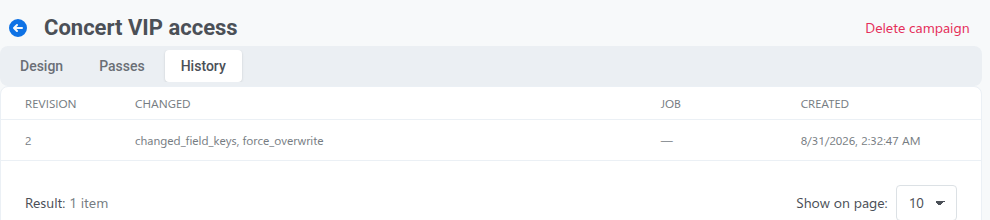
The **History** tab lists all revisions of the campaign, newest first. For each revision, it shows the revision number and when the revision was created.
 ## Delete a campaign
Open the campaign, click **Delete campaign** at the top right of the page, and confirm in the **Delete this campaign?** dialog.
## Delete a campaign
Open the campaign, click **Delete campaign** at the top right of the page, and confirm in the **Delete this campaign?** dialog.
 Deleting a campaign does not delete or invalidate already issued passes. Issued passes retain their current content and images, but stop receiving shared updates. Any future changes must be made on each pass individually.