# Send Viber messages
This guide walks you through how to send Viber messages in Pushwoosh via Customer Journey or API.
## Send Viber messages via Customer Journey
Pushwoosh allows you to integrate Viber messaging into [Customer Journeys](/product/customer-journey/pushwoosh-journey-overview/). Follow these steps to configure it:
1. Go to **Campaigns > Customer Journey Builder** in the main sidebar.
2. Click **Build a journey from scratch**.
3. Add an **Entry** element to define who enters the journey. [Learn how to configure the Entry elements](/product/customer-journey/journey-elements/entry-elements/)
4. Add a [**Viber** element](/product/customer-journey/journey-elements/channels/viber/) and connect it to the rest of your flow (e.g., entry trigger and next steps).
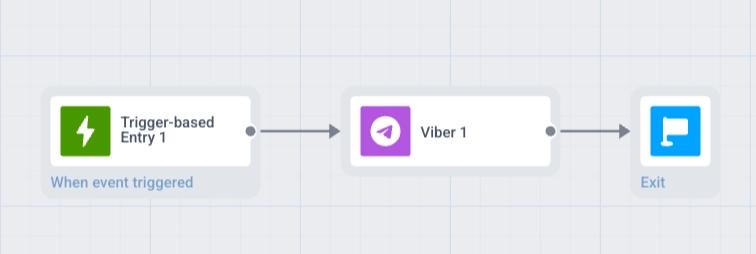 5. Click the **Viber** element to open its settings panel. Choose **Template** or **Freeform** content, set the **Message type**, configure **Frequency capping**, and optionally add **Vouchers**. [Learn more about the Viber element](/product/customer-journey/journey-elements/channels/viber/)
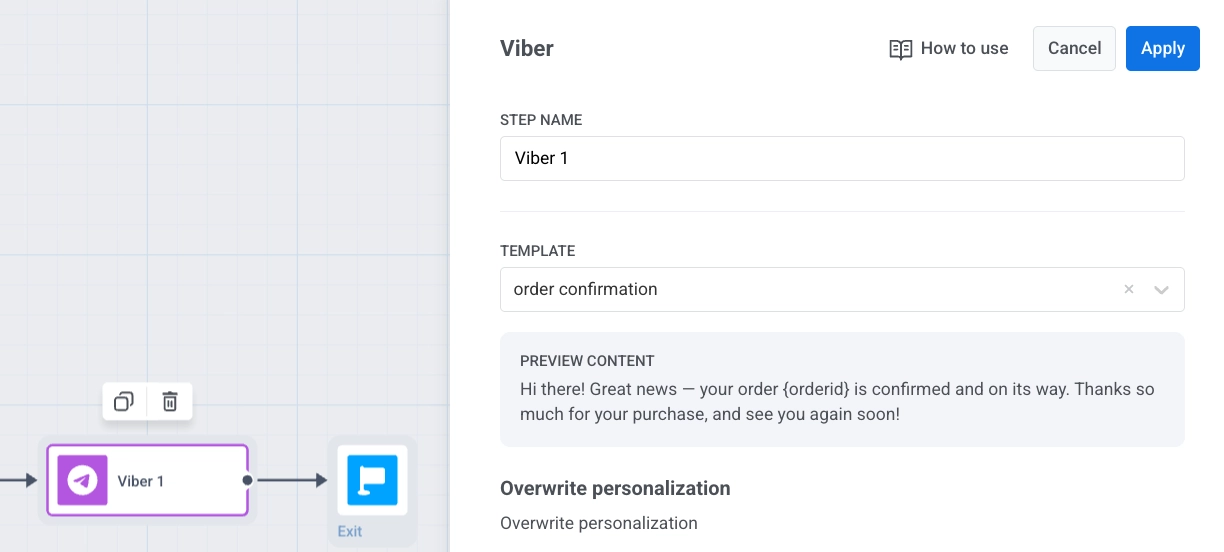 6. Click **Save** to save the element settings.
7. Complete the journey setup and add the exit element. When you're ready, click **Launch journey** to activate it.
## Send Viber messages via API
Send Viber messages using the [`Notify`](/developer/api-reference/messaging-api-v2/notify/) method in [Messaging API v2](/developer/api-reference/messaging-api-v2/).
6. Click **Save** to save the element settings.
7. Complete the journey setup and add the exit element. When you're ready, click **Launch journey** to activate it.
## Send Viber messages via API
Send Viber messages using the [`Notify`](/developer/api-reference/messaging-api-v2/notify/) method in [Messaging API v2](/developer/api-reference/messaging-api-v2/).