# Send Telegram messages in Customer Journey
Use this guide to send Telegram messages in [Customer Journey Builder](/product/customer-journey/pushwoosh-journey-overview/).
Using Telegram through Pushwoosh helps you run Telegram as part of your omnichannel journeys, segmentation, and analytics in one place.
## Before you begin
1. Create a Telegram bot in **@BotFather** or use an existing one.
2. Configure Telegram in **Settings > Configure platforms** and verify the token. [Learn more](/product/first-steps/start-with-your-project/configure-platforms/telegram-configuration/)
## Create a journey
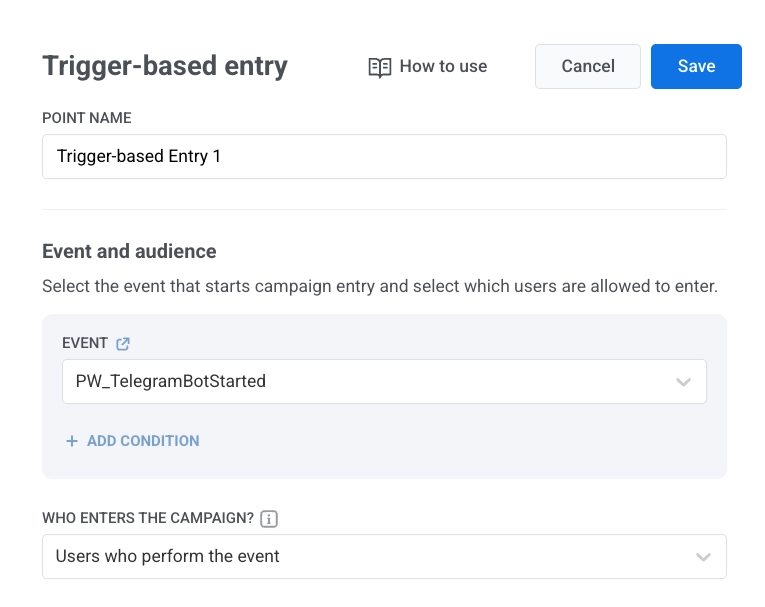
1. Add the [**Trigger-based entry**](/product/customer-journey/journey-elements/entry-elements/trigger-based-entry/) element.
2. Select **TelegramBotStarted** as the event.
3. Add the **Telegram** element to the canvas.
## Configure message content
In the Telegram element:
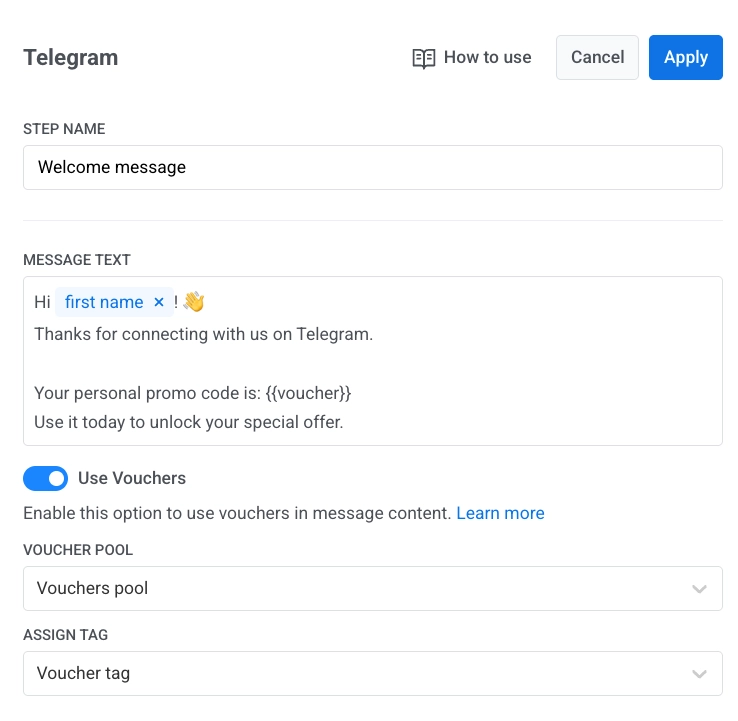
1. Enter the element name.
2. Enter your message in **Message text**. Keep the message text-only and within 4096 characters.
3. Optional. Add tags or Liquid placeholders to personalize content. [Dynamic content and Liquid in journeys](/product/customer-journey/journey-elements/dynamic-content-and-liquid-templates-in-journeys/)
4. Optional. Turn on **Use vouchers**, select **Voucher pool**, and set **Assign tag**. [Learn more](/product/content/vouchers/)
5. Click **Apply**.
## Finalize and launch the journey
Complete the journey and add the [**Exit element**](/product/customer-journey/journey-elements#exit-from-journey).
When the campaign is ready, click **Launch campaign**.
## Reachability and statistics
If sending fails because of a temporary network issue, Pushwoosh retries automatically.
If Telegram returns `bot blocked` or `chat not found`, Pushwoosh marks the user as unreachable for Telegram:
* `bot blocked` appears in **Statistics** as **Skipped who blocked the bot**.
* `chat not found` appears in **Statistics** as **Skipped for those whose chat was not found**.
[Learn more about Telegram statistics](/product/statistics-and-analytics/journey-statistics/journey-element-statistics/#telegram)
## View user data in User Explorer
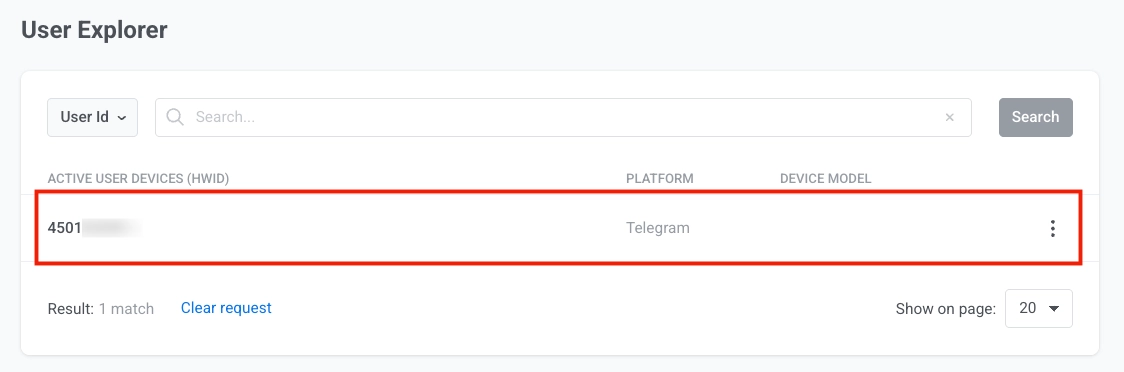
When a user starts a conversation with your bot, Pushwoosh creates a profile in **User Explorer** with **Telegram** as the platform and the Telegram user ID.
The profile includes:
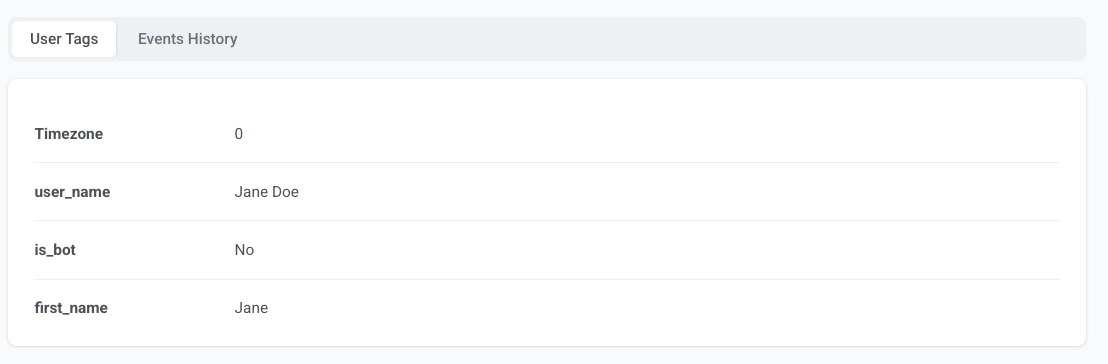
- user tags received from Telegram
- events such as `PW_TelegramBotStarted`.
 3. Add the **Telegram** element to the canvas.
## Configure message content
In the Telegram element:
1. Enter the element name.
2. Enter your message in **Message text**. Keep the message text-only and within 4096 characters.
3. Optional. Add tags or Liquid placeholders to personalize content. [Dynamic content and Liquid in journeys](/product/customer-journey/journey-elements/dynamic-content-and-liquid-templates-in-journeys/)
4. Optional. Turn on **Use vouchers**, select **Voucher pool**, and set **Assign tag**. [Learn more](/product/content/vouchers/)
5. Click **Apply**.
3. Add the **Telegram** element to the canvas.
## Configure message content
In the Telegram element:
1. Enter the element name.
2. Enter your message in **Message text**. Keep the message text-only and within 4096 characters.
3. Optional. Add tags or Liquid placeholders to personalize content. [Dynamic content and Liquid in journeys](/product/customer-journey/journey-elements/dynamic-content-and-liquid-templates-in-journeys/)
4. Optional. Turn on **Use vouchers**, select **Voucher pool**, and set **Assign tag**. [Learn more](/product/content/vouchers/)
5. Click **Apply**.
 ## Finalize and launch the journey
Complete the journey and add the [**Exit element**](/product/customer-journey/journey-elements#exit-from-journey).
When the campaign is ready, click **Launch campaign**.
## Reachability and statistics
If sending fails because of a temporary network issue, Pushwoosh retries automatically.
If Telegram returns `bot blocked` or `chat not found`, Pushwoosh marks the user as unreachable for Telegram:
* `bot blocked` appears in **Statistics** as **Skipped who blocked the bot**.
* `chat not found` appears in **Statistics** as **Skipped for those whose chat was not found**.
[Learn more about Telegram statistics](/product/statistics-and-analytics/journey-statistics/journey-element-statistics/#telegram)
## View user data in User Explorer
When a user starts a conversation with your bot, Pushwoosh creates a profile in **User Explorer** with **Telegram** as the platform and the Telegram user ID.
## Finalize and launch the journey
Complete the journey and add the [**Exit element**](/product/customer-journey/journey-elements#exit-from-journey).
When the campaign is ready, click **Launch campaign**.
## Reachability and statistics
If sending fails because of a temporary network issue, Pushwoosh retries automatically.
If Telegram returns `bot blocked` or `chat not found`, Pushwoosh marks the user as unreachable for Telegram:
* `bot blocked` appears in **Statistics** as **Skipped who blocked the bot**.
* `chat not found` appears in **Statistics** as **Skipped for those whose chat was not found**.
[Learn more about Telegram statistics](/product/statistics-and-analytics/journey-statistics/journey-element-statistics/#telegram)
## View user data in User Explorer
When a user starts a conversation with your bot, Pushwoosh creates a profile in **User Explorer** with **Telegram** as the platform and the Telegram user ID.
 The profile includes:
- user tags received from Telegram
- events such as `PW_TelegramBotStarted`.
The profile includes:
- user tags received from Telegram
- events such as `PW_TelegramBotStarted`.