# Send SMS messages via Customer Journey
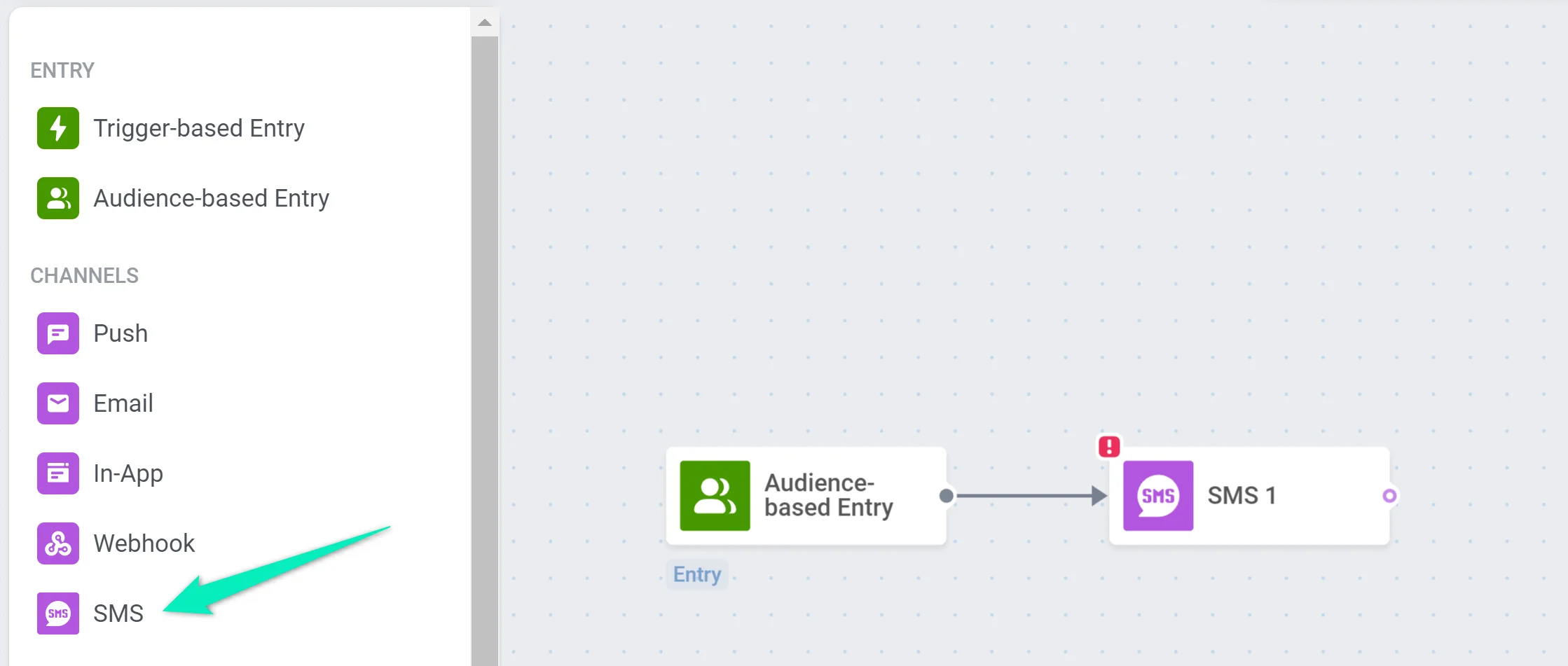
To send SMS using [Customer Journey Builder](/product/customer-journey/pushwoosh-journey-overview/), add the SMS element to your journey and configure content, message type, delivery settings, and the optional split flow.
## Add the SMS element
In Customer Journey Builder, add the [SMS element](/product/customer-journey/journey-elements#sms) to the canvas.
## Configure SMS content
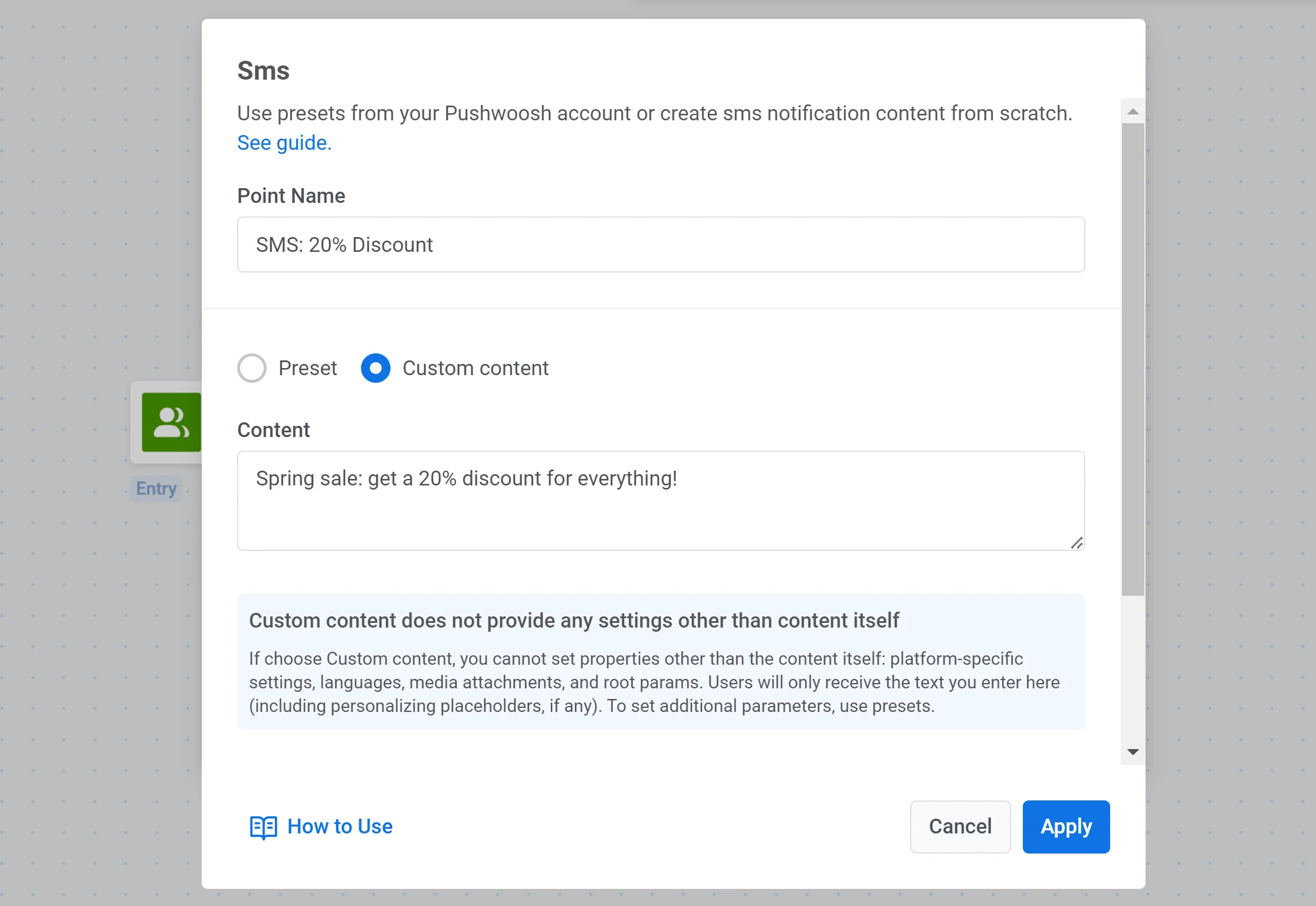
Choose a preset or select **Custom content** and enter the text of the SMS manually. If you need to create a new preset, see [SMS presets](/product/content/sms-presets/).
## Choose the message type
In the SMS element, select **Marketing message** or **Transactional message**:
* **Marketing message**: For campaigns and promos. All rules and limits apply. Respects: opt-outs, Frequency capping, and Silence period. Excludes: the [global control group](/product/audience-data-and-segmentation/global-control-group/).
* **Transactional message**: For operational or service messages. Rules and limits don't apply. Bypasses: opt-outs, Frequency capping, and Silence period. Sent to: the [global control group](/product/audience-data-and-segmentation/global-control-group/).
## Overwrite message personalization (optional)
When you select a preset, you can overwrite how the message is personalized:
* **Personalise message with event attributes:** Enable this option to use event attributes or API-based entry placeholders instead of device tags as value sources in message content and presets. [Learn more](/product/customer-journey/journey-elements/dynamic-content-and-liquid-templates-in-journeys)
* **Overwrite Liquid placeholders:** Enable this option to use values from the selected Event in Liquid personalization. Liquid tags that match event attribute names will use values from the event. [Learn more](/product/customer-journey/journey-elements/dynamic-content-and-liquid-templates-in-journeys)
* **Use Vouchers:** Enable this option to use vouchers in message content. [Learn more](/product/content/vouchers/)
## Configure message delivery settings
### Set frequency capping
Use [**Frequency capping**](/product/messaging-channels/global-frequency-capping/#enable-global-frequency-capping) to control how often users receive SMS messages, helping prevent message fatigue and opt-outs.
You can choose one of the following options:
* **Use global frequency capping settings**
Apply the project-wide SMS limits set in your [Global frequency capping settings](/product/messaging-channels/global-frequency-capping/#enable-global-frequency-capping).
*Example:* If the global limit is 3 SMS messages in 9 days, any additional messages will be skipped.
* **Ignore global frequency capping**
Send the SMS regardless of how many messages the user has already received. Use with caution to avoid over-messaging and compliance issues.
* **Use custom frequency capping**
Set a custom SMS limit specifically for this message step. If the user has reached the limit, they will skip this message and move to the next step in the journey.
[Learn more](/product/messaging-channels/global-frequency-capping/#customize-capping-for-specific-messages)
### Set send rate limits
The **Send rate** setting controls how quickly messages are delivered to your audience. Adjusting the send rate helps you manage delivery speed, prevent backend overload, and improve overall deliverability.
Choose one of the following options:
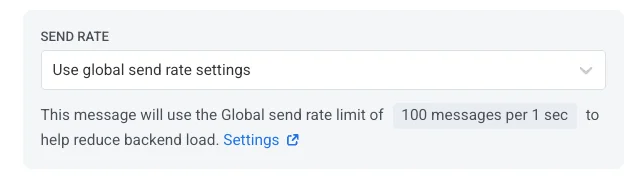
* **Use global send rate settings**
Applies the send rate limits configured in your project's message delivery settings. If no limits are set, all messages will be sent immediately. Use this option when you want delivery speed to follow your project's default rules. [Learn more about global send rate limits](/product/messaging-channels/global-frequency-capping/#set-send-rate-limits)
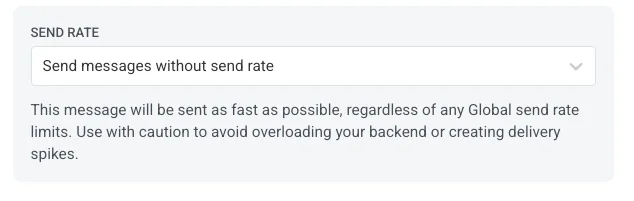
* **Send messages without send rate**
Sends messages as fast as possible, ignoring any global send rate limits. Use with caution to avoid overloading your backend or creating delivery spikes.
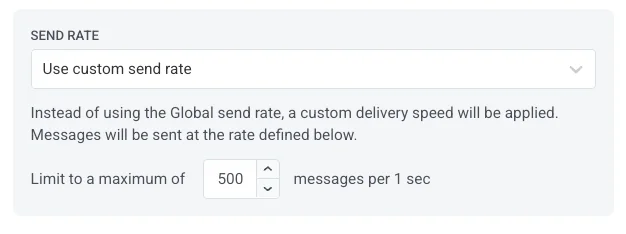
* **Use custom send rate**
Overrides the global send rate for this message only. Allows you to specify the number of messages sent per minute, giving you full control over delivery speed. Messages will be sent at the custom rate you define in the message element.
## Flow options
Enable the **Split flow depending on whether this message is delivered or not** toggle to split the journey based on whether the SMS is delivered.
Then, set the delivery waiting time.
If the SMS is delivered within the specified time period, the `"delivered"` branch will be activated. Maximum 7 days.
### Finalize and save the journey
Complete the journey setup and add the [**Exit element**](/product/customer-journey/journey-elements#exit-from-journey). If you split the flow, set up actions for users routed to the other branch.
Before launching, use the [Pre-launch check](/product/customer-journey/journey-settings/#pre-launch-check) to validate the campaign and fix any missing steps.
When the campaign is ready, click **Start campaign** to start sending.
 ## Configure SMS content
Choose a preset or select **Custom content** and enter the text of the SMS manually. If you need to create a new preset, see [SMS presets](/product/content/sms-presets/).
## Configure SMS content
Choose a preset or select **Custom content** and enter the text of the SMS manually. If you need to create a new preset, see [SMS presets](/product/content/sms-presets/).
 ## Choose the message type
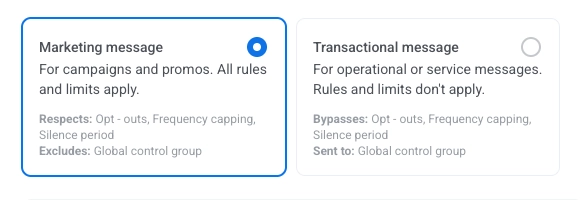
In the SMS element, select **Marketing message** or **Transactional message**:
* **Marketing message**: For campaigns and promos. All rules and limits apply. Respects: opt-outs, Frequency capping, and Silence period. Excludes: the [global control group](/product/audience-data-and-segmentation/global-control-group/).
* **Transactional message**: For operational or service messages. Rules and limits don't apply. Bypasses: opt-outs, Frequency capping, and Silence period. Sent to: the [global control group](/product/audience-data-and-segmentation/global-control-group/).
## Choose the message type
In the SMS element, select **Marketing message** or **Transactional message**:
* **Marketing message**: For campaigns and promos. All rules and limits apply. Respects: opt-outs, Frequency capping, and Silence period. Excludes: the [global control group](/product/audience-data-and-segmentation/global-control-group/).
* **Transactional message**: For operational or service messages. Rules and limits don't apply. Bypasses: opt-outs, Frequency capping, and Silence period. Sent to: the [global control group](/product/audience-data-and-segmentation/global-control-group/).
 ## Overwrite message personalization (optional)
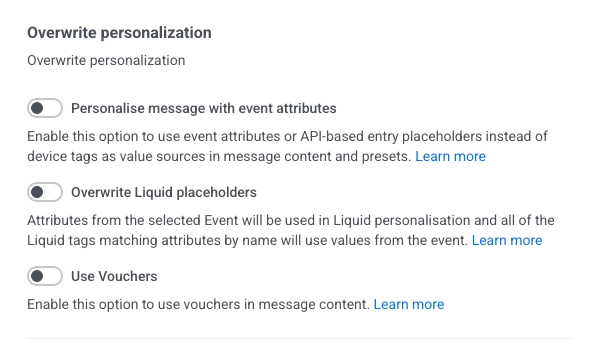
When you select a preset, you can overwrite how the message is personalized:
* **Personalise message with event attributes:** Enable this option to use event attributes or API-based entry placeholders instead of device tags as value sources in message content and presets. [Learn more](/product/customer-journey/journey-elements/dynamic-content-and-liquid-templates-in-journeys)
* **Overwrite Liquid placeholders:** Enable this option to use values from the selected Event in Liquid personalization. Liquid tags that match event attribute names will use values from the event. [Learn more](/product/customer-journey/journey-elements/dynamic-content-and-liquid-templates-in-journeys)
* **Use Vouchers:** Enable this option to use vouchers in message content. [Learn more](/product/content/vouchers/)
## Overwrite message personalization (optional)
When you select a preset, you can overwrite how the message is personalized:
* **Personalise message with event attributes:** Enable this option to use event attributes or API-based entry placeholders instead of device tags as value sources in message content and presets. [Learn more](/product/customer-journey/journey-elements/dynamic-content-and-liquid-templates-in-journeys)
* **Overwrite Liquid placeholders:** Enable this option to use values from the selected Event in Liquid personalization. Liquid tags that match event attribute names will use values from the event. [Learn more](/product/customer-journey/journey-elements/dynamic-content-and-liquid-templates-in-journeys)
* **Use Vouchers:** Enable this option to use vouchers in message content. [Learn more](/product/content/vouchers/)
 ## Configure message delivery settings
### Set frequency capping
Use [**Frequency capping**](/product/messaging-channels/global-frequency-capping/#enable-global-frequency-capping) to control how often users receive SMS messages, helping prevent message fatigue and opt-outs.
You can choose one of the following options:
* **Use global frequency capping settings**
Apply the project-wide SMS limits set in your [Global frequency capping settings](/product/messaging-channels/global-frequency-capping/#enable-global-frequency-capping).
*Example:* If the global limit is 3 SMS messages in 9 days, any additional messages will be skipped.
* **Ignore global frequency capping**
Send the SMS regardless of how many messages the user has already received. Use with caution to avoid over-messaging and compliance issues.
* **Use custom frequency capping**
Set a custom SMS limit specifically for this message step. If the user has reached the limit, they will skip this message and move to the next step in the journey.
[Learn more](/product/messaging-channels/global-frequency-capping/#customize-capping-for-specific-messages)
### Set send rate limits
The **Send rate** setting controls how quickly messages are delivered to your audience. Adjusting the send rate helps you manage delivery speed, prevent backend overload, and improve overall deliverability.
Choose one of the following options:
* **Use global send rate settings**
Applies the send rate limits configured in your project's message delivery settings. If no limits are set, all messages will be sent immediately. Use this option when you want delivery speed to follow your project's default rules. [Learn more about global send rate limits](/product/messaging-channels/global-frequency-capping/#set-send-rate-limits)

* **Send messages without send rate**
Sends messages as fast as possible, ignoring any global send rate limits. Use with caution to avoid overloading your backend or creating delivery spikes.

* **Use custom send rate**
Overrides the global send rate for this message only. Allows you to specify the number of messages sent per minute, giving you full control over delivery speed. Messages will be sent at the custom rate you define in the message element.

## Flow options
Enable the **Split flow depending on whether this message is delivered or not** toggle to split the journey based on whether the SMS is delivered.
Then, set the delivery waiting time.
If the SMS is delivered within the specified time period, the `"delivered"` branch will be activated. Maximum 7 days.
## Configure message delivery settings
### Set frequency capping
Use [**Frequency capping**](/product/messaging-channels/global-frequency-capping/#enable-global-frequency-capping) to control how often users receive SMS messages, helping prevent message fatigue and opt-outs.
You can choose one of the following options:
* **Use global frequency capping settings**
Apply the project-wide SMS limits set in your [Global frequency capping settings](/product/messaging-channels/global-frequency-capping/#enable-global-frequency-capping).
*Example:* If the global limit is 3 SMS messages in 9 days, any additional messages will be skipped.
* **Ignore global frequency capping**
Send the SMS regardless of how many messages the user has already received. Use with caution to avoid over-messaging and compliance issues.
* **Use custom frequency capping**
Set a custom SMS limit specifically for this message step. If the user has reached the limit, they will skip this message and move to the next step in the journey.
[Learn more](/product/messaging-channels/global-frequency-capping/#customize-capping-for-specific-messages)
### Set send rate limits
The **Send rate** setting controls how quickly messages are delivered to your audience. Adjusting the send rate helps you manage delivery speed, prevent backend overload, and improve overall deliverability.
Choose one of the following options:
* **Use global send rate settings**
Applies the send rate limits configured in your project's message delivery settings. If no limits are set, all messages will be sent immediately. Use this option when you want delivery speed to follow your project's default rules. [Learn more about global send rate limits](/product/messaging-channels/global-frequency-capping/#set-send-rate-limits)

* **Send messages without send rate**
Sends messages as fast as possible, ignoring any global send rate limits. Use with caution to avoid overloading your backend or creating delivery spikes.

* **Use custom send rate**
Overrides the global send rate for this message only. Allows you to specify the number of messages sent per minute, giving you full control over delivery speed. Messages will be sent at the custom rate you define in the message element.

## Flow options
Enable the **Split flow depending on whether this message is delivered or not** toggle to split the journey based on whether the SMS is delivered.
Then, set the delivery waiting time.
If the SMS is delivered within the specified time period, the `"delivered"` branch will be activated. Maximum 7 days.
 ### Finalize and save the journey
Complete the journey setup and add the [**Exit element**](/product/customer-journey/journey-elements#exit-from-journey). If you split the flow, set up actions for users routed to the other branch.
Before launching, use the [Pre-launch check](/product/customer-journey/journey-settings/#pre-launch-check) to validate the campaign and fix any missing steps.
When the campaign is ready, click **Start campaign** to start sending.
### Finalize and save the journey
Complete the journey setup and add the [**Exit element**](/product/customer-journey/journey-elements#exit-from-journey). If you split the flow, set up actions for users routed to the other branch.
Before launching, use the [Pre-launch check](/product/customer-journey/journey-settings/#pre-launch-check) to validate the campaign and fix any missing steps.
When the campaign is ready, click **Start campaign** to start sending.