# Default widget
The default subscription widget aims to encourage your website visitors to subscribe to push notifications. Shown to users based on your website's logic, the widget gently prompts website visitors to allow receiving push notifications from you, thus creating long-term relationships with prospects and customers.
**Use the default widget to:**
* **Grow your audience**. Describe the benefits of receiving web push notifications to encourage existing customers to subscribe.
* **Reduce spending on integration**. The default widget works out-of-the-box and needs almost no coding to be integrated into your website.
## How it works
The default widget contains plain text explaining the value of push notifications and two buttons to agree or disagree on receiving pushes. When a user presses the Confirmation button, the native subscription prompt is triggered.
## How to implement a default widget
### Integrate the default widget
### Create a default widget
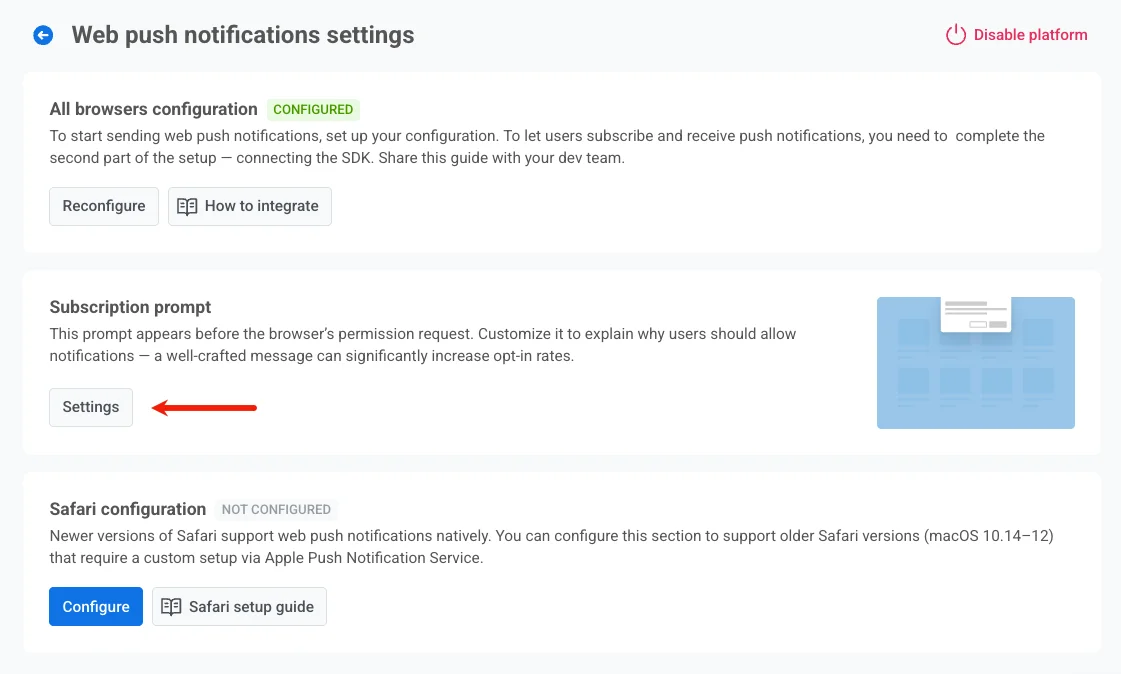
To configure the subscription prompt, go to **Settings → Configure platforms → Web push notification → Subscription prompt**, then click **Settings**.
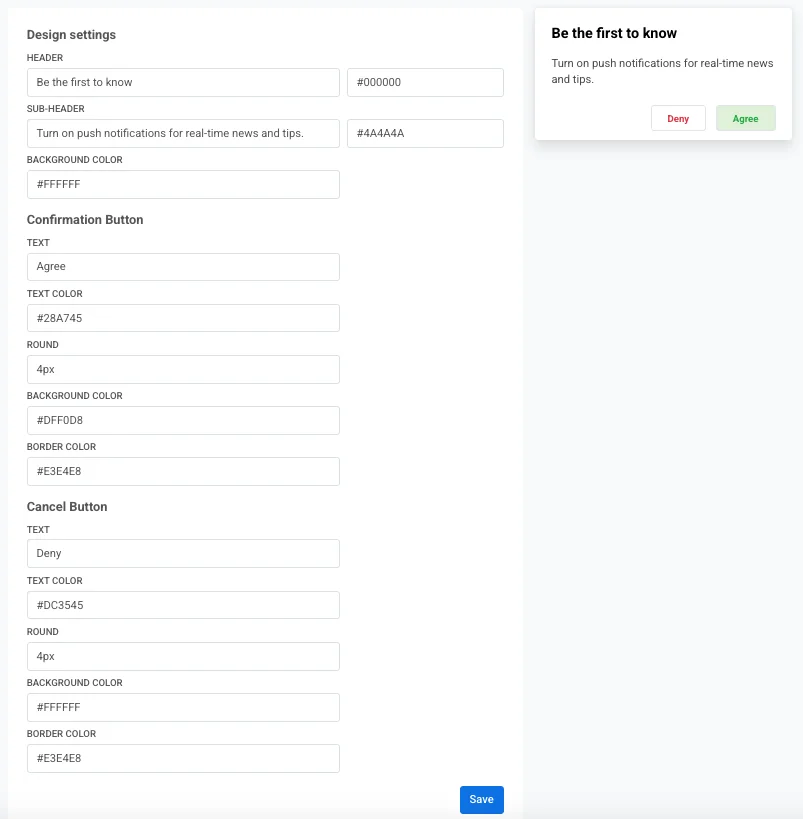
Then, select **Default widget** and customize the widget to contain the most explanatory and convincing text, clear CTA buttons, and colors fitting your website styles.
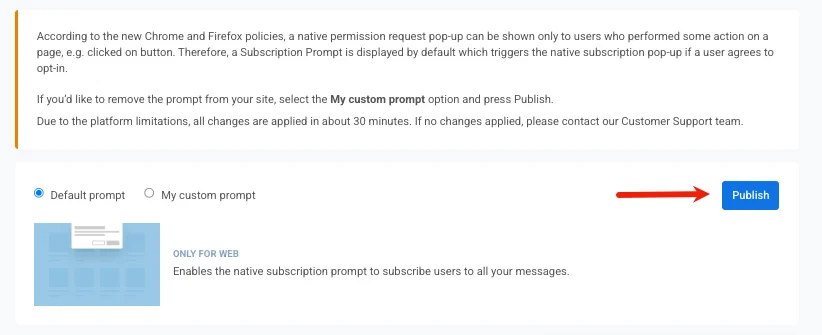
To save changes, click **Save** at the bottom of the page. Then, click **Publish** at the top of the page to start showing the widget to website visitors.
> If you'd like to remove the widget from your site, select the **My custom widget** option and click **Publish**.
 Then, select **Default widget** and customize the widget to contain the most explanatory and convincing text, clear CTA buttons, and colors fitting your website styles.
 To save changes, click **Save** at the bottom of the page. Then, click **Publish** at the top of the page to start showing the widget to website visitors.
 > If you'd like to remove the widget from your site, select the **My custom widget** option and click **Publish**.