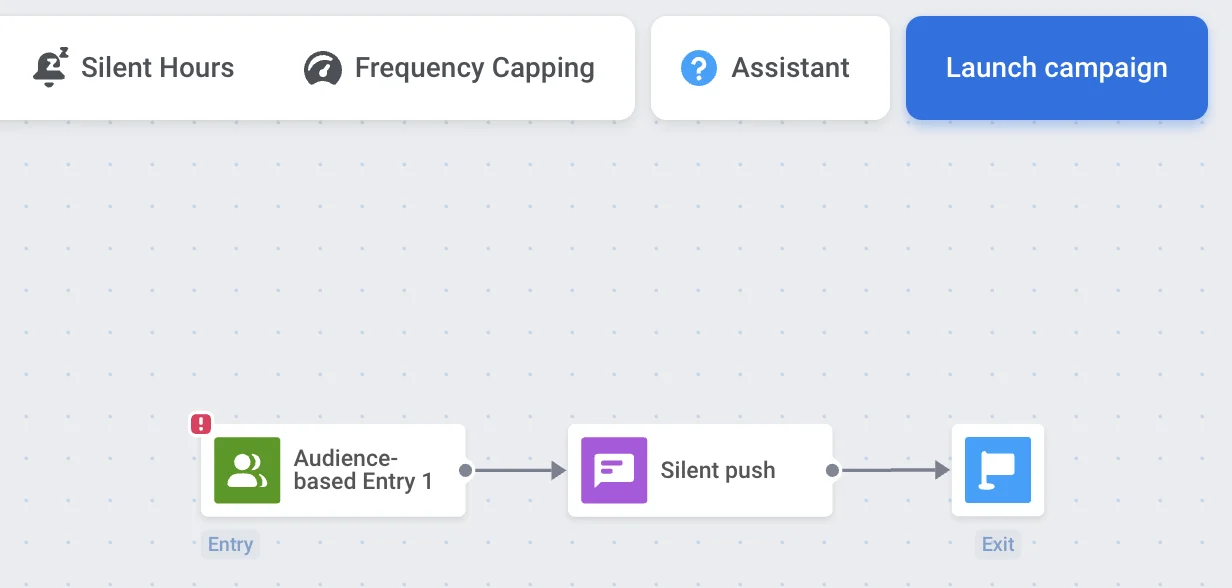
Silent push notifications
There are situations where you may need to update your app, pass data, or retrieve new content from your server without notifying the user or displaying any visible alerts. Silent push notifications are designed for exactly this purpose.
Silent push notifications are delivered to users’ devices with no alert, sound, or icon badge. When a silent push arrives, the app is woken up in the background. Users don’t recognize any alerts and don’t see any push content.
By sending silent push notifications, you can:
- Notify your app about new content available to download
- Perform some tasks in the background
- Get new data from your server
- Pass custom data to the app
Silent push notifications also come in handy when you need to clean up the user base. Every time a push is sent, all invalid or non-existent push tokens are removed from our database. That’s why silent push notifications are used in Uninstalls tracking, which keeps your user base valid and updated.
Implementation
Anchor link toCustomer Journey
Anchor link toYou can send silent push notifications using the Data to app element in Customer journeys. The Data to app element automatically sends silent push notifications with custom data to trigger in-app actions without alerting users.
To send silent push notifications:
- Add the Data to app element to your Journey canvas.
- Paste your JSON code into the provided field. The JSON payload contains the custom data your app will process when the silent push is received.
- Click Save to apply the configuration.
The silent push notification will be delivered to users’ devices in the background, waking up your app to process the custom data without displaying any alerts, sounds, or badges.
You can also send silent push notifications via the Pushwoosh API with the assistance of your development team.
Legacy push preset form
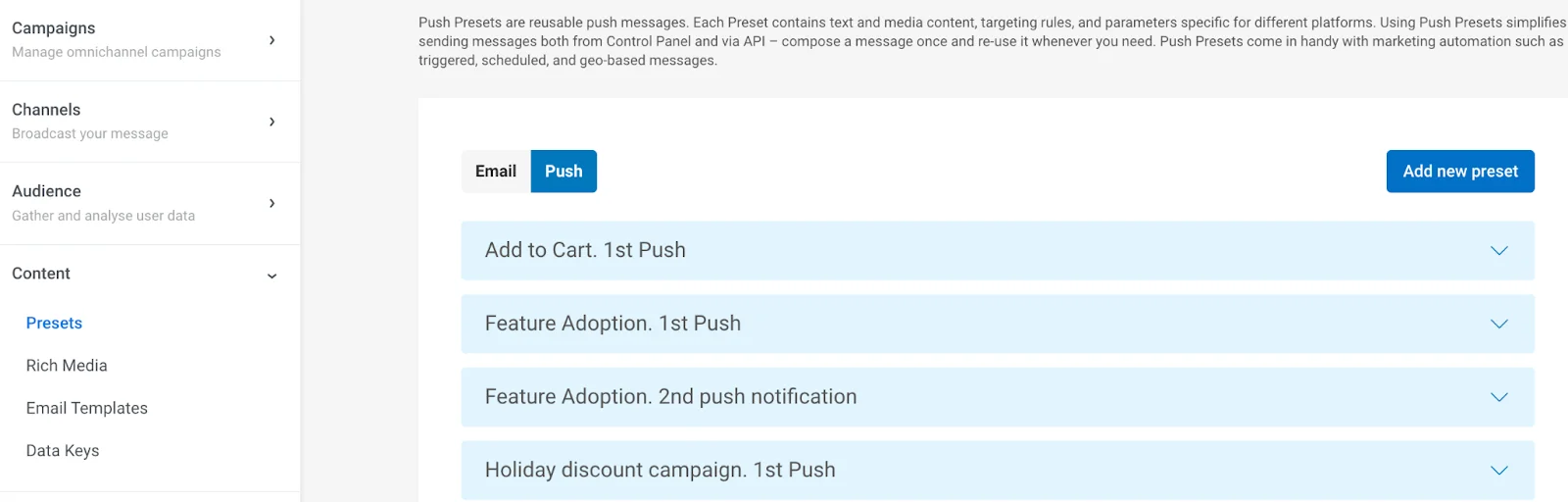
Anchor link toTo send a silent push notification, go to Content > Presets and add a new preset.
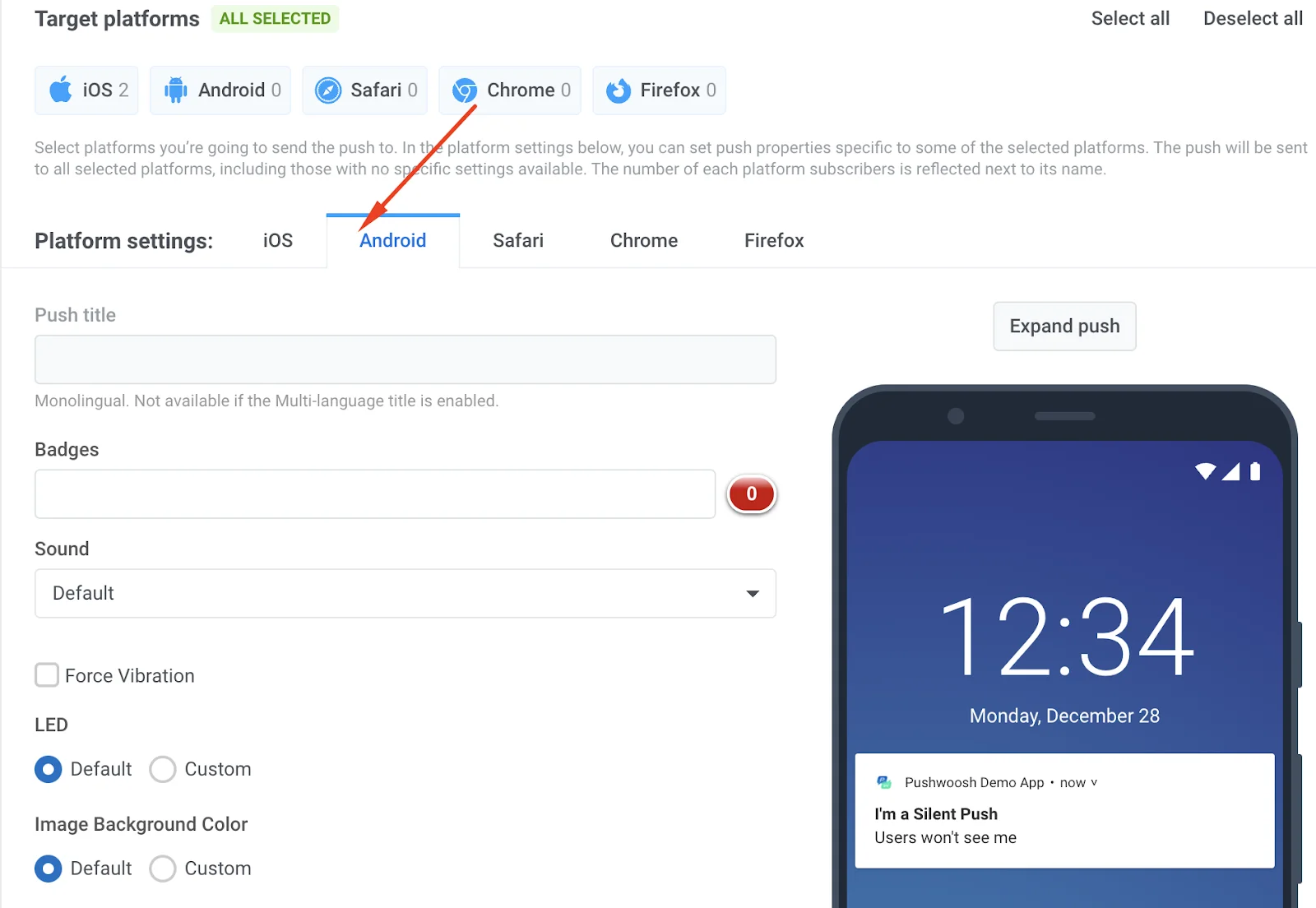
Specify the platform—iOS or Android.
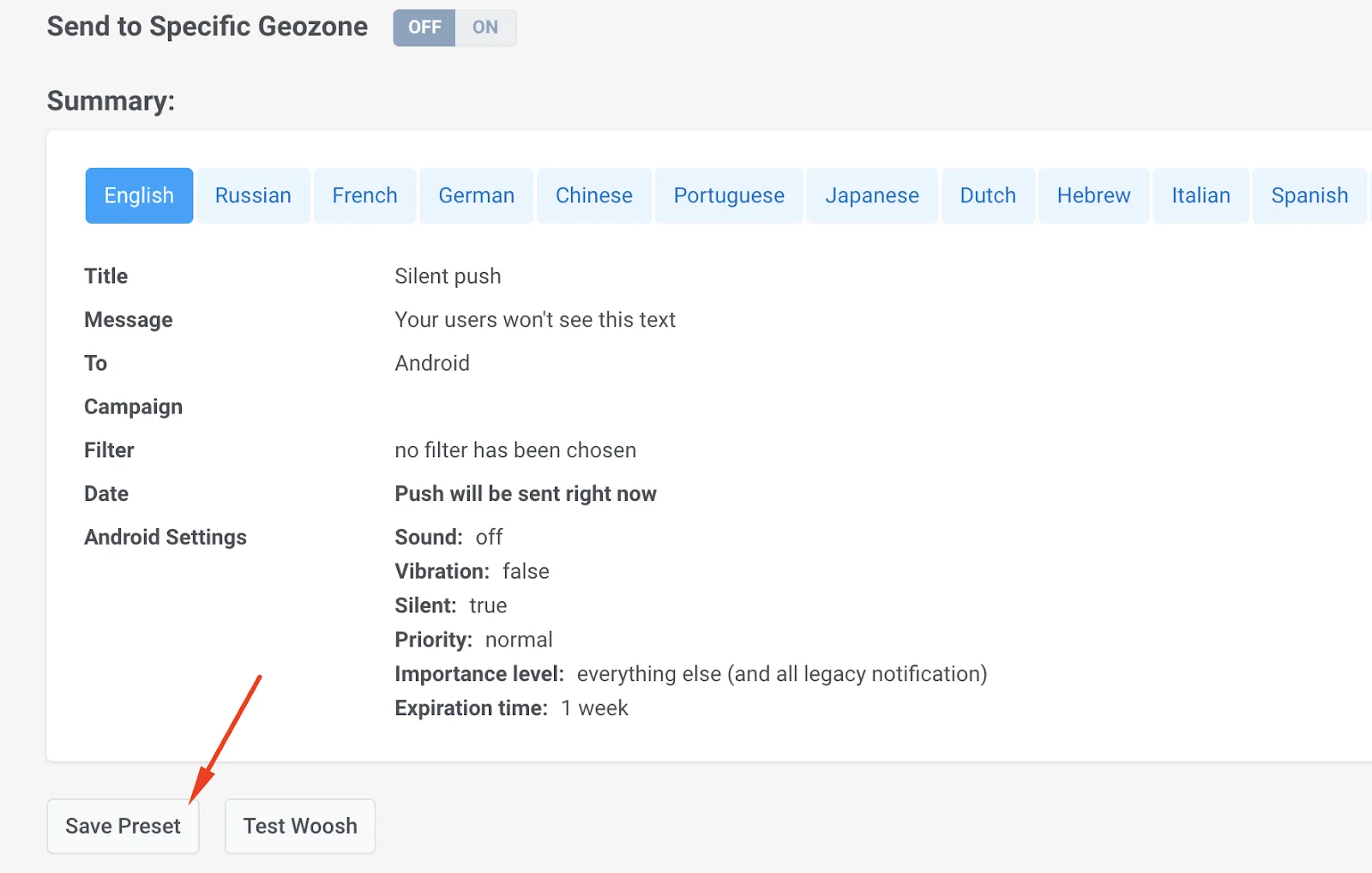
Add a title and subscription (your users won’t see it, so you can use any test copy). Then check the checkbox for Silent Push.
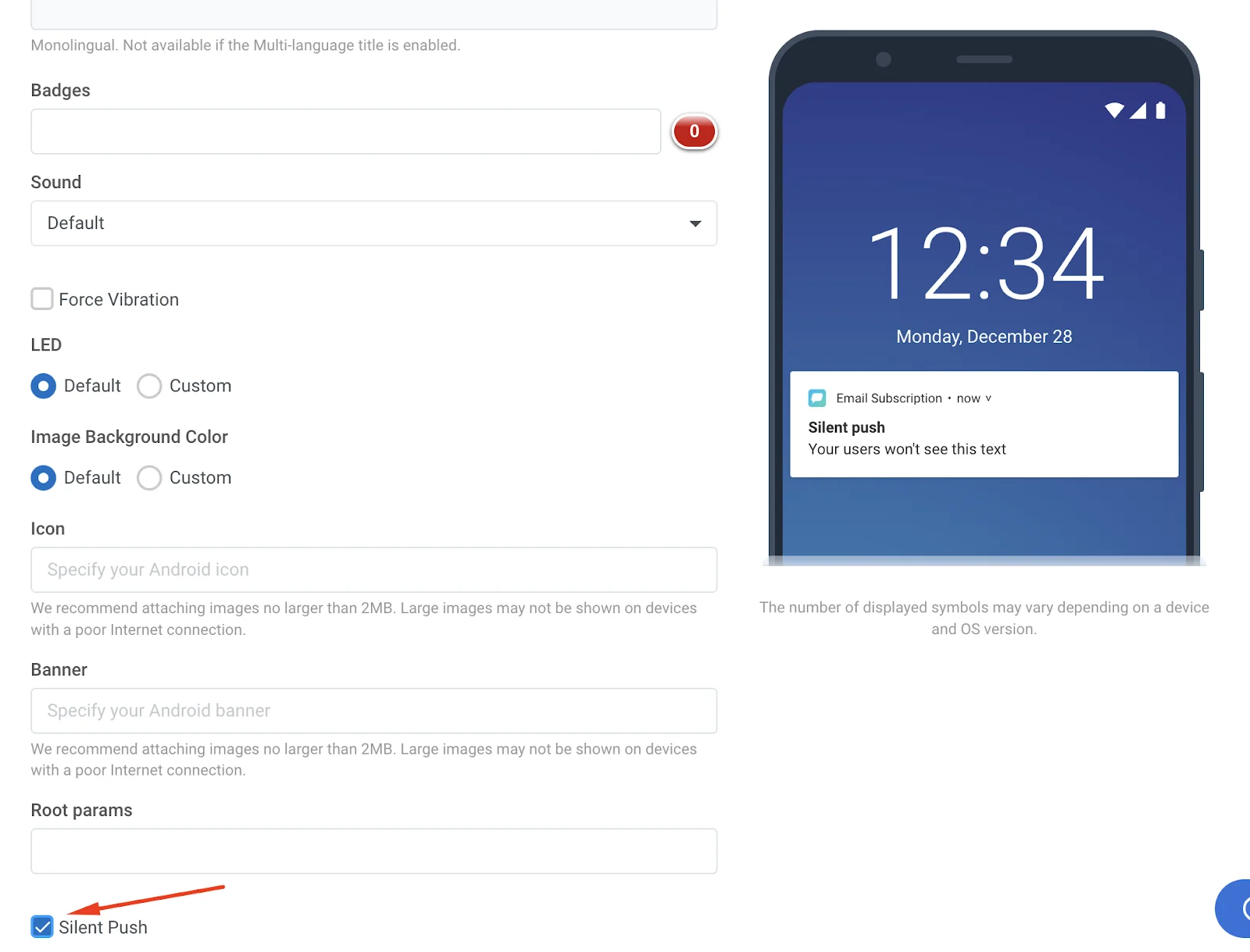
Scroll to the bottom of the page and save this preset.
Go to Campaigns > Customer Journey Builder, choose a journey you already have, or create a new one. Then, by clicking on the Push element, choose the preset with a silent push.

Once your journey is all set, click Launch campaign on the right.