# One-time push via Customer Journey
You can send a one-time push notification through Customer Journey Builder instead of the [one-time push form](/product/messaging-channels/push-notifications/send-push-notifications/one-time-push/). The process is the same for mobile and web.
## Build the journey
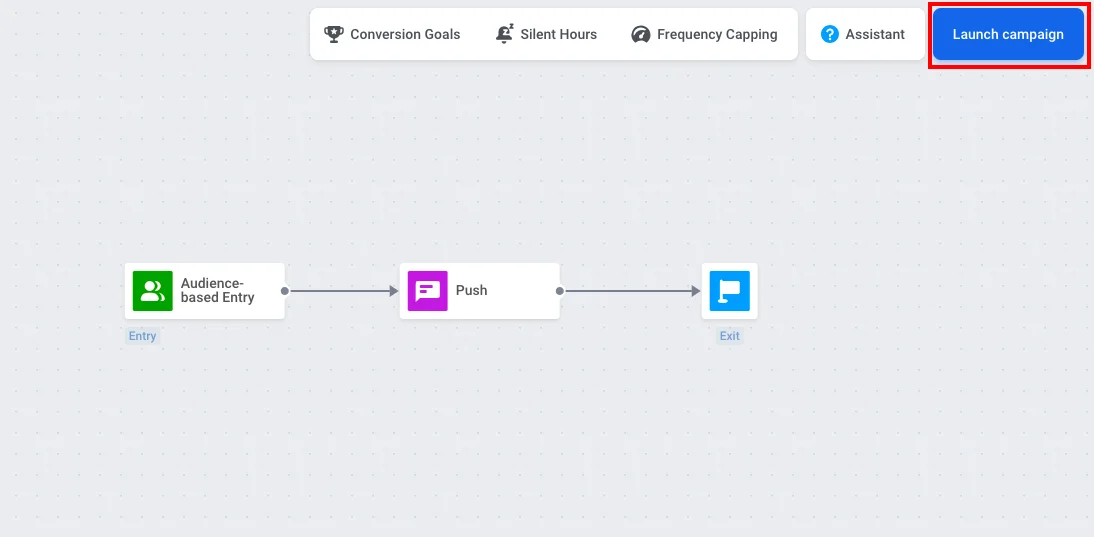
When you create a push campaign in Customer Journey Builder, choose the **One-time campaign** template. It adds [Audience-based Entry](/product/customer-journey/journey-elements/entry-elements/audience-based-entry/), [Push](/product/customer-journey/journey-elements/channels/push/), and [Exit](/product/customer-journey/journey-elements/flow-controls/exit/) to the canvas and connects them for you.
You can also build the journey manually by dragging these three elements onto the canvas and connecting them in order.
## Set the audience
Double-click the **Audience-based Entry** element to choose who receives the push. In the same element you can set **Scheduled Launch** to send the push at a specific date and time. [Learn more about Audience-based Entry](/product/customer-journey/journey-elements/entry-elements/audience-based-entry/), including [Scheduled launch](/product/customer-journey/journey-elements/entry-elements/audience-based-entry/#scheduled-launch).
If you already have a segment of opted-in users (e.g. Push Alerts Enabled), in **Audience Source**, select that segment.
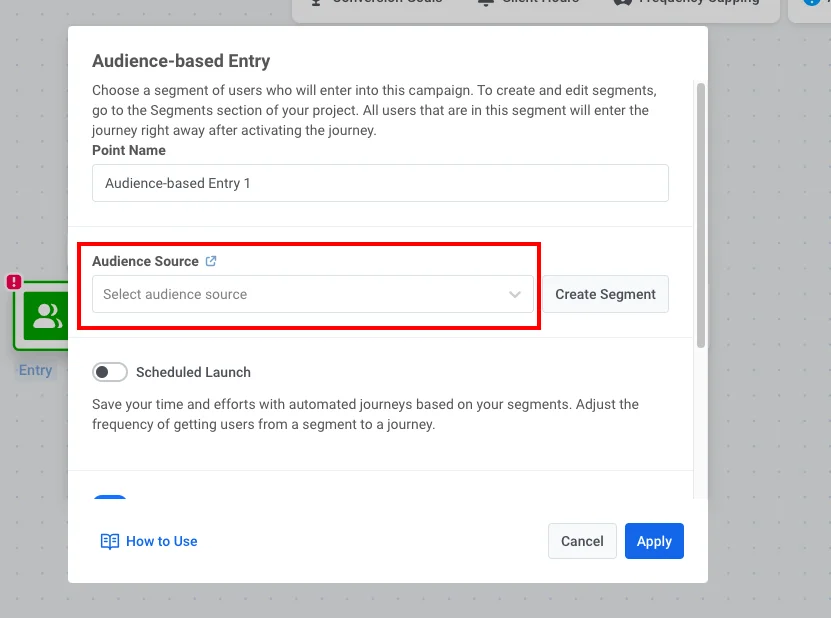 If you need to create the segment:
1. Click **Create Segment**.
2. In the segment builder, add a filter: tag **Push Alerts Enabled** is true.
3. Click **Save segment**.
## Configure the push and launch
1. Double-click the **Push** element and select or [create push content](/product/content/push-presets/).
[Learn more about the Push element in Customer Journey](/product/customer-journey/journey-elements/channels/push/)
2. When the journey is ready, click **Launch campaign**.
If you need to create the segment:
1. Click **Create Segment**.
2. In the segment builder, add a filter: tag **Push Alerts Enabled** is true.
3. Click **Save segment**.
## Configure the push and launch
1. Double-click the **Push** element and select or [create push content](/product/content/push-presets/).
[Learn more about the Push element in Customer Journey](/product/customer-journey/journey-elements/channels/push/)
2. When the journey is ready, click **Launch campaign**.