# Recurring push
Recurring push sends the same push notification repeatedly at a chosen interval (e.g. daily, weekly) or on selected dates. The flow is the same for mobile and web push.
**Prerequisites**
* Recurring schedule is only available with [**Audience-based entry**](/product/customer-journey/journey-elements/entry-elements/audience-based-entry/).
* Build a journey with [**Audience-based Entry**](/product/customer-journey/journey-elements/entry-elements/audience-based-entry/), [**Push**](/product/customer-journey/journey-elements/channels/push/), and [**Exit**](/product/customer-journey/journey-elements#exit-from-journey). See [One-time push](/product/messaging-channels/push-notifications/send-push-notifications/one-time-push/#how-to-send-a-one-time-push-notification-using-customer-journey-builder) for the basic flow, then configure the entry schedule below.
## Configure recurring entry
Double-click the [**Audience-based entry**](/product/customer-journey/journey-elements/entry-elements/audience-based-entry/#recurring-entry) element. Set **Entry schedule** to **Recurring entry**, then choose:
* **On specific dates:** users enter on the dates you pick (e.g. webinar or event dates).
* **Periodically:** users enter at a fixed interval (e.g. every 1 day, every 1 week).
Set the time and timezone as for a one-time scheduled send. [Learn more about recurring entry](/product/customer-journey/journey-elements/entry-elements/audience-based-entry/#recurring-entry).
### On specific dates
Schedule the journey so users enter on multiple specific dates.
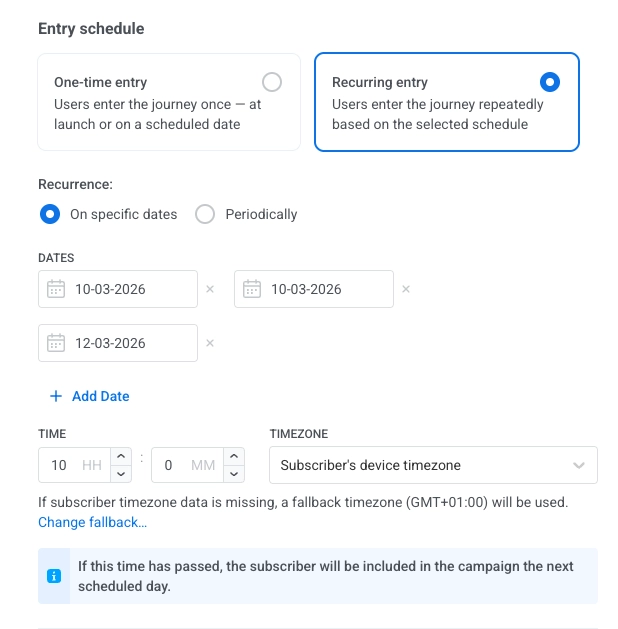
1. Select **On specific dates** and pick the dates in the calendar. Click **+ Add Date** to add more dates.
2. Set the time and timezone.
**Timezone options:**
* **Subscriber's device timezone (default):** entry uses each subscriber's device timezone. If timezone is missing, a fallback is used. Click **Change fallback** to change it.
* **Specific timezone:** pick a timezone from the dropdown for a fixed entry time.
### Periodically
Set up a journey that runs at a fixed interval (e.g. every Monday at 9:00 AM).
1. Select **Periodically**.
2. In **ENTRY EVERY**, set the interval (e.g. every 1 day, every 2 weeks).
3. Pick the days (of the week or month, depending on the interval).
4. Set the time and timezone the same way as for [On specific dates](#on-specific-dates).
## Next steps
1. Configure the [**Push**](/product/customer-journey/journey-elements/channels/push/) element (message content).
2. Configure any other journey elements you need.
3. Add the [**Exit**](/product/customer-journey/journey-elements#exit-from-journey) element.
[Learn more about Journey elements](/product/customer-journey/journey-elements).
## Example: Weekly reminder for a fitness app
Send the same motivational push every Monday at 9:00 AM in each user's local timezone.
1. **Create a basic push flow.** Add [**Audience-based Entry**](/product/customer-journey/journey-elements/entry-elements/audience-based-entry/) to the canvas and select an **Audience Source**.
2. **Set recurring entry.** In the element, set **Entry schedule** to **Recurring entry** → **Periodically**, **ENTRY EVERY** to **every 1 week**, day **Monday**.
3. **Set time and timezone.** Set time to **9:00 AM** and **Subscriber's device timezone**.
4. **Add Push and Exit.** Add [**Push**](/product/customer-journey/journey-elements/channels/push/) (create the message) and [**Exit**](/product/customer-journey/journey-elements#exit-from-journey). Review and click **Launch campaign**.
 **Timezone options:**
* **Subscriber's device timezone (default):** entry uses each subscriber's device timezone. If timezone is missing, a fallback is used. Click **Change fallback** to change it.
* **Specific timezone:** pick a timezone from the dropdown for a fixed entry time.
### Periodically
Set up a journey that runs at a fixed interval (e.g. every Monday at 9:00 AM).
1. Select **Periodically**.
2. In **ENTRY EVERY**, set the interval (e.g. every 1 day, every 2 weeks).
3. Pick the days (of the week or month, depending on the interval).
4. Set the time and timezone the same way as for [On specific dates](#on-specific-dates).
**Timezone options:**
* **Subscriber's device timezone (default):** entry uses each subscriber's device timezone. If timezone is missing, a fallback is used. Click **Change fallback** to change it.
* **Specific timezone:** pick a timezone from the dropdown for a fixed entry time.
### Periodically
Set up a journey that runs at a fixed interval (e.g. every Monday at 9:00 AM).
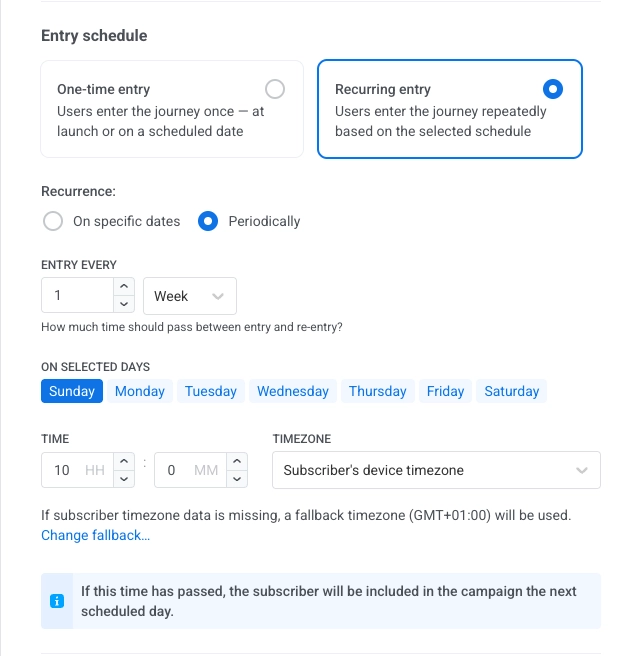
1. Select **Periodically**.
2. In **ENTRY EVERY**, set the interval (e.g. every 1 day, every 2 weeks).
3. Pick the days (of the week or month, depending on the interval).
4. Set the time and timezone the same way as for [On specific dates](#on-specific-dates).
 ## Next steps
1. Configure the [**Push**](/product/customer-journey/journey-elements/channels/push/) element (message content).
2. Configure any other journey elements you need.
3. Add the [**Exit**](/product/customer-journey/journey-elements#exit-from-journey) element.
[Learn more about Journey elements](/product/customer-journey/journey-elements).
## Example: Weekly reminder for a fitness app
Send the same motivational push every Monday at 9:00 AM in each user's local timezone.
1. **Create a basic push flow.** Add [**Audience-based Entry**](/product/customer-journey/journey-elements/entry-elements/audience-based-entry/) to the canvas and select an **Audience Source**.
2. **Set recurring entry.** In the element, set **Entry schedule** to **Recurring entry** → **Periodically**, **ENTRY EVERY** to **every 1 week**, day **Monday**.
3. **Set time and timezone.** Set time to **9:00 AM** and **Subscriber's device timezone**.
4. **Add Push and Exit.** Add [**Push**](/product/customer-journey/journey-elements/channels/push/) (create the message) and [**Exit**](/product/customer-journey/journey-elements#exit-from-journey). Review and click **Launch campaign**.
## Next steps
1. Configure the [**Push**](/product/customer-journey/journey-elements/channels/push/) element (message content).
2. Configure any other journey elements you need.
3. Add the [**Exit**](/product/customer-journey/journey-elements#exit-from-journey) element.
[Learn more about Journey elements](/product/customer-journey/journey-elements).
## Example: Weekly reminder for a fitness app
Send the same motivational push every Monday at 9:00 AM in each user's local timezone.
1. **Create a basic push flow.** Add [**Audience-based Entry**](/product/customer-journey/journey-elements/entry-elements/audience-based-entry/) to the canvas and select an **Audience Source**.
2. **Set recurring entry.** In the element, set **Entry schedule** to **Recurring entry** → **Periodically**, **ENTRY EVERY** to **every 1 week**, day **Monday**.
3. **Set time and timezone.** Set time to **9:00 AM** and **Subscriber's device timezone**.
4. **Add Push and Exit.** Add [**Push**](/product/customer-journey/journey-elements/channels/push/) (create the message) and [**Exit**](/product/customer-journey/journey-elements#exit-from-journey). Review and click **Launch campaign**.