# Create a geozone
Create a geozone to define where your campaign triggers and what happens when a user enters that area: a push message, a Customer Journey event, or both.
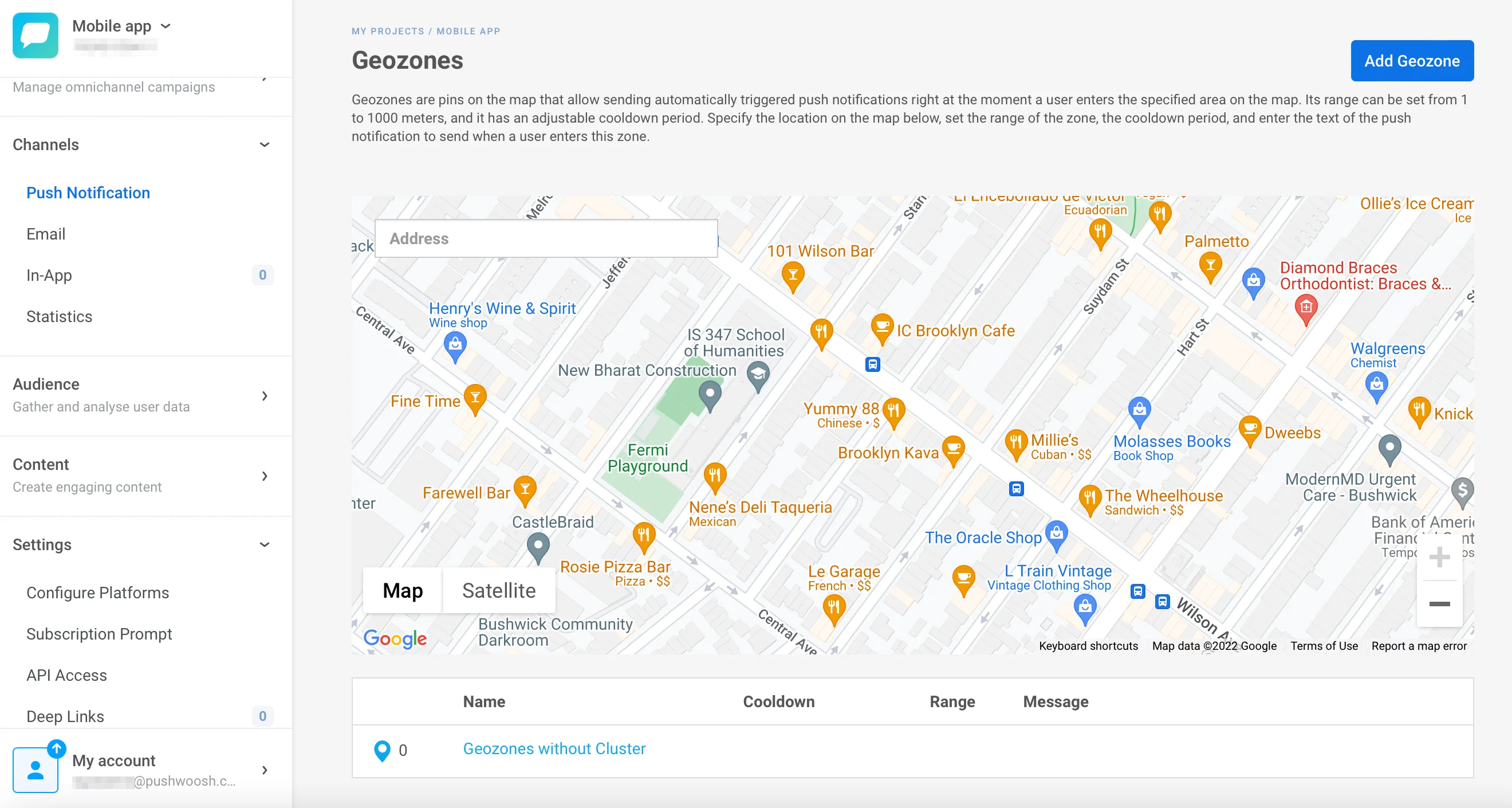
Go to **Campaigns → Geo campaigns**. Click **Create geozone** to start.
## Set the campaign name and aggregated statistics
In the **Campaign name** field, enter a label up to 64 characters. Keep it short and recognizable, for example, `Spring sale at downtown shops`.
Optionally, select an existing campaign in the **Aggregated statistics** field. Geo campaign pushes will then be counted together with other touchpoints in that campaign's [aggregated messages statistics](/product/statistics-and-analytics/aggregated-messages/).
## Choose entry actions
In the **Entry actions** section, turn on any combination of these actions. Keep at least one turned on, and give each event-based action a different event name when more than one is on.
Use this comparison to decide which actions to turn on:
| Action | Choose it when | Example campaign | Pairs well with |
|---|---|---|---|
| [**Send push**](#send-push) | You want people to see a message the moment they arrive, no journey needed | "20% off today" push the moment a shopper walks into the store | **Fire dwell event**, so you can also flag people who stuck around, for a later follow-up message |
| [**Fire event**](#fire-event) | You want to kick off a longer automated flow (several messages over time), not just one push | `PW_GeozoneEntered` starts a Journey: welcome message → wait 1 day → loyalty-card reminder | **Fire exit event**, so the Journey only ends once you're sure the person actually left |
| [**Fire exit event**](#fire-exit-event) | You want to know for sure the person left. That confirmation can arrive late, which is good for a follow-up sent well after the visit | `PW_GeozoneExited` triggers a "How was your visit?" survey once the visit is confirmed over | **Fire event**, so the same Journey that welcomed them on entry also wraps up properly when they leave |
| [**Fire dwell event**](#fire-dwell-event) | You only care about people who actually spent time there, not people who just walked past | `PW_GeozoneDwell` (Time inside = 15 min) flags "genuinely interested" visitors for a follow-up email | **Assume exit after silence**, so you get both signals in your CRM without ever messaging the person during the visit |
| [**Assume exit after silence**](#assume-exit-after-silence) | Your location tracking often loses signal (venues, backgrounded apps), so a confirmed exit isn't reliable. This fires anyway, on a timer | `PW_GeozoneExitedByTimeout` (Silence = 2 hours) closes out visits at a stadium with weak signal | **Fire dwell event**, so you can close out the visit reliably and still know if they actually engaged while there |
### Send push
Sends the push notification you configure in [Compose the push message](#compose-the-push-message) below. For example, a device entering the zone at 10:00 AM receives the push right away, as long as cooldown allows delivery. Turn it off if you only want an event-based action. The message settings disappear and you don't need to fill them in.
### Fire event
Fires a [custom event](/product/audience-data-and-segmentation/events/custom-events/) when the device enters the zone. Use it as a [Trigger-based entry](/product/customer-journey/journey-elements/entry-elements/trigger-based-entry/) into a Customer Journey. For example, a device entering the zone at 2:00 PM fires `PW_GeozoneEntered` at 2:00 PM. Entry and event happen at the same moment.
1. Turn on **Fire event**.
2. Set the **Event name**. Leave it empty to use the system default event `PW_GeozoneEntered`, or enter your own name (up to 128 characters).
The event carries six attributes: `geozone_code`, `geozone_name`, `lat`, `lng`, `range`, and `distance`. If the geozone is assigned to a cluster, it also carries `cluster_code` and `cluster_name`.
### Fire exit event
This event doesn't fire the moment someone leaves the zone. The device detects the exit first. It then reports the exit the next time it contacts Pushwoosh: a periodic background check-in that sends the device's location, not a live, constant connection.
How soon that contact happens depends on the device's OS and background settings, not on Pushwoosh, so the delay between the actual exit and the event can range from a few seconds to several hours. For example, a device that leaves at 3:00 PM but doesn't contact Pushwoosh again until 3:45 PM fires the event at 3:45 PM, not 3:00 PM.
Cooldown gates entry actions, not this one. If a device enters, exits, and re-enters the same geozone within one cooldown window, the repeat entry is suppressed, but each real exit still fires its own event, so you can end up with more exit events than gated entries for the same string of visits.
1. Turn on **Fire exit event**.
2. Set the **Exit event name**. Leave it empty to use the system default event `PW_GeozoneExited`, or enter your own name.
### Fire dwell event
Fires a custom event once the device has stayed inside the zone for the duration you set in **Time inside**, counted from entry.
1. Turn on **Fire dwell event**.
2. Set **Time inside** to a value from 1 to 1440 minutes.
3. Set the **Dwell event name**. Leave it empty to use the system default event `PW_GeozoneDwell`, or enter your own name.
### Assume exit after silence
Fires a custom event once a device, last confirmed inside the zone, goes quiet (stops sending location updates to Pushwoosh) for the duration set in **Silence before assuming**.
1. Turn on **Assume exit after silence**.
2. Set **Silence before assuming** to a value from 5 to 1440 minutes.
3. Set the **Assumed exit event name**. Leave it empty to use the system default event `PW_GeozoneExitedByTimeout`, or enter your own name.
## Compose the push message
With **Send push** turned on, choose how to compose the notification:
- **Write a message**: enter the push text directly in the form (up to 1024 characters). Use this option for a quick one-time message in a single geozone.
- **Use an existing preset**: pick a saved [preset](/product/content/push-presets/) for full templating with title, deep link, custom sound, and platform-specific payloads.
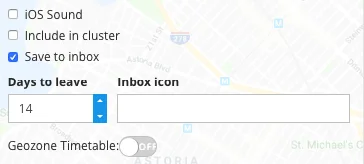
Configure optional message settings:
- **Play default sound on iOS**: uses the system push sound on iOS devices.
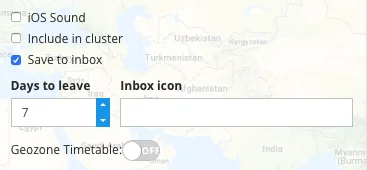
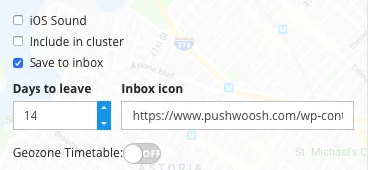
- **Save to inbox**: keeps the push in the device's in-app inbox after delivery, so the user can come back to it later. When enabled, set **Inbox expire** (1–365 days) and optionally an **Inbox icon URL**. [Learn more](/product/messaging-channels/message-inbox/mobile-message-inbox/#choosing-which-messages-to-save-to-inbox).
## Set the trigger location
Choose a shape for the trigger location:
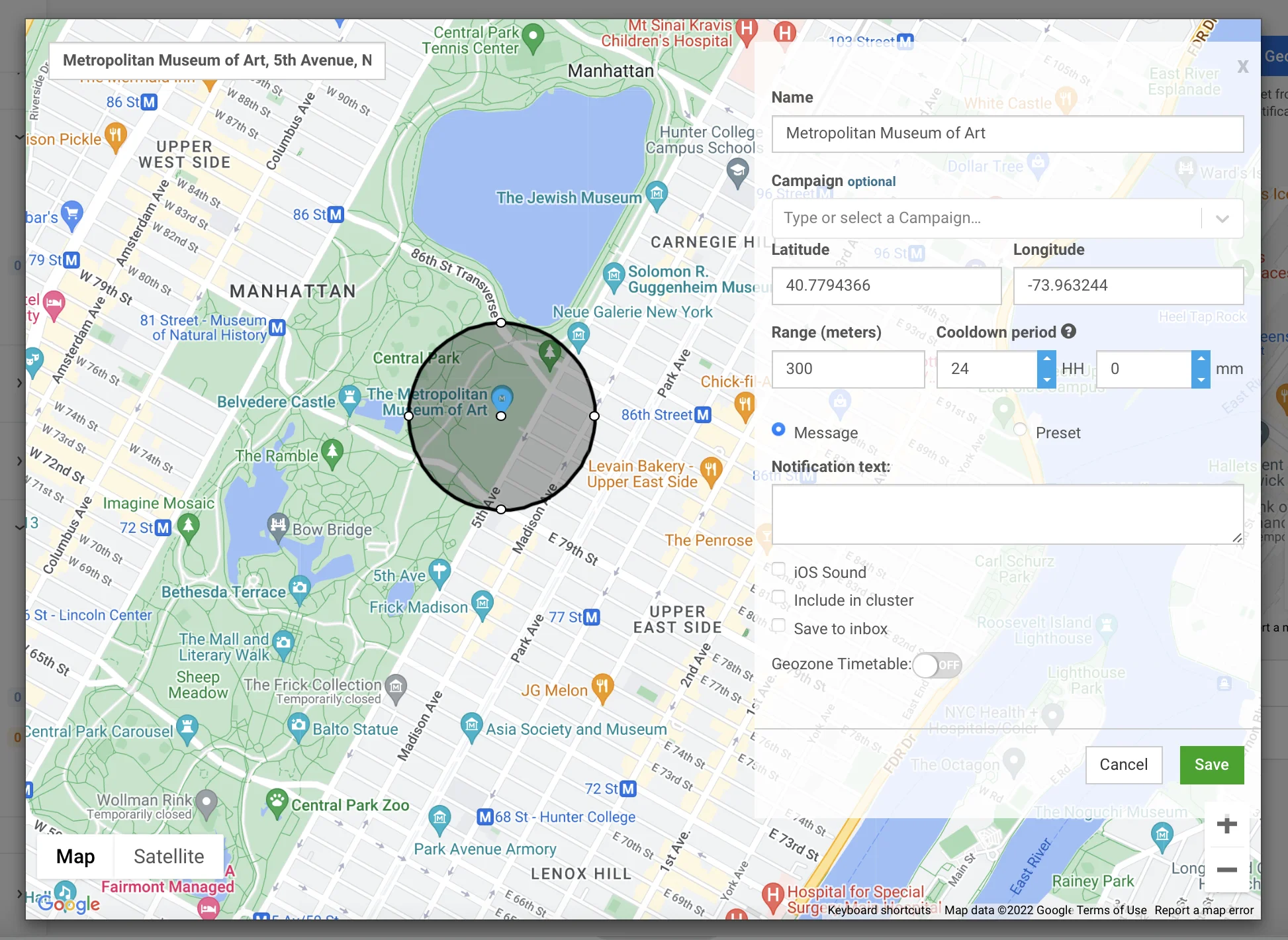
- **Circle**: search for an address, paste raw coordinates into the search bar, or click anywhere on the map to drop a marker. Drag the handle on the circle to set the **Range**. Range can be set between 50 m and 100 km. Default is 200 m.
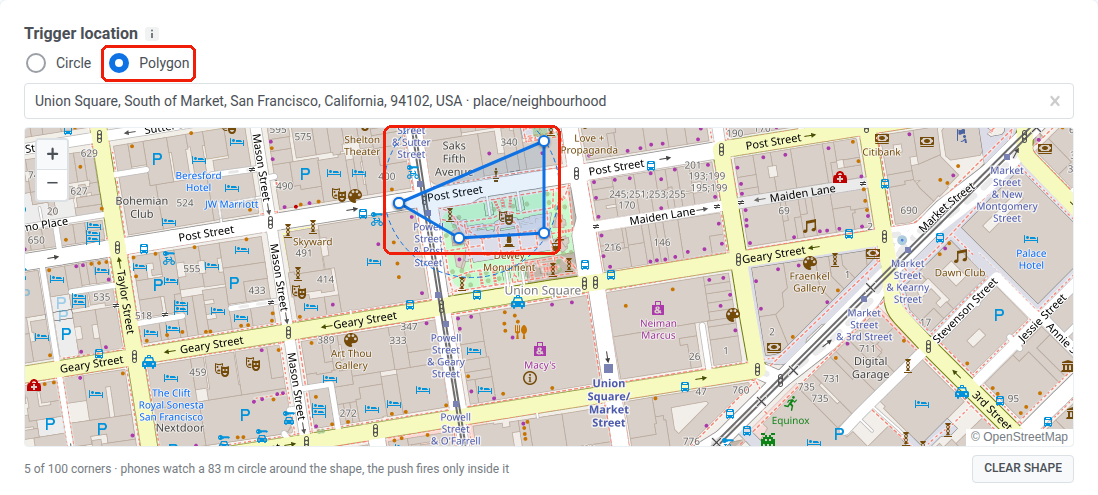
- **Polygon**: click the map to drop corners, one at a time, tracing the outline of the area, for example a mall floor plan or a venue perimeter. Drag a corner to move it, right-click a corner to delete it. A polygon needs 3 to 100 distinct corners. You don't need to close the shape by clicking the first corner again.
You can switch the shape when editing a saved geozone:
- To convert a polygon geozone to a circle, select **Circle** and set a center and range as usual.
- To convert a circle geozone to a polygon, select **Polygon** and draw new corners.
- Clearing all corners of a polygon (**Clear shape**) also reverts it to a circle.
## Choose a cluster and cooldown
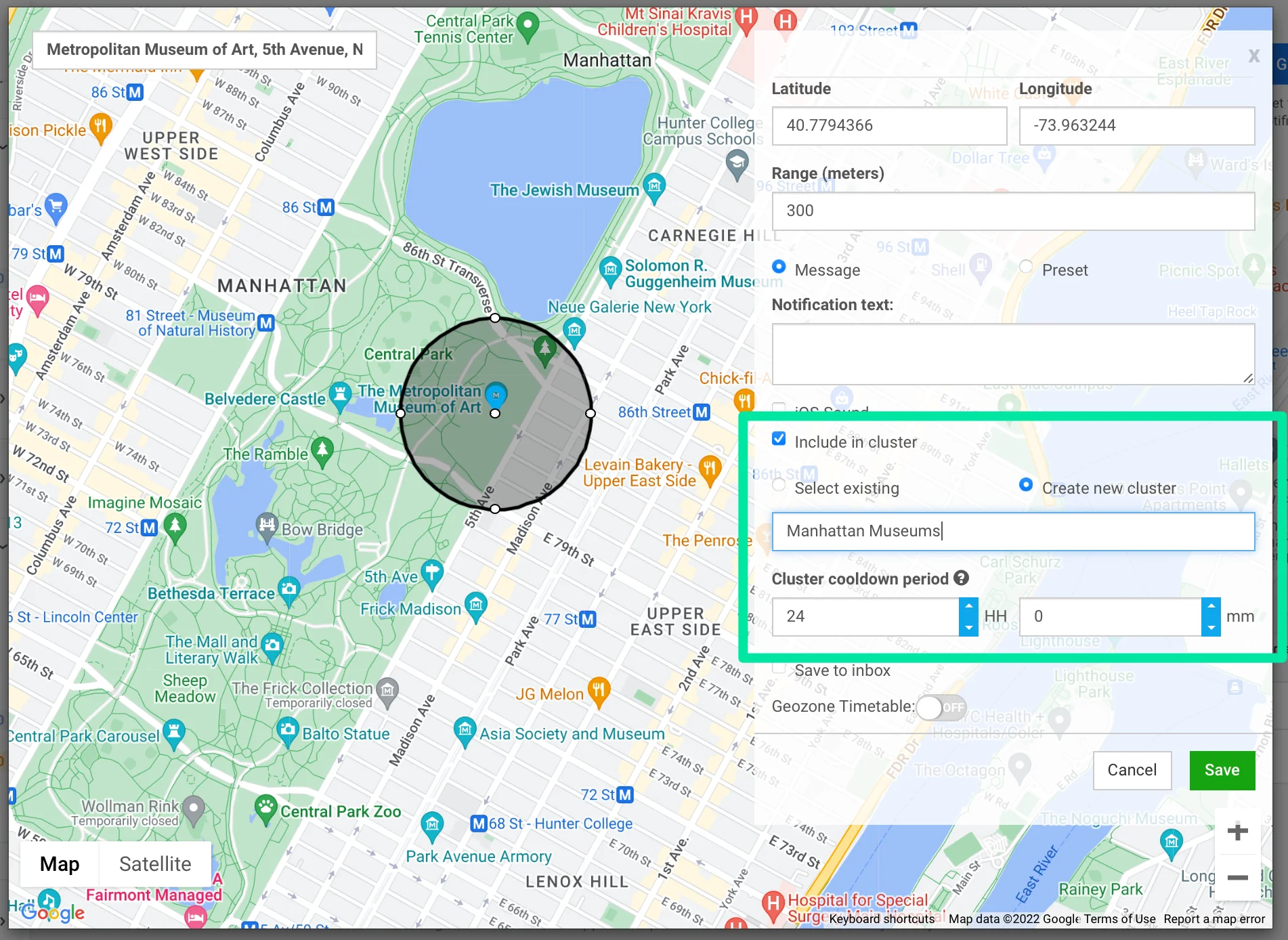
A cooldown is a silent period after a push is sent. For a standalone geozone, the same device won't receive another notification from it until the cooldown expires, even if it exits and re-enters. If the geozone belongs to a cluster, the cooldown applies to the whole cluster instead: the device stays silent for every geozone in that cluster, not just the one that sent the push.
In the **Cooldown** field, choose one of three modes:
| Mode | How cooldown is set | Behavior |
|---|---|---|
| **Standalone** | Set days, hours, and minutes directly for this geozone. Minimum is 1 minute. Maximum is 41 days. | Cooldown applies to this geozone only. |
| **Use existing cluster** | Apply the cooldown from an existing [cluster](/product/messaging-channels/push-notifications/geo-campaigns/clusters/). | The cluster cooldown overrides this geozone's own cooldown. |
| **New cluster** | Create a new cluster and set its cooldown. See [Create a cluster](/product/messaging-channels/push-notifications/geo-campaigns/clusters/). | The cluster cooldown overrides this geozone's own cooldown. |
## Schedule when the campaign can fire
The **Campaign schedule** section limits when entry actions can fire. A push or entry event runs only if the geozone is active at that moment and cooldown allows delivery.
### Limit the campaign to a date range
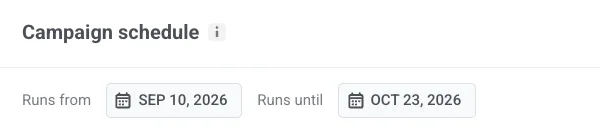
These fields are optional. Set them when you want the whole campaign to run within a specific date range, for example a holiday promo from September 10 through October 23, or a limited-time store opening.
- **Runs from:** the first day the geozone can fire.
- **Runs until:** the last day the geozone can fire.
### Choose how the geozone runs
Select **Always active** to run around the clock, or **On selected days and hours** to restrict firing to specific time windows per day of the week.
#### Always active
The campaign fires 24/7. No further schedule configuration is needed.
#### On selected days and hours
The campaign only fires inside the windows you set here:
1. Turn on each weekday you want the campaign to fire on.
2. Set a start and end time for that day.
Click **Save** to finish, regardless of which mode you chose. The geozone is enabled immediately. If you set a schedule, pushes fire only during the configured windows.
### Which actions follow the schedule
- **Send push**, **Fire event**, and other actions that fire when a device enters the zone run only during an active schedule window and when cooldown allows delivery.
- **Fire exit event**, **Fire dwell event**, and **Assume exit after silence** follow the visit, not the schedule. If a device entered while the schedule was active, these actions can still fire after the daily window closes.
 ## Set the campaign name and aggregated statistics
In the **Campaign name** field, enter a label up to 64 characters. Keep it short and recognizable, for example, `Spring sale at downtown shops`.
Optionally, select an existing campaign in the **Aggregated statistics** field. Geo campaign pushes will then be counted together with other touchpoints in that campaign's [aggregated messages statistics](/product/statistics-and-analytics/aggregated-messages/).
## Set the campaign name and aggregated statistics
In the **Campaign name** field, enter a label up to 64 characters. Keep it short and recognizable, for example, `Spring sale at downtown shops`.
Optionally, select an existing campaign in the **Aggregated statistics** field. Geo campaign pushes will then be counted together with other touchpoints in that campaign's [aggregated messages statistics](/product/statistics-and-analytics/aggregated-messages/).
 ## Choose entry actions
In the **Entry actions** section, turn on any combination of these actions. Keep at least one turned on, and give each event-based action a different event name when more than one is on.
Use this comparison to decide which actions to turn on:
| Action | Choose it when | Example campaign | Pairs well with |
|---|---|---|---|
| [**Send push**](#send-push) | You want people to see a message the moment they arrive, no journey needed | "20% off today" push the moment a shopper walks into the store | **Fire dwell event**, so you can also flag people who stuck around, for a later follow-up message |
| [**Fire event**](#fire-event) | You want to kick off a longer automated flow (several messages over time), not just one push | `PW_GeozoneEntered` starts a Journey: welcome message → wait 1 day → loyalty-card reminder | **Fire exit event**, so the Journey only ends once you're sure the person actually left |
| [**Fire exit event**](#fire-exit-event) | You want to know for sure the person left. That confirmation can arrive late, which is good for a follow-up sent well after the visit | `PW_GeozoneExited` triggers a "How was your visit?" survey once the visit is confirmed over | **Fire event**, so the same Journey that welcomed them on entry also wraps up properly when they leave |
| [**Fire dwell event**](#fire-dwell-event) | You only care about people who actually spent time there, not people who just walked past | `PW_GeozoneDwell` (Time inside = 15 min) flags "genuinely interested" visitors for a follow-up email | **Assume exit after silence**, so you get both signals in your CRM without ever messaging the person during the visit |
| [**Assume exit after silence**](#assume-exit-after-silence) | Your location tracking often loses signal (venues, backgrounded apps), so a confirmed exit isn't reliable. This fires anyway, on a timer | `PW_GeozoneExitedByTimeout` (Silence = 2 hours) closes out visits at a stadium with weak signal | **Fire dwell event**, so you can close out the visit reliably and still know if they actually engaged while there |
### Send push
Sends the push notification you configure in [Compose the push message](#compose-the-push-message) below. For example, a device entering the zone at 10:00 AM receives the push right away, as long as cooldown allows delivery. Turn it off if you only want an event-based action. The message settings disappear and you don't need to fill them in.
## Choose entry actions
In the **Entry actions** section, turn on any combination of these actions. Keep at least one turned on, and give each event-based action a different event name when more than one is on.
Use this comparison to decide which actions to turn on:
| Action | Choose it when | Example campaign | Pairs well with |
|---|---|---|---|
| [**Send push**](#send-push) | You want people to see a message the moment they arrive, no journey needed | "20% off today" push the moment a shopper walks into the store | **Fire dwell event**, so you can also flag people who stuck around, for a later follow-up message |
| [**Fire event**](#fire-event) | You want to kick off a longer automated flow (several messages over time), not just one push | `PW_GeozoneEntered` starts a Journey: welcome message → wait 1 day → loyalty-card reminder | **Fire exit event**, so the Journey only ends once you're sure the person actually left |
| [**Fire exit event**](#fire-exit-event) | You want to know for sure the person left. That confirmation can arrive late, which is good for a follow-up sent well after the visit | `PW_GeozoneExited` triggers a "How was your visit?" survey once the visit is confirmed over | **Fire event**, so the same Journey that welcomed them on entry also wraps up properly when they leave |
| [**Fire dwell event**](#fire-dwell-event) | You only care about people who actually spent time there, not people who just walked past | `PW_GeozoneDwell` (Time inside = 15 min) flags "genuinely interested" visitors for a follow-up email | **Assume exit after silence**, so you get both signals in your CRM without ever messaging the person during the visit |
| [**Assume exit after silence**](#assume-exit-after-silence) | Your location tracking often loses signal (venues, backgrounded apps), so a confirmed exit isn't reliable. This fires anyway, on a timer | `PW_GeozoneExitedByTimeout` (Silence = 2 hours) closes out visits at a stadium with weak signal | **Fire dwell event**, so you can close out the visit reliably and still know if they actually engaged while there |
### Send push
Sends the push notification you configure in [Compose the push message](#compose-the-push-message) below. For example, a device entering the zone at 10:00 AM receives the push right away, as long as cooldown allows delivery. Turn it off if you only want an event-based action. The message settings disappear and you don't need to fill them in.
 ### Fire event
Fires a [custom event](/product/audience-data-and-segmentation/events/custom-events/) when the device enters the zone. Use it as a [Trigger-based entry](/product/customer-journey/journey-elements/entry-elements/trigger-based-entry/) into a Customer Journey. For example, a device entering the zone at 2:00 PM fires `PW_GeozoneEntered` at 2:00 PM. Entry and event happen at the same moment.
1. Turn on **Fire event**.
2. Set the **Event name**. Leave it empty to use the system default event `PW_GeozoneEntered`, or enter your own name (up to 128 characters).
The event carries six attributes: `geozone_code`, `geozone_name`, `lat`, `lng`, `range`, and `distance`. If the geozone is assigned to a cluster, it also carries `cluster_code` and `cluster_name`.
### Fire event
Fires a [custom event](/product/audience-data-and-segmentation/events/custom-events/) when the device enters the zone. Use it as a [Trigger-based entry](/product/customer-journey/journey-elements/entry-elements/trigger-based-entry/) into a Customer Journey. For example, a device entering the zone at 2:00 PM fires `PW_GeozoneEntered` at 2:00 PM. Entry and event happen at the same moment.
1. Turn on **Fire event**.
2. Set the **Event name**. Leave it empty to use the system default event `PW_GeozoneEntered`, or enter your own name (up to 128 characters).
The event carries six attributes: `geozone_code`, `geozone_name`, `lat`, `lng`, `range`, and `distance`. If the geozone is assigned to a cluster, it also carries `cluster_code` and `cluster_name`.
 ### Fire exit event
This event doesn't fire the moment someone leaves the zone. The device detects the exit first. It then reports the exit the next time it contacts Pushwoosh: a periodic background check-in that sends the device's location, not a live, constant connection.
How soon that contact happens depends on the device's OS and background settings, not on Pushwoosh, so the delay between the actual exit and the event can range from a few seconds to several hours. For example, a device that leaves at 3:00 PM but doesn't contact Pushwoosh again until 3:45 PM fires the event at 3:45 PM, not 3:00 PM.
Cooldown gates entry actions, not this one. If a device enters, exits, and re-enters the same geozone within one cooldown window, the repeat entry is suppressed, but each real exit still fires its own event, so you can end up with more exit events than gated entries for the same string of visits.
1. Turn on **Fire exit event**.
2. Set the **Exit event name**. Leave it empty to use the system default event `PW_GeozoneExited`, or enter your own name.
### Fire exit event
This event doesn't fire the moment someone leaves the zone. The device detects the exit first. It then reports the exit the next time it contacts Pushwoosh: a periodic background check-in that sends the device's location, not a live, constant connection.
How soon that contact happens depends on the device's OS and background settings, not on Pushwoosh, so the delay between the actual exit and the event can range from a few seconds to several hours. For example, a device that leaves at 3:00 PM but doesn't contact Pushwoosh again until 3:45 PM fires the event at 3:45 PM, not 3:00 PM.
Cooldown gates entry actions, not this one. If a device enters, exits, and re-enters the same geozone within one cooldown window, the repeat entry is suppressed, but each real exit still fires its own event, so you can end up with more exit events than gated entries for the same string of visits.
1. Turn on **Fire exit event**.
2. Set the **Exit event name**. Leave it empty to use the system default event `PW_GeozoneExited`, or enter your own name.
 ### Fire dwell event
Fires a custom event once the device has stayed inside the zone for the duration you set in **Time inside**, counted from entry.
1. Turn on **Fire dwell event**.
2. Set **Time inside** to a value from 1 to 1440 minutes.
3. Set the **Dwell event name**. Leave it empty to use the system default event `PW_GeozoneDwell`, or enter your own name.
### Fire dwell event
Fires a custom event once the device has stayed inside the zone for the duration you set in **Time inside**, counted from entry.
1. Turn on **Fire dwell event**.
2. Set **Time inside** to a value from 1 to 1440 minutes.
3. Set the **Dwell event name**. Leave it empty to use the system default event `PW_GeozoneDwell`, or enter your own name.
 ### Assume exit after silence
Fires a custom event once a device, last confirmed inside the zone, goes quiet (stops sending location updates to Pushwoosh) for the duration set in **Silence before assuming**.
1. Turn on **Assume exit after silence**.
2. Set **Silence before assuming** to a value from 5 to 1440 minutes.
3. Set the **Assumed exit event name**. Leave it empty to use the system default event `PW_GeozoneExitedByTimeout`, or enter your own name.
### Assume exit after silence
Fires a custom event once a device, last confirmed inside the zone, goes quiet (stops sending location updates to Pushwoosh) for the duration set in **Silence before assuming**.
1. Turn on **Assume exit after silence**.
2. Set **Silence before assuming** to a value from 5 to 1440 minutes.
3. Set the **Assumed exit event name**. Leave it empty to use the system default event `PW_GeozoneExitedByTimeout`, or enter your own name.
 ## Compose the push message
With **Send push** turned on, choose how to compose the notification:
- **Write a message**: enter the push text directly in the form (up to 1024 characters). Use this option for a quick one-time message in a single geozone.
- **Use an existing preset**: pick a saved [preset](/product/content/push-presets/) for full templating with title, deep link, custom sound, and platform-specific payloads.
## Compose the push message
With **Send push** turned on, choose how to compose the notification:
- **Write a message**: enter the push text directly in the form (up to 1024 characters). Use this option for a quick one-time message in a single geozone.
- **Use an existing preset**: pick a saved [preset](/product/content/push-presets/) for full templating with title, deep link, custom sound, and platform-specific payloads.
 Configure optional message settings:
- **Play default sound on iOS**: uses the system push sound on iOS devices.
- **Save to inbox**: keeps the push in the device's in-app inbox after delivery, so the user can come back to it later. When enabled, set **Inbox expire** (1–365 days) and optionally an **Inbox icon URL**. [Learn more](/product/messaging-channels/message-inbox/mobile-message-inbox/#choosing-which-messages-to-save-to-inbox).
## Set the trigger location
Choose a shape for the trigger location:
- **Circle**: search for an address, paste raw coordinates into the search bar, or click anywhere on the map to drop a marker. Drag the handle on the circle to set the **Range**. Range can be set between 50 m and 100 km. Default is 200 m.
Configure optional message settings:
- **Play default sound on iOS**: uses the system push sound on iOS devices.
- **Save to inbox**: keeps the push in the device's in-app inbox after delivery, so the user can come back to it later. When enabled, set **Inbox expire** (1–365 days) and optionally an **Inbox icon URL**. [Learn more](/product/messaging-channels/message-inbox/mobile-message-inbox/#choosing-which-messages-to-save-to-inbox).
## Set the trigger location
Choose a shape for the trigger location:
- **Circle**: search for an address, paste raw coordinates into the search bar, or click anywhere on the map to drop a marker. Drag the handle on the circle to set the **Range**. Range can be set between 50 m and 100 km. Default is 200 m.
 - **Polygon**: click the map to drop corners, one at a time, tracing the outline of the area, for example a mall floor plan or a venue perimeter. Drag a corner to move it, right-click a corner to delete it. A polygon needs 3 to 100 distinct corners. You don't need to close the shape by clicking the first corner again.
 You can switch the shape when editing a saved geozone:
- To convert a polygon geozone to a circle, select **Circle** and set a center and range as usual.
- To convert a circle geozone to a polygon, select **Polygon** and draw new corners.
- Clearing all corners of a polygon (**Clear shape**) also reverts it to a circle.
## Choose a cluster and cooldown
A cooldown is a silent period after a push is sent. For a standalone geozone, the same device won't receive another notification from it until the cooldown expires, even if it exits and re-enters. If the geozone belongs to a cluster, the cooldown applies to the whole cluster instead: the device stays silent for every geozone in that cluster, not just the one that sent the push.
In the **Cooldown** field, choose one of three modes:
| Mode | How cooldown is set | Behavior |
|---|---|---|
| **Standalone** | Set days, hours, and minutes directly for this geozone. Minimum is 1 minute. Maximum is 41 days. | Cooldown applies to this geozone only. |
| **Use existing cluster** | Apply the cooldown from an existing [cluster](/product/messaging-channels/push-notifications/geo-campaigns/clusters/). | The cluster cooldown overrides this geozone's own cooldown. |
| **New cluster** | Create a new cluster and set its cooldown. See [Create a cluster](/product/messaging-channels/push-notifications/geo-campaigns/clusters/). | The cluster cooldown overrides this geozone's own cooldown. |
You can switch the shape when editing a saved geozone:
- To convert a polygon geozone to a circle, select **Circle** and set a center and range as usual.
- To convert a circle geozone to a polygon, select **Polygon** and draw new corners.
- Clearing all corners of a polygon (**Clear shape**) also reverts it to a circle.
## Choose a cluster and cooldown
A cooldown is a silent period after a push is sent. For a standalone geozone, the same device won't receive another notification from it until the cooldown expires, even if it exits and re-enters. If the geozone belongs to a cluster, the cooldown applies to the whole cluster instead: the device stays silent for every geozone in that cluster, not just the one that sent the push.
In the **Cooldown** field, choose one of three modes:
| Mode | How cooldown is set | Behavior |
|---|---|---|
| **Standalone** | Set days, hours, and minutes directly for this geozone. Minimum is 1 minute. Maximum is 41 days. | Cooldown applies to this geozone only. |
| **Use existing cluster** | Apply the cooldown from an existing [cluster](/product/messaging-channels/push-notifications/geo-campaigns/clusters/). | The cluster cooldown overrides this geozone's own cooldown. |
| **New cluster** | Create a new cluster and set its cooldown. See [Create a cluster](/product/messaging-channels/push-notifications/geo-campaigns/clusters/). | The cluster cooldown overrides this geozone's own cooldown. |
 ## Schedule when the campaign can fire
The **Campaign schedule** section limits when entry actions can fire. A push or entry event runs only if the geozone is active at that moment and cooldown allows delivery.
### Limit the campaign to a date range
These fields are optional. Set them when you want the whole campaign to run within a specific date range, for example a holiday promo from September 10 through October 23, or a limited-time store opening.
- **Runs from:** the first day the geozone can fire.
- **Runs until:** the last day the geozone can fire.
## Schedule when the campaign can fire
The **Campaign schedule** section limits when entry actions can fire. A push or entry event runs only if the geozone is active at that moment and cooldown allows delivery.
### Limit the campaign to a date range
These fields are optional. Set them when you want the whole campaign to run within a specific date range, for example a holiday promo from September 10 through October 23, or a limited-time store opening.
- **Runs from:** the first day the geozone can fire.
- **Runs until:** the last day the geozone can fire.
 ### Choose how the geozone runs
Select **Always active** to run around the clock, or **On selected days and hours** to restrict firing to specific time windows per day of the week.
#### Always active
The campaign fires 24/7. No further schedule configuration is needed.
### Choose how the geozone runs
Select **Always active** to run around the clock, or **On selected days and hours** to restrict firing to specific time windows per day of the week.
#### Always active
The campaign fires 24/7. No further schedule configuration is needed.
 #### On selected days and hours
The campaign only fires inside the windows you set here:
1. Turn on each weekday you want the campaign to fire on.
2. Set a start and end time for that day.
#### On selected days and hours
The campaign only fires inside the windows you set here:
1. Turn on each weekday you want the campaign to fire on.
2. Set a start and end time for that day.
 Click **Save** to finish, regardless of which mode you chose. The geozone is enabled immediately. If you set a schedule, pushes fire only during the configured windows.
### Which actions follow the schedule
- **Send push**, **Fire event**, and other actions that fire when a device enters the zone run only during an active schedule window and when cooldown allows delivery.
- **Fire exit event**, **Fire dwell event**, and **Assume exit after silence** follow the visit, not the schedule. If a device entered while the schedule was active, these actions can still fire after the daily window closes.
Click **Save** to finish, regardless of which mode you chose. The geozone is enabled immediately. If you set a schedule, pushes fire only during the configured windows.
### Which actions follow the schedule
- **Send push**, **Fire event**, and other actions that fire when a device enters the zone run only during an active schedule window and when cooldown allows delivery.
- **Fire exit event**, **Fire dwell event**, and **Assume exit after silence** follow the visit, not the schedule. If a device entered while the schedule was active, these actions can still fire after the daily window closes.