# Create a cluster
Use a cluster when the same device might enter several of your zones in a short window, for example, two stores on the same street. Once a device receives a push from any geozone in the cluster, it stays silent for all others in that cluster until the cooldown expires.
After you create the first geozone, you can create clusters from the **Geo campaigns** page.
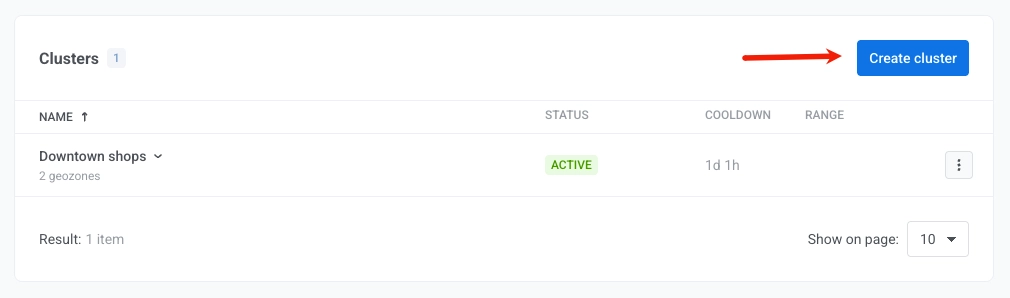
1. On the **Geo campaigns** page, click **Create cluster**.
 2. Enter the **Cluster name** and **Cluster cooldown**.
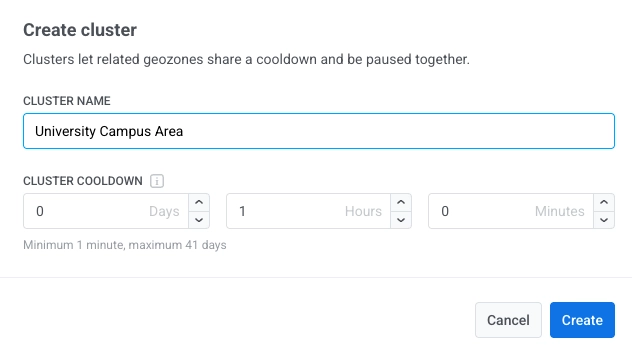 3. Click **Create**.
Once created, the cluster appears on the **Geo campaigns** page. To assign geozones to it:
- Select **Use existing cluster** in the **Cooldown** field when [creating or editing a geozone](/product/messaging-channels/push-notifications/geo-campaigns/create-geozone/#choose-a-cluster-and-cooldown).
- Use **Move to cluster** on the [Geo campaigns](/product/messaging-channels/push-notifications/geo-campaigns/manage/#manage-a-geozone) page.
You can also create a cluster while you save a geozone:
1. In **Cooldown**, choose **New cluster**.
2. Enter the name and cooldown.
3. Click **Save**.
3. Click **Create**.
Once created, the cluster appears on the **Geo campaigns** page. To assign geozones to it:
- Select **Use existing cluster** in the **Cooldown** field when [creating or editing a geozone](/product/messaging-channels/push-notifications/geo-campaigns/create-geozone/#choose-a-cluster-and-cooldown).
- Use **Move to cluster** on the [Geo campaigns](/product/messaging-channels/push-notifications/geo-campaigns/manage/#manage-a-geozone) page.
You can also create a cluster while you save a geozone:
1. In **Cooldown**, choose **New cluster**.
2. Enter the name and cooldown.
3. Click **Save**.