# Deep links
By default, tapping a push notification opens your app's main screen. Deep linking allows you to take users directly to a specific part of your app when they tap on a push notification. This can be a product page, a feature, or any other location within your app.
## Benefits of deep linking
- **Increased engagement**: Users are more likely to complete desired actions.
- **Improved user experience**: Users are taken directly to the relevant content.
- **Higher conversion rates**: By streamlining the user journey, you can boost sales or sign-ups.
## Use cases
- Direct users to a specific product page or sale event within the app, increasing the chances of conversion. For example, you can send a notification saying, "Flash Sale! 50% off on Electronics," that takes users directly to the sale section in the app.
- Use deep links to send users to content tailored to their interests or past behavior, enhancing engagement.
- Bring inactive users back to the app by linking them directly to new features or updates that might interest them.
## How to implement deep links
### Create deep links
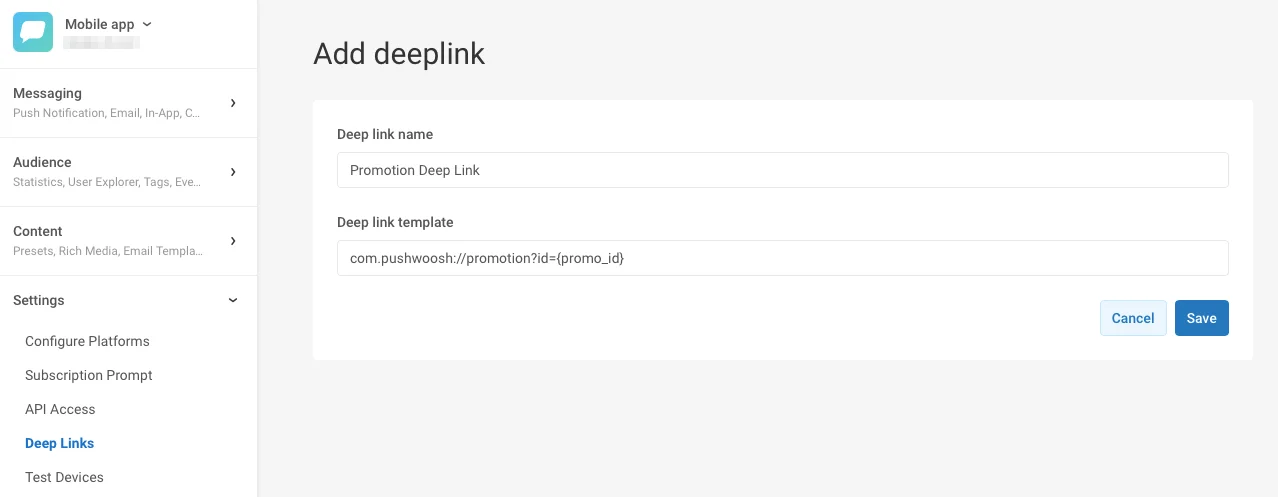
In Pushwoosh Control Panel, open your App and go to the **Deep Links** section, then click **Add Deep Link**. Enter the name of the deep link and its template.
The template follows standard URI scheme which is **scheme://[domain]/path[?query]**.
The scheme must be unique to your application. You can also reference additional parameters that could be entered later by using `{placeholders}` in curly braces. You can use several placeholders in your deep link template.
The example below illustrates a deep link with the scheme `com.pushwoosh`, page name `promotion`, and query parameter `id` with placeholder `promo_id`:
### Configure deep links
### Use deep links
To link to a specific page within your app while creating push content, go to the **On-click actions** section of the Push Content form and configure a deep link.
For detailed steps, [see this guide](/product/content/push-presets/#define-the-next-step-for-users-who-click-on-the-notification).
 ### Configure deep links
### Use deep links
To link to a specific page within your app while creating push content, go to the **On-click actions** section of the Push Content form and configure a deep link.
For detailed steps, [see this guide](/product/content/push-presets/#define-the-next-step-for-users-who-click-on-the-notification).
### Configure deep links
### Use deep links
To link to a specific page within your app while creating push content, go to the **On-click actions** section of the Push Content form and configure a deep link.
For detailed steps, [see this guide](/product/content/push-presets/#define-the-next-step-for-users-who-click-on-the-notification).