# Send App Inbox messages
**App Inbox** is a pull-based channel: Pushwoosh stores the message, and the app fetches it the next time a user opens it. Delivery doesn't depend on a live push token, only on a registered device, so App Inbox messages reach users a push notification alone might miss.
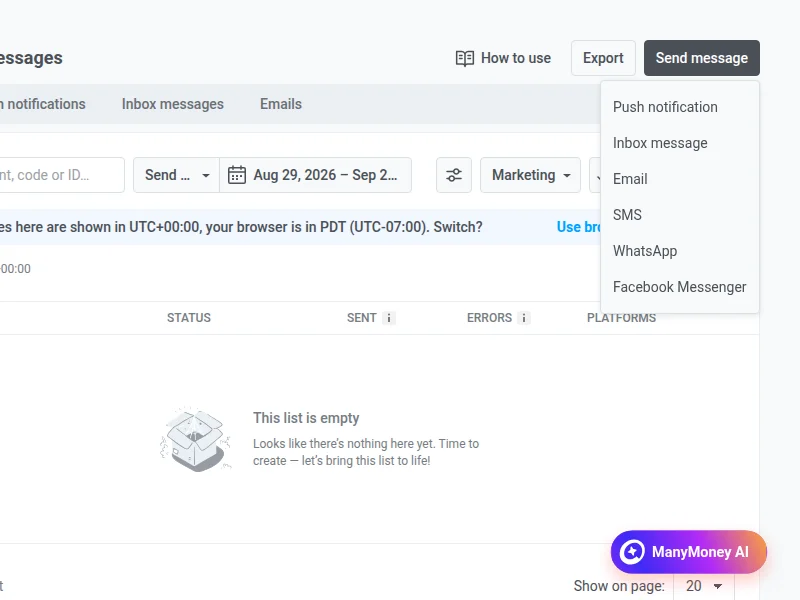
To send a one-time Inbox message, go to **Campaigns > One-time messages**, click **Send message**, and choose **Inbox message**. The form has five steps: **Content → Audience → Sending time → Actions → Review**.
### Select message type
Choose **Marketing message** or **Transactional message**:
* **Marketing message:** respects frequency capping. Excludes the [global control group](/product/audience-data-and-segmentation/control-groups/).
* **Transactional message:** bypasses frequency capping. Sent to the global control group too.
### Select or create App Inbox content
Search for an existing [App Inbox preset](/product/content/app-inbox-presets/), or click **Create new** to build content inline. Either way, the content editor is the same one used for [App Inbox presets](/product/content/app-inbox-presets/#choose-a-layout-type) — pick a layout type, then fill in the fields for that layout.
### Select audience for the Inbox message
Audience selection reuses the same options as [one-time push](/product/messaging-channels/push-notifications/send-push-notifications/one-time-push/#select-audience-for-push-notification): **Send to segment**, **Send to specific users**, or **Send to all subscribers**.
**Target platforms** is limited to the platforms that support an inbox. Web and messenger platforms don't appear in the list.
### Choose when to send
* **Send immediately** — the message is placed in the inbox as soon as you send.
* **Selected time** — schedule the message for a specific date and time.
* **Best time** — available only together with **Notify with push** below. For a pull channel, the moment you publish doesn't decide the moment a user sees the message, so Best time has nothing to optimize on its own.
#### Notify with push
Toggle **Notify with push** to also send a push notification when the message lands in the inbox, so the user learns about it right away instead of at their next app open. When enabled, select a push preset to send alongside.
#### Set expiration
Choose how long the message stays in the inbox: **7**, **14**, **30**, or **90 days**, or a specific date. The default is **30 days** — longer than the retention on the [legacy Save to Inbox toggle](/product/messaging-channels/message-inbox/mobile-message-inbox/#control-how-long-messages-stay-in-your-inbox), because an Inbox message needs to survive until the user's next app open, not just until the next day.
#### Set frequency capping
Choose one of the same three options as [push frequency capping](/product/messaging-channels/push-notifications/send-push-notifications/one-time-push/#set-frequency-capping): **Use Global frequency capping settings**, **Ignore Global frequency capping**, or **Use custom frequency capping**.
App Inbox counts against its own [frequency capping channel](/product/messaging-channels/global-frequency-capping/#app-inbox), separate from push. Capping App Inbox never blocks or delays a push notification, and the other way around.
### Actions
On the **Actions** step, choose what happens when a user taps the message: no action, a link to a web page, a deep link, or a Rich Media page.
### Review and send
Review content, audience, platforms, and scheduling, then click **Send now** or **Schedule message**.
You can also deliver Inbox messages from a journey. See [App Inbox](/product/customer-journey/journey-elements/channels/app-inbox/).
 ### Select message type
Choose **Marketing message** or **Transactional message**:
* **Marketing message:** respects frequency capping. Excludes the [global control group](/product/audience-data-and-segmentation/control-groups/).
* **Transactional message:** bypasses frequency capping. Sent to the global control group too.
### Select or create App Inbox content
Search for an existing [App Inbox preset](/product/content/app-inbox-presets/), or click **Create new** to build content inline. Either way, the content editor is the same one used for [App Inbox presets](/product/content/app-inbox-presets/#choose-a-layout-type) — pick a layout type, then fill in the fields for that layout.
### Select audience for the Inbox message
Audience selection reuses the same options as [one-time push](/product/messaging-channels/push-notifications/send-push-notifications/one-time-push/#select-audience-for-push-notification): **Send to segment**, **Send to specific users**, or **Send to all subscribers**.
**Target platforms** is limited to the platforms that support an inbox. Web and messenger platforms don't appear in the list.
### Choose when to send
* **Send immediately** — the message is placed in the inbox as soon as you send.
* **Selected time** — schedule the message for a specific date and time.
* **Best time** — available only together with **Notify with push** below. For a pull channel, the moment you publish doesn't decide the moment a user sees the message, so Best time has nothing to optimize on its own.
#### Notify with push
Toggle **Notify with push** to also send a push notification when the message lands in the inbox, so the user learns about it right away instead of at their next app open. When enabled, select a push preset to send alongside.
#### Set expiration
Choose how long the message stays in the inbox: **7**, **14**, **30**, or **90 days**, or a specific date. The default is **30 days** — longer than the retention on the [legacy Save to Inbox toggle](/product/messaging-channels/message-inbox/mobile-message-inbox/#control-how-long-messages-stay-in-your-inbox), because an Inbox message needs to survive until the user's next app open, not just until the next day.
#### Set frequency capping
Choose one of the same three options as [push frequency capping](/product/messaging-channels/push-notifications/send-push-notifications/one-time-push/#set-frequency-capping): **Use Global frequency capping settings**, **Ignore Global frequency capping**, or **Use custom frequency capping**.
App Inbox counts against its own [frequency capping channel](/product/messaging-channels/global-frequency-capping/#app-inbox), separate from push. Capping App Inbox never blocks or delays a push notification, and the other way around.
### Actions
On the **Actions** step, choose what happens when a user taps the message: no action, a link to a web page, a deep link, or a Rich Media page.
### Review and send
Review content, audience, platforms, and scheduling, then click **Send now** or **Schedule message**.
You can also deliver Inbox messages from a journey. See [App Inbox](/product/customer-journey/journey-elements/channels/app-inbox/).
### Select message type
Choose **Marketing message** or **Transactional message**:
* **Marketing message:** respects frequency capping. Excludes the [global control group](/product/audience-data-and-segmentation/control-groups/).
* **Transactional message:** bypasses frequency capping. Sent to the global control group too.
### Select or create App Inbox content
Search for an existing [App Inbox preset](/product/content/app-inbox-presets/), or click **Create new** to build content inline. Either way, the content editor is the same one used for [App Inbox presets](/product/content/app-inbox-presets/#choose-a-layout-type) — pick a layout type, then fill in the fields for that layout.
### Select audience for the Inbox message
Audience selection reuses the same options as [one-time push](/product/messaging-channels/push-notifications/send-push-notifications/one-time-push/#select-audience-for-push-notification): **Send to segment**, **Send to specific users**, or **Send to all subscribers**.
**Target platforms** is limited to the platforms that support an inbox. Web and messenger platforms don't appear in the list.
### Choose when to send
* **Send immediately** — the message is placed in the inbox as soon as you send.
* **Selected time** — schedule the message for a specific date and time.
* **Best time** — available only together with **Notify with push** below. For a pull channel, the moment you publish doesn't decide the moment a user sees the message, so Best time has nothing to optimize on its own.
#### Notify with push
Toggle **Notify with push** to also send a push notification when the message lands in the inbox, so the user learns about it right away instead of at their next app open. When enabled, select a push preset to send alongside.
#### Set expiration
Choose how long the message stays in the inbox: **7**, **14**, **30**, or **90 days**, or a specific date. The default is **30 days** — longer than the retention on the [legacy Save to Inbox toggle](/product/messaging-channels/message-inbox/mobile-message-inbox/#control-how-long-messages-stay-in-your-inbox), because an Inbox message needs to survive until the user's next app open, not just until the next day.
#### Set frequency capping
Choose one of the same three options as [push frequency capping](/product/messaging-channels/push-notifications/send-push-notifications/one-time-push/#set-frequency-capping): **Use Global frequency capping settings**, **Ignore Global frequency capping**, or **Use custom frequency capping**.
App Inbox counts against its own [frequency capping channel](/product/messaging-channels/global-frequency-capping/#app-inbox), separate from push. Capping App Inbox never blocks or delays a push notification, and the other way around.
### Actions
On the **Actions** step, choose what happens when a user taps the message: no action, a link to a web page, a deep link, or a Rich Media page.
### Review and send
Review content, audience, platforms, and scheduling, then click **Send now** or **Schedule message**.
You can also deliver Inbox messages from a journey. See [App Inbox](/product/customer-journey/journey-elements/channels/app-inbox/).