# Save a push to Inbox
**Save to Inbox** keeps a copy of your push in the app’s inbox when you send the notification. Users still get the push banner. If they dismiss it, miss it, or open the app later, they can find the same message in the inbox and act on it then.
Typical use cases:
* A promo or discount the user might dismiss and open later in the app
* A reminder that should stay available for a few days after the push
* Any push that still matters after the banner is gone
Inbox timestamps use each user’s device timezone.
## Prerequisites
Before Save to Inbox works:
* Message inbox must be set up in the app. Share the [mobile Message inbox guide](/developer/guides/message-inbox/mobile-message-inbox) with your developers.
* For the product overview and setup path, see [Getting started with Message inbox](/product/messaging-channels/message-inbox/).
## Turn on Save to Inbox
Turn the toggle on when you create the push. The Control Panel label depends on where you send:
* One-time messages: **Save message to Inbox**
* Customer Journey Push element: **Save to inbox**
### One-time push
Use this path when you send a one-time push from Campaigns.
1. Go to **Campaigns > One-time messages**.
2. Start a [one-time push](/product/messaging-channels/push-notifications/send-push-notifications/one-time-push/).
3. On the **Content** step, turn on **Save message to Inbox**.
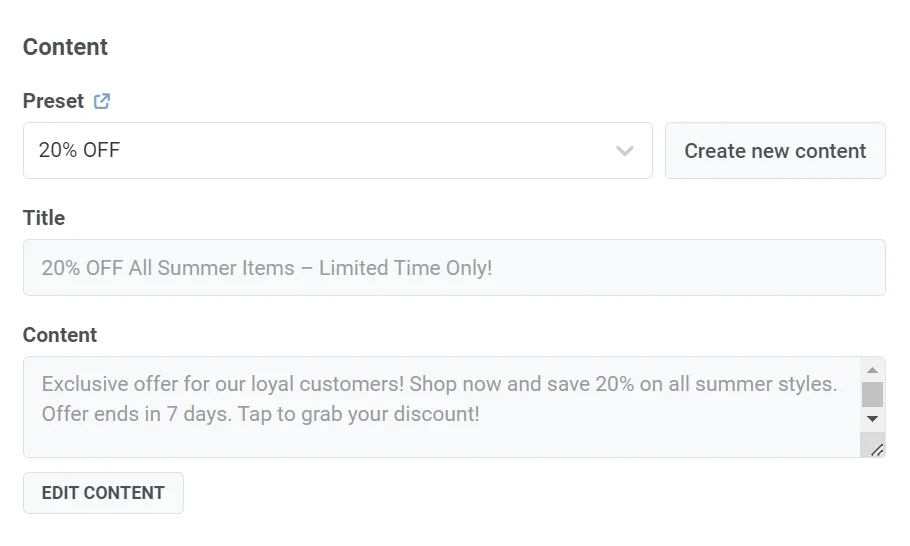
The inbox title and message come from the push preset. Then set retention, icon, and tap action in [Set inbox options](#set-inbox-options).
### Customer Journey
Use this path when you send the push from a journey.
1. Open your journey and select the [Push](/product/customer-journey/journey-elements/channels/push/) element on the canvas.
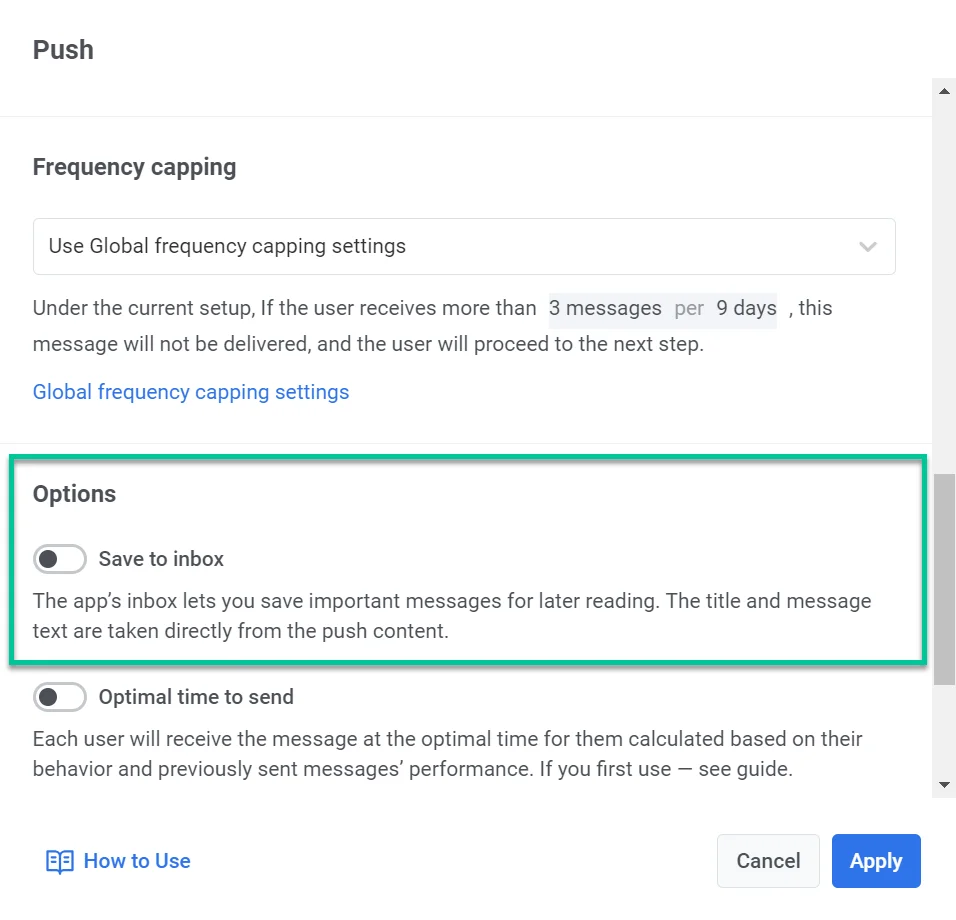
2. In the element settings, turn on **Save to inbox**.
3. Set the inbox options below, then click **Apply**.
## Set inbox options
After you turn the toggle on, set how the inbox copy looks and behaves.
### Remove from Inbox
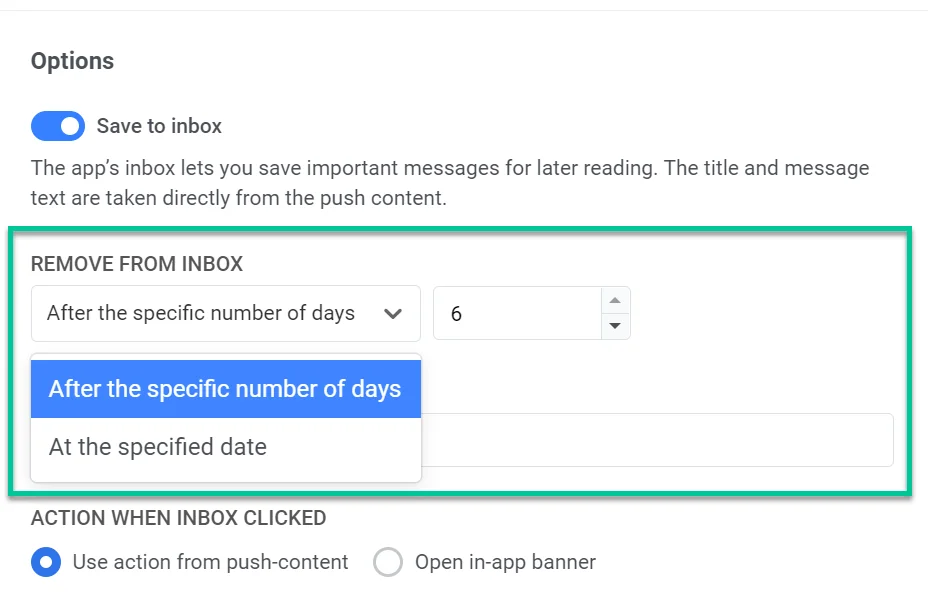
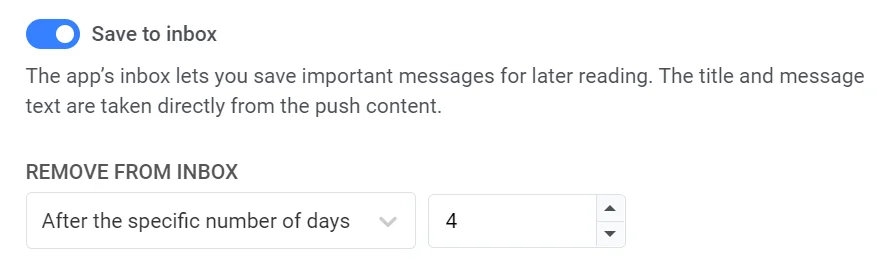
In **Remove from Inbox**, choose how long the message stays:
* A number of days (for example, 3 days).
* A specific date.
The maximum retention period is **30 days**.
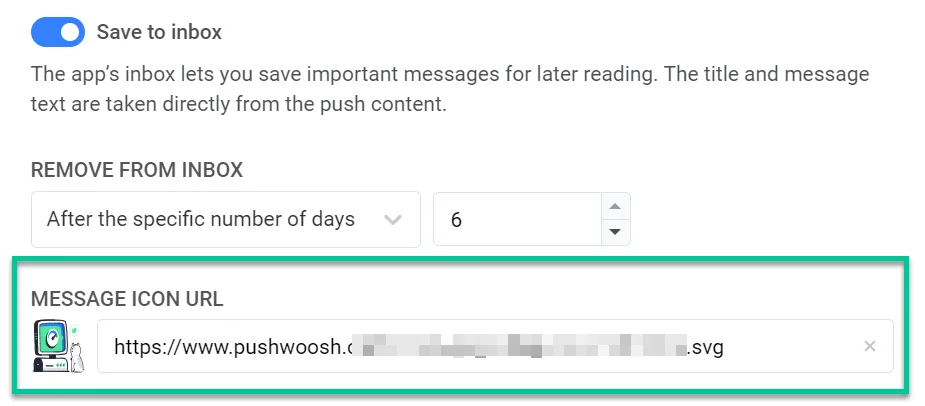
### Message icon
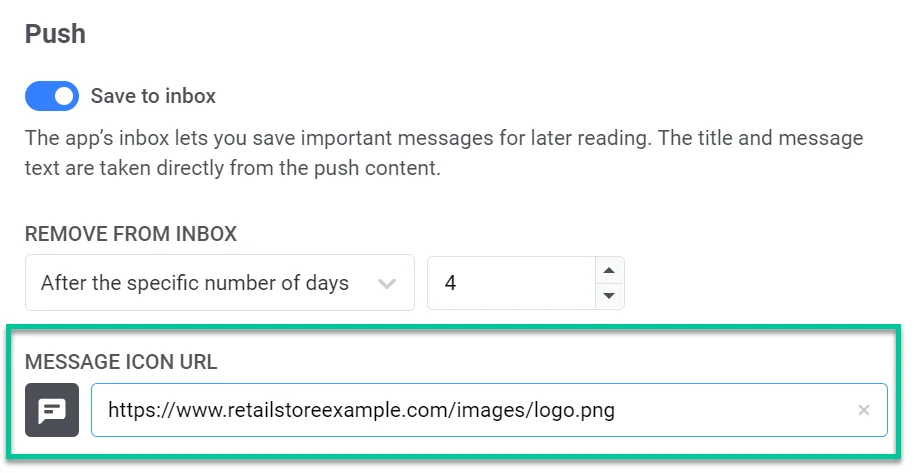
Set an icon URL so the message is easy to spot in the inbox list. If you leave it empty, the default icon is used.
### Action when inbox clicked
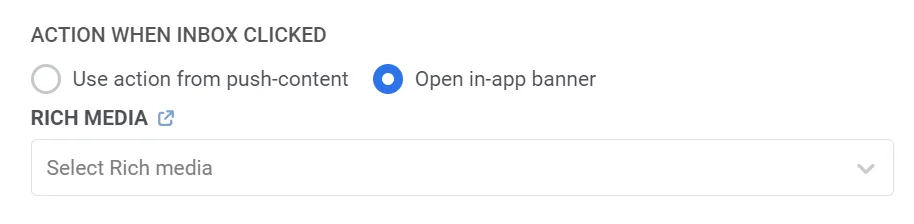
Choose what happens when the user taps the inbox row:
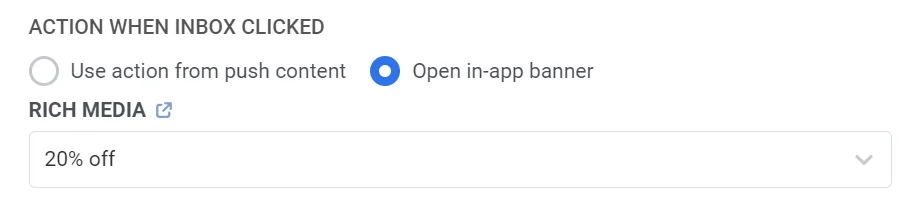
* **Use the action you set in the push content:** same deep link, URL, or screen as the push.
* **Open in-app banner:** open an [in-app](/product/messaging-channels/in-apps/) you select. Create the [Rich media](/product/content/in-apps/no-code-in-app-editor/create-rich-media-in-the-built-in-editor/) first, then pick it from the list.
## Example scenario
Send a short-lived promo push that stays in the inbox for four days, then opens an in-app with the promo code.
1. Create a journey with [Audience-based entry](/product/customer-journey/journey-elements/entry-elements/audience-based-entry/) for your loyal customers segment.
2. Add a [Push](/product/customer-journey/journey-elements/channels/push/) element and set the promo title and message.
3. Toggle **Save to inbox**. In **Remove from Inbox**, set **4 days**.
4. Optionally set an icon URL (for example, your store logo).
5. Under **Action when inbox clicked**, choose **Open in-app banner** and select the Rich media that shows the promo code.
6. Click **Apply**, then finish the rest of the journey.
## Track inbox message statistics
The Control Panel doesn't show inbox open rate for a Save to Inbox push. Pull it with the [`getMessageLog`](/developer/api-reference/statistics-api/message-statistics-api/#getmessagelog) API method, filtering on `actions: ["inbox_opened"]`. For everything the Control Panel does show for this push, see [message statistics for a push](/product/statistics-and-analytics/messaging-statistics/push-notification-statistics/).
To see what one user currently has in their inbox, open [User Explorer → Inbox](/product/audience-data-and-segmentation/user-explorer/#inbox-tab).
 3. Set the inbox options below, then click **Apply**.
## Set inbox options
After you turn the toggle on, set how the inbox copy looks and behaves.
### Remove from Inbox
In **Remove from Inbox**, choose how long the message stays:
* A number of days (for example, 3 days).
* A specific date.
The maximum retention period is **30 days**.
3. Set the inbox options below, then click **Apply**.
## Set inbox options
After you turn the toggle on, set how the inbox copy looks and behaves.
### Remove from Inbox
In **Remove from Inbox**, choose how long the message stays:
* A number of days (for example, 3 days).
* A specific date.
The maximum retention period is **30 days**.
 ### Message icon
Set an icon URL so the message is easy to spot in the inbox list. If you leave it empty, the default icon is used.
### Message icon
Set an icon URL so the message is easy to spot in the inbox list. If you leave it empty, the default icon is used.
 ### Action when inbox clicked
Choose what happens when the user taps the inbox row:
* **Use the action you set in the push content:** same deep link, URL, or screen as the push.
* **Open in-app banner:** open an [in-app](/product/messaging-channels/in-apps/) you select. Create the [Rich media](/product/content/in-apps/no-code-in-app-editor/create-rich-media-in-the-built-in-editor/) first, then pick it from the list.
### Action when inbox clicked
Choose what happens when the user taps the inbox row:
* **Use the action you set in the push content:** same deep link, URL, or screen as the push.
* **Open in-app banner:** open an [in-app](/product/messaging-channels/in-apps/) you select. Create the [Rich media](/product/content/in-apps/no-code-in-app-editor/create-rich-media-in-the-built-in-editor/) first, then pick it from the list.
 ## Example scenario
Send a short-lived promo push that stays in the inbox for four days, then opens an in-app with the promo code.
1. Create a journey with [Audience-based entry](/product/customer-journey/journey-elements/entry-elements/audience-based-entry/) for your loyal customers segment.
2. Add a [Push](/product/customer-journey/journey-elements/channels/push/) element and set the promo title and message.
## Example scenario
Send a short-lived promo push that stays in the inbox for four days, then opens an in-app with the promo code.
1. Create a journey with [Audience-based entry](/product/customer-journey/journey-elements/entry-elements/audience-based-entry/) for your loyal customers segment.
2. Add a [Push](/product/customer-journey/journey-elements/channels/push/) element and set the promo title and message.
 3. Toggle **Save to inbox**. In **Remove from Inbox**, set **4 days**.
 4. Optionally set an icon URL (for example, your store logo).
 5. Under **Action when inbox clicked**, choose **Open in-app banner** and select the Rich media that shows the promo code.
 6. Click **Apply**, then finish the rest of the journey.
## Track inbox message statistics
The Control Panel doesn't show inbox open rate for a Save to Inbox push. Pull it with the [`getMessageLog`](/developer/api-reference/statistics-api/message-statistics-api/#getmessagelog) API method, filtering on `actions: ["inbox_opened"]`. For everything the Control Panel does show for this push, see [message statistics for a push](/product/statistics-and-analytics/messaging-statistics/push-notification-statistics/).
To see what one user currently has in their inbox, open [User Explorer → Inbox](/product/audience-data-and-segmentation/user-explorer/#inbox-tab).
6. Click **Apply**, then finish the rest of the journey.
## Track inbox message statistics
The Control Panel doesn't show inbox open rate for a Save to Inbox push. Pull it with the [`getMessageLog`](/developer/api-reference/statistics-api/message-statistics-api/#getmessagelog) API method, filtering on `actions: ["inbox_opened"]`. For everything the Control Panel does show for this push, see [message statistics for a push](/product/statistics-and-analytics/messaging-statistics/push-notification-statistics/).
To see what one user currently has in their inbox, open [User Explorer → Inbox](/product/audience-data-and-segmentation/user-explorer/#inbox-tab).