# Send rate limits
Limit how many messages per second Pushwoosh sends on each channel, so high-volume sends go out at a steady pace instead of all at once.
## Set send rate limits
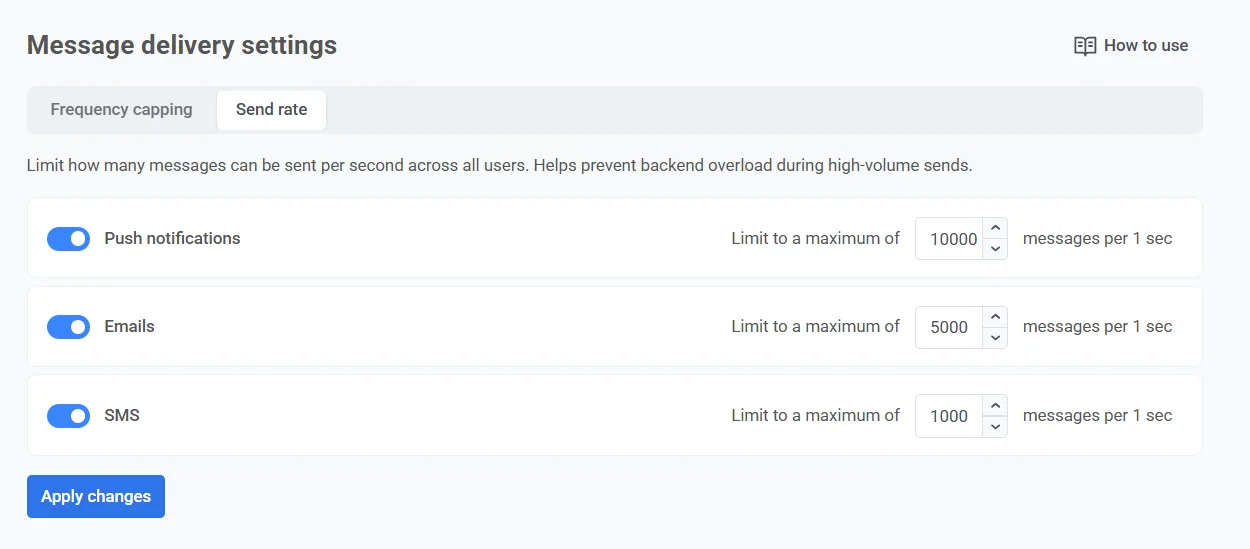
Set individual send rate limits for each messaging channel: push notifications, emails, and SMS.
To set up send rate limits:
1. Go to **Settings > Message delivery settings > Send rate**.
2. Enable or disable rate limiting for each channel as needed.
3. Specify the maximum number of messages to be sent per second to manage delivery speed and prevent backend overload during high-volume sends.
4. Click **Apply changes**, then confirm to save your settings.
## Controlling send rate limits for individual messages
In addition to setting a global send rate for each channel, you can also control the send rate for individual messages in customer journeys and one-time campaigns. This is done in the settings of the specific message or journey element.
You can choose to:
* Use global send rate settings
* Send messages without global send rate
* Use custom send rate
For detailed instructions on configuring send rate per message, see the [channel-specific element guides](/product/customer-journey/journey-elements/channels/) and [one-time push notifications](/product/messaging-channels/push-notifications/send-push-notifications/one-time-push/#set-send-rate-limits).
 4. Click **Apply changes**, then confirm to save your settings.
## Controlling send rate limits for individual messages
In addition to setting a global send rate for each channel, you can also control the send rate for individual messages in customer journeys and one-time campaigns. This is done in the settings of the specific message or journey element.
You can choose to:
* Use global send rate settings
* Send messages without global send rate
* Use custom send rate
For detailed instructions on configuring send rate per message, see the [channel-specific element guides](/product/customer-journey/journey-elements/channels/) and [one-time push notifications](/product/messaging-channels/push-notifications/send-push-notifications/one-time-push/#set-send-rate-limits).
4. Click **Apply changes**, then confirm to save your settings.
## Controlling send rate limits for individual messages
In addition to setting a global send rate for each channel, you can also control the send rate for individual messages in customer journeys and one-time campaigns. This is done in the settings of the specific message or journey element.
You can choose to:
* Use global send rate settings
* Send messages without global send rate
* Use custom send rate
For detailed instructions on configuring send rate per message, see the [channel-specific element guides](/product/customer-journey/journey-elements/channels/) and [one-time push notifications](/product/messaging-channels/push-notifications/send-push-notifications/one-time-push/#set-send-rate-limits).