# Global frequency capping
To prevent overwhelming your users with multiple messages from overlapping campaigns, use **Global frequency capping**. This feature limits the number of marketing messages a user receives within a specific timeframe. Once the message limit is reached for a channel, no further messages will be sent until the period resets.
Silent pushes and Live Activity updates aren't subject to frequency capping.
## Configure Global frequency capping
To control the number of messages sent to a user within a specific timeframe:
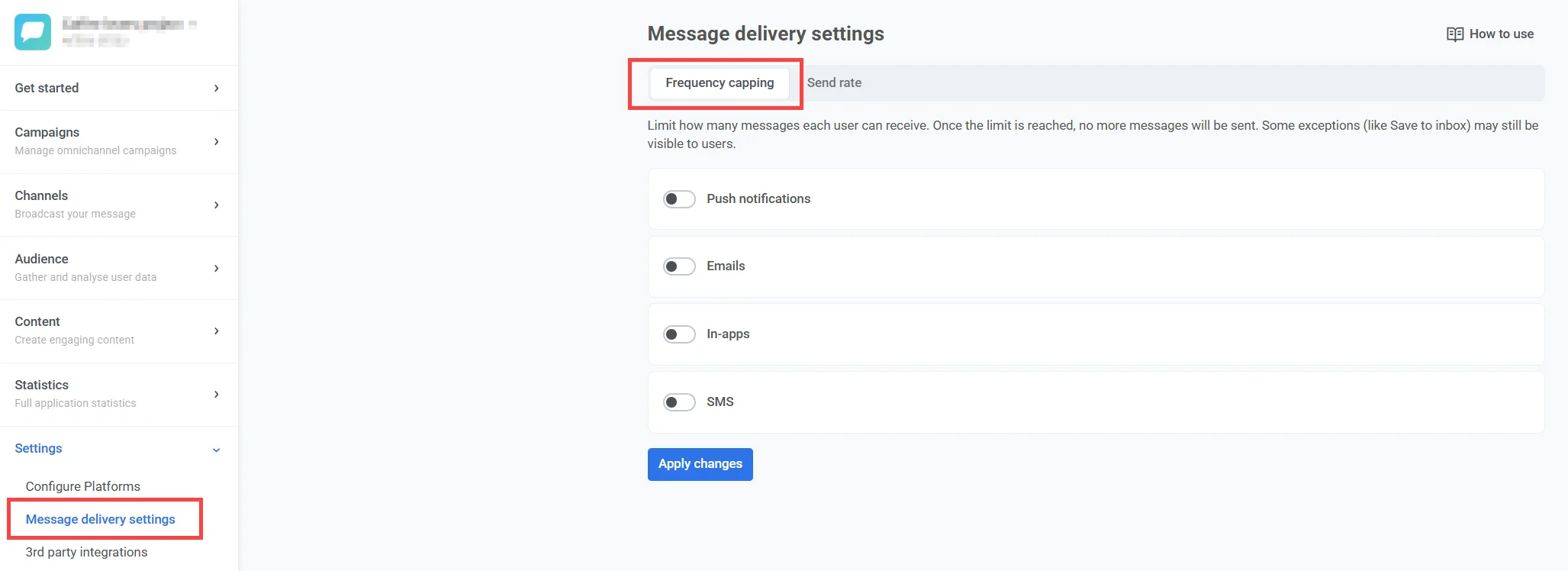
1. Go to **Settings > Message delivery settings > Frequency capping**.
2. Toggle the switch on to enable frequency capping for the desired channels ([push notifications](/product/messaging-channels/push-notifications/), [emails](/product/messaging-channels/emails/), [in-apps](/product/messaging-channels/in-apps/), [SMS](/product/messaging-channels/sms/), [WhatsApp](/product/messaging-channels/whatsapp-messages/), [App Inbox](#app-inbox)).
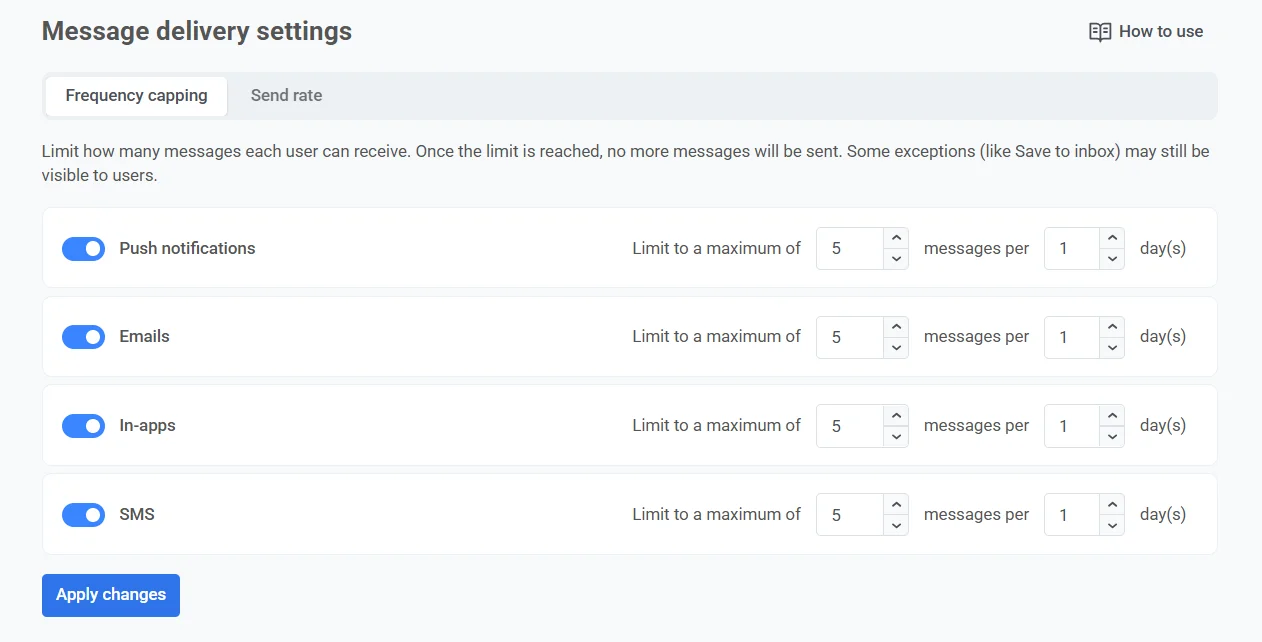
3. Set the maximum number of messages per user for each channel and the corresponding time period.
> For example, you can allow up to 4 push notifications, 2 emails, and 2 WhatsApp messages in a 5-day period.
You can allow 1 to 1,000 messages per period, and the period can be 1 to 30 days. If you enter a value outside these ranges, the field changes it to the nearest allowed value, for example 1,500 messages to 1,000.
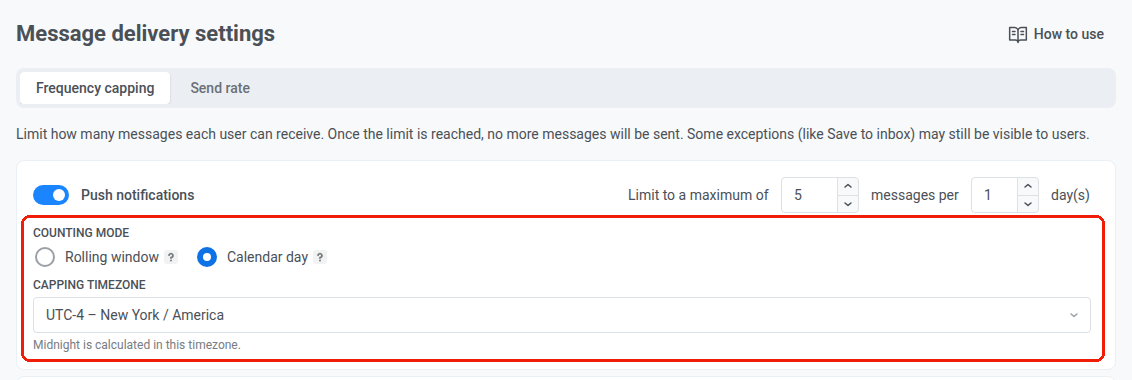
4. Choose a **Counting mode** for the channel:
* **Rolling window** (default): counts messages sent within the last N×24 hours before each send. For example, with a cap of 3 pushes per 2 days, a push sent Monday at 9 AM stops counting on Wednesday at 9 AM, and a push sent Monday at 3 PM stops counting on Wednesday at 3 PM.
* **Calendar day**: counts messages sent today and on the previous N-1 calendar days, starting at midnight. Select the **Capping timezone** (for example, `America/New_York`) that sets when midnight falls for this channel. For example, with the same cap of 3 pushes per 2 days, on Wednesday every push sent since Tuesday midnight counts. Right after midnight, the window moves to Wednesday and Thursday. If you don't select a timezone, Pushwoosh counts calendar days in UTC.
Counting mode is also available wherever you can set a custom frequency cap: [one-time campaigns](/product/messaging-channels/push-notifications/send-push-notifications/one-time-push/#set-frequency-capping), [instant in-apps](/product/messaging-channels/in-apps/send-in-apps/send-instant-in-apps/#configure-frequency-capping), and [customer journey message elements](/product/customer-journey/journey-elements/channels/).
### App Inbox
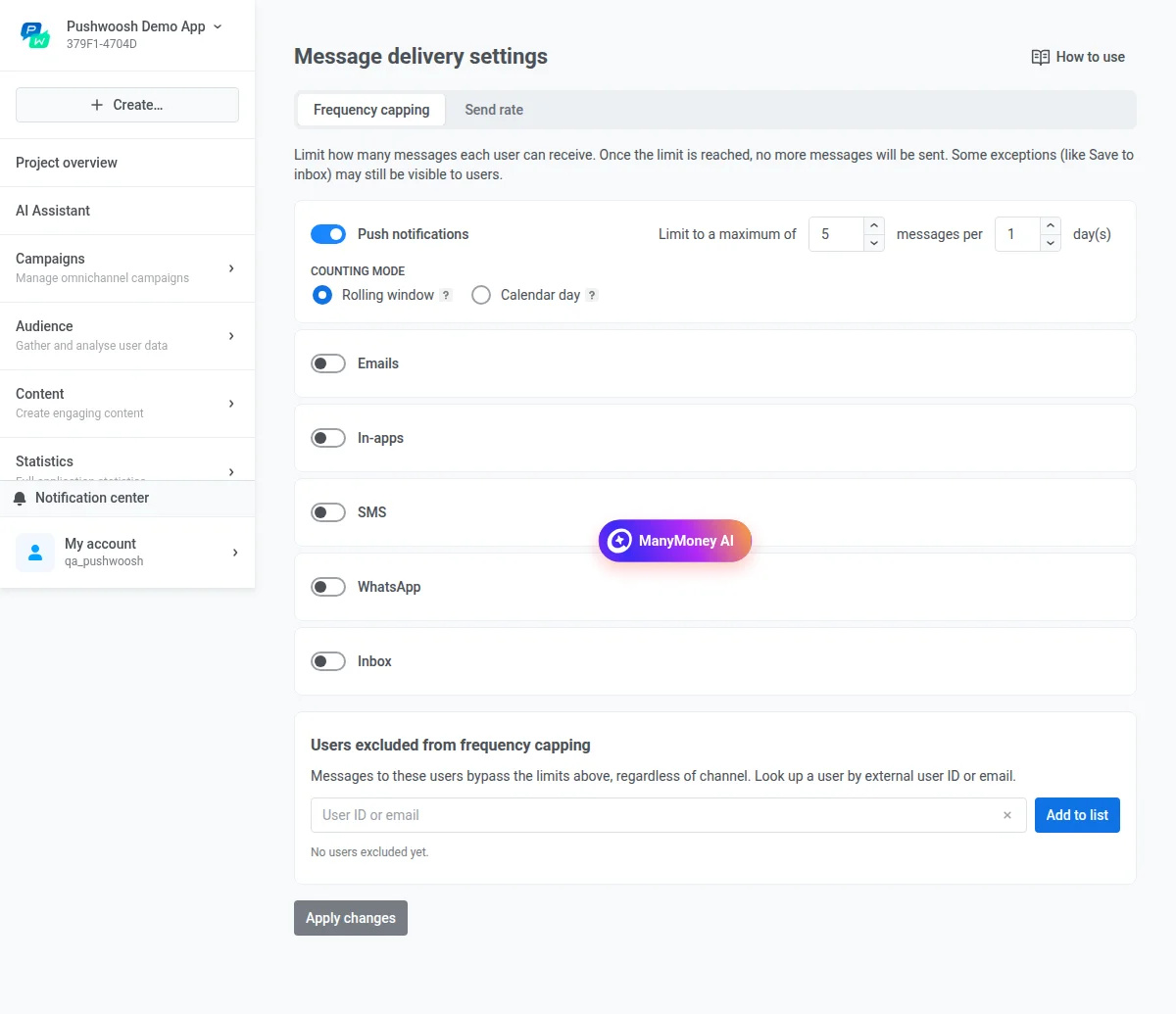
To cap [App Inbox](/product/messaging-channels/message-inbox/send-app-inbox-messages/) messages, use the **Inbox** toggle in this list.
App Inbox has its own counter, separate from push and every other channel. A user who has reached the push limit for the day can still receive an Inbox message, and the other way around.
App Inbox has no send rate setting: users pick up Inbox messages one at a time when they open the app, so there's no delivery spike to limit.
### Exclude users from global frequency capping
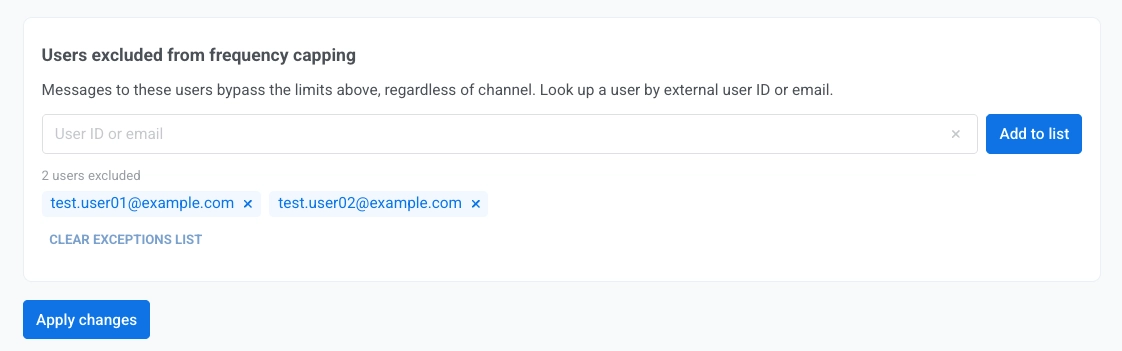
You can exclude specific users from frequency capping. Messages to excluded users bypass every limit on every channel, both the global limit and any custom limit set on a message.
To exclude users from capping:
1. Go to **Settings > Message delivery settings > Frequency capping**.
2. In **Users excluded from frequency capping**, enter one [User ID](/product/pushwoosh-knowledge-hub/users-userids/) or one email at a time.
3. Click **Add to list**.
4. Repeat steps 2-3 for each additional user.
5. Click **Apply changes**.
Users remain excluded until you remove them from the list in message delivery settings.
To clear the exclusions list, click **Clear exceptions list**, then click **Apply changes**.
## Global frequency capping for Journey messages
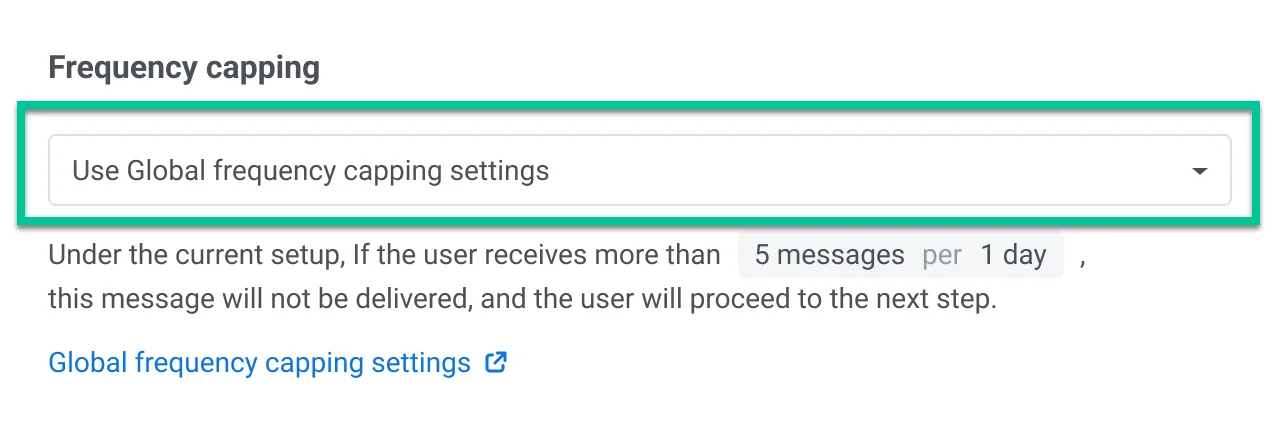
When creating message elements in customer journeys, **Global frequency capping** settings are applied by default.
However, you have the option to customize how certain messages are handled by overriding the Global frequency capping settings. You can do the following:
### Ignore Global frequency capping
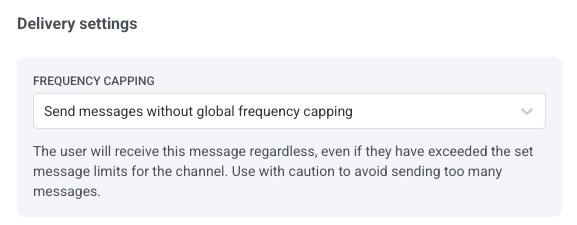
Select **Send messages without global frequency capping** to bypass global frequency capping rules. The user will receive this message regardless, even if they have exceeded the set message limits for the channel. The message also doesn't count toward the channel's global counter, so it doesn't use up the quota of other messages. Use with caution to avoid sending too many messages.
### Use custom frequency capping
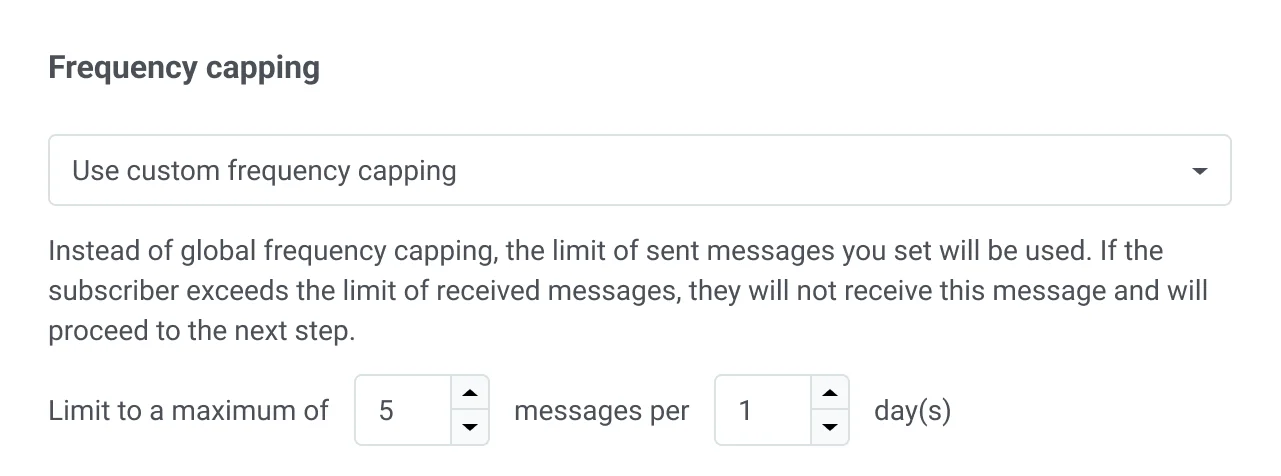
This option allows you to set a custom limit on the number of messages sent within a specified period. Here, define the number of messages (e.g., 5) and the time frame (e.g., 10 days) in which these messages can be sent. Choose a counting mode for this custom limit: [Rolling window or Calendar day](#configure-global-frequency-capping), same as for the global setting.
## Example scenario
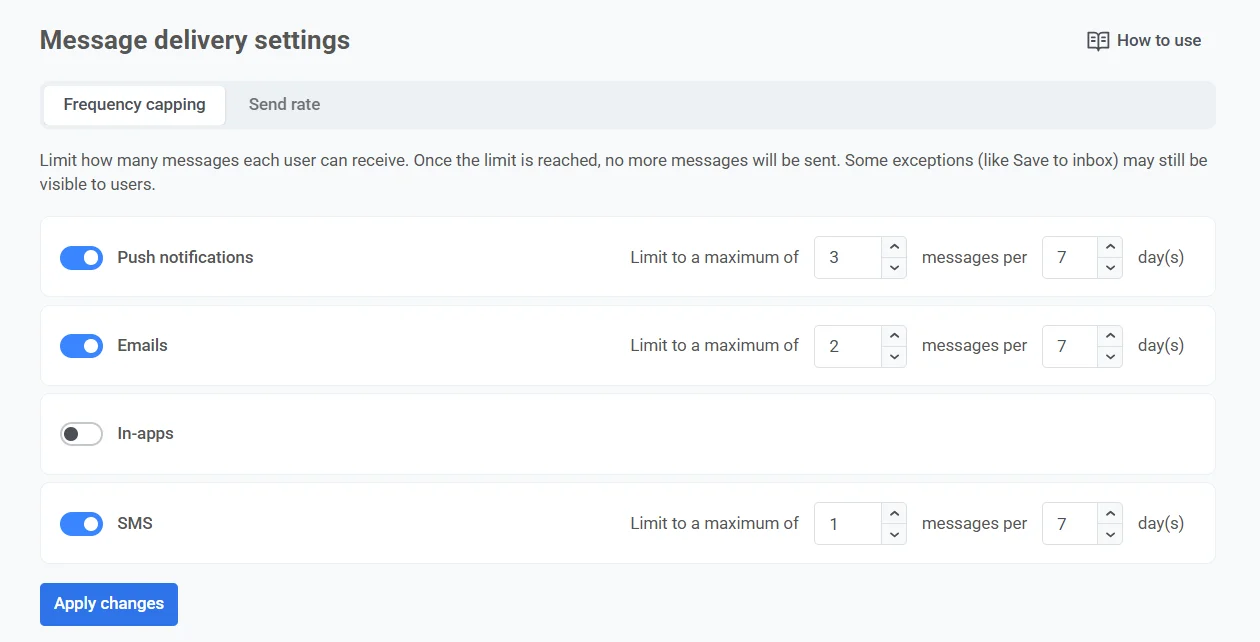
Imagine you're managing multiple marketing campaigns across push notifications, emails, and SMS. To prevent overwhelming your customers with too many messages, you decide to set up Frequency capping and limit the number of messages each user can receive to 3 push notifications, 2 emails, and 1 SMS per user within 7 days.
Here are the steps to set it up:
### Enable Global frequency capping
1. Go to **Settings > Message delivery settings > Frequency capping**.
2. Toggle the switch on for push notifications, emails, and SMS.
3. Specify the maximum number of messages a user can receive: 3 push notifications, 2 emails, and 1 SMS.
4. Specify the time period for 7 days.
### Configure critical messages
If you want to make sure that important messages, such as payment confirmations, are always delivered immediately, regardless of any message limits, select **Send messages without global frequency capping** in the delivery settings of the specific journey steps where this is needed.
Examples of other critical messages can include security alerts, password reset requests, critical app updates, and more.
### Customize capping for specific messages
Let's say you want to send a special offer push notification every time a user completes a specific in-app action. However, to avoid repeating the same message too often, you want to ensure this message is shown no more than once every 3 days, even though your Frequency capping allows 3 push notifications per week.
To configure it:
1. Set up a customer journey triggered by the user completing the target action.
2. Within the customer journey builder, go to the settings for the message element and select **Use custom frequency capping**.
3. Set the custom cap to 1 message every 3 days.
## View frequency capping statistics
You can see how frequency capping affects your messages in several places.
* **Project dashboard**: the [Project overview](/product/first-steps/pushwoosh-interface-overview/#project-overview) shows a Frequency capping block on the Push and Email tabs for the selected period, 30 days by default.
* **Individual message statistics**: the Overview tab of [push notification](/product/statistics-and-analytics/messaging-statistics/push-notification-statistics/) and [email](/product/statistics-and-analytics/messaging-statistics/email-statistics/) message statistics lists frequency capping as one of the Audience stage's exclusion reasons.
* **Aggregated messages**: the [Campaigns distribution](/product/statistics-and-analytics/aggregated-messages/#campaigns-distribution) funnel lists frequency-capped recipients as one of the Audience stage's exclusion reasons, as a single count of unique recipients skipped.
* **Customer Journey**: the [Communications statistics](/product/statistics-and-analytics/journey-statistics/overall-journey-statistics/#metrics-by-channel) window reports frequency capping on every channel tab.
For answers to common questions, see [Global frequency capping FAQ](/product/messaging-channels/message-delivery-settings/frequency-capping-faq/).
 2. Toggle the switch on to enable frequency capping for the desired channels ([push notifications](/product/messaging-channels/push-notifications/), [emails](/product/messaging-channels/emails/), [in-apps](/product/messaging-channels/in-apps/), [SMS](/product/messaging-channels/sms/), [WhatsApp](/product/messaging-channels/whatsapp-messages/), [App Inbox](#app-inbox)).
3. Set the maximum number of messages per user for each channel and the corresponding time period.
2. Toggle the switch on to enable frequency capping for the desired channels ([push notifications](/product/messaging-channels/push-notifications/), [emails](/product/messaging-channels/emails/), [in-apps](/product/messaging-channels/in-apps/), [SMS](/product/messaging-channels/sms/), [WhatsApp](/product/messaging-channels/whatsapp-messages/), [App Inbox](#app-inbox)).
3. Set the maximum number of messages per user for each channel and the corresponding time period.
 > For example, you can allow up to 4 push notifications, 2 emails, and 2 WhatsApp messages in a 5-day period.
You can allow 1 to 1,000 messages per period, and the period can be 1 to 30 days. If you enter a value outside these ranges, the field changes it to the nearest allowed value, for example 1,500 messages to 1,000.
4. Choose a **Counting mode** for the channel:
* **Rolling window** (default): counts messages sent within the last N×24 hours before each send. For example, with a cap of 3 pushes per 2 days, a push sent Monday at 9 AM stops counting on Wednesday at 9 AM, and a push sent Monday at 3 PM stops counting on Wednesday at 3 PM.
* **Calendar day**: counts messages sent today and on the previous N-1 calendar days, starting at midnight. Select the **Capping timezone** (for example, `America/New_York`) that sets when midnight falls for this channel. For example, with the same cap of 3 pushes per 2 days, on Wednesday every push sent since Tuesday midnight counts. Right after midnight, the window moves to Wednesday and Thursday. If you don't select a timezone, Pushwoosh counts calendar days in UTC.
> For example, you can allow up to 4 push notifications, 2 emails, and 2 WhatsApp messages in a 5-day period.
You can allow 1 to 1,000 messages per period, and the period can be 1 to 30 days. If you enter a value outside these ranges, the field changes it to the nearest allowed value, for example 1,500 messages to 1,000.
4. Choose a **Counting mode** for the channel:
* **Rolling window** (default): counts messages sent within the last N×24 hours before each send. For example, with a cap of 3 pushes per 2 days, a push sent Monday at 9 AM stops counting on Wednesday at 9 AM, and a push sent Monday at 3 PM stops counting on Wednesday at 3 PM.
* **Calendar day**: counts messages sent today and on the previous N-1 calendar days, starting at midnight. Select the **Capping timezone** (for example, `America/New_York`) that sets when midnight falls for this channel. For example, with the same cap of 3 pushes per 2 days, on Wednesday every push sent since Tuesday midnight counts. Right after midnight, the window moves to Wednesday and Thursday. If you don't select a timezone, Pushwoosh counts calendar days in UTC.
 Counting mode is also available wherever you can set a custom frequency cap: [one-time campaigns](/product/messaging-channels/push-notifications/send-push-notifications/one-time-push/#set-frequency-capping), [instant in-apps](/product/messaging-channels/in-apps/send-in-apps/send-instant-in-apps/#configure-frequency-capping), and [customer journey message elements](/product/customer-journey/journey-elements/channels/).
### App Inbox
To cap [App Inbox](/product/messaging-channels/message-inbox/send-app-inbox-messages/) messages, use the **Inbox** toggle in this list.
App Inbox has its own counter, separate from push and every other channel. A user who has reached the push limit for the day can still receive an Inbox message, and the other way around.
App Inbox has no send rate setting: users pick up Inbox messages one at a time when they open the app, so there's no delivery spike to limit.
Counting mode is also available wherever you can set a custom frequency cap: [one-time campaigns](/product/messaging-channels/push-notifications/send-push-notifications/one-time-push/#set-frequency-capping), [instant in-apps](/product/messaging-channels/in-apps/send-in-apps/send-instant-in-apps/#configure-frequency-capping), and [customer journey message elements](/product/customer-journey/journey-elements/channels/).
### App Inbox
To cap [App Inbox](/product/messaging-channels/message-inbox/send-app-inbox-messages/) messages, use the **Inbox** toggle in this list.
App Inbox has its own counter, separate from push and every other channel. A user who has reached the push limit for the day can still receive an Inbox message, and the other way around.
App Inbox has no send rate setting: users pick up Inbox messages one at a time when they open the app, so there's no delivery spike to limit.
 ### Exclude users from global frequency capping
You can exclude specific users from frequency capping. Messages to excluded users bypass every limit on every channel, both the global limit and any custom limit set on a message.
To exclude users from capping:
1. Go to **Settings > Message delivery settings > Frequency capping**.
2. In **Users excluded from frequency capping**, enter one [User ID](/product/pushwoosh-knowledge-hub/users-userids/) or one email at a time.
3. Click **Add to list**.
4. Repeat steps 2-3 for each additional user.
5. Click **Apply changes**.
### Exclude users from global frequency capping
You can exclude specific users from frequency capping. Messages to excluded users bypass every limit on every channel, both the global limit and any custom limit set on a message.
To exclude users from capping:
1. Go to **Settings > Message delivery settings > Frequency capping**.
2. In **Users excluded from frequency capping**, enter one [User ID](/product/pushwoosh-knowledge-hub/users-userids/) or one email at a time.
3. Click **Add to list**.
4. Repeat steps 2-3 for each additional user.
5. Click **Apply changes**.
 Users remain excluded until you remove them from the list in message delivery settings.
To clear the exclusions list, click **Clear exceptions list**, then click **Apply changes**.
## Global frequency capping for Journey messages
When creating message elements in customer journeys, **Global frequency capping** settings are applied by default.
Users remain excluded until you remove them from the list in message delivery settings.
To clear the exclusions list, click **Clear exceptions list**, then click **Apply changes**.
## Global frequency capping for Journey messages
When creating message elements in customer journeys, **Global frequency capping** settings are applied by default.
 However, you have the option to customize how certain messages are handled by overriding the Global frequency capping settings. You can do the following:
### Ignore Global frequency capping
Select **Send messages without global frequency capping** to bypass global frequency capping rules. The user will receive this message regardless, even if they have exceeded the set message limits for the channel. The message also doesn't count toward the channel's global counter, so it doesn't use up the quota of other messages. Use with caution to avoid sending too many messages.
However, you have the option to customize how certain messages are handled by overriding the Global frequency capping settings. You can do the following:
### Ignore Global frequency capping
Select **Send messages without global frequency capping** to bypass global frequency capping rules. The user will receive this message regardless, even if they have exceeded the set message limits for the channel. The message also doesn't count toward the channel's global counter, so it doesn't use up the quota of other messages. Use with caution to avoid sending too many messages.
 ### Use custom frequency capping
This option allows you to set a custom limit on the number of messages sent within a specified period. Here, define the number of messages (e.g., 5) and the time frame (e.g., 10 days) in which these messages can be sent. Choose a counting mode for this custom limit: [Rolling window or Calendar day](#configure-global-frequency-capping), same as for the global setting.
### Use custom frequency capping
This option allows you to set a custom limit on the number of messages sent within a specified period. Here, define the number of messages (e.g., 5) and the time frame (e.g., 10 days) in which these messages can be sent. Choose a counting mode for this custom limit: [Rolling window or Calendar day](#configure-global-frequency-capping), same as for the global setting.
 ## Example scenario
Imagine you're managing multiple marketing campaigns across push notifications, emails, and SMS. To prevent overwhelming your customers with too many messages, you decide to set up Frequency capping and limit the number of messages each user can receive to 3 push notifications, 2 emails, and 1 SMS per user within 7 days.
Here are the steps to set it up:
### Enable Global frequency capping
1. Go to **Settings > Message delivery settings > Frequency capping**.
2. Toggle the switch on for push notifications, emails, and SMS.
3. Specify the maximum number of messages a user can receive: 3 push notifications, 2 emails, and 1 SMS.
4. Specify the time period for 7 days.
## Example scenario
Imagine you're managing multiple marketing campaigns across push notifications, emails, and SMS. To prevent overwhelming your customers with too many messages, you decide to set up Frequency capping and limit the number of messages each user can receive to 3 push notifications, 2 emails, and 1 SMS per user within 7 days.
Here are the steps to set it up:
### Enable Global frequency capping
1. Go to **Settings > Message delivery settings > Frequency capping**.
2. Toggle the switch on for push notifications, emails, and SMS.
3. Specify the maximum number of messages a user can receive: 3 push notifications, 2 emails, and 1 SMS.
4. Specify the time period for 7 days.
 ### Configure critical messages
If you want to make sure that important messages, such as payment confirmations, are always delivered immediately, regardless of any message limits, select **Send messages without global frequency capping** in the delivery settings of the specific journey steps where this is needed.
### Configure critical messages
If you want to make sure that important messages, such as payment confirmations, are always delivered immediately, regardless of any message limits, select **Send messages without global frequency capping** in the delivery settings of the specific journey steps where this is needed.