# Feed campaigns
A feed campaign watches one of your [news feeds](/product/content/news-feeds/) and sends each new item to your subscribers right after it's published. You set the campaign up once: which feed and category to follow, which channel to send through, and who gets it. From then on, every new item goes out on its own, with no manual sends.
Each message is built from the item itself: its title, description, image, and link.
## Prerequisites
* A feed registered under **Content → News Feeds**, or the feed's URL so you can register it while creating the campaign.
* For **Inbox** and **Push and Inbox**, [Message Inbox](/product/messaging-channels/message-inbox/) set up in your app. Share the [mobile Message Inbox guide](/developer/guides/message-inbox/mobile-message-inbox) with your developers.
## Create a feed campaign
Go to **Campaigns → Feed campaigns** and click **Create campaign**. The campaign is set up in four steps: **Content**, **Audience**, **Settings**, and **Review**. Click **Next** to move to the following step.
### Choose the feed and channel
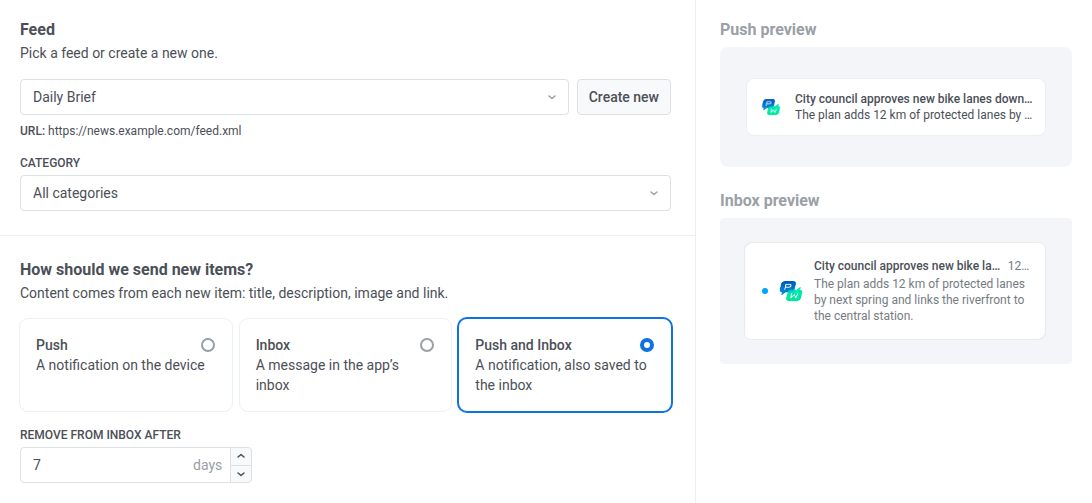
1. In **Feed**, pick a registered feed. Its URL appears under the field. To register a new one without leaving the campaign, click **Create new** and [add the feed](/product/content/news-feeds/#register-a-feed).
2. In **Category**, pick a category to send only that category's items, or keep **All categories** to send every item. The list is built from the categories of the feed's recent items.
3. Under **How should we send new items?**, pick a channel:
* **Push:** a notification on the device.
* **Inbox:** a message in the app's inbox.
* **Push and Inbox:** a notification that's also saved to the inbox.
4. For **Inbox** or **Push and Inbox**, set **Remove from inbox after** to how many days a message stays in the inbox, from 1 to 365. It defaults to 1 day.
Check the preview on the right to see how the feed's newest item looks as a push and as an inbox message.
If an item has no description, its title becomes the message text and the message goes out without a separate title.
### Choose the audience
Pick who gets the messages:
* **Send to segment:** pick a segment from the list, or click **Create segment** to build or import a new one.
* **Send to all subscribers:** every subscriber of the application.
If the segment is deleted later, the campaign stops sending. Edit the campaign and pick another segment.
### Set sending options
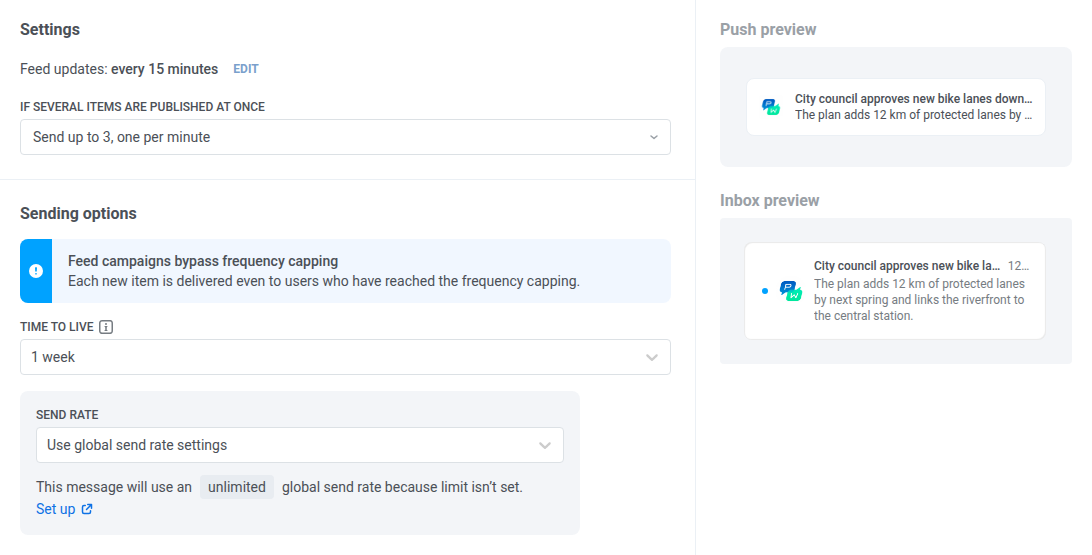
1. Check **Feed updates**. It shows how often Pushwoosh checks the feed for new items. The interval belongs to the feed. To change it, click **Edit** next to it and save the feed. The new interval applies to every campaign that uses this feed.
2. In **If several items are published at once**, choose what to do when one check finds more than one new item:
* **Send only the newest:** the default. One item goes out per check.
* **Send up to 2, one per minute**, **Send up to 3, one per minute**, or **Send up to 5, one per minute:** the newest items go out first, a minute apart.
Items over the limit aren't dropped right away. If they're still recent at the next check, published within about two check intervals, they go out then.
3. For **Push** or **Push and Inbox**, set **Time to live**: how long a push is kept for delivery while the device is offline. It defaults to 1 week.
4. For **Push** or **Push and Inbox**, set **Send rate**, or keep **Use global send rate settings**. See [Send rate limits](/product/messaging-channels/message-delivery-settings/send-rate-limits/).
### Review and launch
1. Check the summary of **Content**, **Audience**, and **Settings**. To fix a section, click **Change options** next to it.
2. Click **Launch campaign**.
3. Enter **Campaign name** and confirm.
The campaign starts active. Only items that Pushwoosh picks up from the feed after you launch it are sent. Items already in the feed are not.
## Track your campaigns
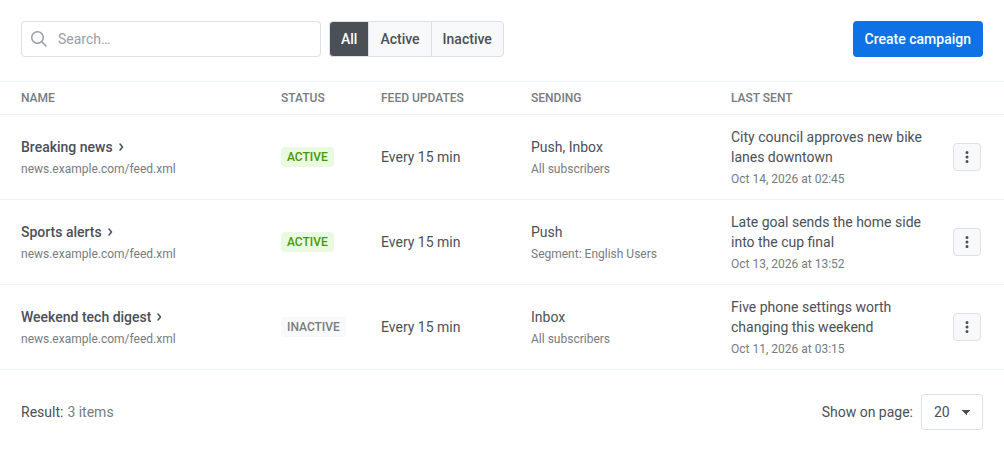
The **Feed campaigns** page lists your campaigns. Use **Search** to find a campaign, and the **All**, **Active**, and **Inactive** tabs to filter by status.
For each campaign, the table shows:
* **Name**, with the feed's URL under it.
* **Status:** **Active** or **Inactive**.
* **Feed updates:** how often the feed is checked, for example **Every 15 min** or **Every 1 hour**.
* **Sending:** the channel (**Push**, **Inbox**, or **Push, Inbox**), and the audience under it, either **All subscribers** or **Segment:** followed by the segment's name.
* **Last sent:** the title of the last item sent and when it went out, or **Nothing sent yet**.
To see delivery statistics for the messages a campaign sent, click its name.
## Manage a campaign
Click a row's menu (**⋮**) to manage a campaign:
* Click **View statistics** to open the campaign's message statistics.
* Click **Edit** to change any step of the campaign, then click **Save changes**. The new settings apply from the next feed check.
* Click **Rename…** to change the campaign's name.
* Click **Deactivate…** to stop sending. Items published during a long pause won't be sent later. If you activate the campaign again within about two feed checks, recent items it missed can still go out. Click **Activate…** to resume sending new items.
* Click **Delete…** to stop sending and remove the campaign. This can't be undone, so deactivate the campaign instead if you only want to pause it.
A feed that a feed campaign uses can't be deleted from **News Feeds**. Delete the campaign first. If you deactivate the feed in **News Feeds**, its campaigns send nothing until you activate the feed again.
 If an item has no description, its title becomes the message text and the message goes out without a separate title.
### Choose the audience
Pick who gets the messages:
* **Send to segment:** pick a segment from the list, or click **Create segment** to build or import a new one.
* **Send to all subscribers:** every subscriber of the application.
If the segment is deleted later, the campaign stops sending. Edit the campaign and pick another segment.
### Set sending options
1. Check **Feed updates**. It shows how often Pushwoosh checks the feed for new items. The interval belongs to the feed. To change it, click **Edit** next to it and save the feed. The new interval applies to every campaign that uses this feed.
2. In **If several items are published at once**, choose what to do when one check finds more than one new item:
* **Send only the newest:** the default. One item goes out per check.
* **Send up to 2, one per minute**, **Send up to 3, one per minute**, or **Send up to 5, one per minute:** the newest items go out first, a minute apart.
Items over the limit aren't dropped right away. If they're still recent at the next check, published within about two check intervals, they go out then.
3. For **Push** or **Push and Inbox**, set **Time to live**: how long a push is kept for delivery while the device is offline. It defaults to 1 week.
4. For **Push** or **Push and Inbox**, set **Send rate**, or keep **Use global send rate settings**. See [Send rate limits](/product/messaging-channels/message-delivery-settings/send-rate-limits/).
If an item has no description, its title becomes the message text and the message goes out without a separate title.
### Choose the audience
Pick who gets the messages:
* **Send to segment:** pick a segment from the list, or click **Create segment** to build or import a new one.
* **Send to all subscribers:** every subscriber of the application.
If the segment is deleted later, the campaign stops sending. Edit the campaign and pick another segment.
### Set sending options
1. Check **Feed updates**. It shows how often Pushwoosh checks the feed for new items. The interval belongs to the feed. To change it, click **Edit** next to it and save the feed. The new interval applies to every campaign that uses this feed.
2. In **If several items are published at once**, choose what to do when one check finds more than one new item:
* **Send only the newest:** the default. One item goes out per check.
* **Send up to 2, one per minute**, **Send up to 3, one per minute**, or **Send up to 5, one per minute:** the newest items go out first, a minute apart.
Items over the limit aren't dropped right away. If they're still recent at the next check, published within about two check intervals, they go out then.
3. For **Push** or **Push and Inbox**, set **Time to live**: how long a push is kept for delivery while the device is offline. It defaults to 1 week.
4. For **Push** or **Push and Inbox**, set **Send rate**, or keep **Use global send rate settings**. See [Send rate limits](/product/messaging-channels/message-delivery-settings/send-rate-limits/).
 ### Review and launch
1. Check the summary of **Content**, **Audience**, and **Settings**. To fix a section, click **Change options** next to it.
2. Click **Launch campaign**.
3. Enter **Campaign name** and confirm.
The campaign starts active. Only items that Pushwoosh picks up from the feed after you launch it are sent. Items already in the feed are not.
## Track your campaigns
The **Feed campaigns** page lists your campaigns. Use **Search** to find a campaign, and the **All**, **Active**, and **Inactive** tabs to filter by status.
### Review and launch
1. Check the summary of **Content**, **Audience**, and **Settings**. To fix a section, click **Change options** next to it.
2. Click **Launch campaign**.
3. Enter **Campaign name** and confirm.
The campaign starts active. Only items that Pushwoosh picks up from the feed after you launch it are sent. Items already in the feed are not.
## Track your campaigns
The **Feed campaigns** page lists your campaigns. Use **Search** to find a campaign, and the **All**, **Active**, and **Inactive** tabs to filter by status.
 For each campaign, the table shows:
* **Name**, with the feed's URL under it.
* **Status:** **Active** or **Inactive**.
* **Feed updates:** how often the feed is checked, for example **Every 15 min** or **Every 1 hour**.
* **Sending:** the channel (**Push**, **Inbox**, or **Push, Inbox**), and the audience under it, either **All subscribers** or **Segment:** followed by the segment's name.
* **Last sent:** the title of the last item sent and when it went out, or **Nothing sent yet**.
To see delivery statistics for the messages a campaign sent, click its name.
## Manage a campaign
Click a row's menu (**⋮**) to manage a campaign:
* Click **View statistics** to open the campaign's message statistics.
* Click **Edit** to change any step of the campaign, then click **Save changes**. The new settings apply from the next feed check.
* Click **Rename…** to change the campaign's name.
* Click **Deactivate…** to stop sending. Items published during a long pause won't be sent later. If you activate the campaign again within about two feed checks, recent items it missed can still go out. Click **Activate…** to resume sending new items.
* Click **Delete…** to stop sending and remove the campaign. This can't be undone, so deactivate the campaign instead if you only want to pause it.
A feed that a feed campaign uses can't be deleted from **News Feeds**. Delete the campaign first. If you deactivate the feed in **News Feeds**, its campaigns send nothing until you activate the feed again.
For each campaign, the table shows:
* **Name**, with the feed's URL under it.
* **Status:** **Active** or **Inactive**.
* **Feed updates:** how often the feed is checked, for example **Every 15 min** or **Every 1 hour**.
* **Sending:** the channel (**Push**, **Inbox**, or **Push, Inbox**), and the audience under it, either **All subscribers** or **Segment:** followed by the segment's name.
* **Last sent:** the title of the last item sent and when it went out, or **Nothing sent yet**.
To see delivery statistics for the messages a campaign sent, click its name.
## Manage a campaign
Click a row's menu (**⋮**) to manage a campaign:
* Click **View statistics** to open the campaign's message statistics.
* Click **Edit** to change any step of the campaign, then click **Save changes**. The new settings apply from the next feed check.
* Click **Rename…** to change the campaign's name.
* Click **Deactivate…** to stop sending. Items published during a long pause won't be sent later. If you activate the campaign again within about two feed checks, recent items it missed can still go out. Click **Activate…** to resume sending new items.
* Click **Delete…** to stop sending and remove the campaign. This can't be undone, so deactivate the campaign instead if you only want to pause it.
A feed that a feed campaign uses can't be deleted from **News Feeds**. Delete the campaign first. If you deactivate the feed in **News Feeds**, its campaigns send nothing until you activate the feed again.