# Send Facebook Messenger messages via Customer Journey
Send Facebook Messenger messages through Pushwoosh Customer Journey, triggered automatically when a user interacts with your connected Facebook Page.
## Prerequisites
Connect your Facebook Page in [Facebook Messenger platform configuration](/product/first-steps/start-with-your-project/configure-platforms/facebook-messenger-configuration/) before you build a journey. Otherwise, sending Facebook Messenger messages will not be available. Live sending also needs Meta App Review approval for your Meta App's Messenger permissions.
## Create a Facebook Messenger journey
1. Go to **Campaigns → Customer Journey Builder**, then click **Build a journey from scratch**.
2. Add a **Trigger-based Entry**. Choose:
* **`PW_FBMessengerReceived`** if the journey should start when the user sends a message, or
* **`PW_FBMessengerStarted`** if it should start when they tap a menu item, quick reply, or open a referral link (this can happen more than once per user).
[Learn more about entry triggers](/product/customer-journey/journey-elements/channels/facebook-messenger/#entry-triggers)
3. Add a [**Facebook Messenger** element](/product/customer-journey/journey-elements/channels/facebook-messenger/) and connect it to the entry trigger.
4. Click the **Facebook Messenger** element to open its settings panel.
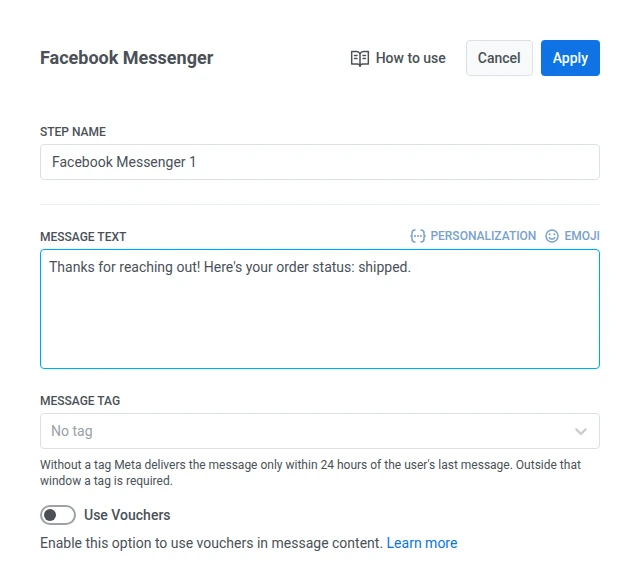
5. Enter your **Message Text**.
6. Set a **Message tag** if you need to send outside the 24-hour window. Leave **Message tag** set to **No tag** when you are sending inside that window.
Outside the window, Meta requires a tag matching one of its approved use cases:
* **CONFIRMED_EVENT_UPDATE**: a reminder or update about an event the recipient is scheduled to attend.
* **POST_PURCHASE_UPDATE**: an update related to a purchase the recipient already made.
* **ACCOUNT_UPDATE**: a non-recurring update about a change to the recipient's account.
* **HUMAN_AGENT**: a message from a human agent responding to the recipient.
Choose a tag that matches the real reason for the message. [Learn more about message tags](/product/customer-journey/journey-elements/channels/facebook-messenger/#use-a-message-tag-outside-the-24-hour-window)
7. (Optional) To attach a voucher code, include `{{voucher}}` in your message text, then:
1. Toggle **Use Vouchers** to ON.
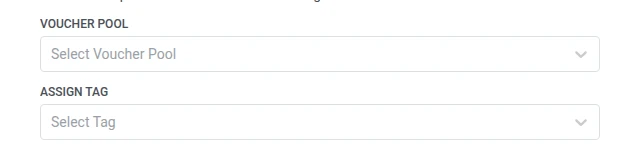
2. In **Voucher Pool**, select the pool with your codes. Add the pool in advance. [Learn more about vouchers](/product/content/vouchers/)
3. (Optional) In **Assign Tag**, apply a tag to users who receive a voucher.
8. Click **Apply** to save the element settings.
9. (Optional) Complete the journey with an [Exit element](/product/customer-journey/journey-elements/flow-controls/exit/). A step with no next step also ends that path.
10. When you're ready, click **Launch journey** to activate it.
## Limitations
* Plain text only, with no templates, buttons, or media attachments.
* Outside the 24-hour window opened by an inbound message, you need a [message tag](/product/customer-journey/journey-elements/channels/facebook-messenger/#use-a-message-tag-outside-the-24-hour-window), or Meta rejects the send.
* You can't confirm that one specific Messenger message in the journey was read.
* The channel only delivers once Meta has approved your Meta App's Messenger permissions for the connected Page.
 4. Click the **Facebook Messenger** element to open its settings panel.
5. Enter your **Message Text**.
4. Click the **Facebook Messenger** element to open its settings panel.
5. Enter your **Message Text**.
 6. Set a **Message tag** if you need to send outside the 24-hour window. Leave **Message tag** set to **No tag** when you are sending inside that window.
Outside the window, Meta requires a tag matching one of its approved use cases:
* **CONFIRMED_EVENT_UPDATE**: a reminder or update about an event the recipient is scheduled to attend.
* **POST_PURCHASE_UPDATE**: an update related to a purchase the recipient already made.
* **ACCOUNT_UPDATE**: a non-recurring update about a change to the recipient's account.
* **HUMAN_AGENT**: a message from a human agent responding to the recipient.
Choose a tag that matches the real reason for the message. [Learn more about message tags](/product/customer-journey/journey-elements/channels/facebook-messenger/#use-a-message-tag-outside-the-24-hour-window)
7. (Optional) To attach a voucher code, include `{{voucher}}` in your message text, then:
1. Toggle **Use Vouchers** to ON.
2. In **Voucher Pool**, select the pool with your codes. Add the pool in advance. [Learn more about vouchers](/product/content/vouchers/)
3. (Optional) In **Assign Tag**, apply a tag to users who receive a voucher.
6. Set a **Message tag** if you need to send outside the 24-hour window. Leave **Message tag** set to **No tag** when you are sending inside that window.
Outside the window, Meta requires a tag matching one of its approved use cases:
* **CONFIRMED_EVENT_UPDATE**: a reminder or update about an event the recipient is scheduled to attend.
* **POST_PURCHASE_UPDATE**: an update related to a purchase the recipient already made.
* **ACCOUNT_UPDATE**: a non-recurring update about a change to the recipient's account.
* **HUMAN_AGENT**: a message from a human agent responding to the recipient.
Choose a tag that matches the real reason for the message. [Learn more about message tags](/product/customer-journey/journey-elements/channels/facebook-messenger/#use-a-message-tag-outside-the-24-hour-window)
7. (Optional) To attach a voucher code, include `{{voucher}}` in your message text, then:
1. Toggle **Use Vouchers** to ON.
2. In **Voucher Pool**, select the pool with your codes. Add the pool in advance. [Learn more about vouchers](/product/content/vouchers/)
3. (Optional) In **Assign Tag**, apply a tag to users who receive a voucher.
 8. Click **Apply** to save the element settings.
9. (Optional) Complete the journey with an [Exit element](/product/customer-journey/journey-elements/flow-controls/exit/). A step with no next step also ends that path.
10. When you're ready, click **Launch journey** to activate it.
## Limitations
* Plain text only, with no templates, buttons, or media attachments.
* Outside the 24-hour window opened by an inbound message, you need a [message tag](/product/customer-journey/journey-elements/channels/facebook-messenger/#use-a-message-tag-outside-the-24-hour-window), or Meta rejects the send.
* You can't confirm that one specific Messenger message in the journey was read.
* The channel only delivers once Meta has approved your Meta App's Messenger permissions for the connected Page.
8. Click **Apply** to save the element settings.
9. (Optional) Complete the journey with an [Exit element](/product/customer-journey/journey-elements/flow-controls/exit/). A step with no next step also ends that path.
10. When you're ready, click **Launch journey** to activate it.
## Limitations
* Plain text only, with no templates, buttons, or media attachments.
* Outside the 24-hour window opened by an inbound message, you need a [message tag](/product/customer-journey/journey-elements/channels/facebook-messenger/#use-a-message-tag-outside-the-24-hour-window), or Meta rejects the send.
* You can't confirm that one specific Messenger message in the journey was read.
* The channel only delivers once Meta has approved your Meta App's Messenger permissions for the connected Page.