# Customize subscription pages
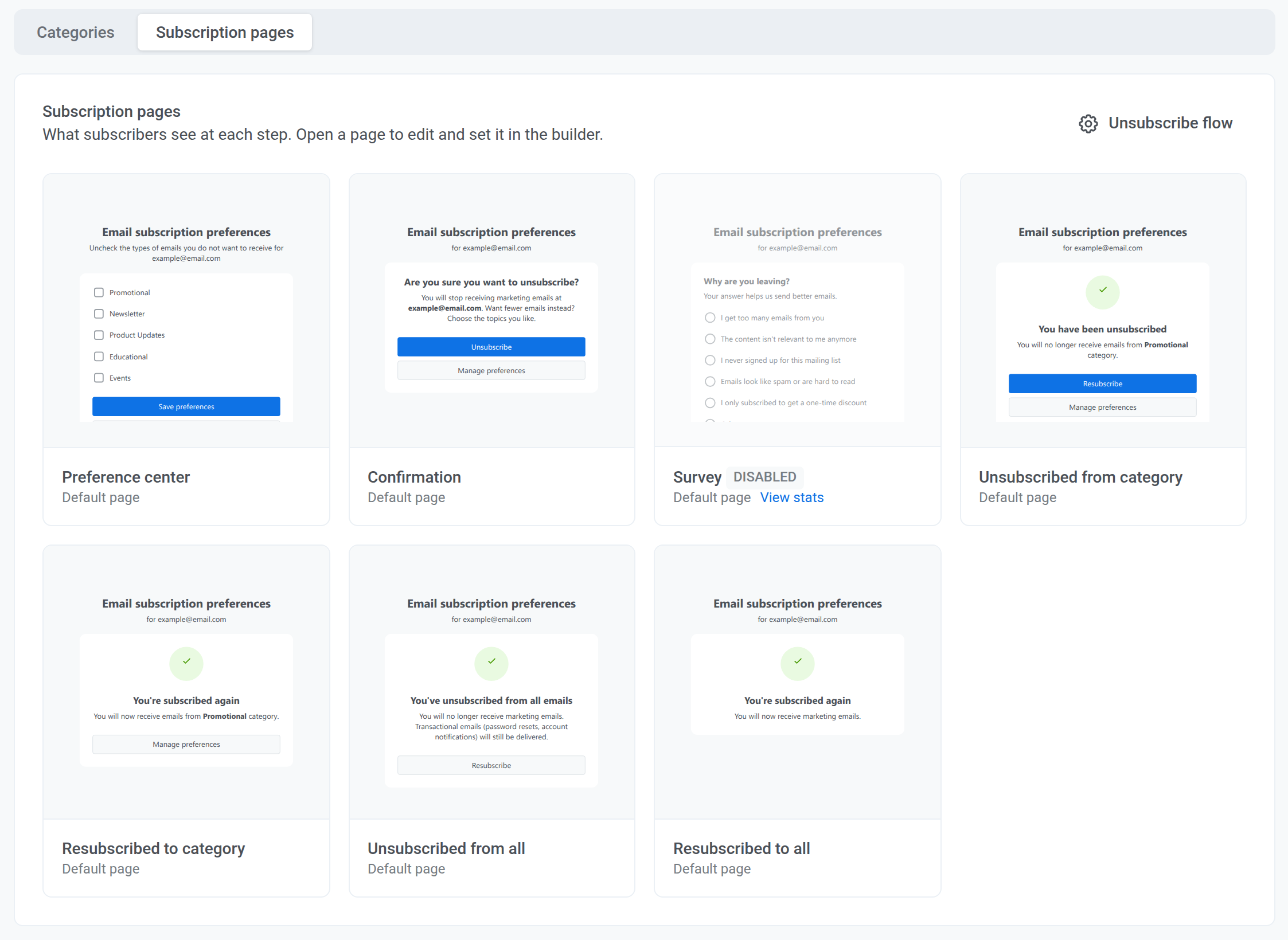
Subscription pages are the pages users see when they unsubscribe from an email or manage their email preferences. Edit them in the page builder.
To see when users get each page, read [What happens when users click your links](/product/messaging-channels/emails/preference-center/set-up-preference-center/#what-happens-when-users-click-your-links). To choose which pages users see after an unsubscribe, see [Manage unsubscribes](/product/messaging-channels/emails/preference-center/unsubscribe-flow/).
## Edit a page
Edit a subscription page in the page builder to change its text, design, and buttons.
Users see their categories on the **Preference center** page only while the preference center is on. To turn it on, [set up categories](/product/messaging-channels/emails/preference-center/set-up-preference-center/#set-up-categories). To show the **Confirmation** or **Survey** page, turn its step on in the [unsubscribe flow](/product/messaging-channels/emails/preference-center/unsubscribe-flow/#set-up-the-unsubscribe-flow).
1. Go to **Settings > Preference Center**, switch to the **Subscription pages** tab, and click a page tile.
2. Edit the page:
- Change the text right on the canvas.
- Add blocks from the **Blocks** tab.
- Select a block to adjust it in the settings panel.
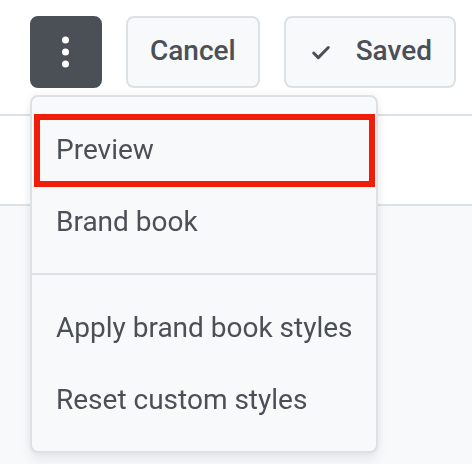
3. To check how the page looks on desktop and mobile, open the three-dot menu at the top and select **Preview**.
4. Click **Save**.
Until you save a page, users see the standard Pushwoosh design. You don't publish or connect anything: the saved version replaces the standard one for that step, and the changes go live for all users as soon as you save.
### Add a language
Each page can have several language versions. To add one, click **+** next to **Languages**.
Users see the version in their browser language. If there is no such version, they see the default language, then English.
## Page buttons
A button on a subscription page can open a website or perform a subscription action. To set the action:
1. Select the button on the canvas.
2. In the link settings, choose the action.
Text links can only open a website.
For example, give a button on the **Unsubscribed from category** page the **Resubscribe** action to let users opt back into the category.
### Actions by page
The actions you can choose in the link settings depend on the page. The table splits them into two groups:
- **Required actions:** add a button with each of them, or the builder won't save the page. This way users can always complete the unsubscribe.
- **Optional actions:** add them if you need them.
| Page | Required actions | Optional actions |
|---|---|---|
| **Preference center** | **Save preferences**, **Unsubscribe from all** | — |
| **Confirmation** | **Confirm unsubscribe** | **Manage preferences** |
| **Survey** | **Send survey answer** | **Skip survey**, **Manage preferences**, **Resubscribe** |
| **Unsubscribed from category** | **Resubscribe** | **Manage preferences**, **Unsubscribe from all** |
| **Unsubscribed from all** | **Resubscribe** | **Manage preferences** |
| **Resubscribed to category**, **Resubscribed to all** | — | **Manage preferences** |
A **Manage preferences** button is hidden from users while the preference center is disabled.
## Blocks
Two blocks have their own settings: the **Categories** block on the **Preference center** page and the **Survey** block on the **Survey** page.
### Categories block
The **Preference center** subscription page must contain one **Categories** block. It lists your email categories with a checkbox for each, so users can choose what they receive. To adjust it:
1. Create at least one category. Without categories, the block shows a **No categories yet** placeholder and its settings show only a **No categories created** warning. Once categories exist, the canvas and the preview show them.
2. Select the block on the canvas.
3. Change the **Checkbox color**, or edit the **Status messages** users see **After a successful save** and **When the save fails**.
### Survey block
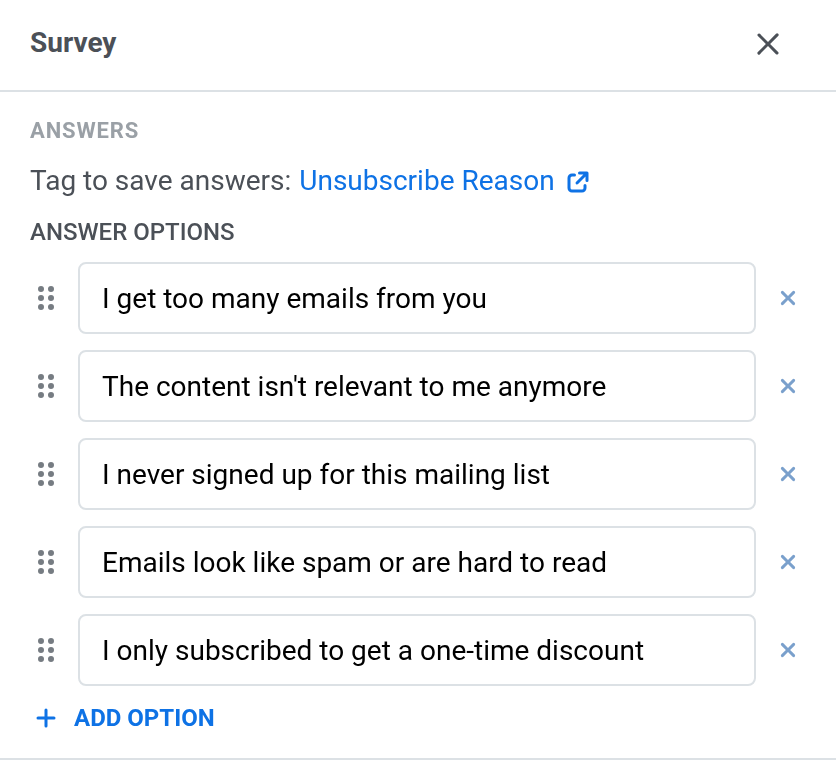
The **Survey** subscription page must contain one **Survey** block. Users pick one answer option, and the answer goes to the **`Unsubscribe Reason`** tag, listed under **Tag to save answers**. To set up the block:
1. Select the block on the canvas or in **Layers** to open its settings.
2. Under **Answers**, edit, reorder, add, or remove **Answer options**.
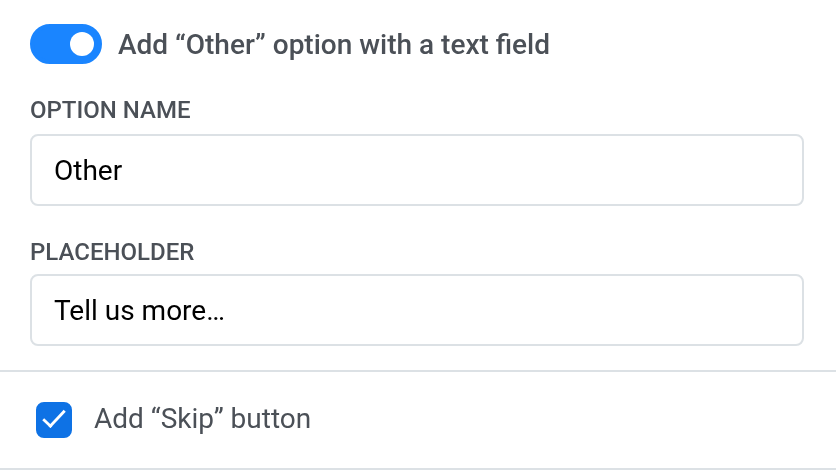
3. To let users type their own reason, turn on **Add "Other" option with a text field**, then set its **Option name** and **Placeholder**.
4. To let users leave without answering, select **Add "Skip" button**.
5. Under **Appearance**, change the **Checkbox color** and the spacing and font size of the options.
The survey needs at least one answer option or the **Other** field.
 2. Edit the page:
- Change the text right on the canvas.
- Add blocks from the **Blocks** tab.
- Select a block to adjust it in the settings panel.
3. To check how the page looks on desktop and mobile, open the three-dot menu at the top and select **Preview**.
2. Edit the page:
- Change the text right on the canvas.
- Add blocks from the **Blocks** tab.
- Select a block to adjust it in the settings panel.
3. To check how the page looks on desktop and mobile, open the three-dot menu at the top and select **Preview**.
 4. Click **Save**.
Until you save a page, users see the standard Pushwoosh design. You don't publish or connect anything: the saved version replaces the standard one for that step, and the changes go live for all users as soon as you save.
### Add a language
Each page can have several language versions. To add one, click **+** next to **Languages**.
Users see the version in their browser language. If there is no such version, they see the default language, then English.
## Page buttons
A button on a subscription page can open a website or perform a subscription action. To set the action:
1. Select the button on the canvas.
2. In the link settings, choose the action.
Text links can only open a website.
For example, give a button on the **Unsubscribed from category** page the **Resubscribe** action to let users opt back into the category.
### Actions by page
The actions you can choose in the link settings depend on the page. The table splits them into two groups:
- **Required actions:** add a button with each of them, or the builder won't save the page. This way users can always complete the unsubscribe.
- **Optional actions:** add them if you need them.
| Page | Required actions | Optional actions |
|---|---|---|
| **Preference center** | **Save preferences**, **Unsubscribe from all** | — |
| **Confirmation** | **Confirm unsubscribe** | **Manage preferences** |
| **Survey** | **Send survey answer** | **Skip survey**, **Manage preferences**, **Resubscribe** |
| **Unsubscribed from category** | **Resubscribe** | **Manage preferences**, **Unsubscribe from all** |
| **Unsubscribed from all** | **Resubscribe** | **Manage preferences** |
| **Resubscribed to category**, **Resubscribed to all** | — | **Manage preferences** |
A **Manage preferences** button is hidden from users while the preference center is disabled.
## Blocks
Two blocks have their own settings: the **Categories** block on the **Preference center** page and the **Survey** block on the **Survey** page.
### Categories block
The **Preference center** subscription page must contain one **Categories** block. It lists your email categories with a checkbox for each, so users can choose what they receive. To adjust it:
1. Create at least one category. Without categories, the block shows a **No categories yet** placeholder and its settings show only a **No categories created** warning. Once categories exist, the canvas and the preview show them.
2. Select the block on the canvas.
3. Change the **Checkbox color**, or edit the **Status messages** users see **After a successful save** and **When the save fails**.
### Survey block
The **Survey** subscription page must contain one **Survey** block. Users pick one answer option, and the answer goes to the **`Unsubscribe Reason`** tag, listed under **Tag to save answers**. To set up the block:
1. Select the block on the canvas or in **Layers** to open its settings.
2. Under **Answers**, edit, reorder, add, or remove **Answer options**.
4. Click **Save**.
Until you save a page, users see the standard Pushwoosh design. You don't publish or connect anything: the saved version replaces the standard one for that step, and the changes go live for all users as soon as you save.
### Add a language
Each page can have several language versions. To add one, click **+** next to **Languages**.
Users see the version in their browser language. If there is no such version, they see the default language, then English.
## Page buttons
A button on a subscription page can open a website or perform a subscription action. To set the action:
1. Select the button on the canvas.
2. In the link settings, choose the action.
Text links can only open a website.
For example, give a button on the **Unsubscribed from category** page the **Resubscribe** action to let users opt back into the category.
### Actions by page
The actions you can choose in the link settings depend on the page. The table splits them into two groups:
- **Required actions:** add a button with each of them, or the builder won't save the page. This way users can always complete the unsubscribe.
- **Optional actions:** add them if you need them.
| Page | Required actions | Optional actions |
|---|---|---|
| **Preference center** | **Save preferences**, **Unsubscribe from all** | — |
| **Confirmation** | **Confirm unsubscribe** | **Manage preferences** |
| **Survey** | **Send survey answer** | **Skip survey**, **Manage preferences**, **Resubscribe** |
| **Unsubscribed from category** | **Resubscribe** | **Manage preferences**, **Unsubscribe from all** |
| **Unsubscribed from all** | **Resubscribe** | **Manage preferences** |
| **Resubscribed to category**, **Resubscribed to all** | — | **Manage preferences** |
A **Manage preferences** button is hidden from users while the preference center is disabled.
## Blocks
Two blocks have their own settings: the **Categories** block on the **Preference center** page and the **Survey** block on the **Survey** page.
### Categories block
The **Preference center** subscription page must contain one **Categories** block. It lists your email categories with a checkbox for each, so users can choose what they receive. To adjust it:
1. Create at least one category. Without categories, the block shows a **No categories yet** placeholder and its settings show only a **No categories created** warning. Once categories exist, the canvas and the preview show them.
2. Select the block on the canvas.
3. Change the **Checkbox color**, or edit the **Status messages** users see **After a successful save** and **When the save fails**.
### Survey block
The **Survey** subscription page must contain one **Survey** block. Users pick one answer option, and the answer goes to the **`Unsubscribe Reason`** tag, listed under **Tag to save answers**. To set up the block:
1. Select the block on the canvas or in **Layers** to open its settings.
2. Under **Answers**, edit, reorder, add, or remove **Answer options**.
 3. To let users type their own reason, turn on **Add "Other" option with a text field**, then set its **Option name** and **Placeholder**.
4. To let users leave without answering, select **Add "Skip" button**.
3. To let users type their own reason, turn on **Add "Other" option with a text field**, then set its **Option name** and **Placeholder**.
4. To let users leave without answering, select **Add "Skip" button**.
 5. Under **Appearance**, change the **Checkbox color** and the spacing and font size of the options.
The survey needs at least one answer option or the **Other** field.
5. Under **Appearance**, change the **Checkbox color** and the spacing and font size of the options.
The survey needs at least one answer option or the **Other** field.