# Singular integration
## Integration overview
[Singular](https://www.singular.net/) is a marketing analytics and attribution platform. Connect it with Pushwoosh to attribute app opens from your push campaigns and measure push performance in Singular alongside other marketing channels. You can also send attribution data from Singular to Pushwoosh through postbacks and use it for segmentation and messaging.
### Use cases
* **Push notification attribution:** Attribute app opens from Pushwoosh push campaigns in Singular when users tap your notifications.
* **Campaign performance analysis:** Compare push campaign results with other marketing channels in the Singular analytics dashboard.
* **ROI optimization:** Identify your best-performing push campaigns in Singular and apply those insights when planning new campaigns in Pushwoosh.
* **Segmentation in Pushwoosh:** Use install and in-app event data from Singular postbacks to build segments and personalize campaigns in Pushwoosh.
### Prerequisites
* Active Pushwoosh account
* Active Singular account
* Singular SDK integrated into your app
* [Application Code](/developer/api-reference/api-identifiers/#application-code) and [API Access Token](/developer/api-reference/api-identifiers/#api-access-token) from your Pushwoosh account
### Integration type
* **Source (Pushwoosh → Singular):** Attribution data is passed from push payloads on the device into Singular via the Singular tracking link.
* **Destination (Singular → Pushwoosh):** Singular sends attribution data to Pushwoosh through postbacks. Pushwoosh stores it as tags and events for segmentation and analytics.
### How it works
##### Push attribution (Pushwoosh → Singular)
1. Pushwoosh delivers a push with the Singular tracking link as a deep link.
2. The user taps the notification.
3. The app passes the link to the Singular SDK.
4. Singular records the open as attributed to your push campaign.
##### Postbacks (Singular → Pushwoosh)
1. A user installs the app, re-engages from a tracked link, or triggers an in-app event that Singular attributes.
2. Singular sends a postback to Pushwoosh with the attribution data.
3. Pushwoosh stores the data as tags and events on the user profile.
4. You use this data for segmentation, analytics, and campaigns in Pushwoosh.
## Configure the link for your application
Start the Pushwoosh and Singular integration by creating a partner link in Singular. This step is required whether you use postbacks, push attribution, or both.
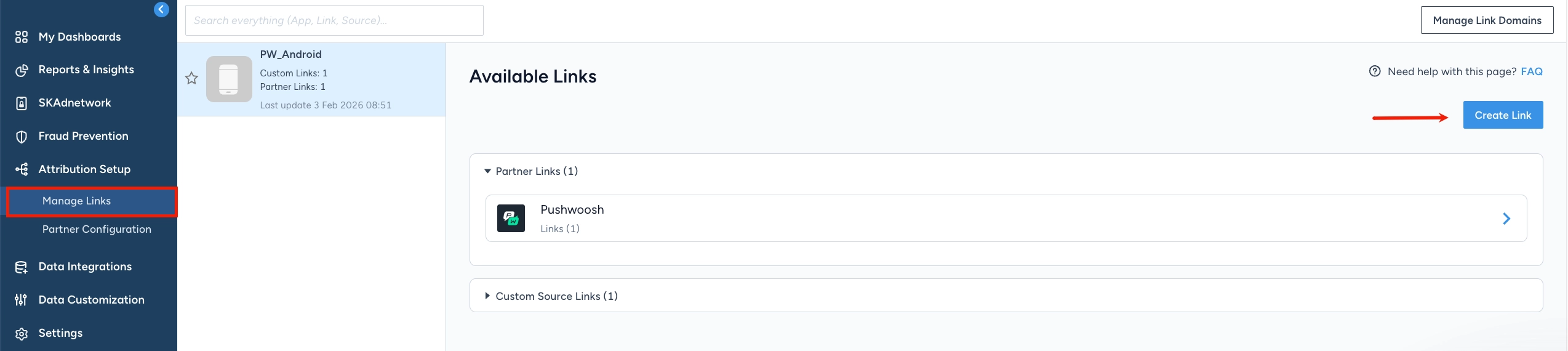
1. In your Singular account, go to **Attribution Setup** → **Manage Links**.
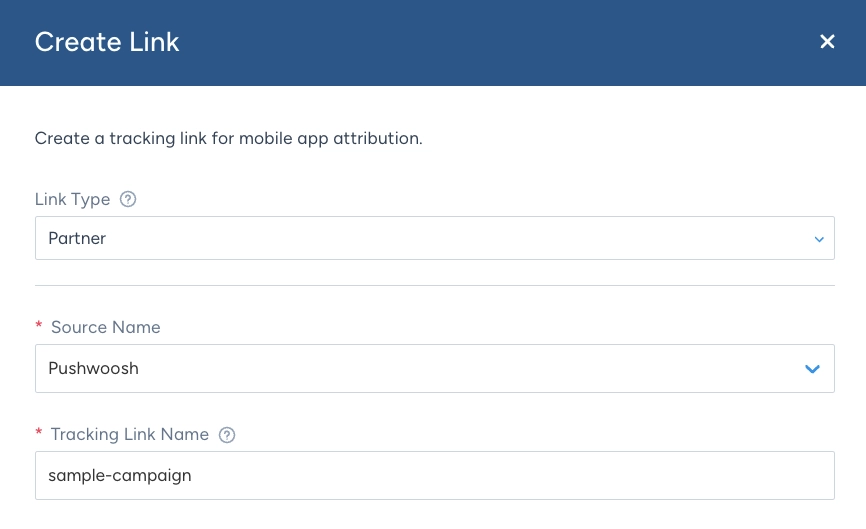
2. Choose **Link Type** → **Partner** and select **Pushwoosh** as the **Source Name**. Enter a **Tracking Link Name** so you can identify this link in Singular analytics. It appears in reports as **Tracker Name**.
3. In **Link Settings and Redirects**, define which app this link is for and where users go when they tap it. [Learn more](https://support.singular.net/hc/en-us/articles/13000445013531-How-to-Build-Tracking-Links).
4. In **Attribution Settings**, configure attribution methods and windows for the link. [Learn more](https://support.singular.net/hc/en-us/articles/13000445013531-How-to-Build-Tracking-Links#links_attribution_settings).
5. Click **Generate**.
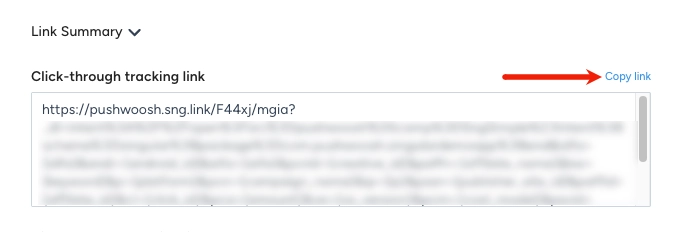
6. In **Link Summary**, review the generated links. If you are setting up [push attribution](#set-up-push-attribution-in-pushwoosh), copy the **Click-through tracking link**. You will use it in Pushwoosh.
## Set up push attribution in Pushwoosh
Add the Singular tracking link to your push notifications.
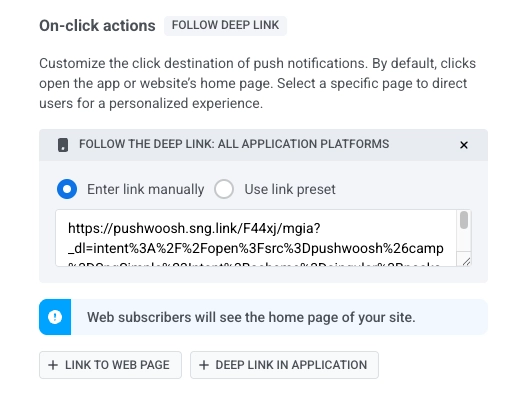
Paste the **Click-through tracking link** from your **Link Summary** into **On-click actions** → **Deep link in application** in a [Push preset](/product/content/push-presets/#define-the-next-step-for-users-who-click-on-the-notification).
## Configure postbacks
Singular collects attribution data about where users come from and what they do in the app. With postbacks, you send that data to Pushwoosh automatically.
For example, if Singular records that a user installed the app from a specific ad campaign, Pushwoosh can receive this as a tag or event. You can then build a segment of users from that campaign and send them a targeted push in Pushwoosh.
1. In Singular, go to **Partner Configuration**.
2. Create a new configuration or edit an existing one.
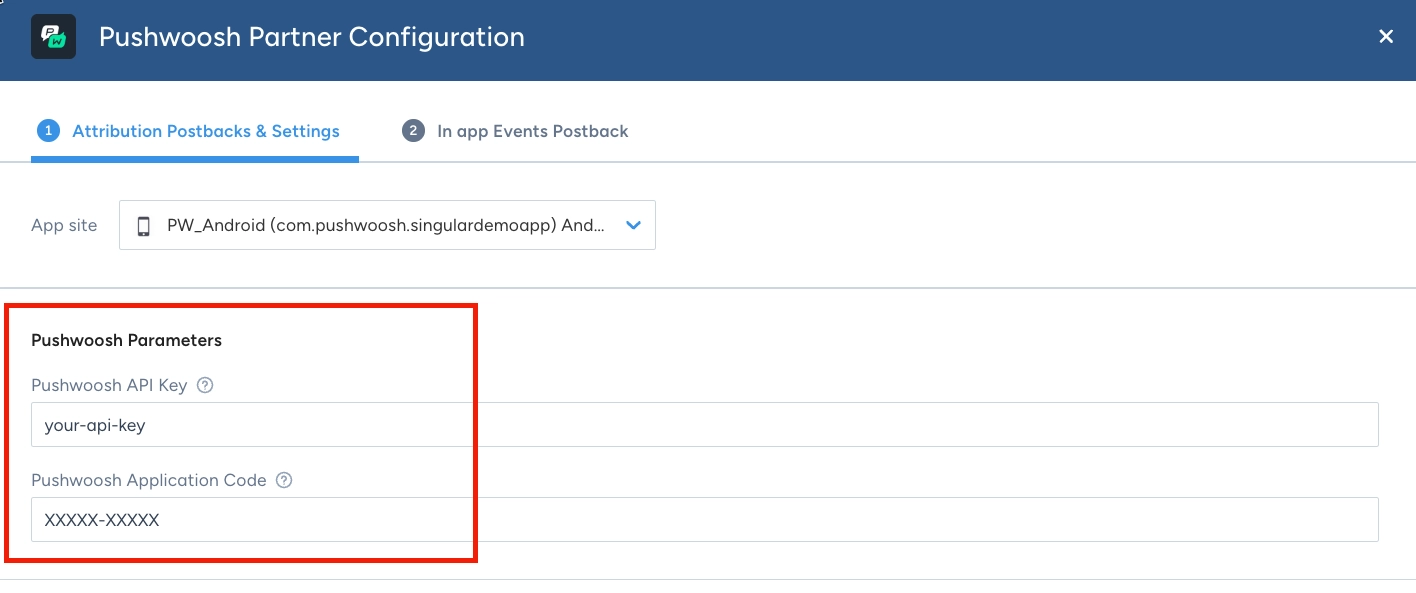
3. Enter your Pushwoosh **Application Code** and **API Access Token**.
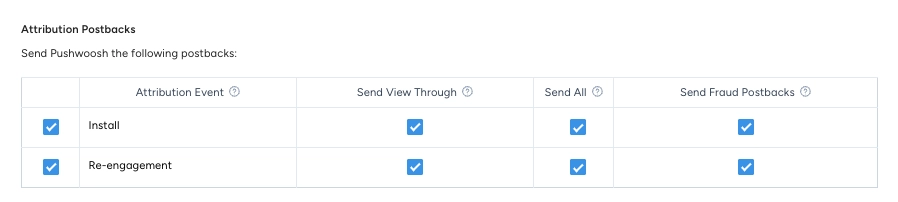
4. In **Attribution Postbacks**, select which events Singular sends to Pushwoosh:
* **Install:** new app installs attributed in Singular. Pushwoosh uses this data to record where users came from.
* **Re-engagement:** app opens attributed to a tracked link. Enable this if you want re-engagement source data in Pushwoosh for segmentation.
[Learn how to configure partner settings and postbacks](https://support.singular.net/hc/en-us/articles/360053018851-How-to-Configure-Partner-Settings-and-Postbacks) in the Singular Help Center.
5. In **Attribution Windows Settings**, under **Installs**, choose how long Singular can wait after a user clicks your tracking link or views an ad before it stops crediting the install to Pushwoosh. [Learn more](https://support.singular.net/hc/en-us/articles/115000526963-Understanding-Singular-Mobile-App-Attribution).
6. Under **Re-engagements**, choose how long Singular can wait after a click or ad view before it stops crediting the open to Pushwoosh. Enable **Override app level inactivity window for this partner** to set how long the user must be inactive before that open counts as a re-engagement. [Learn more](https://support.singular.net/hc/en-us/articles/360044494651-Re-engagement-FAQ).
7. Open the **In app Events Postback** tab and add the events Pushwoosh should receive (for example `__SESSION__*` for sessions). Enable **Send All** to include users from any source.
8. Save the configuration.
### What Pushwoosh receives
After you save, Singular sends postbacks when configured events occur. Pushwoosh processes each postback into device **Tags** and one **Event** on the user profile.
Pushwoosh writes or updates these tags on the matched device:
| Tag | Source |
| :-- | :----- |
| OS Version | device OS version |
| Application Version | app version |
| Device Model | device model |
| Country | attribution country |
| City | attribution city |
Pushwoosh records one event on the user profile. The event name depends on the postback type:
* **In-app events:** the Singular event name you configured (for example, a session event).
* **Install or attribution postback:** if the postback carries no event name, Pushwoosh records `Singular Attribution Event`. Use this event name when you build segments of newly attributed users.
Campaign and revenue data travel with the event as **event attributes**. You can segment and filter on them in Pushwoosh:
| Attribute | Description |
| :-------- | :---------- |
| Campaign name / Campaign ID | attributed campaign |
| Subcampaign name / Subcampaign ID | attributed sub-campaign |
| Creative name / Creative ID | attributed creative |
| Amount / Revenue / Currency | monetary value of the event, if any |
| Country / City | location reported with the event |
### Verify postbacks
After Singular sends a postback for a configured event, check that Pushwoosh received it:
1. Open **Audience → Events** and confirm the event appears.
2. Open the user profile in [User Explorer](/product/audience-data-and-segmentation/user-explorer/) and go to [Events history](/product/audience-data-and-segmentation/user-explorer/#events-history-tab). Confirm the event and its attributes (for example, Campaign name) are recorded for that user.
3. Events usually appear within a few minutes.
## Troubleshooting
### Singular tracking link is not captured
* Verify the **Click-through tracking link** is set in **On-click actions** → **Deep link in application**, not in **Custom Data**.
* Confirm the Singular SDK is configured to handle push notification payloads. See the [Android](https://support.singular.net/hc/en-us/articles/35427027157275-Android-SDK-Supporting-Push-Notifications) and [iOS](https://support.singular.net/hc/en-us/articles/42098616285339-iOS-SDK-Configuration-Methods-Reference) guides.
### Deep link opens the app but navigates to the home screen
* Confirm the `_dl` parameter inside the Singular tracking link is properly URL-encoded.
* Verify your app's deep link handler is registered correctly for the scheme used (for example, `myapp://`).
* On Android, check that the correct `Activity` has the intent filter for your deep link scheme in `AndroidManifest.xml`.
### Attribution appears in Singular but wrong campaign is credited
* Make sure the Singular SDK processes the push payload before or during initialization, as described in the Singular SDK guides.
* Confirm you are using the correct **Click-through tracking link** from **Link Summary** for this campaign.
### Warm start (app already open): attribution not recorded
* Confirm your app handles push notification taps when it is already running in the background, as described in the Singular SDK guides.
* This is the most common cause of missing attribution for warm starts.
 2. Choose **Link Type** → **Partner** and select **Pushwoosh** as the **Source Name**. Enter a **Tracking Link Name** so you can identify this link in Singular analytics. It appears in reports as **Tracker Name**.
 3. In **Link Settings and Redirects**, define which app this link is for and where users go when they tap it. [Learn more](https://support.singular.net/hc/en-us/articles/13000445013531-How-to-Build-Tracking-Links).
4. In **Attribution Settings**, configure attribution methods and windows for the link. [Learn more](https://support.singular.net/hc/en-us/articles/13000445013531-How-to-Build-Tracking-Links#links_attribution_settings).
5. Click **Generate**.
6. In **Link Summary**, review the generated links. If you are setting up [push attribution](#set-up-push-attribution-in-pushwoosh), copy the **Click-through tracking link**. You will use it in Pushwoosh.
3. In **Link Settings and Redirects**, define which app this link is for and where users go when they tap it. [Learn more](https://support.singular.net/hc/en-us/articles/13000445013531-How-to-Build-Tracking-Links).
4. In **Attribution Settings**, configure attribution methods and windows for the link. [Learn more](https://support.singular.net/hc/en-us/articles/13000445013531-How-to-Build-Tracking-Links#links_attribution_settings).
5. Click **Generate**.
6. In **Link Summary**, review the generated links. If you are setting up [push attribution](#set-up-push-attribution-in-pushwoosh), copy the **Click-through tracking link**. You will use it in Pushwoosh.
 ## Set up push attribution in Pushwoosh
Add the Singular tracking link to your push notifications.
Paste the **Click-through tracking link** from your **Link Summary** into **On-click actions** → **Deep link in application** in a [Push preset](/product/content/push-presets/#define-the-next-step-for-users-who-click-on-the-notification).
## Set up push attribution in Pushwoosh
Add the Singular tracking link to your push notifications.
Paste the **Click-through tracking link** from your **Link Summary** into **On-click actions** → **Deep link in application** in a [Push preset](/product/content/push-presets/#define-the-next-step-for-users-who-click-on-the-notification).
 ## Configure postbacks
Singular collects attribution data about where users come from and what they do in the app. With postbacks, you send that data to Pushwoosh automatically.
For example, if Singular records that a user installed the app from a specific ad campaign, Pushwoosh can receive this as a tag or event. You can then build a segment of users from that campaign and send them a targeted push in Pushwoosh.
1. In Singular, go to **Partner Configuration**.
2. Create a new configuration or edit an existing one.
## Configure postbacks
Singular collects attribution data about where users come from and what they do in the app. With postbacks, you send that data to Pushwoosh automatically.
For example, if Singular records that a user installed the app from a specific ad campaign, Pushwoosh can receive this as a tag or event. You can then build a segment of users from that campaign and send them a targeted push in Pushwoosh.
1. In Singular, go to **Partner Configuration**.
2. Create a new configuration or edit an existing one.
 3. Enter your Pushwoosh **Application Code** and **API Access Token**.
 4. In **Attribution Postbacks**, select which events Singular sends to Pushwoosh:
* **Install:** new app installs attributed in Singular. Pushwoosh uses this data to record where users came from.
* **Re-engagement:** app opens attributed to a tracked link. Enable this if you want re-engagement source data in Pushwoosh for segmentation.
[Learn how to configure partner settings and postbacks](https://support.singular.net/hc/en-us/articles/360053018851-How-to-Configure-Partner-Settings-and-Postbacks) in the Singular Help Center.
4. In **Attribution Postbacks**, select which events Singular sends to Pushwoosh:
* **Install:** new app installs attributed in Singular. Pushwoosh uses this data to record where users came from.
* **Re-engagement:** app opens attributed to a tracked link. Enable this if you want re-engagement source data in Pushwoosh for segmentation.
[Learn how to configure partner settings and postbacks](https://support.singular.net/hc/en-us/articles/360053018851-How-to-Configure-Partner-Settings-and-Postbacks) in the Singular Help Center.
 5. In **Attribution Windows Settings**, under **Installs**, choose how long Singular can wait after a user clicks your tracking link or views an ad before it stops crediting the install to Pushwoosh. [Learn more](https://support.singular.net/hc/en-us/articles/115000526963-Understanding-Singular-Mobile-App-Attribution).
6. Under **Re-engagements**, choose how long Singular can wait after a click or ad view before it stops crediting the open to Pushwoosh. Enable **Override app level inactivity window for this partner** to set how long the user must be inactive before that open counts as a re-engagement. [Learn more](https://support.singular.net/hc/en-us/articles/360044494651-Re-engagement-FAQ).
7. Open the **In app Events Postback** tab and add the events Pushwoosh should receive (for example `__SESSION__*` for sessions). Enable **Send All** to include users from any source.
8. Save the configuration.
### What Pushwoosh receives
After you save, Singular sends postbacks when configured events occur. Pushwoosh processes each postback into device **Tags** and one **Event** on the user profile.
5. In **Attribution Windows Settings**, under **Installs**, choose how long Singular can wait after a user clicks your tracking link or views an ad before it stops crediting the install to Pushwoosh. [Learn more](https://support.singular.net/hc/en-us/articles/115000526963-Understanding-Singular-Mobile-App-Attribution).
6. Under **Re-engagements**, choose how long Singular can wait after a click or ad view before it stops crediting the open to Pushwoosh. Enable **Override app level inactivity window for this partner** to set how long the user must be inactive before that open counts as a re-engagement. [Learn more](https://support.singular.net/hc/en-us/articles/360044494651-Re-engagement-FAQ).
7. Open the **In app Events Postback** tab and add the events Pushwoosh should receive (for example `__SESSION__*` for sessions). Enable **Send All** to include users from any source.
8. Save the configuration.
### What Pushwoosh receives
After you save, Singular sends postbacks when configured events occur. Pushwoosh processes each postback into device **Tags** and one **Event** on the user profile.