# Google BigQuery integration
The [Google BigQuery](https://cloud.google.com/bigquery) integration streams selected Pushwoosh message events to your BigQuery dataset. Use it to analyze push, email, and SMS lifecycle events in BigQuery, build custom reports, or connect the data to your downstream analytics workflows.
## Integration overview
### Prerequisites
Prepare the following before you open the integration setup.
1. Use a Google Cloud project with billing enabled. Free Trial credits are supported. BigQuery Sandbox is not enough because the Storage Write API requires billing.
2. Make sure you have a paid Pushwoosh account.
### Pricing
You pay Google directly for BigQuery usage. Pushwoosh does not charge for the integration itself.
For current rates, free tiers, and regional details, see [BigQuery pricing](https://cloud.google.com/bigquery/pricing).
Costs can include:
- **Data ingestion:** Pushwoosh streams events with the BigQuery Storage Write API.
- **Storage:** BigQuery stores the rows written to your destination table.
- **Queries:** BigQuery charges for queries based on your selected pricing model.
### Integration type
**Source:** Data is sent from Pushwoosh to your BigQuery dataset.
### Supported platforms
Pushwoosh streams events from iOS, Android, Huawei, Chrome, Safari, Firefox, and Web platforms.
### Synchronized entities
Selected push, email, and SMS lifecycle events are streamed to BigQuery. Pushwoosh writes one row per selected event to the destination table.
### Use cases
* **Near real-time message analytics:** analyze push, email, and SMS lifecycle events in BigQuery shortly after they are processed in Pushwoosh.
* **Custom reporting:** build BigQuery reports for selected event kinds, applications, campaigns, and message identifiers.
* **Downstream data workflows:** connect Pushwoosh event data to your analytics, reporting, or data processing workflows.
### How the integration works
After you save the configuration, Pushwoosh begins streaming selected message events to your BigQuery table in near real time.
For every message event that flows through Pushwoosh, the system checks whether the event kind is selected in your configuration.
If it is, Pushwoosh appends a new row to your destination table. If the table does not exist yet, Pushwoosh creates it automatically using the schema described below.
Events typically appear in BigQuery within 30 seconds of being processed in Pushwoosh.
## Set up the integration in Google Cloud
### Choose a Google Cloud project
Sign in to [Google Cloud Console](https://console.cloud.google.com), then pick or create the project that will own the BigQuery dataset.
### Enable the required APIs
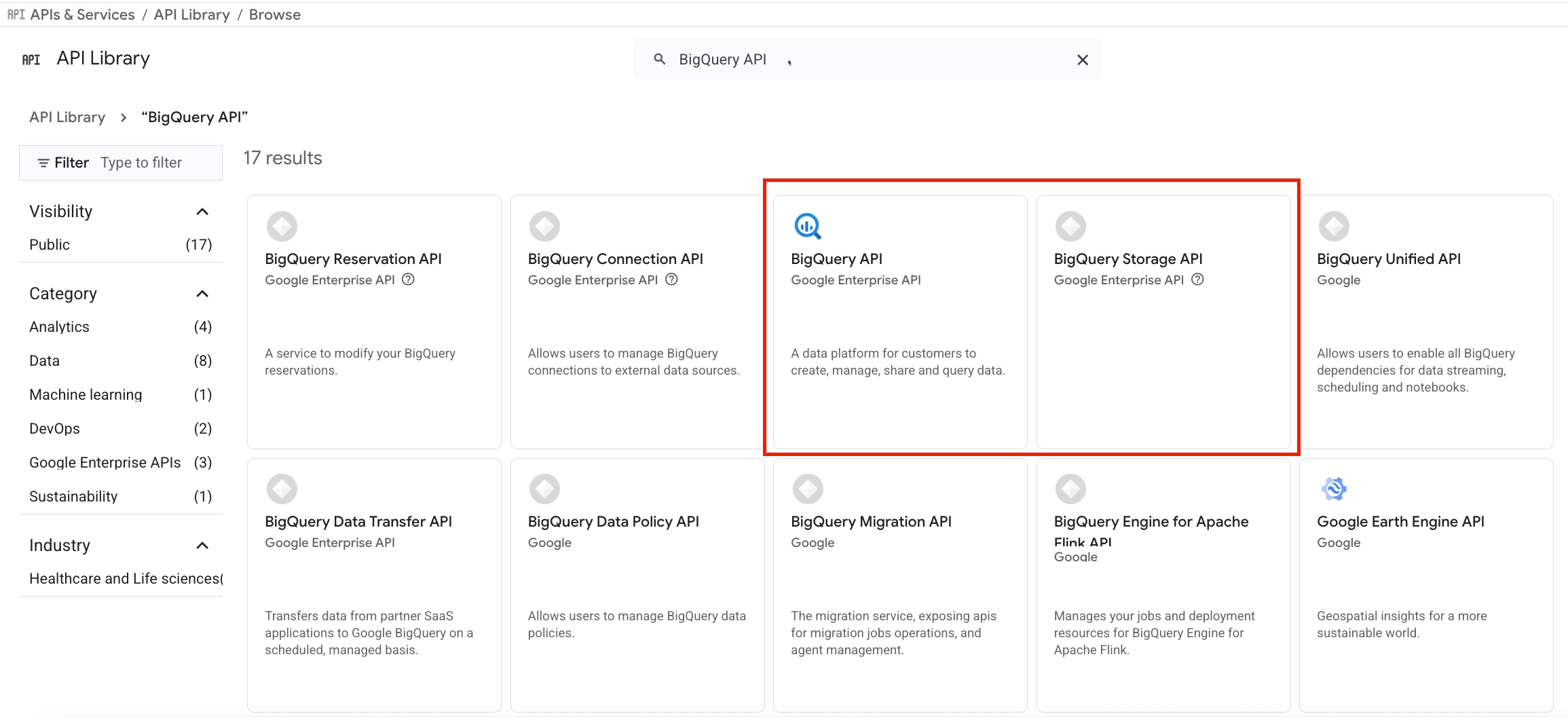
In Google Cloud Console, go to **APIs & Services** → **Library** and enable these APIs:
- **BigQuery API**
- **BigQuery Storage API**
Pushwoosh uses these APIs to create the destination table and stream events into BigQuery.
### Create a Service Account
Pushwoosh uses the Service Account to write events to your BigQuery dataset.
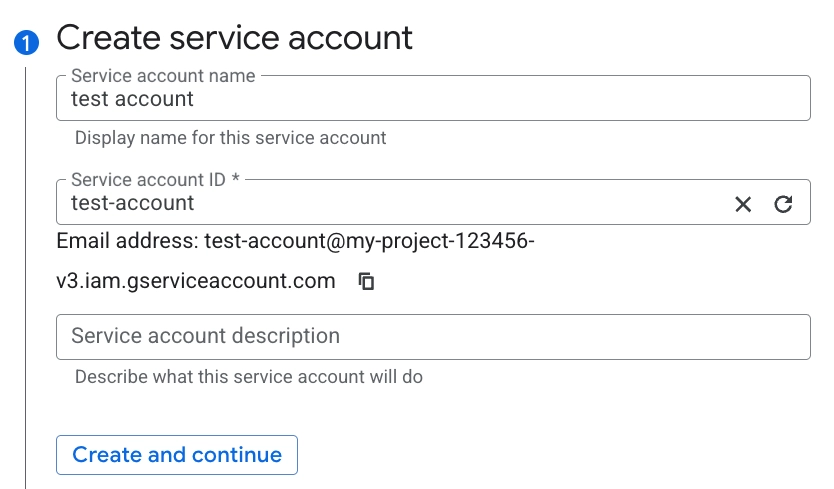
1. Go to **IAM & Admin** → **Service Accounts**.
2. Click **Create service account**.
3. In **Service account name**, enter a name, for example, `pushwoosh-bigquery`.
Google Cloud automatically generates the **Service account ID** from the name.
4. Click **Create and continue**.
### Grant IAM roles
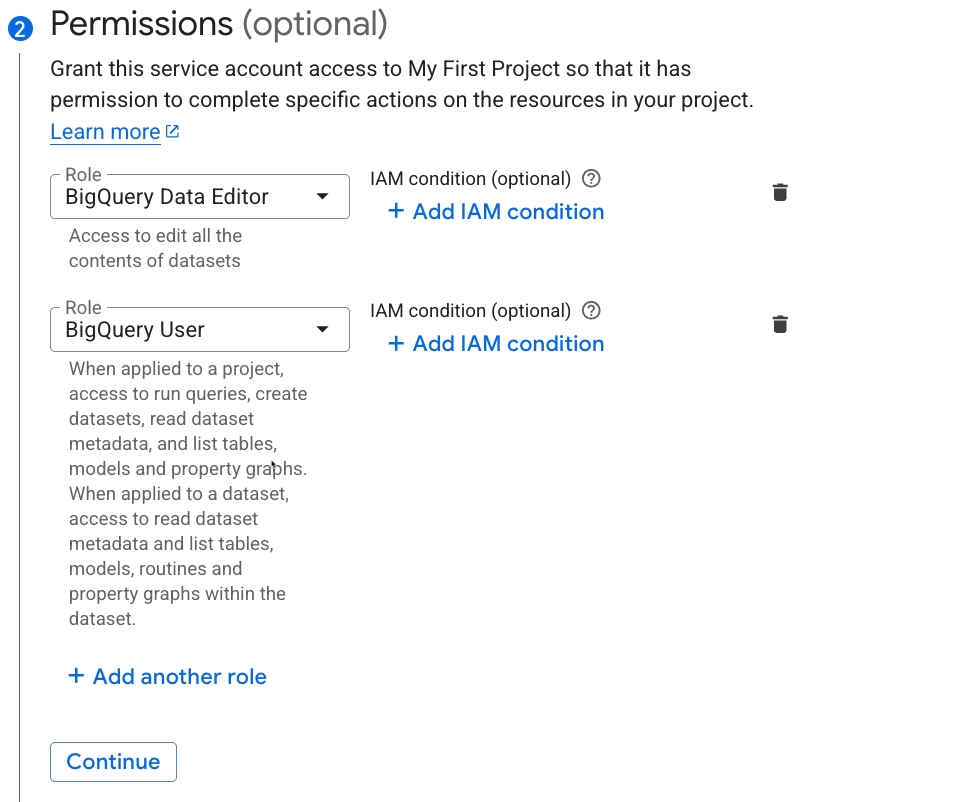
1. Grant the Service Account these IAM roles:
- **BigQuery Data Editor:** lets Pushwoosh create the table and append rows.
- **BigQuery User:** lets Pushwoosh use the Storage Write API.
2. Click **Continue**.
3. Click **Done**.
### Create a JSON key
Pushwoosh uses the JSON key to authenticate as the service account.
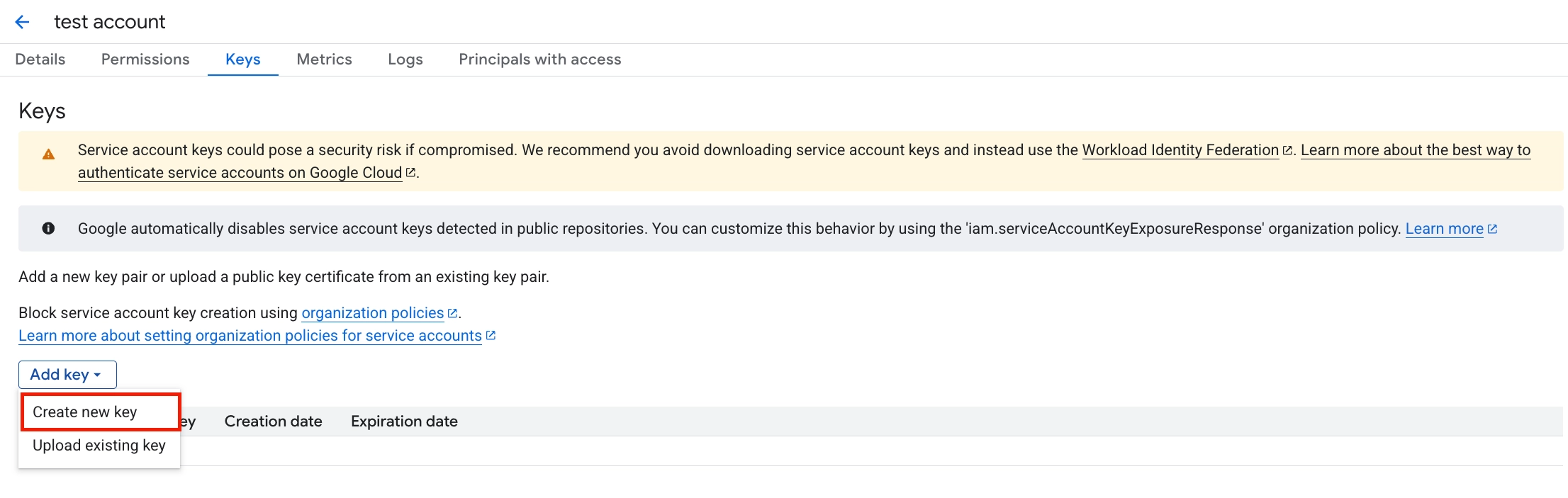
1. Open the service account you created.
2. Go to **Keys** → **Add key** → **Create new key**.
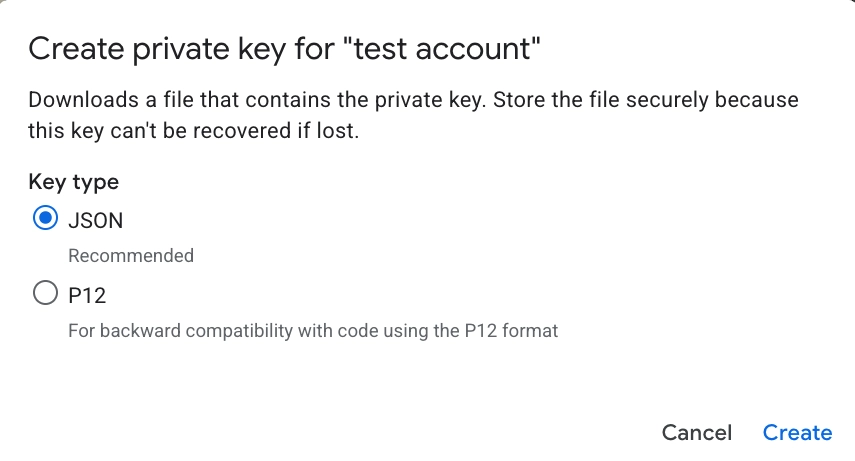
3. Select **JSON**.
Google Cloud downloads the JSON key file to your computer.
### Create a dataset
The dataset is where Pushwoosh stores the streamed event table.
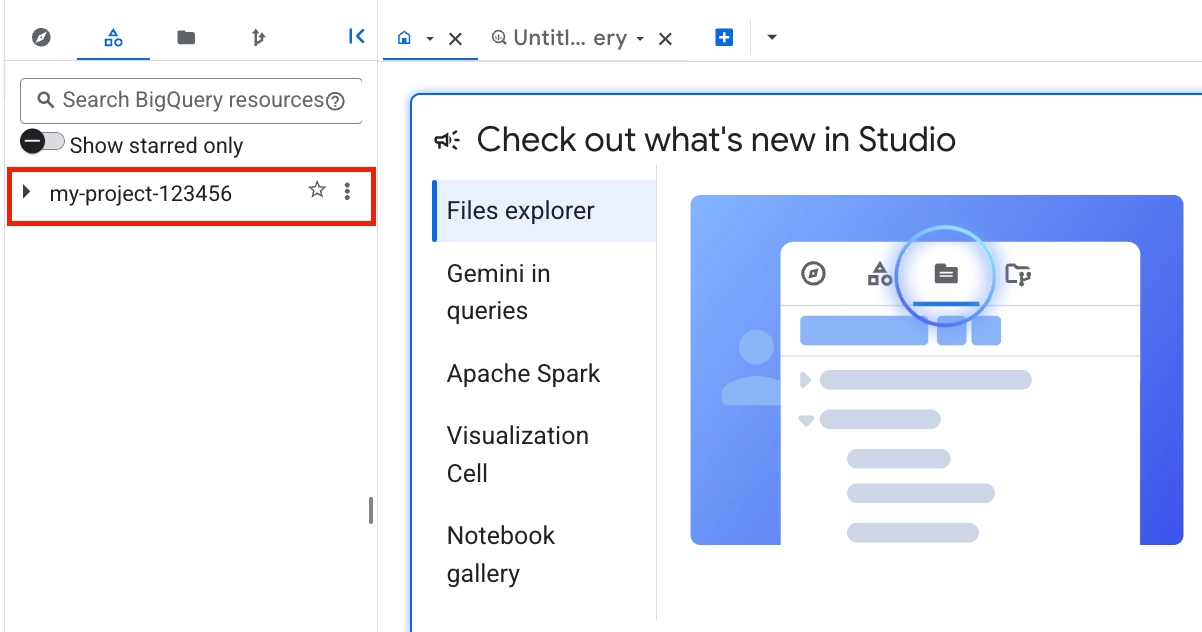
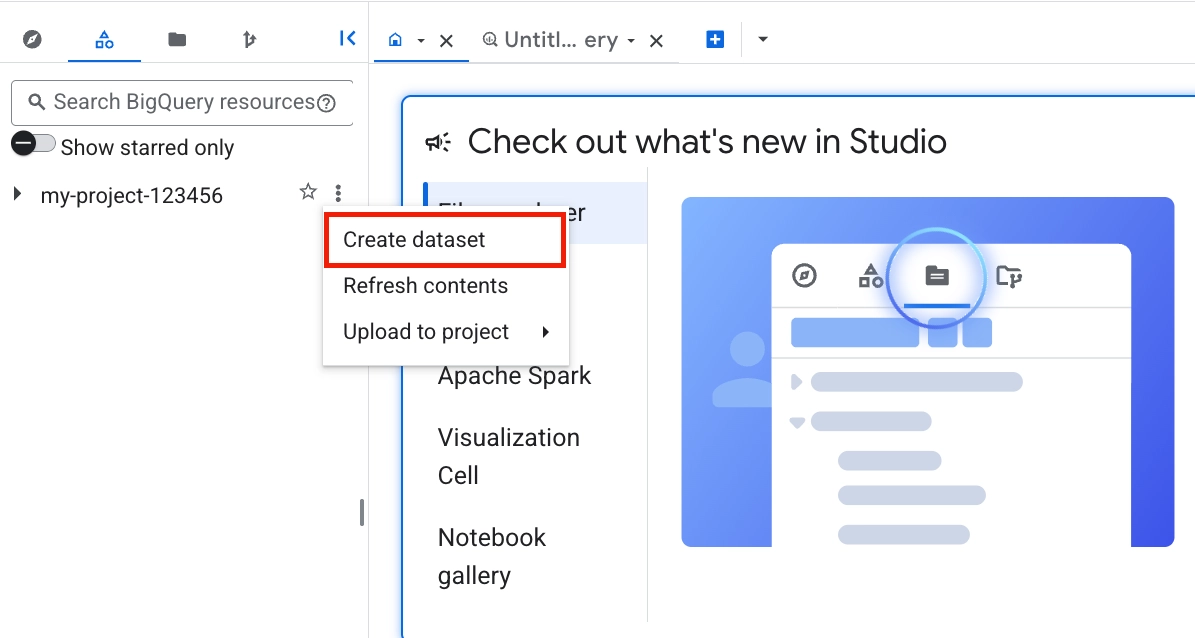
1. In Google Cloud Console, open **BigQuery**.
2. In **Explorer**, select the project you prepared for the integration.
3. Click **Create dataset**.
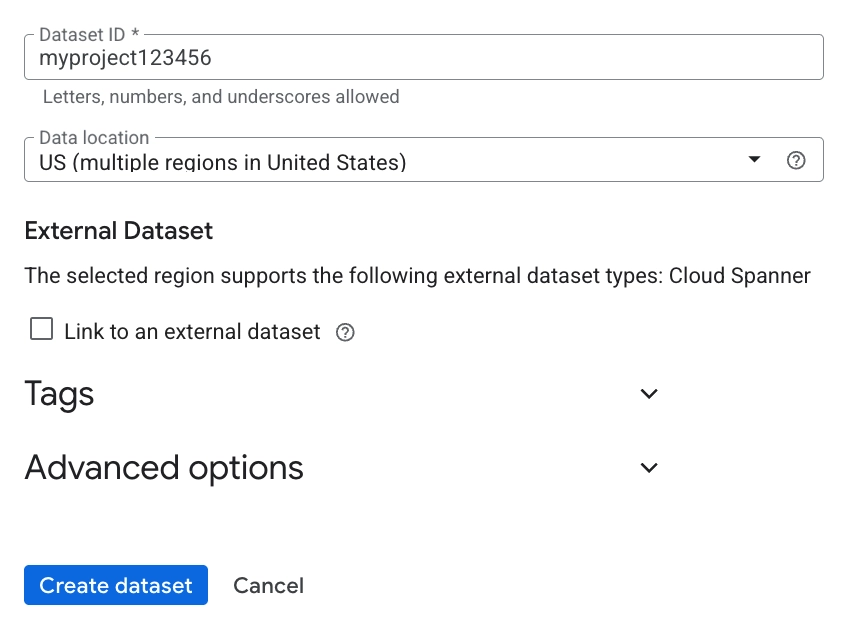
4. In **Dataset ID**, enter a dataset ID, for example `pushwoosh_data`.
5. In **Data location**, select the dataset region.
6. Click **Create dataset**.
## Configure the integration in Pushwoosh
1. In your Pushwoosh account, go to **Settings** → **3rd Party Integrations** for the application you want to connect.
2. Find **Google BigQuery** in the list of available services and click **Configure**.
3. Fill in the configuration fields.
- **GCP Project ID:** enter the project ID from Google Cloud, for example `my-company-12345`.
- **Service Account JSON:** paste the full contents of the JSON key file you downloaded from Google Cloud.
- **Dataset ID:** once **GCP Project ID** and **Service Account JSON** are filled, Pushwoosh fetches the datasets your Service Account can access. Select the destination dataset. If the dropdown is empty, check that the Service Account has access and that the dataset exists in the project you specified.
- **Dataset region:** select the region of your BigQuery dataset.
- **Table name:** leave blank to use the default `pushwoosh_events` table. Pushwoosh creates the table with the schema described below.
- **Events:** select the events you want to stream. You can change this list later.
- **Stream events to BigQuery:** enable this toggle. Turn it off to pause streaming without deleting the configuration.
4. Click **Test connection**.
Pushwoosh validates the credentials against BigQuery without writing data.
You may see one of these connection statuses:
- **Connection successful:** the credentials work and the Service Account can access the dataset.
- `auth_failed`: the JSON key is invalid or revoked.
- `dataset_not_found`: the dataset ID is incorrect or the Service Account cannot access it.
- `missing_permission`: the Service Account is missing one of the required roles.
5. Click **Apply**.
Pushwoosh saves the configuration and starts using it within about 30 seconds. After that, selected events start streaming to BigQuery.
## Verify the integration
1. Send a test push, or trigger another message that produces one of the event kinds you selected.
2. Wait about 30 seconds.
3. Open [BigQuery Studio](https://console.cloud.google.com/bigquery).
4. Go to your project, then open the dataset and the destination table you configured. If you left **Table name** blank, open `pushwoosh_events`.
5. Click **Preview**.
You should see the event row in the table.
### Table schema
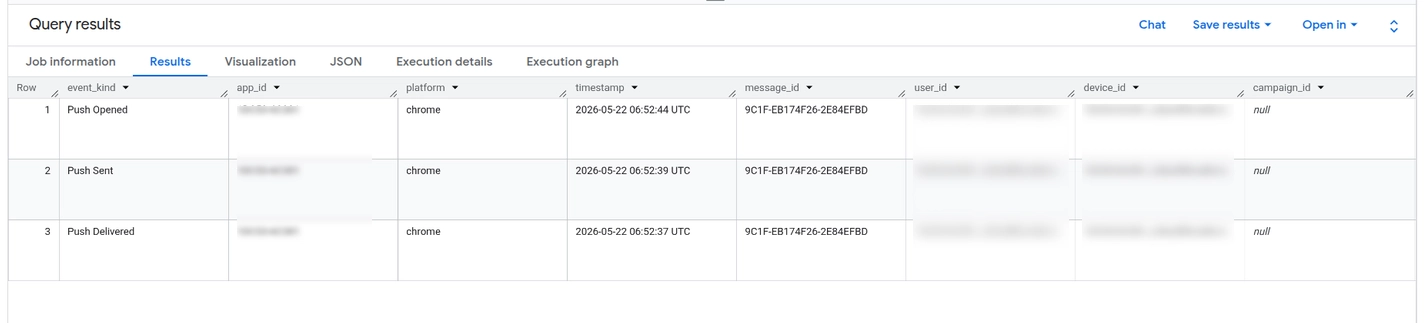
Pushwoosh writes each selected event as a separate row in the destination table. To make queries faster and easier to filter, the table is partitioned by day using `timestamp` and clustered by `app_id` and `event_kind`.
| Field name | Type | Description |
| :---- | :---- | :---- |
| `event_kind` | `STRING` | Pushwoosh event kind, for example `Push Sent` or `Email Opened`. |
| `message_id` | `STRING` | Pushwoosh message code, such as the campaign or message identifier. |
| `device_id` | `STRING` | Pushwoosh hardware ID of the device that produced the event. |
| `user_id` | `STRING` | Your external user ID if known. Empty for anonymous devices. |
| `timestamp` | `TIMESTAMP` | Event time in UTC. |
| `app_id` | `STRING` | Pushwoosh application code. |
| `platform` | `STRING` | Source platform, for example `ios`, `android`, or `web`. |
| `properties` | `JSON` | Additional event fields. Use `JSON_VALUE` to query fields, as shown below. |
### Query properties
The `properties` column stores additional event fields as JSON. Use `JSON_VALUE` to extract individual fields in your queries.
For example, to see which campaigns drove the most opens over the last 7 days, click **+** to create a new query, paste the SQL below, and click **Run**.
```sql
SELECT
event_kind,
JSON_VALUE(properties, '$.campaign_id') AS campaign_id,
COUNT(*) AS events
FROM `your-project.your_dataset.pushwoosh_events`
WHERE event_kind = 'Push Opened'
AND timestamp >= TIMESTAMP_SUB(CURRENT_TIMESTAMP(), INTERVAL 7 DAY)
GROUP BY 1, 2
ORDER BY events DESC
```
To review event counts for the last hour, run this query:
```sql
SELECT
event_kind,
COUNT(*) AS events
FROM `your-project.your_dataset.pushwoosh_events`
WHERE timestamp >= TIMESTAMP_SUB(CURRENT_TIMESTAMP(), INTERVAL 1 HOUR)
GROUP BY event_kind
ORDER BY events DESC
```
## Update the integration
### Rotate the Service Account key
1. In Google Cloud Console, go to **IAM & Admin** → **Service Accounts**.
2. Open your Service Account.
3. Go to **Keys** and create a new JSON key.
4. Keep the old key active until you confirm the new key works.
5. In Pushwoosh, open the **Google BigQuery** configuration modal.
6. Paste the new JSON into **Service Account JSON**.
7. Click **Apply**.
Pushwoosh validates the new key, replaces the stored credential, and starts using it after the next configuration reload, which takes about 30 seconds.
After you confirm that events are still flowing, delete the old key in Google Cloud Console.
### Change the destination dataset or table
1. In Pushwoosh, go to **Settings** → **3rd Party Integrations**.
2. Open **Google BigQuery** settings.
3. Select a different dataset or enter a new table name.
4. Click **Apply**.
Pushwoosh reopens the stream with the new destination within about 30 seconds. Rows already written stay in the old table. Pushwoosh does not backfill historical data.
To keep the stored Service Account key unchanged when you update other settings, leave **Service Account JSON** empty before you click **Apply**.
## Troubleshooting
| Issue | What to check |
| :---- | :---- |
| **Test connection fails with `auth_failed`** | The Service Account JSON is malformed or the key has been revoked in Google Cloud. Create a new key and paste the full JSON file again. The file starts with `{`, ends with `}`, and contains a `private_key` block. |
| **Test connection fails with `dataset_not_found`** | The **Dataset ID** is misspelled or does not exist in the project you specified. Dataset IDs are case-sensitive. Select the dataset from the dropdown to avoid typos. |
| **Test connection fails with `missing_permission`** | The Service Account is missing **BigQuery Data Editor** or **BigQuery User**. Grant both roles at the project level, or grant them at the dataset level for more restrictive access. |
| **Test connection passes, but no rows appear in BigQuery** | Wait at least 30 seconds. Check that the event kind you are sending is selected in **Events**. For example, if only **Push Opened** is selected and nobody opens the push, no rows appear. |
| **Configuration looks correct, but the modal shows empty fields** | Reload the page. The configuration is fetched on each modal open and cached for 30 seconds by the underlying service. If you just saved the settings, wait a moment and open the modal again. |
## FAQ
##### Can I use a free Google Cloud account?
Yes, as long as billing is enabled on the project. The Free Trial credits are enough to run this integration at typical volumes for the full trial period. BigQuery Sandbox without billing will not work because the Storage Write API requires billing.
##### Does Pushwoosh see my BigQuery data?
No. The Service Account credential you upload authorizes Pushwoosh to write to the dataset you select. Pushwoosh does not read from your dataset and has no access to the rest of your project.
##### Can I export to multiple BigQuery datasets?
One destination is supported per application. If you need the same events in two datasets, set up a BigQuery scheduled query in your project to copy data from `pushwoosh_events` into another table.
##### Can I change the table schema?
The schema is fixed across all customers. If you need additional columns, extract them from the `properties` JSON in your own views or scheduled queries.
##### What happens if I disable the integration temporarily?
Turn off **Stream events to BigQuery** and click **Apply**. Pushwoosh stops appending events for this application within about 30 seconds.
Events produced while the integration is off are not buffered or backfilled when you turn it back on. Pushwoosh keeps the configuration, including credentials, dataset, and event selection.
##### How do I delete the integration completely?
Contact [support@pushwoosh.com](mailto:support@pushwoosh.com) to delete the integration configuration. The dataset and rows already written to BigQuery remain in your Google Cloud account.
##### Are there delivery guarantees?
The integration uses at-least-once delivery. Under normal operation, duplicates are rare. A process restart between an append and a commit can produce a small number of duplicate rows. Deduplicate in SQL if your downstream pipeline requires exactly-once results.
##### Why is there no Push Clicked event?
Pushwoosh currently exposes **Push Sent**, **Push Delivered**, and **Push Opened** for push notifications in this integration. A dedicated push click step is not available. Email and SMS have their lifecycle events.
 ### Enable the required APIs
In Google Cloud Console, go to **APIs & Services** → **Library** and enable these APIs:
- **BigQuery API**
- **BigQuery Storage API**
### Enable the required APIs
In Google Cloud Console, go to **APIs & Services** → **Library** and enable these APIs:
- **BigQuery API**
- **BigQuery Storage API**
 Pushwoosh uses these APIs to create the destination table and stream events into BigQuery.
### Create a Service Account
Pushwoosh uses the Service Account to write events to your BigQuery dataset.
1. Go to **IAM & Admin** → **Service Accounts**.
2. Click **Create service account**.
3. In **Service account name**, enter a name, for example, `pushwoosh-bigquery`.
Google Cloud automatically generates the **Service account ID** from the name.
Pushwoosh uses these APIs to create the destination table and stream events into BigQuery.
### Create a Service Account
Pushwoosh uses the Service Account to write events to your BigQuery dataset.
1. Go to **IAM & Admin** → **Service Accounts**.
2. Click **Create service account**.
3. In **Service account name**, enter a name, for example, `pushwoosh-bigquery`.
Google Cloud automatically generates the **Service account ID** from the name.
 4. Click **Create and continue**.
### Grant IAM roles
1. Grant the Service Account these IAM roles:
- **BigQuery Data Editor:** lets Pushwoosh create the table and append rows.
- **BigQuery User:** lets Pushwoosh use the Storage Write API.
4. Click **Create and continue**.
### Grant IAM roles
1. Grant the Service Account these IAM roles:
- **BigQuery Data Editor:** lets Pushwoosh create the table and append rows.
- **BigQuery User:** lets Pushwoosh use the Storage Write API.
 2. Click **Continue**.
3. Click **Done**.
### Create a JSON key
Pushwoosh uses the JSON key to authenticate as the service account.
1. Open the service account you created.
2. Go to **Keys** → **Add key** → **Create new key**.
2. Click **Continue**.
3. Click **Done**.
### Create a JSON key
Pushwoosh uses the JSON key to authenticate as the service account.
1. Open the service account you created.
2. Go to **Keys** → **Add key** → **Create new key**.
 3. Select **JSON**.
Google Cloud downloads the JSON key file to your computer.
3. Select **JSON**.
Google Cloud downloads the JSON key file to your computer.
 ### Create a dataset
The dataset is where Pushwoosh stores the streamed event table.
1. In Google Cloud Console, open **BigQuery**.
2. In **Explorer**, select the project you prepared for the integration.
3. Click **Create dataset**.
### Create a dataset
The dataset is where Pushwoosh stores the streamed event table.
1. In Google Cloud Console, open **BigQuery**.
2. In **Explorer**, select the project you prepared for the integration.
3. Click **Create dataset**.
 4. In **Dataset ID**, enter a dataset ID, for example `pushwoosh_data`.
5. In **Data location**, select the dataset region.
4. In **Dataset ID**, enter a dataset ID, for example `pushwoosh_data`.
5. In **Data location**, select the dataset region.
 6. Click **Create dataset**.
## Configure the integration in Pushwoosh
1. In your Pushwoosh account, go to **Settings** → **3rd Party Integrations** for the application you want to connect.
2. Find **Google BigQuery** in the list of available services and click **Configure**.
6. Click **Create dataset**.
## Configure the integration in Pushwoosh
1. In your Pushwoosh account, go to **Settings** → **3rd Party Integrations** for the application you want to connect.
2. Find **Google BigQuery** in the list of available services and click **Configure**.
 3. Fill in the configuration fields.
- **GCP Project ID:** enter the project ID from Google Cloud, for example `my-company-12345`.
- **Service Account JSON:** paste the full contents of the JSON key file you downloaded from Google Cloud.
- **Dataset ID:** once **GCP Project ID** and **Service Account JSON** are filled, Pushwoosh fetches the datasets your Service Account can access. Select the destination dataset. If the dropdown is empty, check that the Service Account has access and that the dataset exists in the project you specified.
- **Dataset region:** select the region of your BigQuery dataset.
- **Table name:** leave blank to use the default `pushwoosh_events` table. Pushwoosh creates the table with the schema described below.
- **Events:** select the events you want to stream. You can change this list later.
- **Stream events to BigQuery:** enable this toggle. Turn it off to pause streaming without deleting the configuration.
4. Click **Test connection**.
Pushwoosh validates the credentials against BigQuery without writing data.
You may see one of these connection statuses:
- **Connection successful:** the credentials work and the Service Account can access the dataset.
- `auth_failed`: the JSON key is invalid or revoked.
- `dataset_not_found`: the dataset ID is incorrect or the Service Account cannot access it.
- `missing_permission`: the Service Account is missing one of the required roles.
5. Click **Apply**.
Pushwoosh saves the configuration and starts using it within about 30 seconds. After that, selected events start streaming to BigQuery.
## Verify the integration
1. Send a test push, or trigger another message that produces one of the event kinds you selected.
2. Wait about 30 seconds.
3. Open [BigQuery Studio](https://console.cloud.google.com/bigquery).
4. Go to your project, then open the dataset and the destination table you configured. If you left **Table name** blank, open `pushwoosh_events`.
5. Click **Preview**.
You should see the event row in the table.
3. Fill in the configuration fields.
- **GCP Project ID:** enter the project ID from Google Cloud, for example `my-company-12345`.
- **Service Account JSON:** paste the full contents of the JSON key file you downloaded from Google Cloud.
- **Dataset ID:** once **GCP Project ID** and **Service Account JSON** are filled, Pushwoosh fetches the datasets your Service Account can access. Select the destination dataset. If the dropdown is empty, check that the Service Account has access and that the dataset exists in the project you specified.
- **Dataset region:** select the region of your BigQuery dataset.
- **Table name:** leave blank to use the default `pushwoosh_events` table. Pushwoosh creates the table with the schema described below.
- **Events:** select the events you want to stream. You can change this list later.
- **Stream events to BigQuery:** enable this toggle. Turn it off to pause streaming without deleting the configuration.
4. Click **Test connection**.
Pushwoosh validates the credentials against BigQuery without writing data.
You may see one of these connection statuses:
- **Connection successful:** the credentials work and the Service Account can access the dataset.
- `auth_failed`: the JSON key is invalid or revoked.
- `dataset_not_found`: the dataset ID is incorrect or the Service Account cannot access it.
- `missing_permission`: the Service Account is missing one of the required roles.
5. Click **Apply**.
Pushwoosh saves the configuration and starts using it within about 30 seconds. After that, selected events start streaming to BigQuery.
## Verify the integration
1. Send a test push, or trigger another message that produces one of the event kinds you selected.
2. Wait about 30 seconds.
3. Open [BigQuery Studio](https://console.cloud.google.com/bigquery).
4. Go to your project, then open the dataset and the destination table you configured. If you left **Table name** blank, open `pushwoosh_events`.
5. Click **Preview**.
You should see the event row in the table.
 ### Table schema
Pushwoosh writes each selected event as a separate row in the destination table. To make queries faster and easier to filter, the table is partitioned by day using `timestamp` and clustered by `app_id` and `event_kind`.
| Field name | Type | Description |
| :---- | :---- | :---- |
| `event_kind` | `STRING` | Pushwoosh event kind, for example `Push Sent` or `Email Opened`. |
| `message_id` | `STRING` | Pushwoosh message code, such as the campaign or message identifier. |
| `device_id` | `STRING` | Pushwoosh hardware ID of the device that produced the event. |
| `user_id` | `STRING` | Your external user ID if known. Empty for anonymous devices. |
| `timestamp` | `TIMESTAMP` | Event time in UTC. |
| `app_id` | `STRING` | Pushwoosh application code. |
| `platform` | `STRING` | Source platform, for example `ios`, `android`, or `web`. |
| `properties` | `JSON` | Additional event fields. Use `JSON_VALUE` to query fields, as shown below. |
### Query properties
The `properties` column stores additional event fields as JSON. Use `JSON_VALUE` to extract individual fields in your queries.
For example, to see which campaigns drove the most opens over the last 7 days, click **+** to create a new query, paste the SQL below, and click **Run**.
```sql
SELECT
event_kind,
JSON_VALUE(properties, '$.campaign_id') AS campaign_id,
COUNT(*) AS events
FROM `your-project.your_dataset.pushwoosh_events`
WHERE event_kind = 'Push Opened'
AND timestamp >= TIMESTAMP_SUB(CURRENT_TIMESTAMP(), INTERVAL 7 DAY)
GROUP BY 1, 2
ORDER BY events DESC
```
To review event counts for the last hour, run this query:
```sql
SELECT
event_kind,
COUNT(*) AS events
FROM `your-project.your_dataset.pushwoosh_events`
WHERE timestamp >= TIMESTAMP_SUB(CURRENT_TIMESTAMP(), INTERVAL 1 HOUR)
GROUP BY event_kind
ORDER BY events DESC
```
## Update the integration
### Rotate the Service Account key
1. In Google Cloud Console, go to **IAM & Admin** → **Service Accounts**.
2. Open your Service Account.
3. Go to **Keys** and create a new JSON key.
4. Keep the old key active until you confirm the new key works.
5. In Pushwoosh, open the **Google BigQuery** configuration modal.
6. Paste the new JSON into **Service Account JSON**.
7. Click **Apply**.
Pushwoosh validates the new key, replaces the stored credential, and starts using it after the next configuration reload, which takes about 30 seconds.
After you confirm that events are still flowing, delete the old key in Google Cloud Console.
### Change the destination dataset or table
1. In Pushwoosh, go to **Settings** → **3rd Party Integrations**.
2. Open **Google BigQuery** settings.
3. Select a different dataset or enter a new table name.
4. Click **Apply**.
Pushwoosh reopens the stream with the new destination within about 30 seconds. Rows already written stay in the old table. Pushwoosh does not backfill historical data.
To keep the stored Service Account key unchanged when you update other settings, leave **Service Account JSON** empty before you click **Apply**.
## Troubleshooting
| Issue | What to check |
| :---- | :---- |
| **Test connection fails with `auth_failed`** | The Service Account JSON is malformed or the key has been revoked in Google Cloud. Create a new key and paste the full JSON file again. The file starts with `{`, ends with `}`, and contains a `private_key` block. |
| **Test connection fails with `dataset_not_found`** | The **Dataset ID** is misspelled or does not exist in the project you specified. Dataset IDs are case-sensitive. Select the dataset from the dropdown to avoid typos. |
| **Test connection fails with `missing_permission`** | The Service Account is missing **BigQuery Data Editor** or **BigQuery User**. Grant both roles at the project level, or grant them at the dataset level for more restrictive access. |
| **Test connection passes, but no rows appear in BigQuery** | Wait at least 30 seconds. Check that the event kind you are sending is selected in **Events**. For example, if only **Push Opened** is selected and nobody opens the push, no rows appear. |
| **Configuration looks correct, but the modal shows empty fields** | Reload the page. The configuration is fetched on each modal open and cached for 30 seconds by the underlying service. If you just saved the settings, wait a moment and open the modal again. |
## FAQ
##### Can I use a free Google Cloud account?
Yes, as long as billing is enabled on the project. The Free Trial credits are enough to run this integration at typical volumes for the full trial period. BigQuery Sandbox without billing will not work because the Storage Write API requires billing.
##### Does Pushwoosh see my BigQuery data?
No. The Service Account credential you upload authorizes Pushwoosh to write to the dataset you select. Pushwoosh does not read from your dataset and has no access to the rest of your project.
##### Can I export to multiple BigQuery datasets?
One destination is supported per application. If you need the same events in two datasets, set up a BigQuery scheduled query in your project to copy data from `pushwoosh_events` into another table.
##### Can I change the table schema?
The schema is fixed across all customers. If you need additional columns, extract them from the `properties` JSON in your own views or scheduled queries.
##### What happens if I disable the integration temporarily?
Turn off **Stream events to BigQuery** and click **Apply**. Pushwoosh stops appending events for this application within about 30 seconds.
Events produced while the integration is off are not buffered or backfilled when you turn it back on. Pushwoosh keeps the configuration, including credentials, dataset, and event selection.
##### How do I delete the integration completely?
Contact [support@pushwoosh.com](mailto:support@pushwoosh.com) to delete the integration configuration. The dataset and rows already written to BigQuery remain in your Google Cloud account.
##### Are there delivery guarantees?
The integration uses at-least-once delivery. Under normal operation, duplicates are rare. A process restart between an append and a commit can produce a small number of duplicate rows. Deduplicate in SQL if your downstream pipeline requires exactly-once results.
##### Why is there no Push Clicked event?
Pushwoosh currently exposes **Push Sent**, **Push Delivered**, and **Push Opened** for push notifications in this integration. A dedicated push click step is not available. Email and SMS have their lifecycle events.
### Table schema
Pushwoosh writes each selected event as a separate row in the destination table. To make queries faster and easier to filter, the table is partitioned by day using `timestamp` and clustered by `app_id` and `event_kind`.
| Field name | Type | Description |
| :---- | :---- | :---- |
| `event_kind` | `STRING` | Pushwoosh event kind, for example `Push Sent` or `Email Opened`. |
| `message_id` | `STRING` | Pushwoosh message code, such as the campaign or message identifier. |
| `device_id` | `STRING` | Pushwoosh hardware ID of the device that produced the event. |
| `user_id` | `STRING` | Your external user ID if known. Empty for anonymous devices. |
| `timestamp` | `TIMESTAMP` | Event time in UTC. |
| `app_id` | `STRING` | Pushwoosh application code. |
| `platform` | `STRING` | Source platform, for example `ios`, `android`, or `web`. |
| `properties` | `JSON` | Additional event fields. Use `JSON_VALUE` to query fields, as shown below. |
### Query properties
The `properties` column stores additional event fields as JSON. Use `JSON_VALUE` to extract individual fields in your queries.
For example, to see which campaigns drove the most opens over the last 7 days, click **+** to create a new query, paste the SQL below, and click **Run**.
```sql
SELECT
event_kind,
JSON_VALUE(properties, '$.campaign_id') AS campaign_id,
COUNT(*) AS events
FROM `your-project.your_dataset.pushwoosh_events`
WHERE event_kind = 'Push Opened'
AND timestamp >= TIMESTAMP_SUB(CURRENT_TIMESTAMP(), INTERVAL 7 DAY)
GROUP BY 1, 2
ORDER BY events DESC
```
To review event counts for the last hour, run this query:
```sql
SELECT
event_kind,
COUNT(*) AS events
FROM `your-project.your_dataset.pushwoosh_events`
WHERE timestamp >= TIMESTAMP_SUB(CURRENT_TIMESTAMP(), INTERVAL 1 HOUR)
GROUP BY event_kind
ORDER BY events DESC
```
## Update the integration
### Rotate the Service Account key
1. In Google Cloud Console, go to **IAM & Admin** → **Service Accounts**.
2. Open your Service Account.
3. Go to **Keys** and create a new JSON key.
4. Keep the old key active until you confirm the new key works.
5. In Pushwoosh, open the **Google BigQuery** configuration modal.
6. Paste the new JSON into **Service Account JSON**.
7. Click **Apply**.
Pushwoosh validates the new key, replaces the stored credential, and starts using it after the next configuration reload, which takes about 30 seconds.
After you confirm that events are still flowing, delete the old key in Google Cloud Console.
### Change the destination dataset or table
1. In Pushwoosh, go to **Settings** → **3rd Party Integrations**.
2. Open **Google BigQuery** settings.
3. Select a different dataset or enter a new table name.
4. Click **Apply**.
Pushwoosh reopens the stream with the new destination within about 30 seconds. Rows already written stay in the old table. Pushwoosh does not backfill historical data.
To keep the stored Service Account key unchanged when you update other settings, leave **Service Account JSON** empty before you click **Apply**.
## Troubleshooting
| Issue | What to check |
| :---- | :---- |
| **Test connection fails with `auth_failed`** | The Service Account JSON is malformed or the key has been revoked in Google Cloud. Create a new key and paste the full JSON file again. The file starts with `{`, ends with `}`, and contains a `private_key` block. |
| **Test connection fails with `dataset_not_found`** | The **Dataset ID** is misspelled or does not exist in the project you specified. Dataset IDs are case-sensitive. Select the dataset from the dropdown to avoid typos. |
| **Test connection fails with `missing_permission`** | The Service Account is missing **BigQuery Data Editor** or **BigQuery User**. Grant both roles at the project level, or grant them at the dataset level for more restrictive access. |
| **Test connection passes, but no rows appear in BigQuery** | Wait at least 30 seconds. Check that the event kind you are sending is selected in **Events**. For example, if only **Push Opened** is selected and nobody opens the push, no rows appear. |
| **Configuration looks correct, but the modal shows empty fields** | Reload the page. The configuration is fetched on each modal open and cached for 30 seconds by the underlying service. If you just saved the settings, wait a moment and open the modal again. |
## FAQ
##### Can I use a free Google Cloud account?
Yes, as long as billing is enabled on the project. The Free Trial credits are enough to run this integration at typical volumes for the full trial period. BigQuery Sandbox without billing will not work because the Storage Write API requires billing.
##### Does Pushwoosh see my BigQuery data?
No. The Service Account credential you upload authorizes Pushwoosh to write to the dataset you select. Pushwoosh does not read from your dataset and has no access to the rest of your project.
##### Can I export to multiple BigQuery datasets?
One destination is supported per application. If you need the same events in two datasets, set up a BigQuery scheduled query in your project to copy data from `pushwoosh_events` into another table.
##### Can I change the table schema?
The schema is fixed across all customers. If you need additional columns, extract them from the `properties` JSON in your own views or scheduled queries.
##### What happens if I disable the integration temporarily?
Turn off **Stream events to BigQuery** and click **Apply**. Pushwoosh stops appending events for this application within about 30 seconds.
Events produced while the integration is off are not buffered or backfilled when you turn it back on. Pushwoosh keeps the configuration, including credentials, dataset, and event selection.
##### How do I delete the integration completely?
Contact [support@pushwoosh.com](mailto:support@pushwoosh.com) to delete the integration configuration. The dataset and rows already written to BigQuery remain in your Google Cloud account.
##### Are there delivery guarantees?
The integration uses at-least-once delivery. Under normal operation, duplicates are rare. A process restart between an append and a commit can produce a small number of duplicate rows. Deduplicate in SQL if your downstream pipeline requires exactly-once results.
##### Why is there no Push Clicked event?
Pushwoosh currently exposes **Push Sent**, **Push Delivered**, and **Push Opened** for push notifications in this integration. A dedicated push click step is not available. Email and SMS have their lifecycle events.