# Crashlytics integration
Trust is something you can build over time and lose in a blink of an eye. Once you've brought people into your app, you want to have a long-term relationship with them, and app crashes can become a deal-breaker.
What if you had a chance to say "I'm sorry" in a very personal way? Such as your stats show that 30% of your users experiencing a crash with the latest release, and you just need to tell them to update in order to deliver a fix. However, other 70% might not be happy hearing about possible issues with the app they love so much.
Here's where we step in to assist. Crashlytics and Pushwoosh integration is very simple. With just a few lines of code you would be able to target and notify only those users who experienced particular crash in the app, without having to bother the rest of your audience.
Let's see how it works.
## Integrating Crashlytics
First of all, we have to feed some identifier to [Crashlytics](https://firebase.google.com/docs/crashlytics) that will help us to target user later.
Crashlytics provides **setUserIdentifier** method for this purpose (link to [iOS](https://docs.fabric.io/ios/crashlytics/enhanced-reports.html#user-identifiers), link to [Android](https://docs.fabric.io/android/crashlytics/enhanced-reports.html#user-information)).
In our case we need to set it to Pushwoosh Hardware ID. As you may know Pushwoosh Hardware ID is _IDFV_ (or _IDFA_ if you link to _AdSupport.framework_) on iOS and in most of the cases _Android Id_ or _Serial Number_ on Android.
This code makes it simple:
```java
String userId = pushManager.getPushwooshHWID(this);
Crashlytics.setUserIdentifier(userId);
```
```objective-c
NSString * userId = [[PushNotificationManager pushManager] getHWID];
[Crashlytics setUserIdentifier:userId];
```
That's it! Now you are collecting user IDs with Crashlytics.
## Downloading User IDs from the crash reports in Crashlytics
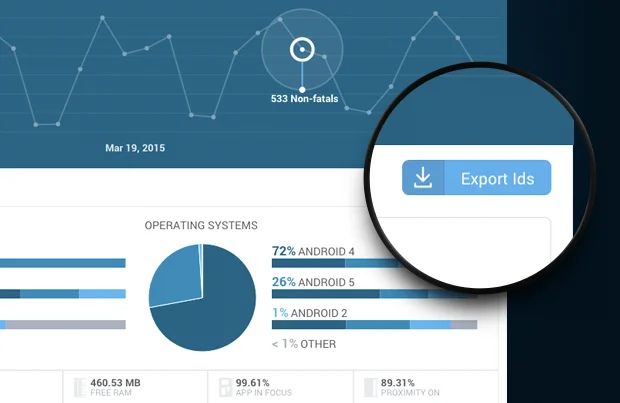
Please note that it may take up to 24 hours as per Fabric documentation for the "Export IDs" button to appear on the crash detail report in the Crashlytics dashboard.
Click on the _Export IDs_ button will download _user-data.csv_ file.
The file has the following structure:
```javascript title="user-data.csv"
userId,email,name,mostRecentTimestamp,count
XXXXXXXXXXXXXXXX,test@example.com,John Snow,MAR 03 2016 01:22,1
YYYYYYYYYYYYYYYY,another@example.com,John Snow Jr,MAR 03 2016 01:11,1
```
 Click on the _Export IDs_ button will download _user-data.csv_ file.
The file has the following structure:
```javascript title="user-data.csv"
userId,email,name,mostRecentTimestamp,count
XXXXXXXXXXXXXXXX,test@example.com,John Snow,MAR 03 2016 01:22,1
YYYYYYYYYYYYYYYY,another@example.com,John Snow Jr,MAR 03 2016 01:11,1
```
Click on the _Export IDs_ button will download _user-data.csv_ file.
The file has the following structure:
```javascript title="user-data.csv"
userId,email,name,mostRecentTimestamp,count
XXXXXXXXXXXXXXXX,test@example.com,John Snow,MAR 03 2016 01:22,1
YYYYYYYYYYYYYYYY,another@example.com,John Snow Jr,MAR 03 2016 01:11,1
```