# How to set up a user engagement campaign in Pushwoosh
Has your new user already completed [onboarding](/product/how-to-guides/lifecycle-marketing-campaigns/how-to-onboard-users-with-pushwoosh/) and [got activated](/product/how-to-guides/lifecycle-marketing-campaigns/how-to-set-up-a-user-activation-campaign-with-pushwoosh/)? Great! Now it is time to ensure they maintain interest in your app. A well-designed engagement campaign will allow you to:
* Build long-term relationships with users
* Keep users loyal to your product
* Increase revenue
The steps below will help you set up an effective app campaign for engagement using our [Customer Journey Builder](/product/customer-journey/pushwoosh-journey-overview).
## Think about campaign entry points
In Customer Journey Builder, each campaign starts with an entry point that contains a specific trigger or user segment. Configure triggers or segments depending on what type of entry you want to use:
* **Trigger-based entry:** the campaign is launched when a user triggers an event (i.e. performs a specific action). If you want to set a triggered-based entry, first [set up Events](/product/audience-data-and-segmentation/events/) in your Pushwoosh project.
* **Audience-based entry:** the campaign is launched for all users of a specific segment. If you want to set an audience-based entry, first [set up Tags](/product/audience-data-and-segmentation/user-data-tags/tags/) that identify your users and [create Segments](/product/audience-data-and-segmentation/segmentation/) based on these tags.
To drive better engagement, you can create different campaigns depending on predefined triggers or user segments. You can also add several entry points to a single campaign: both trigger and audience-based.
## Prepare engaging content
Think about what content you want to use for your engagement campaign. It may differ depending on user segments and behavior scenarios.
You can also personalize the content (e.g. insert the user's name or mention their preferences in a message). Personalized communications can improve CTR and conversion.
In Customer Journey Builder, you can combine different channels for better engagement, so you may consider creating content specifically for these channels:
* **Push notifications** are good for bringing users back into the app and establishing a habit of using it. It can be something interesting that urges users to open the app (e.g. alerts, news, special offers).
* **In-app messages** are suitable for presenting helpful tips inside the app and asking for feedback. However, you cannot bring users back into the app by using in-apps only, so it’s better to use them along with push notifications.
* **Emails** are perfect for industries like e-commerce. You can send follow-ups after some target action (e.g. purchase), give valuable tips and ideas on using your app, or make special offers.
## Create a Customer Journey
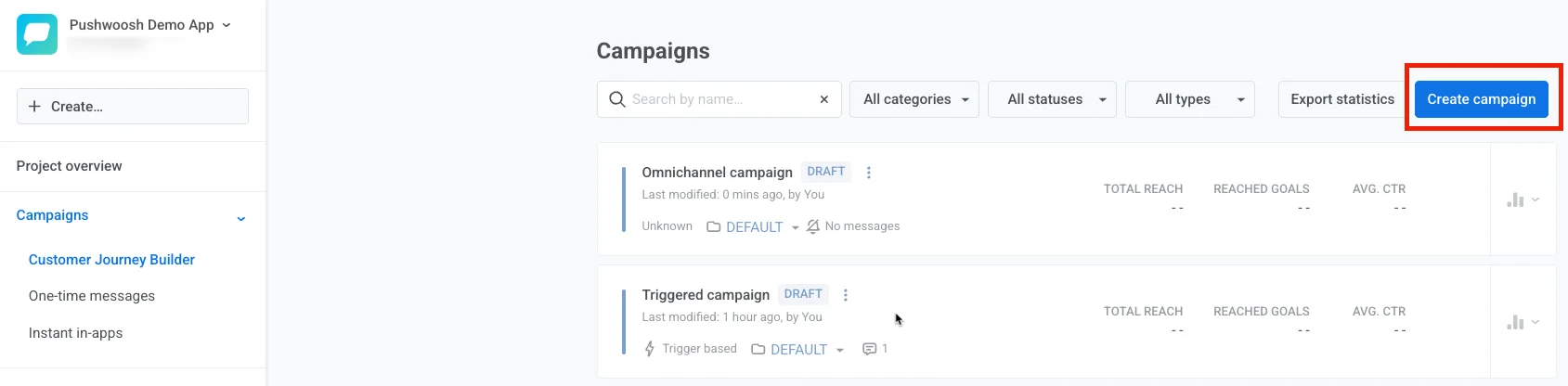
Now it’s time to create your campaign in our [Customer Journey Builder](/product/customer-journey/pushwoosh-journey-overview/).
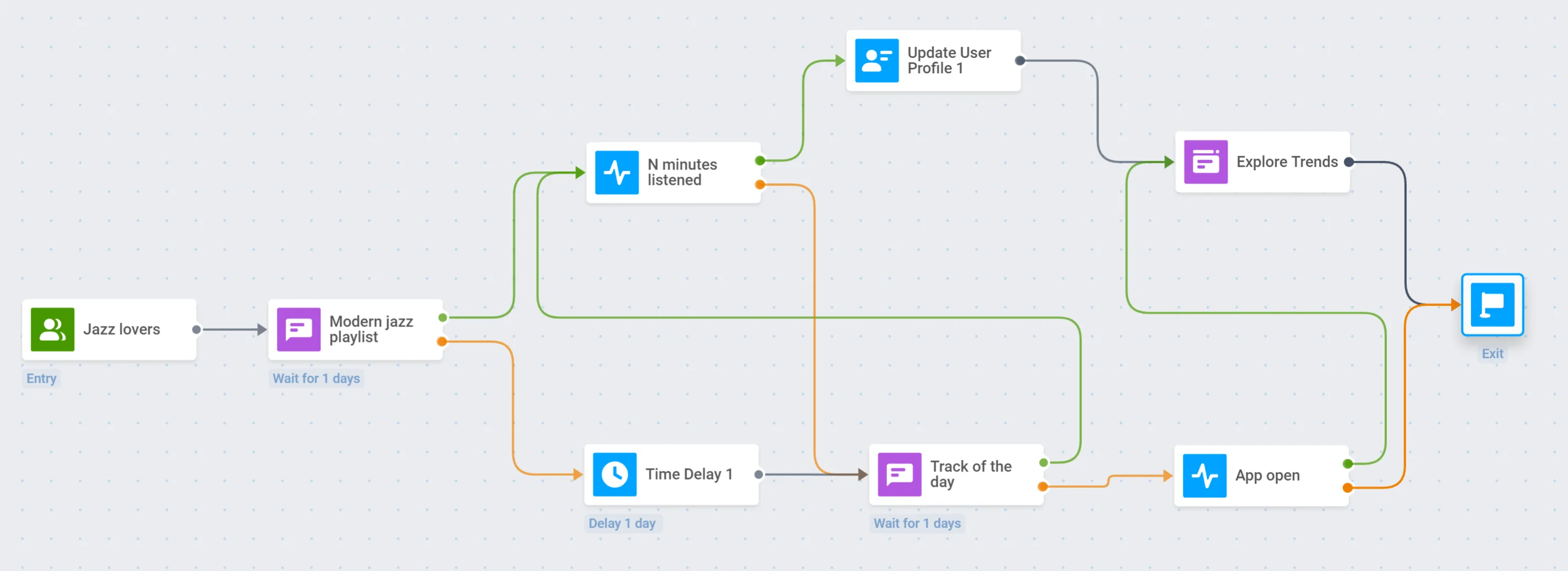
Campaign structure can vary greatly depending on your goals. In our example, we'll show you how to set up a simple engagement campaign for a music streaming app:
### Define entry points
In our example music streaming app, we will add an audience-based entry point to engage jazz lovers:
### Send an engaging push
Let's send a push notification to all jazz lovers about a special playlist in the app:
We will split the flow depending on whether this push is opened or ignored:
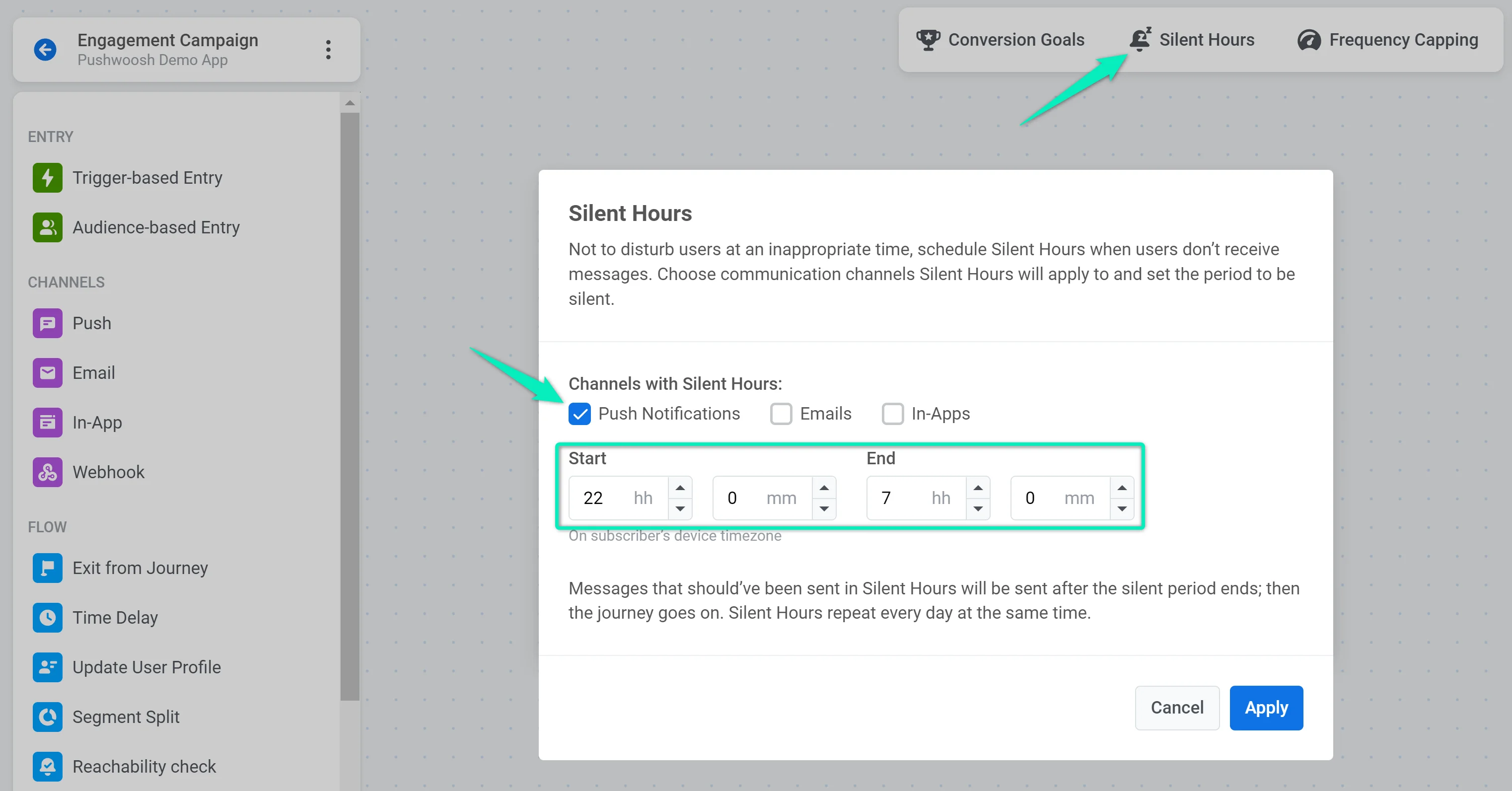
We will also set silent hours to avoid bothering users when they are not likely to be listening to music:
### Add a listening time trigger
_for those who opened the push notification_
Now we will divide those who clicked on the push notification into two groups: users who listened to the playlist for an extended period of time and users who took very little time before closing the playlist.
First, we will set up the "N minutes listened" [event](/product/audience-data-and-segmentation/events/) in the app and the Pushwoosh project.
After that, we will add the **Wait for Trigger** element with the "N minutes listened" event selected:
### Set a time delay
_for those who did not open the push notification_
If the user does not click on the push notification, we will set a one-day **Time Delay** before trying to get them back in the app again:
### Update a user profile
_for those who triggered the "N minutes listened" event_
If the user has triggered the "N minutes listened" event, we will tag them as _Listened to Modern jazz playlist_. To do this, we will add the **Update User Profile** element:
### Send one more engaging push
_for those who did not open the first push or did not trigger the "N minutes listened" event_
Let’s send another engaging push to those not interested in the playlist to try and get them back into the app. We will invite these users to listen to the track of the day:
If the user opens the _Track of the day_ push, we will wait for the "N minutes listened" trigger to fire and continue on Journey:
### Show an in-app for further engagement
_for those who triggered the “N minutes listened” event_
Now we want to show more engaging content to users who have listened to our playlist. First, we will create an [in-app message](/product/content/in-apps/) with a button leading to the _Trends_ section.
Then we will add the **In-App** element to the canvas:
### Wait for the user to open the app
_for those who did not open the second push notification_
If the user does not open the second push, we will give them one more day to open the app. For this purpose, we will add the **Wait for Trigger** element and specify the default _PW\_ApplicationOpen_ event with a one-day wait period:
If the user opens the app within one day, we will also show them the _Explore Trends_ in-app:
### Finish the journey
To end the campaign, we will add the **Exit from Journey** element. The campaign will end when the _Explore Trends_ in-app appears or if the user has not responded to any step of the campaign:
## You may also find interesting
* [More about Pushwoosh Customer Journey Builder](https://www.pushwoosh.com/products/customer-journey)
* [How to increase app user engagement](https://blog.pushwoosh.com/blog/increase-app-engagement/)
* [7+ metrics to measure for user engagement in your app](https://blog.pushwoosh.com/blog/user-engagement-metrics/)
 Campaign structure can vary greatly depending on your goals. In our example, we'll show you how to set up a simple engagement campaign for a music streaming app:
 ### Define entry points
In our example music streaming app, we will add an audience-based entry point to engage jazz lovers:
### Send an engaging push
Let's send a push notification to all jazz lovers about a special playlist in the app:
We will split the flow depending on whether this push is opened or ignored:
We will also set silent hours to avoid bothering users when they are not likely to be listening to music:
### Define entry points
In our example music streaming app, we will add an audience-based entry point to engage jazz lovers:
### Send an engaging push
Let's send a push notification to all jazz lovers about a special playlist in the app:
We will split the flow depending on whether this push is opened or ignored:
We will also set silent hours to avoid bothering users when they are not likely to be listening to music:
 ### Add a listening time trigger
_for those who opened the push notification_
Now we will divide those who clicked on the push notification into two groups: users who listened to the playlist for an extended period of time and users who took very little time before closing the playlist.
First, we will set up the "N minutes listened" [event](/product/audience-data-and-segmentation/events/) in the app and the Pushwoosh project.
After that, we will add the **Wait for Trigger** element with the "N minutes listened" event selected:
### Set a time delay
_for those who did not open the push notification_
If the user does not click on the push notification, we will set a one-day **Time Delay** before trying to get them back in the app again:
### Update a user profile
_for those who triggered the "N minutes listened" event_
If the user has triggered the "N minutes listened" event, we will tag them as _Listened to Modern jazz playlist_. To do this, we will add the **Update User Profile** element:
### Send one more engaging push
_for those who did not open the first push or did not trigger the "N minutes listened" event_
Let’s send another engaging push to those not interested in the playlist to try and get them back into the app. We will invite these users to listen to the track of the day:
If the user opens the _Track of the day_ push, we will wait for the "N minutes listened" trigger to fire and continue on Journey:
### Show an in-app for further engagement
_for those who triggered the “N minutes listened” event_
Now we want to show more engaging content to users who have listened to our playlist. First, we will create an [in-app message](/product/content/in-apps/) with a button leading to the _Trends_ section.
Then we will add the **In-App** element to the canvas:
### Wait for the user to open the app
_for those who did not open the second push notification_
If the user does not open the second push, we will give them one more day to open the app. For this purpose, we will add the **Wait for Trigger** element and specify the default _PW\_ApplicationOpen_ event with a one-day wait period:
If the user opens the app within one day, we will also show them the _Explore Trends_ in-app:
### Finish the journey
To end the campaign, we will add the **Exit from Journey** element. The campaign will end when the _Explore Trends_ in-app appears or if the user has not responded to any step of the campaign:
## You may also find interesting
* [More about Pushwoosh Customer Journey Builder](https://www.pushwoosh.com/products/customer-journey)
* [How to increase app user engagement](https://blog.pushwoosh.com/blog/increase-app-engagement/)
* [7+ metrics to measure for user engagement in your app](https://blog.pushwoosh.com/blog/user-engagement-metrics/)
### Add a listening time trigger
_for those who opened the push notification_
Now we will divide those who clicked on the push notification into two groups: users who listened to the playlist for an extended period of time and users who took very little time before closing the playlist.
First, we will set up the "N minutes listened" [event](/product/audience-data-and-segmentation/events/) in the app and the Pushwoosh project.
After that, we will add the **Wait for Trigger** element with the "N minutes listened" event selected:
### Set a time delay
_for those who did not open the push notification_
If the user does not click on the push notification, we will set a one-day **Time Delay** before trying to get them back in the app again:
### Update a user profile
_for those who triggered the "N minutes listened" event_
If the user has triggered the "N minutes listened" event, we will tag them as _Listened to Modern jazz playlist_. To do this, we will add the **Update User Profile** element:
### Send one more engaging push
_for those who did not open the first push or did not trigger the "N minutes listened" event_
Let’s send another engaging push to those not interested in the playlist to try and get them back into the app. We will invite these users to listen to the track of the day:
If the user opens the _Track of the day_ push, we will wait for the "N minutes listened" trigger to fire and continue on Journey:
### Show an in-app for further engagement
_for those who triggered the “N minutes listened” event_
Now we want to show more engaging content to users who have listened to our playlist. First, we will create an [in-app message](/product/content/in-apps/) with a button leading to the _Trends_ section.
Then we will add the **In-App** element to the canvas:
### Wait for the user to open the app
_for those who did not open the second push notification_
If the user does not open the second push, we will give them one more day to open the app. For this purpose, we will add the **Wait for Trigger** element and specify the default _PW\_ApplicationOpen_ event with a one-day wait period:
If the user opens the app within one day, we will also show them the _Explore Trends_ in-app:
### Finish the journey
To end the campaign, we will add the **Exit from Journey** element. The campaign will end when the _Explore Trends_ in-app appears or if the user has not responded to any step of the campaign:
## You may also find interesting
* [More about Pushwoosh Customer Journey Builder](https://www.pushwoosh.com/products/customer-journey)
* [How to increase app user engagement](https://blog.pushwoosh.com/blog/increase-app-engagement/)
* [7+ metrics to measure for user engagement in your app](https://blog.pushwoosh.com/blog/user-engagement-metrics/)