# How to create anniversary campaigns
Pushwoosh enables you to create segments based on the anniversary of a specific date tag. This allows you to target users whose significant dates, like birthdays or first installs, occur on the same day each year. With this feature, you can run personalized automated campaigns to celebrate these anniversaries, such as sending birthday greetings or exclusive offers to loyal customers.
## Create an anniversary segment
For this, do the following:
1. Navigate to the Segments section and click **Create Segment** → **Build Segment**
2. Select the tag relevant to your anniversary (e.g., *First Install* or user’s birthday).
***First Install** is a default tag. If you need a custom tag like "birthday", create one before creating the segment. [Learn more](/product/audience-data-and-segmentation/user-data-tags/tags)*
3. Choose the condition **Anniversary** and specify the date condition:
- **Today**: Users whose anniversary date matches today’s date.
- **Is in N days**: Users whose anniversary is in N days.
- **Is N days past**: Users whose anniversary is N days past.
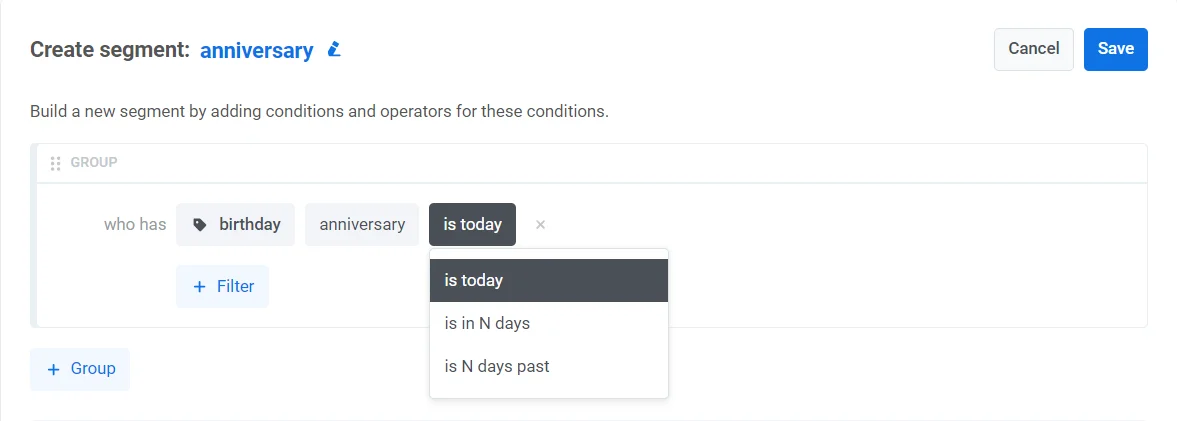 Configuring a segment to include users a certain number of days before or after the anniversary date allows for pre- or post-anniversary engagements.
4. Refine your segment further by adding more filters.
## Set up a daily campaign with the segment
Once you’ve created a segment, set up a recurring customer journey based on this segment:
1. Navigate to **Customer Journey Builder** in your Pushwoosh account and click **Create campaign**.
2. Drag the **Audience-based entry element** to the Journey canvas and select the segment you created earlier.
3. In the Audience-based entry element, set **Entry schedule** → **Recurring entry** → **Periodically** (e.g. every day). [Learn more](/product/customer-journey/journey-elements/entry-elements/audience-based-entry/#periodically)
## Example scenario: Pre-birthday promo
Imagine you want to send users a push notification with a birthday promo code three days before their birthday.
Here’s how to set it up:
1. Create a **Birthday tag** with a date tag in the **Tags** section of your Control Panel. This will store users' birthdays.
2. Then, navigate to the Segments section and click **Create Segment.**
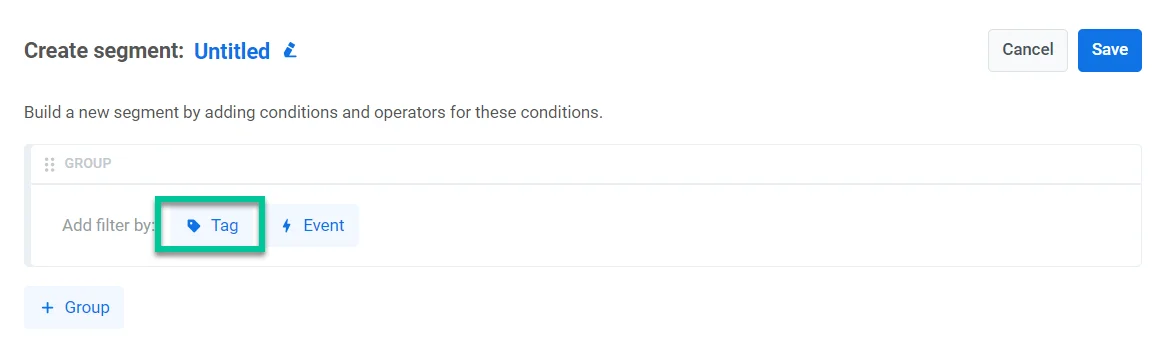
3. Click on the **Tag** icon and select the Birthday tag you’ve created.
Configuring a segment to include users a certain number of days before or after the anniversary date allows for pre- or post-anniversary engagements.
4. Refine your segment further by adding more filters.
## Set up a daily campaign with the segment
Once you’ve created a segment, set up a recurring customer journey based on this segment:
1. Navigate to **Customer Journey Builder** in your Pushwoosh account and click **Create campaign**.
2. Drag the **Audience-based entry element** to the Journey canvas and select the segment you created earlier.
3. In the Audience-based entry element, set **Entry schedule** → **Recurring entry** → **Periodically** (e.g. every day). [Learn more](/product/customer-journey/journey-elements/entry-elements/audience-based-entry/#periodically)
## Example scenario: Pre-birthday promo
Imagine you want to send users a push notification with a birthday promo code three days before their birthday.
Here’s how to set it up:
1. Create a **Birthday tag** with a date tag in the **Tags** section of your Control Panel. This will store users' birthdays.
2. Then, navigate to the Segments section and click **Create Segment.**
3. Click on the **Tag** icon and select the Birthday tag you’ve created.
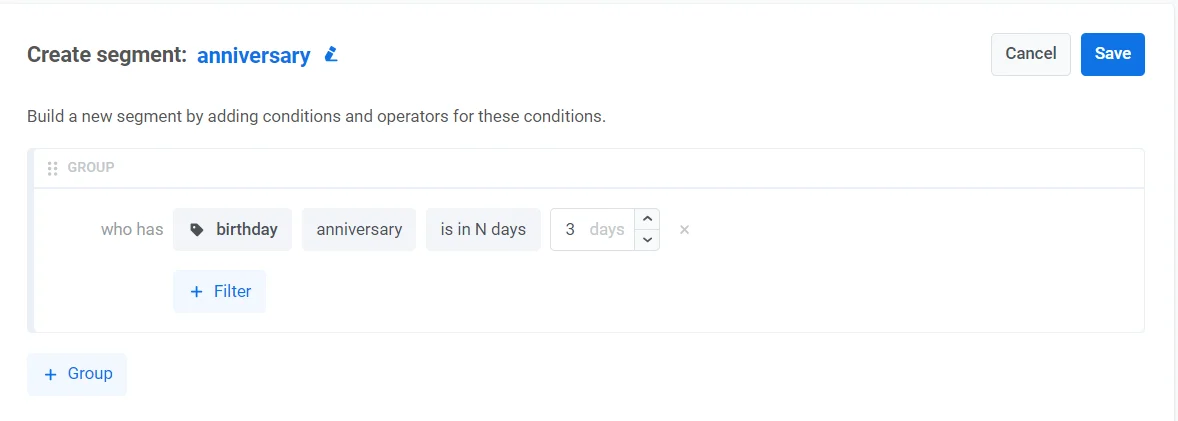
 4. Next, select the condition **anniversary** and set the date condition to **Is in N days - 3 days** to target users whose birthday is in three days.
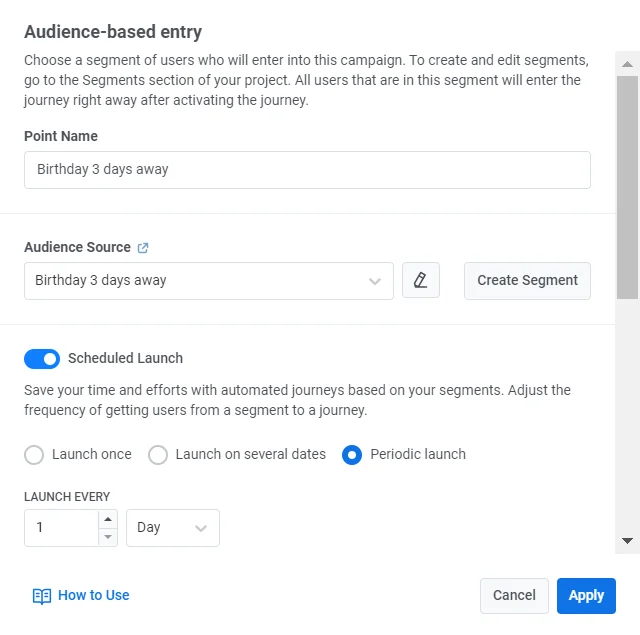
 5. In **Customer Journey Builder**, drag the Audience-based entry element to the canvas and choose the segment you’ve created.
6. Set **Entry schedule** → **Recurring entry** → **Periodically** and configure the journey to run every day (e.g. 11:00 in the subscriber’s timezone).
5. In **Customer Journey Builder**, drag the Audience-based entry element to the canvas and choose the segment you’ve created.
6. Set **Entry schedule** → **Recurring entry** → **Periodically** and configure the journey to run every day (e.g. 11:00 in the subscriber’s timezone).
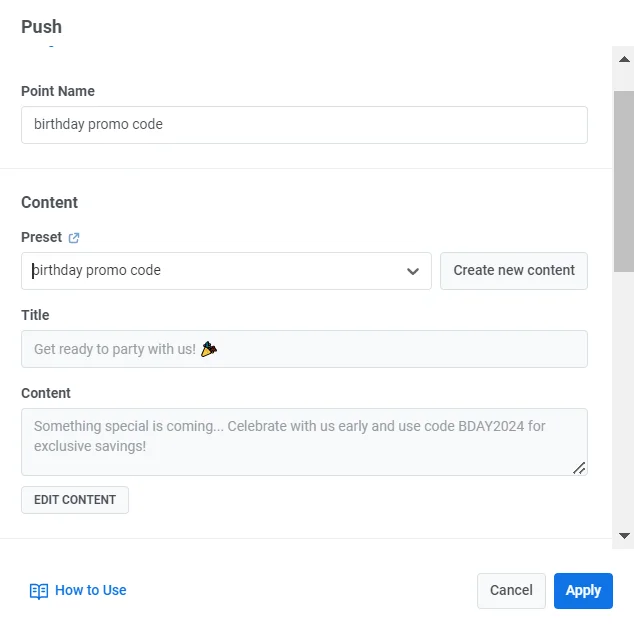
 7. Add a **Push** element to the canvas and craft a personalized message with a pre-birthday promo code, such as: “*Something special is coming... Celebrate with us early and use code BDAY2024 for exclusive savings\!”*
 8. Click **Launch campaign** to activate the journey.